X-Ray Forge
X-Ray Forge (XRF) is a collection of development projects for X-Ray 16 engine. It provides a TypeScript scripting layer and the tooling around it for building, testing, and maintaining mods.
What XRF includes
- A TypeScript rewrite of the OpenXRay scripting layer, compiled to Lua.
- Build-time tools for scripts, configs, UI forms, translations, and resources.
- A TypeScript SDK for the OpenXRay engine API.
- The XRF CLI for building projects and working with a local game installation.
- XRF Tools: a command-line toolset and a desktop development application.
- This book and the SDK API reference.
Start here
- Setting up or building an XRF project? Read Installation, then Building.
- Writing or changing scripts? Start with the Game scripting and Schemes.
- Looking for a command? See the XRF CLI or XRF Tools CLI.
- Working with game-data files? See XRF Tools.
- Investigating runtime behavior? Read X-Ray engine and Debugging.
Repositories
Core development
- XRF engine — TypeScript scripting layer, build pipeline, and CLI.
- X-Ray 16 TypeScript SDK — TypeScript API for OpenXRay.
- XRF tools — command-line tools and desktop application.
- XRF tools end-to-end tests — end-to-end tests for the XRF Tools CLI.
- XRF book — this documentation.
Distribution
- XRF binaries — packaged engine and tool binaries.
Resource packs
Installation
This guide prepares a local xrf-engine checkout, connects it to an installed game, and starts XRF.
Requirements
- Windows.
- Node.js and
npm. - Git with submodule support.
- An installed copy of S.T.A.L.K.E.R.: Call of Pripyat.
The CLI looks for Steam app 41700. For a non-Steam installation, set targets.stalker_game_fallback_path in
cli/config.json.
Set up the project
Clone the engine repository and install dependencies:
git clone https://github.com/xray-forge/xrf-engine.git
cd xrf-engine
npm install
npm run setup
npm run setup initializes the src/resources and cli/bin submodules used for assets, engines, and tools.
Verify and link the game
Run the project verification before linking:
npm run verify
Create development links for the game folder, target/gamedata, and logs:
npm run cli -- link
List the bundled engines and select one:
npm run cli -- engine list
npm run cli -- engine use release
engine rollback restores the original game executable.
Build and start
Build the gamedata output:
npm run build
Start the configured game executable:
npm run cli -- start_game
For faster testing, the start command can create or load a session directly:
npm run cli -- start_game --new --no-intro
npm run cli -- start_game --load quicksave
The build output is written to target/gamedata. Do not edit files there by hand; edit sources under src/engine and
rebuild.
Update submodules
Update submodules when resource or binary repositories change:
git submodule update --init --recursive
Use a local OpenXRay build
For a locally built OpenXRay executable, follow the OpenXRay Windows build guide, then configure or copy the executable
into the engine location used by the CLI. Use npm run cli -- engine info to inspect the currently selected engine.
XRF Engine
XRF is a TypeScript implementation of the Call of Pripyat script layer. The build compiles it to Lua and assembles
configs, UI XML, translations, and static resources into target/gamedata.
The engine repository also includes a local Node CLI for common modding tasks:
- building
target/gamedata; - linking the project to a local game installation;
- switching bundled OpenXRay engine binaries;
- verifying project data;
- packing mod or game distributions;
- formatting and checking generated data sources.
Source Layout
The main engine source is under src/engine:
scriptscontains TypeScript entry points that become Lua scripts.corecontains runtime systems, schemes, managers, objects, and utilities.configscontains static and generated LTX/XML config sources.formscontains JSX/XML UI form sources.translationscontains JSON and XML translation sources.extensionscontains optional gameplay modules.
Build output and generated artifacts go under target/.
Development model
Edit source files, then build. target/ is generated output; do not edit it by hand.
Building
Build XRF into target/gamedata before testing, linking, or packaging.
npm run build
npm run cli -- build
Targets
build runs every target by default:
scriptsexternsuiconfigstranslationsresources
By default, build runs all targets. Use --include for focused builds and --exclude to skip targets:
npm run cli -- build --include scripts configs
npm run cli -- build --include externs
npm run cli -- build --exclude resources
Options
-i, --include <targets...>: build only selected targets.-e, --exclude <targets...>: build all targets except selected targets.-v, --verbose: print verbose build logs.-l, --language <language>: build with a locale fromcli/config.json.-f, --filter <patterns...>: regular-expression filters for source paths.-c, --clean: removetarget/gamedatabefore building.--nl, --no-lua-logs: strip Lua logger calls from the compiled script output.--na, --no-asset-overrides: skip configured override and locale resource roots.--itz, --inject-tracy-zones: inject Tracy profiling zones into compiled scripts.
--filter requires an explicit --include; it cannot be used with the default all-target build.
What a full build does
When all targets run, the build performs these steps:
- optionally clean
target/gamedata; - compile TypeScript scripts to Lua;
- generate the extern manifest and copy it to
target/gamedata/extern.json; - render dynamic UI forms and copy static UI XML;
- render dynamic configs and copy static LTX/XML configs;
- build translations;
- copy static resources;
- write
metadata.json; - collect the build log.
Examples
npm run cli -- build
npm run cli -- build --clean
npm run cli -- build --include ui
npm run cli -- build --include externs
npm run cli -- build --include configs --filter system.ltx
npm run cli -- build --exclude resources
npm run cli -- build --no-lua-logs --inject-tracy-zones
Output
The command writes target/gamedata, target/gamedata/metadata.json, target/gamedata/extern.json, and
target/xrf_build.log. Change source files and rebuild rather than editing generated output.
Build Clean
build --clean removes the previous target/gamedata tree, then runs the selected targets.
Use a clean build when generated output may contain stale files, for example after deleting or renaming scripts, configs, forms, translations, or resources:
npm run cli -- build --clean
npm run cli -- build -c
It never changes src/engine, src/resources, or configured external resource repositories.
When to use it
Use a clean build after:
- deleting or renaming source files;
- changing build filters and wanting to remove output from previous filters;
- switching between resource sets or generated config layouts;
- preparing output before
compress,pack game, orpack mod.
Skip it during tight iteration when the selected step deterministically overwrites the file you changed.
Building Scripts
The scripts target compiles entry points in src/engine/scripts and their imports to Lua with TypeScriptToLua.
The output is written into target/gamedata as X-Ray script files. The generated bundle also includes
lualib_bundle.script, which provides helper functions emitted by TypeScriptToLua.
Build scripts
npm run cli -- build --include scripts
npm run cli -- build -i scripts
Use --no-lua-logs when you want compiled scripts without Lua logger calls:
npm run cli -- build -i scripts --no-lua-logs
Use --inject-tracy-zones when profiling with Tracy support:
npm run cli -- build -i scripts --inject-tracy-zones
Watch mode
Use watch mode during script development:
npm run watch:scripts
Additional script watch commands are available for optimized and Tracy-instrumented builds:
npm run watch:scripts-optimized
npm run watch:scripts-tracy
npm run watch:scripts-tracy-optimized
Type checking
Run TypeScriptToLua type checking without emitting files:
npm run typecheck
When script compilation reports diagnostics, use typecheck for a focused failure report.
Type Definitions
X-Ray engine APIs and supporting Lua typedefs come from the xray16 package. Supporting typedefs are installed under
node_modules/xray16/typedefs. Use the generated type documentation when checking engine class, method, and enum names:
Luabind classes
XRF uses custom TypeScriptToLua transforms for luabind-style classes. Classes that need engine-compatible luabind registration use project decorators and generated Lua class shapes instead of plain TypeScriptToLua metatable classes.
Building the extern manifest
Build externs after changing an extern(...) declaration or its JSDoc.
npm run cli -- build --include externs
Output
src/engine/declarations/extern.json— tracked contract.target/gamedata/extern.json— packaged sidecar for gamedata tools.
The game does not load either file. Do not edit them by hand. Manifest source paths are relative to the declarations root.
Check the tracked manifest
npm run cli -- verify externs
This compares declarations with the tracked manifest without writing. Regenerate when it reports drift.
Requirements
Missing or unrenderable callable types are emitted as unknown. Values need value as Type. The build fails for
duplicates, dynamic names, and unsupported declaration shapes.
Building UI
The UI target writes game UI XML to target/gamedata/configs/ui from src/engine/forms:
.tsand.tsxfiles that exportcreate()are rendered to.xmlwithrenderJsxToXmlText;- static
.xmlfiles are copied as-is; *.test.*files are ignored by the replication helper.
Build UI
npm run cli -- build --include ui
npm run cli -- build -i ui
Use a filter when you only need a subset of files:
npm run cli -- build -i ui --filter main_menu
Filters are regular-expression strings matched against source file paths.
Authoring forms
Dynamic forms use JSX-compatible TypeScript. The generated output is XML for the game engine, so form layout still has to respect X-Ray UI constraints such as absolute coordinates and parent-relative positioning.
Look at existing files in src/engine/forms before adding new forms. Reuse shared helpers and components where they
already exist.
Aspect ratios
X-Ray UI XML often has separate layout expectations for 16:9 and 4:3 modes. Keep generated forms compatible with the target screen mode and verify in game when changing layout-sensitive XML.
Building Configs
Build configs into target/gamedata/configs from src/engine/configs.
The target processes:
- dynamic
.tsfiles exportcreate()orconfigand render to.ltx; - dynamic
.tsxfiles exportcreate()and render to.xml; - static
.ltxand.xmlfiles are copied as-is; *.test.*files are ignored.
Build configs
npm run cli -- build --include configs
npm run cli -- build -i configs
Use filters for focused rebuilds:
npm run cli -- build -i configs --filter system.ltx
Filters are regular-expression strings matched against source file paths. The build command does not allow filters with
the implicit all target, so combine --filter with --include.
Source types
Dynamic LTX configs use structured TypeScript descriptors and renderJsonToLtx. This is useful when a config needs
shared constants, loops, generated sections, or tests.
Static LTX is still appropriate for simple files that do not need build-time logic.
Dynamic XML configs use JSX and renderJsxToXmlText. UI XML is separate: it is built from src/engine/forms.
Validation
Use the LTX verifier after config changes:
npm run cli -- verify ltx
Building Translations
The translations target writes game string tables to target/gamedata/configs/text from src/engine/translations
through the bundled XRF tools binary.
Build translations
npm run cli -- build --include translations
npm run cli -- build -i translations
Selecting a Language
The default locale is configured in cli/config.json as locale. The current default is ukr.
Override it for a build with --language:
npm run cli -- build --include translations --language eng
Supported locale keys are listed in cli/config.json under available_locales.
Locale Resource Packs
Resource packs for voice and localized assets are configured under resources.mod_assets_locales in cli/config.json.
When asset overrides are enabled, the resources build includes override folders plus the locale folders for the selected
language.
Sources
XRF uses JSON translation sources for generated multilingual output. Check them with
npm run cli -- verify translations; see Translations.
Building Resources
The resources target copies static game assets into target/gamedata.
The base resource root is configured in cli/config.json as resources.mod_assets_base_folder and points to
src/resources. Additional override and locale roots can be configured in the same file.
Build resources
npm run cli -- build --include resources
npm run cli -- build -i resources
Use filters for focused resource copies:
npm run cli -- build -i resources --filter textures
Filters are regular-expression strings matched against source file paths.
Incremental builds
Directory resources are compared before copy. Non-clean builds skip unchanged files.
Additional Assets
Clone configured resource repositories with:
npm run cli -- clone --list
npm run cli -- clone extended
npm run cli -- clone locale-ukr
The relevant configuration keys are:
resources.mod_assets_override_foldersfor general overrides;resources.mod_assets_localesfor locale-specific assets.
Disable override roots for a build with --no-asset-overrides:
npm run cli -- build --no-asset-overrides
Resource Links
CLI
The engine repository includes a local Node CLI. Run it from the repository root:
Use the npm wrapper:
npm run cli -- <command>
Common package scripts wrap frequently used commands:
npm run build
npm run verify
npm test
Package scripts
Run package scripts from the repository root with npm run <script>:
setup: initialize and update submodules.verify: runverify project.build: build scripts, configs, UI, translations, and resources.pack:mod: build a mod package.pack:game: build a game package.watch:scripts: rebuild scripts when TypeScript sources change.typecheck: run TypeScriptToLua type checking without emitting files.typecheck:tests: type-check test sources with TypeScript.lint: run ESLint with the full repository rule set.test: run Jest.test:coverage: run Jest coverage.format: rewrite Markdown, TypeScript, and LTX files using the configured formatters.help: print CLI help.
Commands
The CLI builds and packages the project, manages resources and engine binaries, links a local game, and handles common format, spawn, particle, and verification tasks. Each command has its own page:
| Command | Purpose |
|---|---|
build | Build target/gamedata. |
clone | Clone configured additional resource repositories. |
compress | Compress built gamedata into archives. |
engine | Inspect, switch, list, or roll back bundled engines. |
format | Format LTX files. |
sprites | Pack and unpack the equipment sprite and description sprites. |
link | Manage project links to the local game installation. |
lint | Run repository lint checks. |
logs | Print the last lines from the linked game log. |
open | Open configured game and project folders. |
pack | Create mod or game packages. |
particles | Pack or unpack particles.xr. |
parse | Parse directory trees or game externals. |
spawn | Unpack ALife spawn files. |
start | Start the configured game executable. |
test | Run the project test suites. |
verify | Run project, gamedata, LTX, particle, and translation verification. |
Use npm run cli -- <command> --help for current command-specific options.
Paths and output
Run commands from the repository root unless a page says otherwise. Most defaults are repository-relative and come from
cli/config.json.
Generated output belongs under target/: built gamedata, parsed helper files, coverage, packed archives, and package
output. Source edits belong under src/engine, src/resources, cli, or the relevant external resource repository.
Installed command
package.json exposes the binary name xrf, but local development should prefer npm run cli -- ... so the command
uses the repository version and local dependencies.
If the package is installed globally, the equivalent shape is:
xrf build
xrf verify project
Configuration
Most CLI defaults live in cli/config.json: locale, resource roots, build source paths, target paths, compression
tools, package roots, and game executable settings.
When a command cannot find the game, resources, or generated output, check the command page first and then inspect the
matching config key in cli/config.json. See CLI Configuration.
CLI Configuration
The engine CLI reads project defaults from cli/config.json.
This file controls:
- default locale and supported locale keys;
- base, override, and locale resource roots;
- source paths for configs, scripts, translations, extensions, and UI forms;
targetoutput path;- compression and helper binary paths;
- default package engine and root package assets;
- game executable and fallback game path.
Locale
locale is the default language used by builds. available_locales defines the accepted locale keys.
Override the locale for a build with:
npm run cli -- build --language eng
Locale-specific resource roots are configured in resources.mod_assets_locales.
Resources
resources.mod_assets_base_folder points to the base resources folder. In the engine repo this is src/resources.
resources.mod_assets_override_folders lists additional asset roots. resources.mod_assets_locales maps locale keys to
locale resource roots. These roots are included by the resources build unless --no-asset-overrides is passed.
Build Paths
The build section maps source folders:
configs->src/engine/configsscripts->src/engine/scriptstranslations->src/engine/translationsextensions->src/engine/extensionsui->src/engine/forms
Generated output goes under target/gamedata.
Game path
The targets section contains the Steam app id, fallback game path, and executable name. Set
stalker_game_fallback_path when the CLI cannot locate a non-Steam installation.
Build
build compiles and copies XRF source assets into target/gamedata. Use it before linking the project into a game
installation, packaging a mod, or validating generated configs/scripts.
npm run cli -- build
What it builds
| Target | Source | Output |
|---|---|---|
scripts | src/engine/scripts | Lua .script files in target/gamedata/scripts and related output folders. |
externs | src/engine/declarations | src/engine/declarations/extern.json and target/gamedata/extern.json. |
ui | src/engine/forms plus static UI XML | UI XML under target/gamedata/configs/ui. |
configs | src/engine/configs | Static and generated config files under target/gamedata/configs. |
translations | src/engine/translations | XML string tables under target/gamedata/configs/text. |
resources | configured resource roots | Static assets copied into target/gamedata. |
target/gamedata/extern.json is metadata for gamedata tools; the game runtime does not load it. The build also writes
target/gamedata/metadata.json and stores the build log in target/xrf_build.log.
Options
-i, --include <targets...>: build only selected targets. Choices arescripts,externs,ui,configs,translations, andresources.-e, --exclude <targets...>: skip selected targets. This conflicts with--include.-f, --filter <targets...>: filter copied/generated files by regular-expression strings. Use it only with a specific included target, not with the defaultalltarget set.-l, --language <language>: use a locale fromcli/config.json. The default isukr.-c, --clean: removetarget/gamedatabefore building.--nl, --no-lua-logs: strip Lua logger calls from the compiled script output.--na, --no-asset-overrides: skip configured override and locale resource roots when copying resources.--itz, --inject-tracy-zones: inject Tracy profiling zones while compiling scripts.-v, --verbose: print verbose build logs.
Examples
npm run cli -- build --clean
npm run cli -- build --include scripts configs
npm run cli -- build --include externs
npm run cli -- build --include configs --filter system.ltx
npm run cli -- build --exclude resources
npm run cli -- build --include scripts --no-lua-logs
Failure notes
- Unsupported locales fail before asset copying starts.
--filterwith the defaultallinclude set fails; choose a concrete target first.- TypeScriptToLua diagnostics fail the script build. Run
npm run typecheckfor a focused error list.
Clone
clone downloads optional resource repositories configured in cli/config.json. The command clones into the parent
folder of the engine repository, next to xrf-engine.
npm run cli -- clone <repository>
Repository names
Use --list to print the configured names:
npm run cli -- clone --list
Current configured names include:
extended: full base gamedata assets for custom game packages;locale-eng: English locale resources;locale-ukr: Ukrainian locale resources;locale-rus: Russian locale resources.
Options
-l, --list: print configured repository names and exit.-v, --verbose: print verbose logs.-f, --force: remove an existing target folder before cloning.-s, --safe: treat an already cloned target folder as success.
--force and --safe conflict with each other.
Examples
npm run cli -- clone extended
npm run cli -- clone locale-ukr --safe
npm run cli -- clone extended --force
Failure notes
The command fails when the repository name is missing, not configured, or already cloned without --safe or --force.
It runs git clone, so network and credentials errors come from Git.
Compress
compress packs built target/gamedata content into database archives with xrf-cli pack-archive. Use it after
build when you need DB archives for a game package.
npm run cli -- compress
Targets
Compression target definitions live in cli/compress/configs/compress.json.
| Target | Packed content |
|---|---|
configs | configs, spawns, anims, and ai. |
levels | levels. |
resources | textures and meshes. |
shaders | shader-related .xr files and the shaders folder. |
sounds | sounds, stored without compression. |
Output archives are written under target/db as <target>.dbN.
Options
-i, --include <targets...>: compress selected targets. Defaults toall.-c, --clean: removetarget/dbbefore writing archives.-v, --verbose: print packing output.
Examples
npm run cli -- build --clean
npm run cli -- compress --clean
npm run cli -- compress --include configs shaders
Inputs and output
The command reads built files from target/gamedata and writes database archives under target/db. It does not build
missing gamedata by itself, so run build first when source files changed.
Use --include for fast package checks when only one archive group changed. Use --clean before producing a package
that should not contain stale archives from a previous target set.
Failure notes
target/gamedata must exist. If compression target names are wrong, the command prints the valid names from the
compression config.
Engine
engine manages bundled OpenXRay engine binaries under cli/bin/engines. It switches the game installation’s bin
folder to a selected bundled engine by creating a junction.
npm run cli -- engine <command>
Commands
| Command | Purpose |
|---|---|
engine list | Print available bundled engine names. |
engine info | Print whether the active game bin folder is linked and whether a backup exists. |
engine use <engine> | Switch the configured game installation to a bundled engine. |
engine rollback | Restore the backed-up original bin folder. |
Examples
npm run cli -- engine list
npm run cli -- engine use release
npm run cli -- engine info
npm run cli -- engine rollback
How switching works
When engine use <engine> sees an unlinked game bin folder, it renames it to the XRF backup path and then links the
selected bundled engine. When the current bin is already linked, it removes the old link and creates a new one.
engine rollback only restores the backup when a backup folder exists and the current bin folder is an XRF-linked
engine with bin.json.
Related commands
pack game --engine <type> selects a bundled engine for package output without switching the local game installation.
Format
format contains project-specific formatting commands. The current CLI subcommand formats LTX config sources with the
same formatter used by validation tooling.
npm run cli -- format ltx
Options
-c, --check: check formatting without rewriting LTX files.-v, --verbose: print verbose formatter logs.
Examples
npm run cli -- format ltx
npm run cli -- format ltx --check
Inputs and output
format ltx reads LTX config sources from the repository and either rewrites them or reports formatting differences
when --check is set. It is useful before verify ltx because it normalizes layout without changing config meaning.
Run the check form in review or CI-style validation. Run the writing form when you intentionally want the formatter to update files.
Package script difference
The package script is broader:
npm run format
It runs Prettier for JavaScript, TypeScript, TSX, and Markdown, then ESLint fix, then npm run cli -- format ltx. Use
the CLI command when you only want LTX formatting.
Link
link, unlink, and relink connect the build output and game folders used during local development.
npm run cli -- link
What gets linked
| Link | Source | Destination |
|---|---|---|
| Game link | configured game root | target/game_link |
| Gamedata link | target/gamedata | configured game gamedata folder |
| Logs link | configured game logs folder | target/logs_link |
Game paths come from Steam detection or the fallback values in cli/config.json.
Commands
link: create the game, gamedata, and logs links.unlink: remove the gamedata link, logs link, and game link.relink: rununlink, thenlink.
link and relink support -f, --force to remove existing link targets first. Use it carefully: if a real game
gamedata folder exists, --force removes it before creating the link.
Examples
npm run cli -- build --clean
npm run cli -- link
npm run cli -- relink --force
npm run cli -- unlink
Failure notes
If linking fails, verify the configured game path, executable name, and Steam installation detection. verify project
checks the same paths.
Lint
Linting is exposed through package scripts, not a Commander subcommand. Use it for TypeScript, TSX, and CLI source checks. The default command applies the full repository rule set, including unused import and local variable checks.
npm run lint
Commands
| Script | Purpose |
|---|---|
npm run lint | Run ESLint with the full repository rule set. |
The command stores its cache under target/eslint/cache.json.
Examples
npm run lint
npm run lint -- --fix
Inputs and output
Lint reads TypeScript, TSX, and JavaScript sources from the repository and reports rule violations to the terminal. It reuses the ESLint cache, so repeated runs after small edits are faster than a cold run.
Related checks
Use npm run typecheck for TypeScriptToLua script type checks and npm run typecheck:tests for test TypeScript checks.
Use npm test for Jest.
Logs
logs prints the tail of the active engine log from the configured game logs folder.
npm run cli -- logs
npm run cli -- logs 100
Behavior
The optional argument is the number of lines to print. Invalid values fall back to 15, and the command caps output at
200 lines.
The command detects the log file from the configured game paths:
- when
bin/bin.jsonexists, it expectsopenxray_<username>.log; - otherwise it expects
xray_<username>.log.
It reads from the real game logs folder. If you ran link, the same folder is also reachable through
target/logs_link.
Examples
npm run cli -- logs
npm run cli -- logs 50
npm run cli -- logs 500
The last example still prints at most 200 lines.
When to use it
Use logs after start_game or a manual game launch to inspect the newest script/runtime messages without navigating
to the game logs folder. It is the fastest check after a crash during startup, a failed script reload, or a missing file
reported by the engine.
For longer inspection, open the linked logs folder or the real game logs directory and use an editor that can follow file updates.
Failure notes
If no active log is found, start the game once, check the configured game path, or run npm run cli -- link to create
the logs link for easier inspection.
Open
Open commands launch the system file explorer for common project and game folders.
npm run cli -- open_game_folder
npm run cli -- open_project_folder
Commands
| Command | Opens |
|---|---|
open_game_folder | The configured or detected S.T.A.L.K.E.R. game root. |
open_project_folder | The xrf-engine repository root. |
open_game_folder uses the same game path resolution as link, logs, start_game, and verify project.
open_project_folder uses the repository root detected from the CLI process location.
Examples
npm run cli -- open_game_folder
npm run cli -- open_project_folder
When to use it
Use open_game_folder when checking linked gamedata, engine logs, or installed game binaries after build and
link. Use open_project_folder when a script or tool printed a project-relative path and you want to inspect the
source tree from Explorer.
These commands do not build, link, or verify files. They only open the resolved folders.
Failure notes
If the game folder does not open, check cli/config.json under targets or run npm run cli -- verify project to see
which path is being resolved.
Pack
pack creates distributable mod or game folders from the project.
npm run cli -- pack <type>
<type> must be mod or game.
Output
| Type | Output folder | Contents |
|---|---|---|
mod | target/mod_package | gamedata, and optionally bundled engine binaries. |
game | target/game_package | engine bin, root assets, gamedata, and optionally compressed db archives. |
Options
--nb, --no-build: package already built assets without runningbuild.--nc, --no-compress: for game packages, skip archive compression and copy allgamedata.--na, --no-asset-overrides: pass through to build and skip override/locale resource roots.-e, --engine <type>: use a bundled engine fromcli/bin/engines.--se, --skip-engine: do not include engine binaries. This is allowed formodpackages and rejected forgame.-o, --optimize: build scripts without Lua logs.-v, --verbose: print verbose logs.-c, --clean: remove the package output folder first.
Examples
npm run cli -- pack mod --clean
npm run cli -- pack mod --skip-engine --no-build
npm run cli -- pack game --clean --optimize
npm run cli -- pack game --engine release
npm run pack:mod
npm run pack:game
Failure notes
Game packages require a valid bundled engine. Compressed game packages also require successful build and compression
steps, because target/db is copied into the package.
Particles
particles wraps the external XRF tools binary for packing and unpacking particles.xr.
npm run cli -- particles <command>
Commands
| Command | Default input | Default output |
|---|---|---|
particles unpack | src/resources/particles.xr | src/resources/particles_unpacked |
particles pack | src/resources/particles_unpacked | src/resources/particles.xr |
Options
Both subcommands support:
-p, --path <path>: source file or source directory.-d, --dest <dest>: output file or output directory.-v, --verbose: print verbose logs.-f, --force: remove an existing output before writing.
Examples
npm run cli -- particles unpack
npm run cli -- particles unpack --force
npm run cli -- particles pack
npm run cli -- particles pack --path src/resources/particles_unpacked --dest src/resources/particles.xr
Workflow
Unpack first when you need to inspect or edit particle definitions as files. Pack after edits to rebuild particles.xr
for resources or packaging. Use --force when replacing a previous unpacked folder or packed output.
The command delegates to the bundled XRF tools binary. If you need lower-level particle conversion commands outside the engine repository defaults, use the Tools CLI particle commands directly.
Related verification
npm run cli -- verify particles-packed
npm run cli -- verify particles-unpacked
Parse
parse contains utility commands that generate JSON or HTML support files under target/parsed.
npm run cli -- parse <command>
Commands
| Command | Purpose | Output |
|---|---|---|
parse dir_as_json <path> | Flatten a directory tree into a JSON object keyed by normalized file names. | target/parsed/<folder>.json |
dir_as_json resolves <path> relative to the repository root.
Options
parse dir_as_json supports:
-e, --no-extension: omit file extensions in JSON values.
Examples
npm run cli -- parse dir_as_json src/resources/textures
npm run cli -- parse dir_as_json src/resources/textures --no-extension
Output usage
Use dir_as_json when another script needs a compact index of files under a resource folder. The command writes
generated support data under target/parsed, so treat the result as disposable build output.
Use xrf-cli externs export when checking the script declaration surface exposed by conditions, effects, and dialogs.
Failure notes
dir_as_json requires a path argument.
Spawn
spawn contains ALife spawn file utilities. The engine CLI currently exposes the unpack workflow.
npm run cli -- spawn unpack
Defaults
| Field | Default |
|---|---|
| Source | src/resources/spawns/all.spawn |
| Destination | target/all_spawn |
The command delegates to cli/bin/tools/xrf-cli spawn unpack.
Options
-p, --path <path>: source spawn file path.-d, --dest <dest>: output directory.-v, --verbose: print verbose logs.-f, --force: remove an existing unpacked destination before writing.
Examples
npm run cli -- spawn unpack
npm run cli -- spawn unpack --force
npm run cli -- spawn unpack --path src/resources/spawns/all.spawn --dest target/all_spawn
Output
The output directory contains the unpacked spawn representation produced by the XRF tools CLI. The engine wrapper is intended for inspection and verification workflows in this repository; it does not expose pack or repack commands.
Keep generated unpack output under target/ unless you are intentionally preparing source data for another tool.
Failure notes
The source spawn file must exist. Use the Tools CLI spawn commands when you need lower-level spawn info, pack, repack, or verification operations.
Sprites
sprites wraps sprite tooling from cli/bin/tools/xrf-cli. It packs and unpacks the equipment sprite and the UI
texture description sprites using project paths from cli/config.json.
npm run cli -- sprites <command>
Commands
| Command | Reads | Writes |
|---|---|---|
sprites unpack-equipment | src/resources/textures/ui/ui_icon_equipment.dds and src/engine/configs/system.ltx | src/resources/textures_unpacked/ui/ui_icon_equipment |
sprites pack-equipment | unpacked equipment icons and system.ltx | src/resources/textures/ui/ui_icon_equipment.dds |
sprites unpack-description | UI texture descriptions and packed textures | src/resources/textures_unpacked |
sprites pack-description | UI texture descriptions and unpacked textures | src/resources/textures |
Options
All sprite commands support:
-v, --verbose: print verbose logs.-s, --strict: enable strict mode.
Description commands also support:
-d, --description <name>: process one file undersrc/engine/forms/textures_descr.
Examples
npm run cli -- sprites unpack-equipment
npm run cli -- sprites pack-equipment --strict
npm run cli -- sprites unpack-description --description ui_actor.xml
npm run cli -- sprites pack-description --description ui_actor.xml
Workflow
Unpack before editing a sprite’s icons or checking generated sprite coordinates. Pack after editing the unpacked files
or texture descriptions. Use --description when working on a single UI texture description file instead of the whole
description set.
Equipment commands are tied to the equipment sprite. Description commands are tied to XML texture description files
under src/engine/forms/textures_descr.
Failure notes
Equipment commands depend on valid system.ltx icon coordinates. Description commands depend on XML description names
and matching source textures.
Start
start_game starts the configured game executable.
npm run cli -- start_game
The executable path is resolved from the same game-path logic used by link, open_game_folder, logs, and
verify project. Configuration lives in cli/config.json under targets:
stalker_game_steam_id: Steam app id used for automatic detection;stalker_game_fallback_path: fallback game folder when Steam detection is not enough;stalker_app_path: executable name inside the game folder.
Typical workflow
npm run cli -- build --clean
npm run cli -- link
npm run cli -- start_game
Inputs and output
The command reads the configured game target and launches the executable from that folder. It does not rebuild scripts, copy gamedata, or wait for the engine process to finish.
Use it after build and link when you want to test the currently linked project output. Use logs after the game
starts if you need the script engine error output.
Failure notes
If the process does not start, run npm run cli -- verify project and check the resolved game folder and executable.
The command starts the executable asynchronously, so later runtime errors are written to the engine log rather than to
the CLI process.
Test
Tests are run through package scripts rather than a Commander subcommand. The project uses Jest with the config at
cli/test/jest.config.ts.
npm test
Common commands
| Command | Purpose |
|---|---|
npm test | Run the Jest suite. |
npm test -- <path-or-pattern> | Run focused tests. |
npm run test:coverage | Run Jest with coverage output. |
npm run typecheck | Run TypeScriptToLua type checking without emitting scripts. |
npm run typecheck:tests | Type-check test sources with TypeScript. |
Coverage output is written under target/coverage_report.
Examples
npm test
npm test -- src/engine/scripts/register.test.ts
npm run test:coverage
npm run typecheck
npm run typecheck:tests
Notes
Runtime tests use fixtures and mocks under src/fixtures for X-Ray APIs, Lua behavior, engine helpers, and CLI
utilities. Use focused Jest paths first when changing a specific manager, scheme, binder, or CLI helper.
The typecheck commands do not execute tests. They catch TypeScript and TypeScriptToLua issues that can pass Jest when a
mocked runtime path is not exercised. For gameplay logic changes, run the focused Jest test and npm run typecheck
before broader validation.
Verify
verify validates project setup and generated data.
npm run cli -- verify <command>
npm run verify runs verify project.
Commands
| Command | Checks |
|---|---|
verify project | Project setup and links. |
verify gamedata | Assembled target/gamedata. |
verify externs | Tracked extern manifest. |
verify ltx | LTX structure and $scheme values. |
verify particles-packed | Packed particles.xr. |
verify particles-unpacked | Unpacked particle files. |
verify translations | Project translation dictionaries. |
Options
verify gamedata -c, --checks <checks...>: run only the listed checks instead of all of them.verify gamedata -r, --report <report>: write the structured verification report as JSON.verify gamedata -v, --verbose: print verbose external-tool logs.verify gamedata -s, --strict: fully validate expensive asset payloads, including complete sound decoding.verify ltx -v, --verbose: print verbose external-tool logs.- Particle verification commands support
-v, --verbose. verify translations -l, --language <locale>: check one locale instead of all of them.verify translations -s, --strict: also fail on missing entries instead of only listing them.verify translations -v, --verbose: print verbose external-tool logs.
Selecting checks
A full run validates everything and is slow. When iterating on one kind of asset, narrow it:
npm run cli -- verify gamedata --checks meshes weapons animations
Available checks: animations, environment, levels, ltx, materials, meshes, particles, particles-usage,
scripts, shaders, sounds, spawns, textures, weapons. Unknown names are rejected before the tool runs.
Structured report
--report writes the findings as JSON instead of leaving them only in the log. Because the format is stable, a report
from a known-good build can be kept as a baseline and later runs compared against it, which is more reliable than
reading console output when a change is expected to alter some findings but not others.
npm run cli -- verify gamedata --checks weapons --report target/verify-weapons.json
Examples
npm run cli -- verify externs
npm run cli -- verify gamedata --verbose
npm run cli -- verify translations --language ukr --strict
Build gamedata before verify gamedata. verify externs does not write files. Regenerate a stale manifest with
npm run cli -- build --include externs.
Failure notes
verify project reports setup problems without failing. Other checks fail on invalid data or tool errors.
verify translations reads src/engine/translations, not built gamedata. It fails on what the game would refuse or
show wrong, and on missing entries only with --strict.
Extensions
Extensions are optional modules discovered in gamedata/extensions. They keep gameplay changes separate from the core
script layer.
At game startup, XRF scans folders containing main.script, restores their saved order and enabled state, and registers
enabled modules.
Extension Entry Point
Each extension has its own folder under extensions and an entry file named main.script after build output.
An extension module can export:
register(isNewGame, extension): called when the extension is enabled; this is required for a usable module.unregister(isNewGame, extension): optional cleanup hook called when the extension is disabled.save(data): optional hook for extension dynamic data.load(data): optional hook for restoring extension dynamic data.
The TypeScript sources for built-in extensions live under src/engine/extensions.
State and ordering
Loaded extensions are stored in the runtime registry by name. The load order and enabled state are saved to
extensions_order.scopo in the game saves folder.
The main menu can reorder extensions and toggle those that opt in with canToggle.
Built-In Extensions
The current engine source includes these extension folders:
| Source folder | Extension name | Default state |
|---|---|---|
achievements_rewards | Achievement rewards | enabled |
enhanced_items_drop | Enhanced items drop (with upgrades) | disabled |
enhanced_location_progression | Enhanced location progression | enabled |
enhanced_treasures | Enhanced treasures | enabled |
original_start_position | Original start position | disabled |
The built-in modules are useful references when adding an extension:
- Achievement rewards
- Enhanced items drop
- Enhanced location progression
- Enhanced treasures
- Original start position
Config Files
Extensions can open extension-local LTX files through the extension utilities. main.ltx is the default relative file
name when no file name is provided.
Scope
XRF supports discovery, ordering, enablement, registry registration, and save/load hooks. It does not currently define extension dependencies, packaging metadata, or extension-specific build steps.
Achievement Rewards
Achievement rewards periodically fills two actor reward boxes after the relevant achievements are earned.
The source lives under src/engine/extensions/achievements_rewards.
Default state
The extension exports:
export const name = "Achievement rewards";
export const enabled = true;
It is enabled by default unless saved extension state overrides it.
Behavior
On registration, the extension subscribes to EGameEvent.ACTOR_UPDATE.
Each actor update checks these info portions:
detective_achievement_gained;mutant_hunter_achievement_gained.
When the configured period has elapsed, it spawns reward items into the configured actor treasure box and emits a tip notification.
Rewards
The reward period is 12 * 60 * 60 game seconds.
Reward targets:
| Achievement | Story box | Items |
|---|---|---|
| Detective | zat_a2_actor_treasure | medkit and antirads |
| Mutant hunter | jup_b202_actor_treasure | armor-piercing ammo and shells |
The spawn count is fixed in the update code: detective rewards spawn with count 4, and mutant hunter rewards spawn
with count 5.
Saved data
The extension persists two timestamps in dynamic extension data:
lastDetectiveAchievementSpawnAt;lastMutantAchievementSpawnAt.
The timestamps are serialized through the time helpers and restored on extension load.
Tuning
- Keep reward timing in
AchievementRewardsConfig.ts. - Keep achievement checks in
update.ts. - Add save/load fields when adding a new persistent reward timer.
- Keep notification captions aligned with translation ids.
Enhanced Items Drop
Enhanced items drop (with upgrades) can add random upgrades to weapons, outfits, and helmets when they first go
online.
The source lives under src/engine/extensions/enhanced_items_drop.
Default state
The extension exports:
export const name = "Enhanced items drop (with upgrades)";
export const enabled = false;
It is disabled by default. Saved extension state can enable it.
Behavior
On registration, the extension subscribes to:
ITEM_WEAPON_GO_ONLINE_FIRST_TIME;ITEM_OUTFIT_GO_ONLINE_FIRST_TIME;ITEM_HELMET_GO_ONLINE_FIRST_TIME.
For each item, onItemGoOnlineFirstTime reads the owner id. Actor-owned items are skipped.
The extension then calculates a random chance and applies a different rate depending on whether the item belongs to:
- a trader;
- another owner;
- the world.
If the chance passes one of the configured thresholds, the extension calls addRandomUpgrades.
Upgrade Tiers
The default config lives in EnhancedDropConfig.ts.
| Tier | Chance | Upgrade count |
|---|---|---|
| Common | 20 | 1 |
| Rare | 12 | 3 |
| Epic | 6 | 7 |
| Legendary | 1 | 30 |
The final upgrade count includes random dispersion from ADD_RANDOM_DISPERSION.
Saved data
This extension does not export save or load. It changes items when first-online item events are emitted.
Editing Notes
- Keep chance and count tuning in
EnhancedDropConfig.ts. - Keep item filtering in
enhanced_items_drop_utils.ts. - Do not apply this extension to actor-owned starting items unless that behavior is intentional.
Enhanced Location Progression
Enhanced location progression requires a smart terrain to be visited before it appears on the map or can be selected
as a same-level travel target.
The source lives under src/engine/extensions/enhanced_location_progression.
Default state
The extension exports:
export const name = "Enhanced location progression";
export const enabled = true;
It is enabled by default unless saved extension state overrides it.
Behavior
On registration, the extension sets:
mapDisplayConfig.REQUIRE_SMART_TERRAIN_VISIT = true;
This flag is checked by map display and travel code.
Map Spots
updateTerrainsMapSpotDisplay shows global terrain spots only when:
REQUIRE_SMART_TERRAIN_VISITis disabled; or- the actor has the
"<terrain>_visited"info portion.
Restrictor lifecycle code gives visited info portions when the actor reaches the matching restrictor.
Travel
isTravelRouteAvailable from the travel manager utils rejects smart terrain travel targets on the current level when
REQUIRE_SMART_TERRAIN_VISIT is enabled and the terrain has not been visited.
Saved data
This extension does not export save or load. It changes runtime config during extension registration.
Editing Notes
- Keep the progression toggle in
main.ts. - Check map and travel behavior together when changing this flag.
- Preserve visited info portion naming because other code checks
"<terrain>_visited".
Enhanced Treasures
Enhanced treasures uses a treasure’s type to choose its map icon.
The source lives under src/engine/extensions/enhanced_treasures.
Default state
The extension exports:
export const name = "Enhanced treasures";
export const enabled = true;
It is enabled by default unless saved extension state overrides it.
Behavior
On registration, the extension sets:
treasureConfig.ENHANCED_MODE_ENABLED = true;
The treasure map helper uses this flag when choosing the map spot icon for a treasure descriptor.
Map Spots
When enhanced mode is disabled, every treasure uses the generic treasure map mark.
When enhanced mode is enabled, getTreasureMapSpot maps treasure type to mark:
| Treasure type | Map mark |
|---|---|
COMMON | treasure |
RARE | treasure_rare |
EPIC | treasure_epic |
UNIQUE | treasure_unique |
Treasure state itself is still owned by TreasureManager and treasureConfig.TREASURES.
Saved data
This extension does not export save or load. Treasure manager state is saved by TreasureManager.
Editing Notes
- Keep the extension toggle in
main.ts. - Keep treasure type-to-icon behavior in
map_spot_treasure.ts. - Keep treasure state changes in
TreasureManager, not in this extension.
Original Start Position
Original start position changes the actor’s initial vertex and position for a new game.
The source lives under src/engine/extensions/original_start_position.
Default state
The extension exports:
export const name = "Original start position";
export const enabled = false;
It is disabled by default. Saved extension state can enable it.
Behavior
The extension receives isNewGame from the extension registration flow.
When isNewGame is true, it calls:
set_start_game_vertex_id(287);
set_start_position(createVector(268, 20, 560));
When isNewGame is false, it does nothing. This prevents loaded saves from having their actor position changed.
Saved data
This extension does not export save or load.
Editing Notes
- Keep the
isNewGameguard. - Use engine start-position APIs only during new-game startup.
- Update tests if the vertex id or vector changes.
- Check the extension registration state when the code looks correct but the actor still starts elsewhere.
XRF Tools
xrf-tools is the XRF companion workspace. It contains reusable Rust format crates, a CLI, and a Tauri desktop
application.
Use it for tasks that are awkward to do by hand:
- reading and unpacking X-Ray archives;
- verifying and formatting LTX configs;
- converting and checking translations;
- inspecting script exports;
- packing and unpacking equipment icons and texture descriptions;
- inspecting or converting spawn, particles, OGF, and OMF data.
Repository layout
crates/: reusable Rust crates for X-Ray formats and project validation.bin/xrf-cli: command-line tool.bin/xrf-app: Tauri backend for the desktop application: the application itself (app), the infrastructure its tools share (core), and one crate per tool area (plugins).bin/xrf-app/ui: React frontend for the desktop application.
The engine repository uses a bundled tools binary from cli/bin for some build and asset operations.
Choose an interface
Use the CLI when the command must be repeatable, run in CI, or become part of an engine build step. Examples include LTX verification, translation builds, archive unpacking, spawn conversion, and texture packing.
Use the desktop app when you need to inspect structured project data with navigation: archives, configs, dialogs, exports, icons, spawns, and translations. Some app routes are read-only or prototype workflows; the application itself is the authority on what each tool currently supports.
Implementation source
Tool behavior comes from the tools workspace, not from the book text:
- CLI commands:
xrf-tools/bin/xrf-cli/src/commands; - desktop backend commands:
xrf-tools/bin/xrf-app/pluginsandxrf-tools/bin/xrf-app/core; - desktop frontend routes:
xrf-tools/bin/xrf-app/ui/src/applications; - reusable format logic:
xrf-tools/crates.
Tools Application
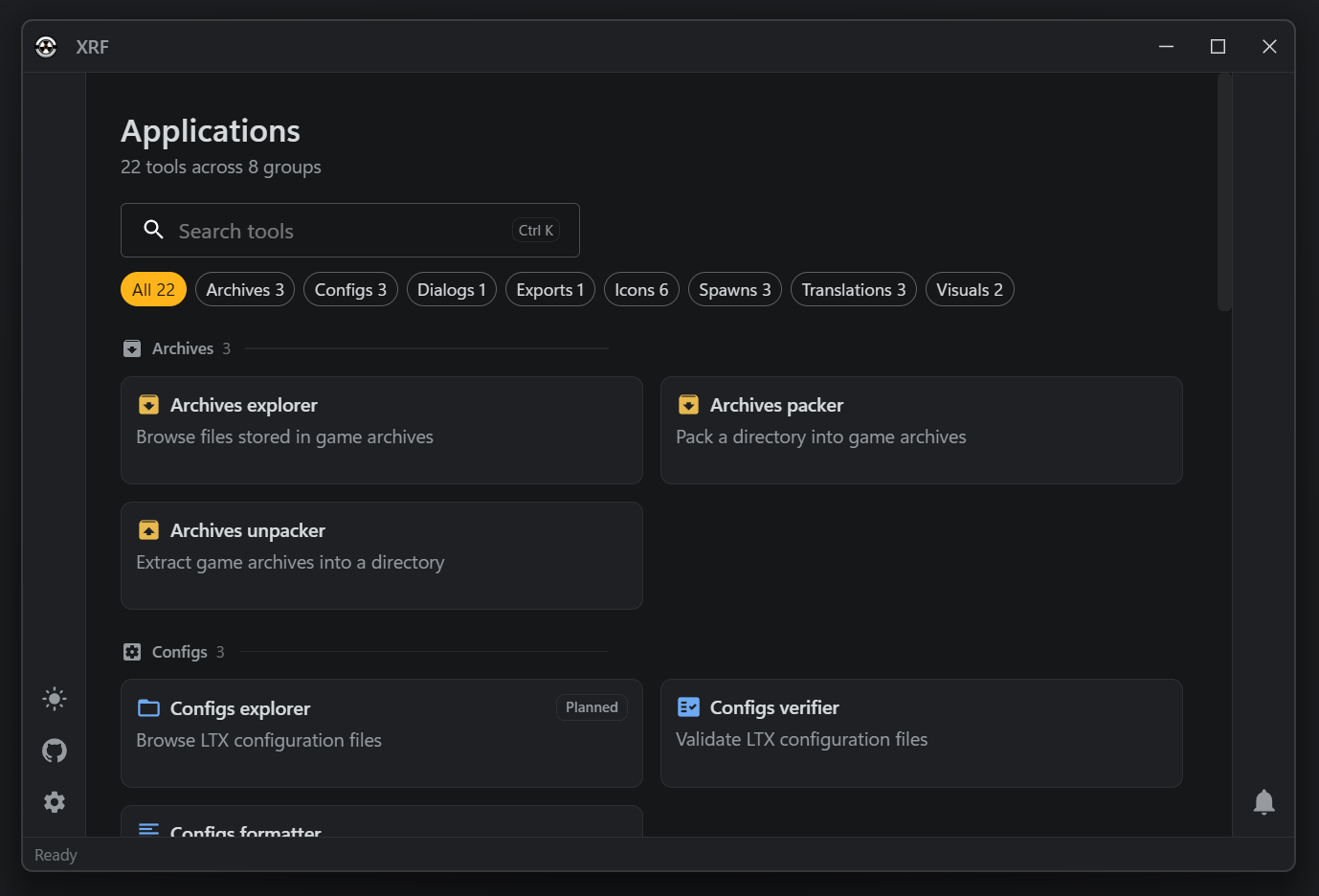
The XRF tools application is a Tauri desktop app with a Rust backend and a React UI. Use it for interactive inspection and one-off data operations; use the Tools CLI when the task must be repeatable, scripted, or run in CI.
It groups its work into editors for archives, configs, dialogs, script exports, equipment icons, spawns, and translations. Which screens and actions each one currently offers changes with the application, so the application is the authority on that, not this book. Some routes are read-only or prototype workflows, and several write files — packing, unpacking, formatting, and saving spawn data all overwrite their targets.
Keep a backup before writing over game data.
Source
xrf-tools/bin/xrf-app: Tauri backend plugins and commands;xrf-tools/bin/xrf-app/ui: React routes, pages, stores, and components;xrf-tools/crates/*: reusable parsers, verifiers, packers, and project readers.
Tools CLI
The Rust xrf-cli binary inspects, converts, packs, and verifies X-Ray assets. Use it directly for asset workflows and
automation; the engine repository’s npm run cli -- ... wrapper exposes selected operations.
Commands have a group and an operation. To inspect a command’s accepted arguments:
xrf-cli archive pack --help
Examples in this chapter assume xrf-cli is on PATH. Relative paths resolve from the current directory; each workflow
identifies its input layout. Output blocks show demo runs; paths, counts, and timings depend on the input and machine.
Command groups
Reporting
| Option | Effect |
|---|---|
-s, --silent | Suppress ordinary logging; a failed run still reports failure. |
-v, --verbose | Include command-specific detail. |
--json | Write one JSON report to stdout and human output to stderr. |
--report <PATH> | Write the same JSON report to a file; human output stays enabled. |
--silent conflicts with --verbose; --json conflicts with --report. Rust logging also honors RUST_LOG.
Prefer a report file for large verification runs. Capture the exit code immediately after the command, then read the
fields needed for the decision. From a project containing target/gamedata:
xrf-cli gamedata verify --path ./target/gamedata --report ./verification-report.json 2>$null
$verificationExit = $LASTEXITCODE
$report = Get-Content ./verification-report.json -Raw | ConvertFrom-Json
$report.result.status
$verificationExit
Use --json when a consumer needs a stdout pipe. Neither report mode limits the number of findings.
The report is an envelope around a command-specific result:
| Field | Meaning |
|---|---|
build | Binary version, kind, commit, dirty state, profile, and CI run identity when available. |
command | Group and operation names. |
duration | Total duration in whole milliseconds. |
execution | Worker count. |
exitCode | Command exit code, which is the verdict. |
error | Failure details, present only when the command could not do its job (exit 1). |
result | The command’s structured answer, absent when the command produced none. |
Verification commands share one shape inside result: an overall status and a checks list. Each check is
{ id, status, duration, findings }, and each finding is { ruleId, subject, message }. A check’s duration is null
when the check did not time itself. A command adds its own fields beside them, such as a census of what it read. The
commands using this shape are gamedata verify, translation verify, ogf verify, level verify, dialog info,
archive verify, particle verify, spawn verify, sprite verify-equipment, externs export --check, and
omf repack --verify.
A failed check still reports its findings. Argument parsing failures occur before command execution and do not produce an envelope. If writing the report fails, the process exits 1; an existing report at that path may belong to an earlier run. Check the process result and report freshness before using a saved answer.
Keep build and execution when comparing reports: different binaries or worker counts can explain different results
and timings.
Execution
Commands that support parallel work accept -j, --jobs:
| Value | Meaning |
|---|---|
auto | Use the machine’s available parallelism; the default. |
| A positive count | Use that many workers. 1 runs sequentially. |
| A percentage | Use that share of available parallelism, rounded down with a minimum of one worker. |
xrf-cli gamedata verify --path ./target/gamedata -j 50%
Commands without parallel work do not accept --jobs.
Exit codes
| Code | Meaning |
|---|---|
| 0 | The command succeeded. |
| 1 | Execution failed or verification could not reach a complete verdict. |
| 2 | The invocation was rejected before the command ran. |
| 3 | A check ran and judged its input invalid. |
A command’s --strict behavior is specific to that command. Consult its guide before treating every strict failure as
exit 3; refused writes and execution errors still use exit 1.
Command reference
Each group page combines authored workflow guidance with reference generated from the command definitions. Correct option descriptions in the source command, then follow the reference-generation workflow.
Archive CLI
Archive commands package gamedata into X-Ray .db or .xdb volumes, inspect their contents, and extract or verify
stored files. Use pack for a full distribution and pack-patch for added or modified files relative to an
installation.
Packing examples run from a project containing target/gamedata. Inspection and unpacking examples use a db directory
in the current working directory. Source paths and output destinations are separate.
Pack an archive
Pack the assembled tree, then verify the written volumes:
xrf-cli archive pack --path target\gamedata --dest target\db --name gamedata
xrf-cli archive verify --path target\db
Example output excerpt — pack an archive:
Packed 29 file(s) into 1 volume(s) in 23 ms
Phases: 10 ms collecting, 13 ms writing, 0 ms finalizing
Summary: 14 compressed, 15 stored, 0 aliased, 0 skipped
Size: 2.37 MB source, 2.37 MB written
Speed: 103 MB/s
Exit code: 0.
The command compresses file types the engine normally compresses and stores the rest. It writes one volume as
gamedata.db; when the archive needs more than one volume, it writes gamedata.db0, gamedata.db1, and so on. Write
volumes beside the source, as target\db sits beside target\gamedata here: a destination inside the source is
refused, because the next run would pack those volumes as source files. Volume files already in a source, such as
old.db0 or patch.xdb, are skipped unless --no-skip-list is given.
By default, a volume can be up to 1900 MB and receives a header that mounts its contents at $fs_root$\gamedata\. That
is the usual setting for a gamedata archive. To add or change one entry, name it:
xrf-cli archive pack --path target\gamedata --dest target\db --name gamedata `
  --header 'creator="Modder"' --header 'link="www.moddb.com/mods/my-mod"'
Each --header value is key=value, merged over the default header, so naming creator keeps auto_load and
entry_point. level_name, level_ver, creator, and link are the entries mod templates conventionally carry; they
are yours to set and the engine ignores them.
The engine requires auto_load and entry_point; a volume missing either can stop the game on load. Packing validates
the effective header before writing, including values supplied through a configuration file.
Choose what to pack
Without selection options, the command packs the whole --path directory. Use a configuration file when the selection
is shared or checked in; use command-line options for a one-off build. They cannot be combined.
An .ltx configuration uses the xrCompress dialect:
[options]
exclude_exts = *.txt,*.json

[include_folders]
configs = true
scripts = true

[include_files]
gamemtl.xr

[header]
auto_load = true
entry_point = $fs_root$\gamedata\
xrf-cli archive pack --path target\gamedata --dest target\db --name gamedata --config pack.ltx
In [include_folders] and [exclude_folders], true applies to the directory and everything below it; false applies
only to the named directory. Use .\ for the packed root. An .ltx or .json configuration may contain selection
rules and a header only. Source path, destination, volume name, and run options remain on the command line.
A JSON configuration for the same selection looks like this:
{
  "excludeExtensions": ["*.txt", "*.json"],
  "includeFiles": ["gamemtl.xr"],
  "includeDirectories": [
    { "path": "configs", "isRecursive": true },
    { "path": "scripts", "isRecursive": true }
  ],
  "header": [
    { "key": "auto_load", "value": "true" },
    { "key": "entry_point", "value": "$fs_root$\\gamedata\\" }
  ]
}
xrf-cli archive pack --path target\gamedata --dest target\db --name gamedata --config pack.json
For a direct selection, repeat the relevant option:
xrf-cli archive pack --path target\gamedata --dest target\db --name configs `
  --include-directory configs --include-directory spawns --include-file gamemtl.xr `
  --exclude-extension '*.txt'
--include-directory-shallow includes a directory’s files but not the files in its child directories.
--exclude-directory-shallow excludes the named directory only; its contents can still be packed. All paths are
relative to the source.
Common packing options
- Use
--storeto store every file without compression. - Use
--max-size <MB>to choose a volume cap from 1 through 1900 MB.--oversized-volumespermits a larger cap only for an engine fork that supports it. - Use
--xdbto create.xdbvolumes. - Use
--no-skip-listto retain editor and source leftovers that the normal engine-build skip list excludes. - Use
--verboseto see every selected, skipped, stored, compressed, and deduplicated file while packing.
Performance compared with xrCompress
These are median results from interleaved runs of both tools on the same machine and source tree. xrCompress -fast
uses the compression mode that matches archive pack; the xrCompress default trades time for a smaller archive. Each
time/RAM value is wall-clock seconds and peak resident memory in megabytes.
| Input | archive pack time / peak RAM (s / MB) | xrCompress -fast time / peak RAM (s / MB) |
|---|---|---|
| 1,657 config files, 9.89 MB | 0.22 s / 11 MB | 0.57 s / 99 MB |
| 4,206 Anomaly configs and scripts, 35 MB | 0.86 s / 13 MB | 0.97 s / 101 MB |
| 1,017 mesh files, 275 MB | 0.17 s / 28 MB | 1.07 s / 115 MB |
| Vanilla gamedata, 36,925 files, 4.69 GB | 4.6 s / 180 MB | 16.8 s / 275 MB |
For inputs that contain compressible files, these are the resulting archive sizes:
| Input | archive pack | xrCompress -fast | xrCompress |
|---|---|---|---|
| 1,657 config files, 9.89 MB | 2.00 MB | 2.49 MB | 1.93 MB |
| Anomaly configs and scripts, 35 MB | 8.57 MB | 10.63 MB | 8.26 MB |
In these comparisons, archives packed from the same source by either tool unpacked to byte-identical files.
Replace an existing archive
Packing refuses to overwrite volumes with the same name. Add --force only when replacing that set is intended:
xrf-cli archive pack --path target\gamedata --dest target\db --name gamedata --force
--force replaces volumes as it writes and cannot restore the previous set after a partial failure. It also does not
prune higher-numbered volumes left by a larger previous build. Prefer a fresh output directory, verify its complete set,
then replace the old distribution. A non-forced failed run removes the volumes it created.
Build a patch
archive pack-patch creates .db volumes containing added and modified files. To package edits from a game’s loose
gamedata\, point --path at the installation:
xrf-cli archive pack-patch --path 'C:\Games\Anomaly' --dest target\patch --name mypatch
Without --target, the command compares the installation’s archives with its loose files. Unchanged copies are omitted,
and archived files absent from gamedata\ remain untouched. The installation must contain archives and loose files to
compare.
Write outside the input and target trees; destinations inside either are refused. Copy the resulting volumes to a
directory mounted after the base archives in fsgame.ltx, usually db\patches\.
Loose files in the player’s gamedata\ take priority over patch archives. Distribute loose replacements when those
files need updating.
A patch cannot remove a base file: archive registration can replace an entry but has no deletion marker. Removing content requires replacing or removing it from the installed base distribution.
Deliver a tree of your own
Use --target to deliver files from a separate folder:
xrf-cli archive pack-patch --path 'C:\Games\Anomaly' --target C:\work\mymod\gamedata `
  --dest target\patch --name mypatch
For a loose target, name the gamedata directory itself, with paths such as configs\ and textures\ directly inside
it. Naming its parent adds an unwanted gamedata\ prefix to archive entries.
Preview before writing
Use --dry-run to compare without writing volumes. Add --report to save every changed entry:
xrf-cli archive pack-patch --path 'C:\Games\Anomaly' --dry-run --report patch-preview.json
The size shown is the total unpacked payload; the final archive size is known only after writing.
--include configslimits both sides to a logical prefix.--ignore configs\debugexcludes a prefix, even when included.--exclude-extension '*.txt'excludes matching file extensions.--verify-payloadreads and compares both payloads when their sizes and checksums match.
The three filter options are repeatable.
Inspect or extract files
For info, list, find, extract, and verify, --path may name one volume or a directory. A volume reads only
that file; a directory reads all .db and .xdb volumes below it as one merged archive set.
# Check the number of volumes, entries, and their sizes.
xrf-cli archive info --path .\db

# List file paths, or search their names without unpacking.
xrf-cli archive list --path .\db --files
xrf-cli archive find --path .\db --query wpn_ak74 --files

# Extract one logical file, or an entire logical directory.
xrf-cli archive extract --path .\db --file textures\wpn\wpn_ak74.dds --dest .\ak74.dds
xrf-cli archive extract --path .\db --directory configs --dest .\extracted-configs
list --verbose and find --verbose show a file’s sizes and source volume. If identical files share one stored
payload, they also name the other paths that read those bytes.
Unpack an archive
Unpack a complete volume set by giving its containing directory:
xrf-cli archive unpack --path .\db --dest .\unpacked
The archive’s mount prefix is retained beneath the destination. An archive packed with the default gamedata header
therefore writes files under unpacked/gamedata, rather than directly under unpacked.
To unpack one volume by itself, pass the volume path instead. --dry-run opens the archive and prints its summary
without writing files. Use -j to control the worker count, for example -j 8 or -j 50%.
xrf-cli archive unpack --path .\db\configs.db --dest .\unpacked\configs --dry-run
A dry run’s report is the summary it printed: archives, files, directories (directory records, which a real run
creates as folders), sizeCompressed and sizeReal in bytes, source, destination, and isDryRun.
Use a new or empty destination directory. Existing files can otherwise be replaced while the archive is unpacked.
Unpacking speed and memory
These results use the same measurement method. The default run uses the available worker count; -j 1 is the
single-worker comparison.
| Archive | archive unpack time / peak RAM (s / MB) | -j 1 time / peak RAM (s / MB) |
|---|---|---|
| Vanilla configs, 1,657 files, 2.00 MB | 0.20 s / 12 MB | 0.40 s / 10 MB |
| Vanilla gamedata, 36,925 files, 4.48 GB | 6.1 s / 28 MB | 12.3 s / 21 MB |
Verify an archive
Verify every file after packing or copying an archive:
xrf-cli archive verify --path .\db
Example output — verify an archive:
Verified 29 file(s) in 29 ms
Exit code: 0.
The command reads every payload, checks decompression, and validates its CRC. It reports damaged files as failures; use
--report archive-verify.json to save the findings. Successful archive verification establishes payload integrity; run
gamedata verification to check the files’ formats and references in their installed context.
Command reference
xrf-cli archive extract
Extract one archive file or directory without unpacking the complete set
xrf-cli archive extract [OPTIONS] --path <path> --dest <dest>
| Option | Required | Default | Description |
|---|---|---|---|
-p, --path <path> | yes | Path to an archive volume or a directory containing volumes | |
--file <file> | Exact logical path of one archive file; –dest is the output file | ||
--directory <directory> | Logical directory to extract; –dest receives that directory’s contents | ||
-d, --dest <dest> | yes | Output file for –file, or output directory for –directory | |
-j, --jobs <JOBS> | auto | How much of the machine to use: ‘auto’, a worker count, or a share such as ‘50%’ | |
--refuse-links | Refuse to write through links or junctions already below the destination, instead of following them | ||
-s, --silent | Turn off logging | ||
-v, --verbose | Turn on verbose logging | ||
--json | Write the run’s JSON report to stdout, moving human output to stderr | ||
--report <PATH> | Write the run’s JSON report to a file |
xrf-cli archive find
Find archive entries whose logical path contains text
xrf-cli archive find [OPTIONS] --path <path> --query <query>
| Option | Required | Default | Description |
|---|---|---|---|
-p, --path <path> | yes | Path to an archive volume or a directory containing volumes | |
-q, --query <query> | yes | Case-insensitive text to find in an entry’s logical path | |
--files | Search files only, excluding directory records | ||
--directories | Search directory records only, excluding files | ||
-s, --silent | Turn off logging | ||
-v, --verbose | Turn on verbose logging | ||
--json | Write the run’s JSON report to stdout, moving human output to stderr | ||
--report <PATH> | Write the run’s JSON report to a file |
xrf-cli archive info
Describe an X-Ray archive volume or volume set
xrf-cli archive info [OPTIONS] --path <path>
| Option | Required | Default | Description |
|---|---|---|---|
-p, --path <path> | yes | Path to an archive volume or a directory containing volumes | |
-s, --silent | Turn off logging | ||
-v, --verbose | Turn on verbose logging | ||
--json | Write the run’s JSON report to stdout, moving human output to stderr | ||
--report <PATH> | Write the run’s JSON report to a file |
xrf-cli archive list
List the merged entries in an X-Ray archive volume or volume set
xrf-cli archive list [OPTIONS] --path <path>
| Option | Required | Default | Description |
|---|---|---|---|
-p, --path <path> | yes | Path to an archive volume or a directory containing volumes | |
--files | List files only, excluding directory records | ||
--directories | List directory records only, excluding files | ||
-s, --silent | Turn off logging | ||
-v, --verbose | Turn on verbose logging | ||
--json | Write the run’s JSON report to stdout, moving human output to stderr | ||
--report <PATH> | Write the run’s JSON report to a file |
xrf-cli archive pack
Pack a directory into *.db archive volumes
xrf-cli archive pack [OPTIONS] --path <path>
| Option | Required | Default | Description |
|---|---|---|---|
-p, --path <path> | yes | Directory to pack, normally a gamedata root | |
--config <config> | Path to a packing configuration describing what to include, as *.ltx or *.json | ||
--include-file <include-file>... | File to pack, named relative to the source, repeatable | ||
--include-directory <include-directory>... | Directory to pack with everything below it, relative to the source, repeatable | ||
--include-directory-shallow <include-directory-shallow>... | Directory whose own files are packed while its subdirectories only get listed, repeatable | ||
--exclude-directory <exclude-directory>... | Directory to leave out along with everything below it, repeatable | ||
--exclude-directory-shallow <exclude-directory-shallow>... | Directory to leave out while its contents still pack, repeatable | ||
--exclude-extension <exclude-extension>... | Extension pattern that keeps a file out, such as *.txt, repeatable | ||
--no-skip-list | Keep editor and source leftovers the engine build normally drops | ||
-d, --dest <dest> | packed | Folder the volumes are written to | |
-n, --name <name> | gamedata | Base name of the volumes, written as <name>.db0, <name>.db1 and so on | |
--header <header>... | Header entry written into the archive as <key>=<value>, repeatable, merged over the default header | ||
--store | Store every file instead of compressing what the engine expects compressed | ||
--max-size <max-size> | Maximum volume size in megabytes, from 1 to 1900 | ||
--oversized-volumes | Let –max-size exceed 1900 MB, which only an engine fork that raised XRP_MAX_SIZE can mount | ||
--xdb | Write volumes with the xdb extension | ||
-f, --force | Replace volumes of the same set the destination already holds | ||
-s, --silent | Turn off logging | ||
-v, --verbose | Turn on verbose logging | ||
--json | Write the run’s JSON report to stdout, moving human output to stderr | ||
--report <PATH> | Write the run’s JSON report to a file |
xrf-cli archive pack-patch
Pack what a gamedata tree changes about an installation into overriding *.db archive volumes
xrf-cli archive pack-patch [OPTIONS] --path <path>
| Option | Required | Default | Description |
|---|---|---|---|
-p, --path <path> | yes | What to patch: an installation, a directory of volumes, or a gamedata tree | |
--target <target> | Tree the patch delivers; omit to use the loose gamedata of the input itself | ||
--dry-run | Report the difference and write no volumes | ||
--config <config> | Path to a patching configuration describing the comparison scope and header, as *.ltx or *.json | ||
--include <include>... | Logical prefix the comparison is restricted to, such as configs, repeatable | ||
--ignore <ignore>... | Logical prefix dropped from the comparison, repeatable | ||
--exclude-extension <exclude-extension>... | Extension pattern that keeps a file out of the comparison, such as *.txt, repeatable | ||
--verify-payload | Confirm every checksum match by comparing the payloads themselves | ||
-d, --dest <dest> | packed | Folder the volumes are written to | |
-n, --name <name> | patch | Base name of the volumes, written as <name>.db0, <name>.db1 and so on | |
--header <header>... | Header entry written into the archive as <key>=<value>, repeatable, merged over the default header | ||
--store | Store every file instead of compressing what the engine expects compressed | ||
--max-size <max-size> | Maximum volume size in megabytes, from 1 to 1900 | ||
--oversized-volumes | Let –max-size exceed 1900 MB, which only an engine fork that raised XRP_MAX_SIZE can mount | ||
--xdb | Write volumes with the xdb extension | ||
-f, --force | Replace volumes of the same set the destination already holds | ||
-s, --silent | Turn off logging | ||
-v, --verbose | Turn on verbose logging | ||
--json | Write the run’s JSON report to stdout, moving human output to stderr | ||
--report <PATH> | Write the run’s JSON report to a file |
xrf-cli archive unpack
Unpack an archive into separate files
xrf-cli archive unpack [OPTIONS] --path <path>
| Option | Required | Default | Description |
|---|---|---|---|
-p, --path <path> | yes | Path to the *.db archive | |
-d, --dest <dest> | unpacked | Folder to unpack into | |
--dry-run | Report what would be unpacked without writing anything | ||
-j, --jobs <JOBS> | auto | How much of the machine to use: ‘auto’, a worker count, or a share such as ‘50%’ | |
--refuse-links | Refuse to write through links or junctions already below the destination, instead of following them | ||
-s, --silent | Turn off logging | ||
-v, --verbose | Turn on verbose logging | ||
--json | Write the run’s JSON report to stdout, moving human output to stderr | ||
--report <PATH> | Write the run’s JSON report to a file |
xrf-cli archive verify
Read every archive payload and verify decompression and CRC checks
xrf-cli archive verify [OPTIONS] --path <path>
| Option | Required | Default | Description |
|---|---|---|---|
-p, --path <path> | yes | Path to an archive volume or a directory containing volumes | |
-s, --silent | Turn off logging | ||
-v, --verbose | Turn on verbose logging | ||
--json | Write the run’s JSON report to stdout, moving human output to stderr | ||
--report <PATH> | Write the run’s JSON report to a file |
DDS CLI
DDS commands inspect textures, crop regions, convert image formats, and generate X-Ray bump maps. Use sprite commands when a config or XML description defines a whole sheet, and THM commands to change a texture’s bump declaration.
Examples use paths relative to a gamedata or texture-working directory. Output commands write the named files; choose separate output paths when keeping the originals.
DDS inspection
xrf-cli dds info --path ./textures/ui/ui_icon_equipment.dds
Example output — inspect a DDS sheet:
Read dds file ./gamedata/textures/ui/ui_test_sheet.dds
File size: 16512 (16.1 KB)
Metadata size: 128
Data size: 16384 (16 KB)
Size: 256 x 64
Mipmap: 1 - 16
Linear size: 16384
Block size: 16
D3D format: DXT5
Exit code: 0.
The report includes dimensions, mipmaps, file and pixel-data sizes, compression, block size, bits per pixel, and known FourCC or D3D/DXGI formats. Pitch or linear size is included when present. Inspect these fields before selecting an output format or diagnosing a texture that the renderer cannot load.
Region cropping
Crop a single icon when its source sheet has no compatible inventory config:
xrf-cli dds crop --path ./textures/ui/ui_icon_equipment.dds --dest ./wpn_ak74.png `
  --x 1000 --y 0 --width 250 --height 100
Example output — crop a region:
Wrote 16x16 region from 0:0 of ./gamedata/textures/ui/ui_test_sheet.dds to ./height.png
Exit code: 0.
Coordinates and dimensions are pixels, measured from the top left. The source must contain the entire rectangle; out-of-bounds regions are rejected.
A .png destination preserves the decoded pixels without another lossy encode. Any other destination extension selects
BC3 DDS. Prefer PNG for subsequent packing; sprite pack-equipment selects <section>.png before <section>.dds.
Fitting into different bounds
Supply both fit dimensions to resize the crop into a fixed output rectangle:
xrf-cli dds crop --path ./ui_actor_weapons.dds --dest ./upgrade_ak74.png --x 0 --y 400 `
  --width 300 --height 100 --fit-width 295 --fit-height 110
Fitting preserves aspect ratio and centers the image on a transparent canvas. A crop already matching the requested bounds is unchanged. Equipment packing uses the same fitting behavior; description packing instead requires exact dimensions, so fit those icons before packing.
Convert a texture
Re-encode an existing DDS texture in an explicit format:
xrf-cli dds convert --path ./source.dds --dest ./texture.dds --format bc3
xrf-cli dds info --path ./texture.dds
Example output — convert a DDS texture:
Converted ./gamedata/textures/ui/ui_test_sheet.dds to ./converted.dds as BC3 (DXT5), 9 levels, 22032 bytes
Exit code: 0.
--format is one of bc1, bc2, bc3, rgba8, and bc7. Choose a format supported by the target renderer and
appropriate for the texture’s alpha and quality requirements.
Conversion decodes the base image and rebuilds its mip chain. Use --no-mipmaps to write only the base level.
--mip-filter selects the reduction filter, defaulting to kaiser; --quality trades encoding time for fidelity,
defaulting to slow.
Add --compare to encode the other formats in memory and report their size and distortion alongside the selected
format. Only the selected format is written. Review the resulting texture visually as well as inspecting its metadata;
numerical error alone does not establish acceptable appearance.
Generate a bump pair
From a working directory containing a height image, generate the two DDS files used by an X-Ray bumped surface:
xrf-cli dds make-bump --path ./height.png --dest ./textures/tile/wall --gloss-constant 0.5
Example output — generate a bump pair:
Generated .\wall_bump.dds and .\wall_bump#.dds from ./height.png
Exit code: 0.
The destination is a base path without an extension or _bump suffix. This example writes textures/tile/wall_bump.dds
and textures/tile/wall_bump#.dds.
Normals are derived from the average of the input’s color channels, and the height stored in _bump#.dds is read from
its red channel, as the SDK does. Gloss is a constant between 0 and 1 by default. Pass --gloss-alpha to read it from
the height image’s own alpha, the way the SDK’s bump sources carry it, or --gloss for a separate gloss-mask image. An
optional --normal-map supplies normals instead of deriving them from height; its dimensions must match the height
image. --virtual-height controls relief depth, defaulting to 0.05.
Bump generation uses the box mip filter by default. A warning about very dark gloss indicates little specular
response; the files are still written because a matte surface may be intentional.
Bump declarations
Generating or moving a bump texture does not update its descriptor. Follow the THM bump-declaration workflow to connect an existing descriptor to the new path, then verify the assembled texture set.
Command reference
xrf-cli dds convert
Re-encode a DDS file into another format, with its mip chain rebuilt
xrf-cli dds convert [OPTIONS] --path <path> --dest <dest> --format <format>
| Option | Required | Default | Description |
|---|---|---|---|
-p, --path <path> | yes | Path of the dds file to read | |
-d, --dest <dest> | yes | Path of the dds file to write | |
--format <format> | yes | Format to write, of the five worth offering for an X-Ray texture. Possible values: bc1, bc2, bc3, rgba8, bc7. | |
--mip-filter <mip-filter> | kaiser | Kernel the mip chain is reduced with, from the X-Ray converter’s own family. Possible values: point, box, triangle, quadratic, cubic, catrom, mitchell, gaussian, sinc, bessel, hanning, hamming, blackman, kaiser. | |
--quality <quality> | slow | How hard the encoder works; slow costs seconds on BC7 and pennies on the rest. Possible values: fast, normal, slow. | |
--no-mipmaps | Write only the base level, for a texture the engine never minifies | ||
--compare | Also report what every other candidate format would have cost, which is four more encodes | ||
-s, --silent | Turn off logging | ||
-v, --verbose | Turn on verbose logging | ||
--json | Write the run’s JSON report to stdout, moving human output to stderr | ||
--report <PATH> | Write the run’s JSON report to a file |
xrf-cli dds crop
Crop a rectangular region out of a DDS file into a new DDS file
xrf-cli dds crop [OPTIONS] --path <path> --dest <dest> --x <x> --y <y> --width <width> --height <height>
| Option | Required | Default | Description |
|---|---|---|---|
-p, --path <path> | yes | Path to the dds file to read the region from | |
-d, --dest <dest> | yes | Path of the dds file to write | |
--x <x> | yes | Left edge of the region, in pixels | |
--y <y> | yes | Top edge of the region, in pixels | |
--width <width> | yes | Width of the region, in pixels | |
--height <height> | yes | Height of the region, in pixels | |
--fit-width <fit-width> | Scale the cropped region to this width, preserving aspect and letterboxing | ||
--fit-height <fit-height> | Scale the cropped region to this height, preserving aspect and letterboxing | ||
-s, --silent | Turn off logging | ||
-v, --verbose | Turn on verbose logging | ||
--json | Write the run’s JSON report to stdout, moving human output to stderr | ||
--report <PATH> | Write the run’s JSON report to a file |
xrf-cli dds info
Print what a DDS file holds
xrf-cli dds info [OPTIONS] --path <path>
| Option | Required | Default | Description |
|---|---|---|---|
-p, --path <path> | yes | Path to dds file | |
-s, --silent | Turn off logging | ||
-v, --verbose | Turn on verbose logging | ||
--json | Write the run’s JSON report to stdout, moving human output to stderr | ||
--report <PATH> | Write the run’s JSON report to a file |
xrf-cli dds make-bump
Generate the _bump and _bump# pair a bumped surface binds, from a height map
xrf-cli dds make-bump [OPTIONS] --path <path> --dest <dest>
| Option | Required | Default | Description |
|---|---|---|---|
-p, --path <path> | yes | Path of the height map the relief is read from, averaged across its colour channels | |
-d, --dest <dest> | yes | Path of the texture the pair belongs to, without the _bump suffix or an extension | |
--gloss-alpha | Read the gloss from the height map’s own alpha, where the SDK’s bump source carries it | ||
--gloss <gloss> | Path of a gloss mask, averaged across its colour channels | ||
--gloss-constant <gloss-constant> | One gloss level for the whole surface, from 0 to 1, for a texture with no mask | ||
--normal-map <normal-map> | Path of a normal map to use instead of deriving one from the height, of the same size | ||
--mip-filter <mip-filter> | box | Kernel the mip chain is reduced with, from the X-Ray converter’s own family. Possible values: point, box, triangle, quadratic, cubic, catrom, mitchell, gaussian, sinc, bessel, hanning, hamming, blackman, kaiser. | |
--quality <quality> | slow | How hard the encoder works; slow costs seconds on BC7 and pennies on the rest. Possible values: fast, normal, slow. | |
--virtual-height <virtual-height> | 0.05 | Relief depth the normals are derived at, bump_virtual_height of the descriptor | |
-s, --silent | Turn off logging | ||
-v, --verbose | Turn on verbose logging | ||
--json | Write the run’s JSON report to stdout, moving human output to stderr | ||
--report <PATH> | Write the run’s JSON report to a file |
Dialog CLI
dialog info checks dialog XML structure and summarizes the dialog graph. Use it after changing phrases or links, or to
inspect an imported dialog set. dialog list lists dialogs, or the ones an NPC offers, dialog inspect explains one
dialog phrase by phrase, and dialog find shows where dialogs use an info portion or a script function. See
dialog configuration for authoring rules.
Inspect a dialog set
From a project containing an assembled gamedata directory:
xrf-cli dialog info --path ./gamedata --source directory --strict --report ./dialog-report.json
Example output excerpt — inspect dialogs:
Reading dialogs in ./gamedata (directory)
Swept 2 files in 7 ms, 0 unreadable, 0 archived
Dialogs: 4 total, 1 with no phrases, 1 with a priority
Phrases: 8 total, 5 links, 3 final, 2 without text, 0 outside a phrase list
Largest dialog: zat_test_trader_start with 4 phrases
Encodings: UTF-8: 1, windows-1251: 1
Dialog elements: dont_has_info: 1, has_info: 1, init_func: 1, precondition: 1
Exit code: 0. The summary ends with “Read 2 files, status: failed”. Exit 0 records a completed inspection; add
–strict to fail on its finding.
--source directory selects the loose tree explicitly. The default, containing-installation, can discover the game
installation around the supplied path. Repeat --path for layered roots, with the highest-priority root first;
--prefix narrows the virtual path scope.
The summary covers files, dialogs, phrases, and links, including empty dialogs, final phrases, missing text, and phrases
outside a phrase list. Use --verbose for individual findings or inspect result in the saved report.
Interpret the result
Without --strict, completed inspection can return exit 0 even when it finds invalid dialogs. With --strict, those
findings produce exit 3. An error, incomplete inspection, or skipped input produces exit 1, including when no dialog
files were selected.
These checks establish structural consistency. Review the conversation in game to verify its conditions, scripting, and intended flow.
List the dialogs an NPC offers
xrf-cli dialog list --path ./gamedata --source directory --profile zat_b33_stalker_snag --language eng
Example output — Snag, in the xrf build:
zat_b33_stalker_snag_about_cache_dialog (configs\gameplay\dialogs_zaton.xml, 17 phrases, start of zat_b33_stalker_snag): -
zat_b33_stalker_snag_share_package_dialog (configs\gameplay\dialogs_zaton.xml, 45 phrases, actor dialog of zat_b33_stalker_snag): Here's the container.
zat_b33_stalker_snag_refuse_task (configs\gameplay\dialogs_zaton.xml, 9 phrases, actor dialog of zat_b33_stalker_snag): About that container...
actor_break_dialog (configs\gameplay\dialogs.xml, 1 phrases, actor dialog of zat_b33_stalker_snag, with info global_dialogs): Laters.
Profile 'zat_b33_stalker_snag' (zat_b33_stalker_snag) offers 4 dialogs
--profile takes the id profile_name() answers for an NPC. The profile resolves to its pinned specific character, or
to every character it may pick by class, and the list holds what the engine gathers when the actor talks to one: the
character’s start dialog, which the NPC opens itself, its actor dialogs, and the dialogs info portions offer to
everyone. Character descriptions are read with their #include lines spliced in, as the engine reads them. Each dialog
lists its own conditions under elements in the report; whether it is offered right now is for the running game to
judge.
Without --profile, the command lists every dialog in the tree. The report carries the dialogs either way. An unknown
profile, or one that resolves to no character, exits 1 and names any character files that could not be read.
Explain one dialog
xrf-cli dialog inspect zat_b33_stalker_snag_about_cache_dialog --path ./gamedata --source directory --language eng
Each phrase prints as [id] line -> next ids | effects, the effects being its info portions, preconditions and actions.
A dialog declared by more than one file is read from the first and the others are named; --file picks one by its
logical path. The report carries every element of every phrase in document order.
Find where an info portion or function is used
xrf-cli dialog find --path ./gamedata --source directory --info zat_b3_tech_drink_first_time --functor give_toolkit_1
Example output — in the xrf build:
Info portion 'zat_b3_tech_drink_first_time': given 0, taken 0, checked 2
  configs\gameplay\dialogs_zaton.xml zat_b3_stalker_tech_start [1111] dont_has_info zat_b3_tech_drink_first_time
  configs\gameplay\dialogs_zaton.xml zat_b3_stalker_tech_start [1112] has_info zat_b3_tech_drink_first_time
  configs\gameplay\dialogs_zaton.xml zat_b3_stalker_tech_drink_1 [0] has_info zat_b3_tech_drink_first_time (never read: the entry phrase's own condition)
No dialog gives 'zat_b3_tech_drink_first_time'; scripts, logic and tasks may still give it
Function 'give_toolkit_1': 2 references
  configs\gameplay\dialogs_jupiter.xml jup_b217_stalker_tech_instruments [11] action dialogs_zaton.give_toolkit_1
  configs\gameplay\dialogs_zaton.xml zat_b3_stalker_tech_instruments [11] action dialogs_zaton.give_toolkit_1
Found 5 references
Repeat --info and --functor to search for several names at once. Each line names the file, the dialog, the phrase in
brackets or dialog for the dialog’s own conditions, and the element. A function given without a module, such as
give_toolkit_1, matches it in any module; dialogs_zaton.give_toolkit_1 matches that module only.
The game decides whether to offer a dialog from the conditions written on the dialog itself, then says its first phrase,
0, without checking that phrase’s own conditions. Such a condition is marked “never read”, unless another phrase leads
back to phrase 0. The drink above opens whenever the actor carries vodka, whatever its phrase 0 asks.
The warning only covers dialogs: scripts, logic sections and tasks can still give the portion. A name nothing mentions is not an error, and the run still exits 0.
Command reference
xrf-cli dialog find
Find every dialog and phrase naming an info portion or a script function, and what each does with it
xrf-cli dialog find [OPTIONS] --path <path>... <--info <info>|--functor <functor>>
| Option | Required | Default | Description |
|---|---|---|---|
-p, --path <path>... | yes | Root holding dialog xml. Repeat to layer roots, highest priority first | |
--source <source> | containing-installation | How to read the path: auto treats it as an installation only when it declares one, directory ignores any declaration, volumes mounts every archive volume beneath it, installation requires one, containing-installation searches parent directories for one. Possible values: auto, directory, volumes, installation, containing-installation. | |
--prefix <prefix> | Limit to one logical subtree, such as configs\gameplay | ||
--info <info>... | Info portion to find where dialogs check, give or take it. Repeat to find several | ||
--functor <functor>... | Script function to find where dialogs call it, as module.function or a bare function name in any module. Repeat to find several | ||
-s, --silent | Turn off logging | ||
-v, --verbose | Turn on verbose logging | ||
--json | Write the run’s JSON report to stdout, moving human output to stderr | ||
--report <PATH> | Write the run’s JSON report to a file |
xrf-cli dialog info
Read dialog XML and report what it holds
xrf-cli dialog info [OPTIONS] --path <path>...
| Option | Required | Default | Description |
|---|---|---|---|
-p, --path <path>... | yes | Root holding dialog xml. Repeat to layer roots, highest priority first | |
--source <source> | containing-installation | How to read the path: auto treats it as an installation only when it declares one, directory ignores any declaration, volumes mounts every archive volume beneath it, installation requires one, containing-installation searches parent directories for one. Possible values: auto, directory, volumes, installation, containing-installation. | |
--prefix <prefix> | Limit to one logical subtree, such as configs\gameplay | ||
--strict | Answer with a check failure when anything was unreadable or off schema | ||
-s, --silent | Turn off logging | ||
-v, --verbose | Turn on verbose logging | ||
--json | Write the run’s JSON report to stdout, moving human output to stderr | ||
--report <PATH> | Write the run’s JSON report to a file |
xrf-cli dialog inspect
Explain one dialog: its conditions and every phrase, with what each says, gives and runs
xrf-cli dialog inspect [OPTIONS] --path <path>... <dialog>
| Option | Required | Default | Description |
|---|---|---|---|
-p, --path <path>... | yes | Root holding dialog xml. Repeat to layer roots, highest priority first | |
--source <source> | containing-installation | How to read the path: auto treats it as an installation only when it declares one, directory ignores any declaration, volumes mounts every archive volume beneath it, installation requires one, containing-installation searches parent directories for one. Possible values: auto, directory, volumes, installation, containing-installation. | |
--prefix <prefix> | Limit to one logical subtree, such as configs\gameplay | ||
--language <language> | Language to show phrase lines in, such as rus or eng. Defaults to the first the tree holds | ||
<dialog> | yes | Id of the dialog to explain | |
--file <file> | Logical path of the file to read the dialog from, when more than one declares it | ||
-s, --silent | Turn off logging | ||
-v, --verbose | Turn on verbose logging | ||
--json | Write the run’s JSON report to stdout, moving human output to stderr | ||
--report <PATH> | Write the run’s JSON report to a file |
xrf-cli dialog list
List the dialogs a tree holds, or the ones reaching the actor from an NPC of one profile
xrf-cli dialog list [OPTIONS] --path <path>...
| Option | Required | Default | Description |
|---|---|---|---|
-p, --path <path>... | yes | Root holding dialog xml. Repeat to layer roots, highest priority first | |
--source <source> | containing-installation | How to read the path: auto treats it as an installation only when it declares one, directory ignores any declaration, volumes mounts every archive volume beneath it, installation requires one, containing-installation searches parent directories for one. Possible values: auto, directory, volumes, installation, containing-installation. | |
--prefix <prefix> | Limit to one logical subtree, such as configs\gameplay | ||
--language <language> | Language to show phrase lines in, such as rus or eng. Defaults to the first the tree holds | ||
--profile <profile> | NPC profile, as profile_name() answers it, to list only the dialogs the actor gets talking to one | ||
-s, --silent | Turn off logging | ||
-v, --verbose | Turn on verbose logging | ||
--json | Write the run’s JSON report to stdout, moving human output to stderr | ||
--report <PATH> | Write the run’s JSON report to a file |
Docs CLI
docs generate creates Markdown reference pages from the CLI’s command definitions. Use it to publish command names,
arguments, defaults, and help text without maintaining a second option catalog.
Generate standalone reference
Run from a directory where ./cli-reference can hold generated files exclusively. Generation replaces expected pages
and removes unexpected top-level .md files in that directory.
xrf-cli docs generate --dest ./cli-reference
xrf-cli docs generate --dest ./cli-reference --check
Example output — generate command reference:
Generated 16 documentation pages in ./cli-reference
Exit code: 0.
The first command writes an index and group pages. The second performs a read-only comparison against what the current binary would generate: exit 0 means they match, and exit 3 means a page is missing, outdated, or unexpected. Comparison normalizes CRLF to LF.
Use the same binary for generation and checking. A previously built binary may describe older commands than the source checkout beside it.
Update the book reference
Run from the xrf-book repository with xrf-tools checked out beside it:
npm run cli:reference
npm run format
The first command regenerates src/tools/cli/reference/ from the sibling tools repository; the second applies book
formatting. Authored group pages include generated command sections from that directory.
Edit command definitions to correct reference text. Keep workflow explanations in the authored pages outside
reference/. Do not use docs generate --check against the book’s formatted output: formatting changes the generated
text beyond the line-ending normalization that the check accepts.
Command reference
xrf-cli docs generate
Generate the markdown reference of every CLI command
xrf-cli docs generate [OPTIONS] --dest <dest>
| Option | Required | Default | Description |
|---|---|---|---|
-d, --dest <dest> | yes | Directory the reference is generated into, whole | |
-c, --check | Verify existing documentation is up to date instead of writing it | ||
-s, --silent | Turn off logging | ||
-v, --verbose | Turn on verbose logging | ||
--json | Write the run’s JSON report to stdout, moving human output to stderr | ||
--report <PATH> | Write the run’s JSON report to a file |
Gamedata CLI
Gamedata commands verify assembled assets and show which files a game installation resolves. Run verification after a build or asset import, before launching or packaging the result.
gamedata verify
From a project containing target/gamedata:
xrf-cli gamedata verify --path ./target/gamedata --report ./verification-report.json
Example output excerpt — verify textures:
Verify textures:
Verified gamedata textures in 6 ms, 3/3 textures valid; 0/0 declared bumps resolved
Gamedata project checked in 9 ms
Gamedata project: passed
Exit code: 0.
-p, --path must name an existing gamedata directory or an installation declaring its mounted sources. The resolved
tree must contain configs/system.ltx; it may come from a loose file or an archive.
All asset checks run unless --checks selects a subset. Add --strict to fully validate expensive payloads and apply
the checks’ stricter content requirements:
xrf-cli gamedata verify --path ./target/gamedata --checks scripts,ltx
xrf-cli gamedata verify --path ./target/gamedata --checks sounds --strict
A check that finds something prints one failure line naming the check, its status, and its finding count. Add
--verbose to print each finding beneath it as [rule] subject: message, or read the findings from the
report.
--jobs controls parallel work; -j 1 makes execution sequential. Worker count should not change the findings for
unchanged input, but durations, cache statistics, and execution metadata can differ.
By default the run ignores .git, .idea, particles_unpacked, textures_unpacked, .gitignore, .gitattributes,
README.md, and LICENSE. Supplying --ignore replaces this list; include every exclusion the run still needs. Repeat
the flag or list several entries after one, separated by spaces:
xrf-cli gamedata verify --path ./target/gamedata --ignore .git textures_unpacked docs
Patched installations
For Anomaly and Monolith-based installations, enable the DLTX dialect:
xrf-cli gamedata verify --path "C:/Games/Anomaly" --dltx --report ./anomaly-report.json
Checks then resolve patched config values. Leave --dltx off for standard vanilla or OpenXRay LTX trees.
Anomaly’s Monolith engine also reads some configs differently from OpenXRay. Its weather keyframes carry no sun angles,
for example, because it positions the sun from a table instead. By default, --engine auto detects the engine from the
tree: Anomaly’s launcher or renderer executables, its $warfare_presets$ mount in fsgame.ltx, or its
[weather_cycles] graph in configs/environment/dynamic_weather_graphs.ltx mark it extended; anything else reads as
vanilla (OpenXRay and Call of Pripyat). The report names the evidence. Name the engine explicitly when the tree shows
none of these:
xrf-cli gamedata verify --path "C:/Games/Anomaly" --dltx --engine extended --report ./anomaly-report.json
The two options are independent: --dltx picks how configs are resolved, and --engine picks how the resolved values
are read.
Inspect resolved assets
Use gamedata list to locate a winning file and inspect files hidden by higher-priority mounts:
xrf-cli gamedata list --path "C:/Games/Anomaly" --prefix textures --shadowed `
  --report ./asset-list.json
Example output — list textures:
Listing ./gamedata
  directory ./gamedata (gamedata)
  textures\act_cat_bump.thm [./gamedata]
  textures\prop_lampa_g.dds [./gamedata]
  textures\ui\ui_test_sheet.dds [./gamedata]
  textures\ui_empty.dds [./gamedata]
4 asset(s) across 1 mount(s) in 1 ms
Exit code: 0.
The default source mode searches for a containing installation. Use --source directory to inspect only a loose tree,
or --loose to omit archived entries. Repeat --path to layer roots, highest priority first.
Each mount line names the mount’s kind, directory or archive, then its root and label. The report’s mounts lists
the same mounts in search order as { kind, label, root } objects, where root is the directory, or the directory
holding the archive volumes.
Console output shows at most 40 entries per section; the report retains the full list. Review skipped-source warnings as well as the winning paths: a successfully produced listing may still be incomplete.
Checks and rules
Select checks by their group names: animations, environment, levels, ltx, materials, meshes, particles,
particles-usage, scripts, shaders, sounds, spawns, textures, and weapons.
Findings carry a stable rule identifier. These groups expose the following rules:
- Animations:
animations.hud-item,animations.motion-collision,animations.player-hud,animations.object-motion-read,animations.object-motion-round-trip,animations.object-motion-value,animations.post-process-read,animations.post-process-round-trip,animations.post-process-value,animations.post-process-noise-granularity. Besides the HUD animations a weapon or device names, this check reads every object motion (.anm,.anm1) and post-process effect (.ppe) the game holds.animations.player-hud: a problem with the player hands. Each hands section gets one finding when its visual is missing, its motion refs or a linked motion bank does not read, or it plays no animations. A motion a weapon’s HUD section plays is found as the engine finds it, under its own name or as one of the numbered variantsname1toname8. One that some hands lack is one finding, naming the HUD sections and fields that ask for it, the hands that lack it, and what the engine then does: the vanilla engine asserts, and the extended engine playshand_idle_dounin its place where the hands have it. A motion ref that resolves to no bank is reported by the meshes check.*-read: the file does not read, for example because it is truncated or declares a version the engine does not load.*-round-trip: the file does not write back to the bytes it was read from. An object motion that carries a chunk besides its motion is the usual case: the engine skips that chunk, and the tools do not keep it.*-value: a channel evaluates to something other than a finite number, at a key, between two keys, or past them where the envelope’s behaviour takes over. The finding names the channel and the time, in seconds.animations.post-process-noise-granularity: an effect’s keyed noise granularity reaches zero or below at a time the effect plays, from its start to its length. The engine stops with an assertion once the effect plays at full strength there. The finding names the granularity and the time, in seconds.
- Environment:
environment.engine,environment.reference,environment.convention,environment.asset. This check covers everything underconfigs\environmentthat the engine reads: weather cycles and effects, suns, thunderbolts, ambients with their sound channels and effects, and Anomaly’s sun table.environment.engine: something the engine refuses to load, or reads as something other than what is written, such as a short vector read with zeros.environment.reference: a section names another section the engine cannot find.environment.convention: something the engine loads but warns about or silently corrects, such as a colour outside its checked range, a clamped value, or text after a number. Problems in a definition that nothing references are reported under this rule too, because the engine never loads that definition.environment.asset: a sky or clouds texture that the game does not contain.
- Levels:
levels.ai-guid,levels.ai-node-count,levels.ai-version,levels.cform-version,levels.details-pair,levels.file-empty,levels.file-truncated,levels.game-material,levels.graph-duplicate,levels.graph-guid,levels.header-version,levels.level-guid,levels.ltx-read,levels.map-texture,levels.missing-bundle,levels.missing-file,levels.orphan-bundle,levels.roster-conflict,levels.shader-reference,levels.shaders-chunk,levels.texture-reference,levels.undeclared-map.levels.game-material: collision faces made of a materialgamemtl.xrdoes not define, or of a dynamic one; either stops the level from loading. - LTX:
ltx.formatting,ltx.schema,ltx.verification. - Materials:
materials.engine,materials.library,materials.list,materials.mark,materials.pair,materials.reference. This check reads the game material library,gamemtl.xr.materials.library: the library is missing or does not read. The engine then loads no materials, and the other checks below cannot run.materials.engine: a material the engine looks up by a name of its own (default,default_object,objects\small_box,objects\bullet,objects\knife) is missing, ordefault_objectis not dynamic.materials.pair: a pair names a material number the library does not define.materials.list: a pair lists more than six sounds, or more than four particles or marks, in one list. The engine stops with an assertion while loading the library.materials.mark: a wallmark texture a pair names is missing. The finding counts the pairs that name it.materials.reference: amaterialkey in a config, or a climable object in a spawn file, names a material the library does not define. Names match regardless of ASCII case, as in the engine.
- Meshes:
meshes.chunk-residue,meshes.game-material,meshes.motion-label,meshes.motion-read,meshes.motion-validation,meshes.read,meshes.shader-library,meshes.validation.meshes.game-material: a skeleton bone made of a material the library does not define, or of a static one, which the engine asserts against. - Particles:
particles.library,particles.texture. - Particle usage:
particles-usage.reference,particles-usage.spawn,particles-usage.spawn-custom-data. The collide particles of material pairs count as references, reported once per name againstgamemtl.xr. - Scripts:
scripts.read,scripts.syntax.scripts.read: the script does not read as Windows-1251 text.scripts.syntax: LuaJIT’s parser rejects the script, and the finding gives the parser’s message. - Shaders:
shaders.include-cycle,shaders.include-missing,shaders.include-syntax,shaders.lua-syntax,shaders.renderer-root,shaders.source-invalid,shaders.source-read. - Sounds:
sounds.files,sounds.references. The breaking, step and collide sounds of material pairs count as references, reported once per name againstgamemtl.xr. - Spawns:
spawns.read. - Textures:
textures.bump,textures.bump-companion,textures.bump-declaration,textures.chunk-residue,textures.read,textures.dds. - Weapons:
weapons.validation, one finding per problem with a weapon section, each naming the section: a visual, HUD section, item visual or motion bank that is missing or does not read, a required sound that is not declared, a sound that does not resolve, a layered sound section that breaks its numbering or takes a volume or delay, and a launcher-capable weapon missing the launcher bores itsanm_boreneeds.
Without a readable gamemtl.xr, only materials fails; the levels, meshes, particle usage and sounds checks leave out
what they would resolve against the library.
Two checks always run and cannot be selected or suppressed with --checks: collisions.unreachable reports files no
lookup can reach, and coverage.skipped-mount reports declared sources that could not be opened. checks.execution
identifies a check that failed to execute.
A collision is two files of one source folding to a single engine identity, where nothing ranks them and one simply
cannot be read. It is not the same as an override: a patch volume or a loose gamedata file claiming a path a
lower-priority source also holds is the arrangement working as intended, has a defined winner, and never fails a
verdict. Use gamedata list --shadowed to see those.
Interpret common findings
Animation validation allows missing item motions where the engine falls back to idle. Duplicate motion names across
banks in one HUD namespace are reported because lookup is ambiguous.
For meshes.chunk-residue, inspect the model and use ogf fix for recognized unread tails.
For textures, distinguish four repairs:
| Rule | Meaning and action |
|---|---|
textures.bump | A declared bump does not resolve. Restore the file, repoint the descriptor, or disable the declaration. |
textures.bump-companion | The bump exists but its # companion is missing. Restore or generate the pair. |
textures.bump-declaration | The descriptor carries a declaration the engine does not use. Correct the descriptor. |
textures.chunk-residue | A descriptor chunk is longer than its fields. The engine ignores the bytes; resave the descriptor. |
Companion, unused-declaration and chunk-residue findings are reported in normal mode but fail verification only under
--strict. See THM bump declarations for descriptor edits and
DDS bump generation for missing texture pairs.
JSON report
The saved file uses the shared report envelope. Its result contains overall status, checks,
duration, engine, cache, and skippedMounts. reads is included only with --trace-reads. engine names the
engine the configs were read as and the evidence that decided it.
Each check is { id, status, duration, findings, summary }. id is the check’s group name, such as textures, and
summary is the check’s one-line verdict. Each finding is { ruleId, subject, message }.
Example report finding — inspect a missing mesh dependency:
{
  "message": "Mesh references missing motion 'dynamics\\devices\\dev_bolt\\dev_bolt_hud_animation'",
  "ruleId": "meshes.motion-validation",
  "subject": "meshes/ogf/dev_bolt_hud.ogf"
}
Exit code: 3. The referenced animation bank is missing.
subject is relative to the verified root when the asset lies beneath it, and null when the finding has no asset
subject. message is human-readable; use ruleId for automated classification. Findings are ordered by subject, rule,
and message.
Statuses are passed, failed, error, incomplete, or skipped; the overall status reflects the most severe check
result. A check’s duration is null when it did not run; measured durations are whole milliseconds. skippedMounts
identifies declared sources omitted because they could not be opened.
Inspect cache and read costs
cache reports retained entries and bytes, hits, misses, and refusals. Hits plus misses count parsed-asset requests,
including misses for asset kinds the cache does not retain. A non-zero refused count means the byte ceiling prevented
retention.
Add read tracing when investigating repeated I/O:
xrf-cli gamedata verify --path ./target/gamedata --trace-reads --report ./read-report.json
reads reports paths, reads, bytes, uniqueBytes, and the 25 hottest paths. The difference between total and
unique bytes exposes repeated reads. The path count covers the whole run even though the hottest-path list is capped.
Tracing adds synchronization on the read path; compare timings with the same tracing setting.
Result
A fully passed result exits 0. Invalid content exits 3; error, incomplete, and skipped results exit 1. In particular, missing mounted sources cannot produce a clean verification verdict merely because the remaining assets passed.
Verification covers the resolved assets in the selected scope, including generated scripts and configs. It does not validate source files omitted from the build or replace testing the resulting game behavior.
Command reference
xrf-cli gamedata list
List assets resolved by an installation or gamedata tree
xrf-cli gamedata list [OPTIONS] --path <path>...
| Option | Required | Default | Description |
|---|---|---|---|
-p, --path <path>... | yes | Path to a game installation or a gamedata tree. Repeat to layer roots, highest priority first | |
--source <source> | containing-installation | How to read the path: auto treats it as an installation only when it declares one, directory ignores any declaration, volumes mounts every archive volume beneath it, installation requires one, containing-installation searches parent directories for one. Possible values: auto, directory, volumes, installation, containing-installation. | |
--prefix <prefix> | Limit to one logical subtree, such as configs or textures\wpn | ||
-i, --ignore <ignore>... | Logical prefixes the directory mounts omit, such as textures\wip. Repeat to omit several | ||
--loose | List only loose files, ignoring archived entries | ||
--shadowed | Also report entries hidden by a higher-priority source, mount or volume | ||
-s, --silent | Turn off logging | ||
-v, --verbose | Turn on verbose logging | ||
--json | Write the run’s JSON report to stdout, moving human output to stderr | ||
--report <PATH> | Write the run’s JSON report to a file |
xrf-cli gamedata verify
Verify an assembled gamedata tree
xrf-cli gamedata verify [OPTIONS] --path <path>
| Option | Required | Default | Description |
|---|---|---|---|
-p, --path <path> | yes | Path to the assembled gamedata root | |
-i, --ignore <ignore>... | .git,.idea,particles_unpacked,textures_unpacked,.gitignore,.gitattributes,README.md,LICENSE | Root entries to skip, replacing the defaults. Repeat to skip several | |
--checks <checks>... | Checks to run, comma-separated or repeated; every check when omitted. Accepts multiple values separated by ,. | ||
--strict | Fully validate expensive asset payloads | ||
--trace-reads | Account for every asset read, reporting redundancy against unique paths | ||
--dltx | Resolve configs with the Monolith/Anomaly DLTX patch dialect, applying mod_<base>_*.ltx files | ||
--engine <ENGINE> | auto | Read configs as this engine does: auto detects it from the tree, vanilla for OpenXRay and Call of Pripyat, extended for Anomaly | |
-j, --jobs <JOBS> | auto | How much of the machine to use: ‘auto’, a worker count, or a share such as ‘50%’ | |
-s, --silent | Turn off logging | ||
-v, --verbose | Turn on verbose logging | ||
--json | Write the run’s JSON report to stdout, moving human output to stderr | ||
--report <PATH> | Write the run’s JSON report to a file |
Game materials CLI
Game material commands inspect gamemtl.xr, the library of physical materials that collision faces, bones and creatures
are made of, and of the pairs that decide the sounds, particles and marks where two materials meet.
Examples
Run from a working directory containing the game’s gamemtl.xr:
xrf-cli gamemtl info --path ./gamemtl.xr
Example output — inspect the Call of Pripyat library:
Read game material library ./gamemtl.xr
Game material library information:
Version: 1
Game: Call of Pripyat
Materials count: 63, dynamic: 29
Pairs count: 1421, inheriting: 984
Exit code: 0.
Every game wrote version 1, so the game is told apart as the engine does: a library with no density chunk is taken for Shadow of Chernobyl, one without the multiplayer shoot factor for Clear Sky. The game changes how the engine reads ammunition, artefacts, bone protection and stalker fire. A library of another version is refused, as the engine refuses it.
Dynamic materials are the ones moving objects and their bones are made of. Inheriting pairs name a parent pair that the SDK editor takes their unset sounds, particles and marks from; the library stores the inherited lists, so the game reads them as written.
To check the library against the rest of the game data, run the materials check of
gamedata verification.
xrf-cli gamemtl info
Print what a game material library holds
xrf-cli gamemtl info [OPTIONS] --path <path>
| Option | Required | Default | Description |
|---|---|---|---|
-p, --path <path> | yes | Path to the game material library, gamemtl.xr | |
-s, --silent | Turn off logging | ||
-v, --verbose | Turn on verbose logging | ||
--json | Write the run’s JSON report to stdout, moving human output to stderr | ||
--report <PATH> | Write the run’s JSON report to a file |
Level CLI
Level commands read one compiled level: the level bundle with its shader table, sectors, portals, lights and visuals,
and the level.geom and level.geomx buffers the visuals draw from. Every command names the level the same two ways:
--path is a level directory on disk, and --root with --level is one of an installation’s levels, read through the
game’s file system by its engine name levels\<name>. A stock Anomaly installation ships its levels inside .db
volumes, with no directory to point at, so the second way is the one that reads a real game. --root without --level
fails and names the levels the roots hold.
Examples
Print what a level holds:
xrf-cli level info --root ./stalker-anomaly --level zaton
Read compiled level levels\zaton
Built by xrLC version 14, quality 1
97 sectors, 420 portals, 55 static lights, one of them the sun
Shader table entries: 922
Visuals: 25935, drawable: 17854, with fast path: 7257
level.geom: 41 vertex buffers, 16 index buffers, 131 slide windows
level.geomx: 19 vertex buffers, 11 index buffers, 0 slide windows
Verify that every drawable visual can be drawn the way the renderer addresses it:
xrf-cli level verify --root ./stalker-anomaly --level zaton
level verify fails with exit code 3 on a range past a buffer, an index past the visual that draws it, a vertex
declaration the level compiler does not write, a sector or portal naming nothing, or a portal that is no polygon.
Measure the level’s textures as albedo, the colour a surface reflects:
xrf-cli level albedo --root ./stalker-anomaly --level zaton --report zaton-albedo.json
Measuring the albedo of compiled level levels\zaton
921 surfaces, 42 writing no albedo; 330 base textures, 325 measured
Against linear 0.03 to 0.9: 95 dark, 230 within, 0 bright; median albedo 0.057, median coarse spread 1.20 stops
Exit code: 0.
Albedo
level albedo takes the base texture of every surface in the shader table that has a colour of its own: opaque and
alpha-tested surfaces, not glass, glows, water or anything else blended or self-lit. It finds each texture as the
renderer does, in the level’s own directory first and then the shared textures tree, and measures it once however many
surfaces draw it. A cut-out surface is measured over the texels its alpha test keeps.
Each texture is decoded to linear light as the renderer decodes it and compared with the range real, unlit materials
span: 0.03 (charcoal) to 0.9 (fresh snow). Its verdict, dark, within or bright, judges the median texel, so a
highlight or a black border does not decide it. The report also gives the 5th and 95th percentile, the shares of texels
past either bound, and the coarse spread: how many stops apart the brighter and darker parts of the texture sit, which
light and shade painted into the texture widen (an atlas of unlike materials widens it too).
It is a report rather than a check: textures with painted light are the game’s art as shipped, so outliers are counted
and never fail the run. A texture no root holds is reported as missing. The command needs --root and --level,
because a level directory alone holds no textures to resolve. Detail textures laid over a base, and the textures of
models placed by the spawn, are not in the shader table, so they are not measured.
Materials
A game material, from gamemtl.xr, is what a surface is made of to the game: the sound a footstep makes on it, how a
bullet passes through it, whether grass grows on it. The compiled level stores it only on the collision form, never on
the geometry that is drawn. level materials finds it for every render surface by looking where each of its triangles
lies: a short ray through the triangle’s centre meets the collision face built from it, and the triangle’s area is
counted against that face’s material.
xrf-cli level materials --root ./stalker-anomaly --level zaton --report zaton-materials.json
Reading the materials beneath compiled level levels\zaton
917 surfaces over 19358587 square metres, 52% of it on collision faces of 24 materials
Exit code: 0.
Each surface in the report, one per shader table entry, lists its shader and textures, its area, the share of it lying
on no collision face, and the materials beneath the rest by their share. Foliage, grass and the landscape past the
playable edge have no collision, so they read as uncovered; a surface the level’s author never assigned a material reads
as default. The materials are named from the installation’s gamemtl.xr; a level read by --path alone reports their
ids. The command needs the level’s level.cform beside level and level.geom.
xrf-cli level albedo
Report how the base textures of a level’s lit surfaces sit as albedo, against the range real materials span
xrf-cli level albedo [OPTIONS] <--path <path>|--root <root>>
| Option | Required | Default | Description |
|---|---|---|---|
-p, --path <path> | Path to a compiled level directory, the one holding level and level.geom | ||
-r, --root <root>... | Root holding an installation’s levels. Repeat to layer roots, highest priority first | ||
-l, --level <level> | Name of the level to read from the mounted roots, as levels knows it | ||
--source <source> | auto | How to read the path: auto treats it as an installation only when it declares one, directory ignores any declaration, volumes mounts every archive volume beneath it, installation requires one, containing-installation searches parent directories for one. Possible values: auto, directory, volumes, installation, containing-installation. | |
-s, --silent | Turn off logging | ||
-v, --verbose | Turn on verbose logging | ||
--json | Write the run’s JSON report to stdout, moving human output to stderr | ||
--report <PATH> | Write the run’s JSON report to a file |
xrf-cli level info
Print what a compiled level holds
xrf-cli level info [OPTIONS] <--path <path>|--root <root>>
| Option | Required | Default | Description |
|---|---|---|---|
-p, --path <path> | Path to a compiled level directory, the one holding level and level.geom | ||
-r, --root <root>... | Root holding an installation’s levels. Repeat to layer roots, highest priority first | ||
-l, --level <level> | Name of the level to read from the mounted roots, as levels knows it | ||
--source <source> | auto | How to read the path: auto treats it as an installation only when it declares one, directory ignores any declaration, volumes mounts every archive volume beneath it, installation requires one, containing-installation searches parent directories for one. Possible values: auto, directory, volumes, installation, containing-installation. | |
-s, --silent | Turn off logging | ||
-v, --verbose | Turn on verbose logging | ||
--json | Write the run’s JSON report to stdout, moving human output to stderr | ||
--report <PATH> | Write the run’s JSON report to a file |
xrf-cli level materials
Report the game materials each of a level’s render surfaces lies on, read off its collision form
xrf-cli level materials [OPTIONS] <--path <path>|--root <root>>
| Option | Required | Default | Description |
|---|---|---|---|
-p, --path <path> | Path to a compiled level directory, the one holding level and level.geom | ||
-r, --root <root>... | Root holding an installation’s levels. Repeat to layer roots, highest priority first | ||
-l, --level <level> | Name of the level to read from the mounted roots, as levels knows it | ||
--source <source> | auto | How to read the path: auto treats it as an installation only when it declares one, directory ignores any declaration, volumes mounts every archive volume beneath it, installation requires one, containing-installation searches parent directories for one. Possible values: auto, directory, volumes, installation, containing-installation. | |
-s, --silent | Turn off logging | ||
-v, --verbose | Turn on verbose logging | ||
--json | Write the run’s JSON report to stdout, moving human output to stderr | ||
--report <PATH> | Write the run’s JSON report to a file |
xrf-cli level verify
Verify that a compiled level’s geometry can be drawn the way the renderer addresses it
xrf-cli level verify [OPTIONS] <--path <path>|--root <root>>
| Option | Required | Default | Description |
|---|---|---|---|
-p, --path <path> | Path to a compiled level directory, the one holding level and level.geom | ||
-r, --root <root>... | Root holding an installation’s levels. Repeat to layer roots, highest priority first | ||
-l, --level <level> | Name of the level to read from the mounted roots, as levels knows it | ||
--source <source> | auto | How to read the path: auto treats it as an installation only when it declares one, directory ignores any declaration, volumes mounts every archive volume beneath it, installation requires one, containing-installation searches parent directories for one. Possible values: auto, directory, volumes, installation, containing-installation. | |
-s, --silent | Turn off logging | ||
-v, --verbose | Turn on verbose logging | ||
--json | Write the run’s JSON report to stdout, moving human output to stderr | ||
--report <PATH> | Write the run’s JSON report to a file |
LTX CLI
LTX commands inspect, format, and verify .ltx and .ini config files. Use them for standalone config projects or when
you need the lower-level tool behind the engine repository’s format ltx and verify ltx commands.
Formatting
ltx format formats selected loose config files. --check writes nothing and exits 3 when any selected file needs
formatting, including when the input is a single file. From a project containing gamedata/configs:
xrf-cli ltx format --path ./gamedata/configs
xrf-cli ltx format --path ./gamedata/configs --check
Example output — check an unformatted LTX file:
Checking 1 ltx file(s) from 1 provided path(s)
Checking 1 file(s)
Not formatted: ./ltx-unformatted/spacing.ltx
Stderr:
Format issues with 1/1 files in 2 ms
Check failed: 1 finding(s)
Exit code: 3.
When the input resolves through an installation, archived configs are listed as declined because they cannot be rewritten in place. Review that list before treating a formatting run as coverage of the whole config set.
Verifying
ltx verify checks an LTX project folder, including schemes and case-sensitive include paths. Supply a directory;
include, inheritance, section-field, and scheme errors fail verification. So does an entry point that does not resolve,
and, under --dltx, a statement the game loads and then silently ignores, such as an override of a section nothing
declares. --report writes the verify commands’ shared shape: the counts beside one ltx check, whose findings name
the config to open and lead with the section and field.
xrf-cli ltx verify --path ./gamedata/configs
Only sections that declare $scheme are checked against a scheme. Other sections, including array-style sections, are
valid without one. A scheme can use $strict = true when its own section shape is fully known.
Scheme definitions are documented in Script config schemes.
Inspecting configs
Use ltx list to list config files and their includers. Use ltx inspect to see a resolved section’s values and where
each value was written:
xrf-cli ltx list --path ./gamedata/configs
xrf-cli ltx inspect wpn_ak74 --path ./gamedata/configs
Example output — inspect a DLTX override:
Inspect path: ./gamedata-dltx/configs
[wpn_ak74] resolved from system.ltx (dltx)
  declared in items\w_ak74.ltx
  inherits wpn_base
  $scheme    = $wpn_patched          set by w_ak74.ltx (depth 1)
  ammo_class = ammo_a,ammo_b,ammo_c  set by mod_system_aaa.ltx ('>', depth -200)
  cost       = 9000                  set by mod_system_xxx.ltx (depth -400)
  patched_by = mod_system_xxx.ltx    set by mod_system_xxx.ltx (depth -400)
4 field(s), 0 diagnostic(s)
Exit code: 0. The later patch supplies cost = 9000; the output names the file that supplied each value.
Use the resolved values and their source locations to distinguish a wrong declaration from a later override. If several
entry points declare the section, select one with --entry system.ltx. Both commands accept --dltx for patched
installations.
The DLTX patch dialect
Anomaly and its Monolith-based descendants let an addon patch a config without editing it, by dropping a
mod_<base>_*.ltx beside it. --dltx reads configs under those rules; without it, a patch file is refused and the
error names the flag.
xrf-cli ltx verify --path "C:/games/anomaly" --dltx
xrf-cli gamedata verify --path "C:/games/anomaly" --dltx
DLTX is not vanilla LTX with patches applied on top. It changes how base data resolves even when no patch file exists:
| Behavior | Standard LTX | --dltx |
|---|---|---|
| Include priority | Read order | By depth, so a root file beats a file it includes |
| Inheritance | Parent must be declared first | Resolved after the whole tree is read, forward refs allowed |
| Missing parent | Refuses | Contributes nothing, and XRF warns where the game is silent |
| Duplicate section | Refuses | Refuses, unless marked an override with ![section] |
Patch operations, all Monolith-specific:
| Statement | Effect |
|---|---|
![section] | Override an existing section |
@[section] | Override it, creating it first when nothing declares it |
!![section] | Delete it, after everything else resolves |
!key | Delete a field |
>key = a, b | Append to a comma list |
<key = a, b | Remove from a comma list |
[section]:!p | Drop an inherited parent |
When several patch files touch the same field, the alphabetically last one wins, and a patch file always outranks the base tree.
Command reference
xrf-cli ltx format
Format LTX and INI files
xrf-cli ltx format [OPTIONS] --path <path>...
| Option | Required | Default | Description |
|---|---|---|---|
-p, --path <path>... | yes | Paths to ltx files or folders with ltx files | |
-c, --check | Run formatter in check mode | ||
-s, --silent | Turn off logging | ||
-v, --verbose | Turn on verbose logging | ||
--json | Write the run’s JSON report to stdout, moving human output to stderr | ||
--report <PATH> | Write the run’s JSON report to a file |
xrf-cli ltx inspect
Explain one resolved section: its fields, and where each value is written
xrf-cli ltx inspect [OPTIONS] --path <path> <section>
| Option | Required | Default | Description |
|---|---|---|---|
-p, --path <path> | yes | Path to a folder with ltx files, or to a game installation root holding fsgame.ltx (fsgame_<game>.ltx in an Enhanced Edition) | |
<section> | yes | Name of the section to explain, without its brackets | |
-e, --entry <entry> | Entry point to resolve, when more than one declares the section | ||
--dltx | Resolve configs with the Monolith/Anomaly DLTX patch dialect, applying mod_<base>_*.ltx files | ||
-s, --silent | Turn off logging | ||
-v, --verbose | Turn on verbose logging | ||
--json | Write the run’s JSON report to stdout, moving human output to stderr | ||
--report <PATH> | Write the run’s JSON report to a file |
xrf-cli ltx list
List the LTX configs a project holds, and the role each one plays
xrf-cli ltx list [OPTIONS] --path <path>
| Option | Required | Default | Description |
|---|---|---|---|
-p, --path <path> | yes | Path to a folder with ltx files, or to a game installation root holding fsgame.ltx (fsgame_<game>.ltx in an Enhanced Edition) | |
--dltx | Resolve configs with the Monolith/Anomaly DLTX patch dialect, applying mod_<base>_*.ltx files | ||
-s, --silent | Turn off logging | ||
-v, --verbose | Turn on verbose logging | ||
--json | Write the run’s JSON report to stdout, moving human output to stderr | ||
--report <PATH> | Write the run’s JSON report to a file |
xrf-cli ltx verify
Verify LTX and INI configs
xrf-cli ltx verify [OPTIONS] --path <path>
| Option | Required | Default | Description |
|---|---|---|---|
-p, --path <path> | yes | Path to a folder with ltx files, or to a game installation root holding fsgame.ltx (fsgame_<game>.ltx in an Enhanced Edition) | |
--dltx | Resolve configs with the Monolith/Anomaly DLTX patch dialect, applying mod_<base>_*.ltx files | ||
-s, --silent | Turn off logging | ||
-v, --verbose | Turn on verbose logging | ||
--json | Write the run’s JSON report to stdout, moving human output to stderr | ||
--report <PATH> | Write the run’s JSON report to a file |
OGF CLI
OGF commands inspect X-Ray models, check their dependencies, replace stored motion or texture references, and remove recognized unread bytes. Use reference patching when relocating assets without re-exporting model geometry.
Examples run from a working directory containing the named meshes tree or model files. Patch commands rewrite the
source by default; --dest selects a separate output and --dry-run previews the change.
ogf info
Inspect a model before changing its references:
xrf-cli ogf info --path ./meshes/example.ogf
Example output excerpt — inspect model texture references:
Bones: 1
[0] name: lod
[0] parent:
OGF children (1):
[0] texture name: wpn\wpn_pm
[0] shader name: models\model
Exit code: 0.
The output includes available header and bounds data, textures and shaders, description metadata, bones and parents, motion references, and progressive levels of detail. It also reports unparsed chunk ids and nested child visuals.
In a report, description is an object: sourceFile, convertor, creator, and editor as strings, and builtAt,
createdAt, and editedAt as the Unix seconds the file stores.
Progressive detail usually belongs to child visuals. Add --verbose to see each level’s index-buffer offset, triangle
count, and vertex count.
Inspection is read-only. If parsing fails, confirm the file’s source and game version, then compare the error with neighboring models from the same archive.
ogf verify
Check a model or directory before importing it:
xrf-cli ogf verify --path ./meshes --root ./gamedata --report ./ogf-report.json
The command checks model data and resolves texture dependencies. Repeat --root for additional lookup roots, searched
after the visual’s own tree. Missing dependencies can make verification incomplete; inspect the report before treating a
readable model as ready to use.
The report’s checks are ogf.read, ogf.geometry, ogf.bounds, and ogf.textures, and their findings carry ogf.*
rule identifiers such as ogf.textures.missing. A check that finds something prints one failure line; add --verbose
to print each finding.
A passed check exits 0, invalid content exits 3, and error, incomplete, or skipped results exit 1. This is a data check; inspect the model in the target renderer to verify its appearance.
ogf patch-motion-refs
An animated model stores references to OMF animation banks. Replace the list when moving those banks:
xrf-cli ogf patch-motion-refs --path ./meshes/wpn_ak74_hud.ogf `
  --refs "dynamics\weapons\wpn_ak74\wpn_ak74_hud_animation" --dry-run
xrf-cli ogf patch-motion-refs --path ./meshes/wpn_ak74_hud.ogf `
  --refs "dynamics\weapons\wpn_ak74\wpn_ak74_hud_animation"
Use backslashes and omit .omf for an individual bank. A reference ending in \*.omf loads every OMF in that
directory. Multiple values replace the list in the supplied order:
xrf-cli ogf patch-motion-refs --path ./hands.ogf --dest ./hands.patched.ogf `
  --refs "first\animation" "second\animation"
xrf-cli ogf patch-motion-refs --path ./hands.ogf --dest ./hands.wildcard.ogf `
  --refs "dynamics\weapons\wpn_hand\hud_animation\*.omf"
Only the references chunk is rebuilt. The command preserves its existing form—an older comma-separated string or a newer counted list—and copies geometry, bones, IK data, and other chunks byte for byte. A model without a references chunk is refused.
Confirm the stored list with ogf info, then verify that the referenced banks exist and contain the required motions.
ogf patch-texture-refs
Rename one exact texture reference, including occurrences in nested child visuals:
xrf-cli ogf patch-texture-refs --path ./meshes/wpn_ak74u.ogf --from "wpn\wpn_aksu\wpn_aksu" `
  --to "wpn\wpn_ak74u\wpn_ak74u"
Names use backslashes and omit extensions. All matching texture chunks are rebuilt; paired shader names and unrelated
chunks are preserved. If --from matches nothing, the error lists the model’s actual references.
Move the texture files, patch every model using the old name, then inspect the changed references with ogf info and
run gamedata verification. A model missed during the rename still points to the old path.
Patch checks
Both reference patchers first apply the model’s existing values and require byte-identical output. This guards against losing chunks that cannot be reconstructed from parsed geometry.
The patched model is then checked in memory: the motion patcher requires the requested list to read back; the texture patcher requires the old name to be absent and the new name present. Only a model that passes is written, staged beside the destination and moved into place, so a refused patch leaves the destination as it was and a written one replaces it whole.
Both reports carry previousRefs, the references the source held before the patch, beside the original and patched
sizes and isDryRun.
ogf fix
Use fix for meshes.chunk-residue findings: some Anomaly and Call of Chernobyl models contain trailing bytes that the
engine does not consume, such as data beyond the counted motion-reference list.
Preview a directory sweep, then apply it or write a separate output for one model:
xrf-cli ogf fix --path ./meshes --dry-run
xrf-cli ogf fix --path ./meshes/actors/stalker_zombied/stalker_zombied_bandit2a_face1.ogf
xrf-cli ogf fix --path ./meshes/wpn_m1891.ogf --dest ./fixed/wpn_m1891.ogf
Example output excerpt — remove unread model bytes:
Fixing ogf visual ./gamedata/meshes/ogf/residue_split_motion_ref.ogf
Normalize ./gamedata/meshes/ogf/residue_split_motion_ref.ogf: 34 bytes the engine never reads
Ogf visual written into ./fixed.ogf
Normalized 1 of 1 visual(s), 34 bytes discarded, 0 unchanged, 0 failed
Stderr:
Discarding uncounted motion reference 'actors\stalker_scenario_animation' from ./gamedata/meshes/ogf/residue_split_motion_ref.ogf
Exit code: 0. This model contains 34 unread bytes. The source is retained and fixed.ogf receives the repaired model.
Directories are scanned recursively in path order. --dest is supported only for a single file; --jobs controls
directory-sweep parallelism.
What changes
The fixer removes recognized unread motion-reference tails, adjusts the chunk’s declared size, and removes accounted
trailing bytes after the last well-formed chunk. Other bytes are preserved. An already well-formed source is left
untouched; with --dest, a destination is still written.
Before writing, the normalized bytes must parse without residue and produce the same motion references. Unexplained trailing data and chunks extending beyond the file are refused. The result is staged beside the destination and moved into place.
A directory sweep continues after a refusal. Successfully fixed files remain changed; any refused files produce exit 1
and entries in findings. Check those entries, then use ogf info to confirm that repaired models no longer report
residue.
Command reference
xrf-cli ogf fix
Rewrite OGF visuals into well-formed bytes, changing nothing the engine reads
xrf-cli ogf fix [OPTIONS] --path <path>
| Option | Required | Default | Description |
|---|---|---|---|
-p, --path <path> | yes | Path to an ogf file or a directory to sweep | |
-d, --dest <dest> | Path to the resulting ogf file, defaults to in place rewrite of the source file; not for a directory | ||
--dry-run | Report what would change and how many bytes would go without writing any file | ||
-j, --jobs <JOBS> | auto | How much of the machine to use: ‘auto’, a worker count, or a share such as ‘50%’ | |
-s, --silent | Turn off logging | ||
-v, --verbose | Turn on verbose logging | ||
--json | Write the run’s JSON report to stdout, moving human output to stderr | ||
--report <PATH> | Write the run’s JSON report to a file |
xrf-cli ogf info
Print what an OGF visual holds
xrf-cli ogf info [OPTIONS] --path <path>
| Option | Required | Default | Description |
|---|---|---|---|
-p, --path <path> | yes | Path to the OGF file | |
-s, --silent | Turn off logging | ||
-v, --verbose | Turn on verbose logging | ||
--json | Write the run’s JSON report to stdout, moving human output to stderr | ||
--report <PATH> | Write the run’s JSON report to a file |
xrf-cli ogf patch-motion-refs
Rewrite the motion refs of an OGF visual
xrf-cli ogf patch-motion-refs [OPTIONS] --path <path> --refs <refs>...
| Option | Required | Default | Description |
|---|---|---|---|
-p, --path <path> | yes | Path to ogf file | |
-d, --dest <dest> | Path to resulting ogf file, defaults to in place rewrite of the source file | ||
--refs <refs>... | yes | Motion refs to store in the ogf file | |
--dry-run | Validate the rewrite and report the result without writing any file | ||
-s, --silent | Turn off logging | ||
-v, --verbose | Turn on verbose logging | ||
--json | Write the run’s JSON report to stdout, moving human output to stderr | ||
--report <PATH> | Write the run’s JSON report to a file |
xrf-cli ogf patch-texture-refs
Rename a texture reference of an OGF visual
xrf-cli ogf patch-texture-refs [OPTIONS] --path <path> --from <from> --to <to>
| Option | Required | Default | Description |
|---|---|---|---|
-p, --path <path> | yes | Path to ogf file | |
-d, --dest <dest> | Path to resulting ogf file, defaults to in place rewrite of the source file | ||
--from <from> | yes | Texture reference to rename, matched exactly | |
--to <to> | yes | Texture reference to write in its place | |
--dry-run | Validate the change and report the result without writing any file | ||
-s, --silent | Turn off logging | ||
-v, --verbose | Turn on verbose logging | ||
--json | Write the run’s JSON report to stdout, moving human output to stderr | ||
--report <PATH> | Write the run’s JSON report to a file |
xrf-cli ogf verify
Verify that OGF visuals can be packed for rendering
xrf-cli ogf verify [OPTIONS] --path <path>
| Option | Required | Default | Description |
|---|---|---|---|
-p, --path <path> | yes | Path to an ogf file or a directory to sweep | |
--root <root>... | Additional root searched for textures after the visual’s own tree, repeatable | ||
-s, --silent | Turn off logging | ||
-v, --verbose | Turn on verbose logging | ||
--json | Write the run’s JSON report to stdout, moving human output to stderr | ||
--report <PATH> | Write the run’s JSON report to a file |
OMF CLI
OMF commands inspect animation banks, verify serialization, and filter, rename, or duplicate motions. Use them when adapting an imported bank to the motion names referenced by a weapon or HUD config.
Examples run from a working directory containing the named OMF files and JSON map. Filtering and renaming require an
explicit destination; duplication rewrites the source unless --dest or --dry-run is supplied.
How motions are stored
An OMF holds parallel lists of motion definitions and keyframe payloads, paired by position. Definitions contain names and playback parameters. The engine looks up a definition name, then reads its corresponding payload.
The editing commands maintain this pairing and update motion indices when necessary. LTX anm_* values refer to the
definition names.
omf info
xrf-cli omf info --path ./meshes/example.omf --verbose
Example output — inspect a motion bank:
Read omf file ./gamedata/meshes/omf/wpn_mp5_hud_animation.omf
Omf file information
Version: 4
Motions: 3 mp5_shoot,idle,mp5_reload
Bones total: 7
Parts: default
Part 'default' bones: wpn_body,body,trigger,zatvor,lock,wpn_silencer,magazin
Exit code: 0.
Inspection is read-only. It reports the version, motions, bone count, animation parts, and bones assigned to each part. Verbose output adds per-motion keyframe counts, flags, speed, power, accrue, and falloff.
Keyframes and playback speed determine duration. Flag bit 0b10 means play once and stop; without that bit, a motion
loops. Vanilla idle motions commonly use 0b00, while draw, shoot, and bore motions use 0b10.
If a motion is missing, check the bank’s names before changing the model or config that references it.
omf repack
Select the mode by the input and output arguments:
| Input | Operation |
|---|---|
File with --dest | Read and write a re-serialized copy. |
File with --verify | Compare re-serialized bytes with the source in memory. |
Directory with --verify | Recursively compare every .omf file below it without writing. |
--dest and --verify cannot be combined, and one of them is required. A directory without --verify is refused.
xrf-cli omf repack --path ./meshes/example.omf --dest ./meshes/example.repacked.omf
xrf-cli omf repack --path ./meshes/example.omf --verify
xrf-cli omf repack --path ./meshes --verify
Example output — verify byte-identical serialization:
Byte identical: ./gamedata/meshes/omf/wpn_mp5_hud_animation.omf
Exit code: 0. Verbose mode makes the successful comparison visible.
The writer preserves chunk order and nested motion chunk ids. Verification requires byte-identical output, making it useful after changing OMF parsing or serialization. Every verification prints how many files came back byte identical and how many failed to read or write. A file whose repacked bytes differ produces exit 3; a file that cannot be read or repacked produces exit 1, even when others differ. Each failing file is named in the report’s findings.
Add --verbose to list the files that matched.
omf filter-motions
Extract the motions needed from a shared bank:
xrf-cli omf filter-motions --path ./shared_bank.omf --dest ./wpn_ak74_hud_animation.omf `
  --keep-prefix ak_74_
xrf-cli omf filter-motions --path ./bank.omf --dest ./trimmed.omf --keep idle `
  --keep-prefix ak_74_ pist_
At least one exact --keep name or literal --keep-prefix is required; a command with neither is rejected as a usage
error, exit 2, before any file is read. A motion survives if it matches any selector; ak_74_ and ak74_ select
different names. Matching nothing fails before writing.
Surviving definitions and payloads retain their pairing, with motion indices renumbered to their new positions. Use a
separate destination to retain the shared bank for other weapons. Add --dry-run to inspect the selection without
writing, or --verbose to list the resulting motions. The report’s isDryRun records which kind of run it was.
omf rename-motions
Create ak74.json as a flat map from current names to replacement names:
{
  "ak_74_draw": "ak74_draw",
  "ak_74_idle_move": "ak74_idle_moving",
  "ak_74_grenade_off": "ak74_switch_off"
}
Apply it to the bank:
xrf-cli omf rename-motions --path ./trimmed.omf --dest ./renamed.omf --map ./ak74.json
Unmapped motions keep their names. Add --strict to require a map entry for every motion; the error identifies missing
entries. A map matching nothing or producing duplicate motion names is refused before writing.
Renaming updates definition and payload names together. Use --dry-run to preview the change and --verbose to list
the result, then update configs that refer to the old names.
omf duplicate-motion
Copy an existing motion under a new name:
xrf-cli omf duplicate-motion --path ./wpn_hand_pm_hud_animation.omf --from pm_idle `
  --to pm_idle_bore --play-once
This example edits the bank in place. Supply --dest to keep the original, or --dry-run to validate the copy and
report it without writing. Both definition and keyframe payload are copied into a new paired slot, increasing the file
by one motion’s payload. An unknown source name or an existing destination name is refused.
--play-once sets the stop-at-end flag on the copy while preserving other flags.
Why --play-once exists
The weapon bore state returns to idle through its animation-end callback. Pointing anm_bore at a looping motion can
leave the weapon in that state until another action forces a transition.
When an imported bank has no bore motion, a play-once copy of its idle can hold the pose and then deliver the end
callback. Confirm with omf info --verbose that the copy exists and its 0b10 flag bit is set, then check the state
transition in game.
Failure notes
A parse failure stops editing before writing. For a truncated chunk, re-extract the file from its original packed archive and retry inspection; repacking cannot reconstruct missing bytes.
The writer rejects data that the selected OMF version cannot represent. Motion marks require version 4, so version 3 data carrying marks fails. A mismatch between definition and payload counts also fails.
After editing, inspect the bank with omf info, confirm its model’s references with ogf info, and
verify the assembled gamedata. A valid bank alone does not prove that every caller uses its new names.
Command reference
xrf-cli omf duplicate-motion
Copy a motion of an OMF file under a new name
xrf-cli omf duplicate-motion [OPTIONS] --path <path> --from <from> --to <to>
| Option | Required | Default | Description |
|---|---|---|---|
-p, --path <path> | yes | Path to omf file | |
-d, --dest <dest> | Path to resulting omf file, defaults to in place rewrite of the source file | ||
--from <from> | yes | Motion to copy, matched exactly | |
--to <to> | yes | Name to give the copy | |
--play-once | Clear looping on the copy so it plays once and ends | ||
--dry-run | Validate the copy and report the result without writing any file | ||
-s, --silent | Turn off logging | ||
-v, --verbose | Turn on verbose logging | ||
--json | Write the run’s JSON report to stdout, moving human output to stderr | ||
--report <PATH> | Write the run’s JSON report to a file |
xrf-cli omf filter-motions
Keep only the selected motions of an OMF file
xrf-cli omf filter-motions [OPTIONS] --path <path> --dest <dest> <--keep <keep>...|--keep-prefix <keep-prefix>...>
| Option | Required | Default | Description |
|---|---|---|---|
-p, --path <path> | yes | Path to omf file | |
-d, --dest <dest> | yes | Path to resulting omf file | |
-k, --keep <keep>... | Exact motion names to keep | ||
--keep-prefix <keep-prefix>... | Keep motions whose name starts with provided prefix | ||
--dry-run | Validate the change and report the result without writing any file | ||
-s, --silent | Turn off logging | ||
-v, --verbose | Turn on verbose logging | ||
--json | Write the run’s JSON report to stdout, moving human output to stderr | ||
--report <PATH> | Write the run’s JSON report to a file |
xrf-cli omf info
Print what an OMF file holds
xrf-cli omf info [OPTIONS] --path <path>
| Option | Required | Default | Description |
|---|---|---|---|
-p, --path <path> | yes | Path to the OMF file | |
-s, --silent | Turn off logging | ||
-v, --verbose | Turn on verbose logging | ||
--json | Write the run’s JSON report to stdout, moving human output to stderr | ||
--report <PATH> | Write the run’s JSON report to a file |
xrf-cli omf rename-motions
Rename the motions of an OMF file
xrf-cli omf rename-motions [OPTIONS] --path <path> --dest <dest> --map <map>
| Option | Required | Default | Description |
|---|---|---|---|
-p, --path <path> | yes | Path to omf file | |
-d, --dest <dest> | yes | Path to resulting omf file | |
-m, --map <map> | yes | Path to JSON object mapping existing motion names to new ones | |
--strict | Require every motion in the file to be covered by the map | ||
--dry-run | Validate the change and report the result without writing any file | ||
-s, --silent | Turn off logging | ||
-v, --verbose | Turn on verbose logging | ||
--json | Write the run’s JSON report to stdout, moving human output to stderr | ||
--report <PATH> | Write the run’s JSON report to a file |
xrf-cli omf repack
Repack an OMF file, or verify that OMF files repack into the bytes they were read from
xrf-cli omf repack [OPTIONS] --path <path>
| Option | Required | Default | Description |
|---|---|---|---|
-p, --path <path> | yes | Omf file to repack, or with –verify an omf file or a directory of them | |
-d, --dest <dest> | Repacked omf file written | ||
--verify | Verify that repacked bytes match the source instead of writing them | ||
-s, --silent | Turn off logging | ||
-v, --verbose | Turn on verbose logging | ||
--json | Write the run’s JSON report to stdout, moving human output to stderr | ||
--report <PATH> | Write the run’s JSON report to a file |
Particle CLI
Particle commands inspect and convert particles.xr libraries. Use the unpacked representation to edit a library, then
verify the packed result before adding it to gamedata.
Examples
Run from a working directory containing the source particles.xr. Use new destinations for the unpacked library and
rebuilt file:
xrf-cli particle info --path ./particles.xr
xrf-cli particle unpack --path ./particles.xr --dest ./particles_unpacked
Example output — inspect particles:
Read particle file ./gamedata/particles.xr
Particles file information:
Version: 1
Effects count: 921
Groups count: 350
Exit code: 0.
Edit the exported files, then validate and pack them:
xrf-cli particle verify --path ./particles_unpacked --unpacked
xrf-cli particle pack --path ./particles_unpacked --dest ./particles.rebuilt.xr
xrf-cli particle verify --path ./particles.rebuilt.xr
verify checks that the selected representation can be read. It does not resolve the library’s texture dependencies.
After installing the rebuilt file, use gamedata verification to check the library in its asset context,
and inspect the affected effects in game.
Look up effects and groups
xrf-cli particle list --path ./particles.xr --kind group --name campfire
xrf-cli particle find --path ./particles.xr --texture pfx/pfx_splash_02 --effect explosions\effects\campfire_sparks
xrf-cli particle inspect --path ./particles.xr explosions\campfire_boar_grill
list names every effect and group, or those of one kind or whose name holds a text: an effect with its shader,
textures, particle limit and action types, a group with its effects and the children they spawn. find answers which
effects sample a texture or draw with a shader or run an action type, and which groups play an effect or spawn it as a
child, each match with every way it matched. A texture matches in any case, with either slash and with or without its
extension, as the engine finds it. inspect explains one effect (sprite, flags, frames, collision, actions) or group
(each effect’s time window, flags and children), and reports it whole with --json or --report. A name nothing holds
fails with exit code 1, naming the names that contain it.
In a report, list carries its entries. Each find match lists its reasons as { kind, value }, the kind being
texture, shader, action, effect, playChild, birthChild, or deathChild.
Example output — explain a group:
group explosions\campfire_boar_grill
  time limit: none, loops
  effects: 5
    0. explosions\effects\campfire_boar_grill_smoke from 0 s to 0 s (Enabled)
    1. explosions\effects\campfire_boar_grill_sparks from 0.5 s to 0 s (Enabled)
    2. explosions\effects\fire_distort from 0 s to 0 s (Enabled)
    3. explosions\effects\campfire_boar_grill_vacuum from 0 s to 0 s (Enabled)
    4. explosions\effects\campfire_boar_grill_drop from 0 s to 0 s (Enabled, OnBirthChild, OnDeadChild)
       on birth: explosions\effects\campfire_boar_grill_drop_smoke
       on death: explosions\effects\campfire_boar_grill_drop_sparks
Exit code: 0.
Re-serialize a library
xrf-cli particle repack --path ./particles.xr --dest ./particles.repacked.xr
xrf-cli particle re-unpack --path ./particles_unpacked --dest ./particles_unpacked_roundtrip
repack reads a packed library and writes another packed file. re-unpack imports an unpacked library and exports it
to another directory. Neither command automatically compares the result with its source. Serialization can change bytes,
so a hash difference alone does not demonstrate a change to the particle definitions.
Failure notes
Every command that writes requires --dest. Packing rejects an existing output file, and unpacking rejects an existing
destination directory, unless --force is supplied. Use that flag only when replacing the selected output is intended.
A successful read or conversion establishes that the tool accepts the data. It does not establish visual equivalence or correct behavior of every effect.
Command reference
xrf-cli particle find
Find the effects drawing with a texture or shader or running an action, and the groups playing an effect
xrf-cli particle find [OPTIONS] --path <path> <--texture <texture>|--shader <shader>|--action <action>|--effect <effect>>
| Option | Required | Default | Description |
|---|---|---|---|
-p, --path <path> | yes | Path to the particle library, particles.xr | |
--texture <texture>... | Texture to find the effects sampling, with or without its extension. Repeat to find several | ||
--shader <shader>... | Shader to find the effects drawing with, such as particles\add. Repeat to find several | ||
--action <action>... | Action type to find the effects running, as the unpacked library names it, such as TargetColor. Repeat to find several | ||
--effect <effect>... | Effect to find the groups playing or spawning it. Repeat to find several | ||
-s, --silent | Turn off logging | ||
-v, --verbose | Turn on verbose logging | ||
--json | Write the run’s JSON report to stdout, moving human output to stderr | ||
--report <PATH> | Write the run’s JSON report to a file |
xrf-cli particle info
Print what a particle file holds
xrf-cli particle info [OPTIONS] --path <path>
| Option | Required | Default | Description |
|---|---|---|---|
-p, --path <path> | yes | Path to the particle library, particles.xr | |
-s, --silent | Turn off logging | ||
-v, --verbose | Turn on verbose logging | ||
--json | Write the run’s JSON report to stdout, moving human output to stderr | ||
--report <PATH> | Write the run’s JSON report to a file |
xrf-cli particle inspect
Explain one effect or group: its sprite, frames and actions, or the effects it plays and spawns
xrf-cli particle inspect [OPTIONS] --path <path> <name>
| Option | Required | Default | Description |
|---|---|---|---|
-p, --path <path> | yes | Path to the particle library, particles.xr | |
<name> | yes | Name of the effect or group, in any case and with either slash, such as explosions\campfire | |
-s, --silent | Turn off logging | ||
-v, --verbose | Turn on verbose logging | ||
--json | Write the run’s JSON report to stdout, moving human output to stderr | ||
--report <PATH> | Write the run’s JSON report to a file |
xrf-cli particle list
List the effects and groups a particle library holds, with what each draws and plays
xrf-cli particle list [OPTIONS] --path <path>
| Option | Required | Default | Description |
|---|---|---|---|
-p, --path <path> | yes | Path to the particle library, particles.xr | |
--kind <kind> | List only effects or only groups. Possible values: effect, group. | ||
--name <name> | List only names containing this text, in any case and with either slash, such as campfire or explosions\effects | ||
-s, --silent | Turn off logging | ||
-v, --verbose | Turn on verbose logging | ||
--json | Write the run’s JSON report to stdout, moving human output to stderr | ||
--report <PATH> | Write the run’s JSON report to a file |
xrf-cli particle pack
Pack an unpacked particles file folder into one particles.xr
xrf-cli particle pack [OPTIONS] --path <path> --dest <dest>
| Option | Required | Default | Description |
|---|---|---|---|
-p, --path <path> | yes | Unpacked particles file folder | |
-d, --dest <dest> | yes | Packed particles.xr written | |
-f, --force | Replace the destination when it is already there, once the new one is ready | ||
-s, --silent | Turn off logging | ||
-v, --verbose | Turn on verbose logging | ||
--json | Write the run’s JSON report to stdout, moving human output to stderr | ||
--report <PATH> | Write the run’s JSON report to a file |
xrf-cli particle repack
Read a particles.xr and write it packed again
xrf-cli particle repack [OPTIONS] --path <path> --dest <dest>
| Option | Required | Default | Description |
|---|---|---|---|
-p, --path <path> | yes | Packed particles.xr | |
-d, --dest <dest> | yes | Repacked particles.xr written | |
-f, --force | Replace the destination when it is already there, once the new one is ready | ||
-s, --silent | Turn off logging | ||
-v, --verbose | Turn on verbose logging | ||
--json | Write the run’s JSON report to stdout, moving human output to stderr | ||
--report <PATH> | Write the run’s JSON report to a file |
xrf-cli particle re-unpack
Read an unpacked particles file folder and write it unpacked again
xrf-cli particle re-unpack [OPTIONS] --path <path> --dest <dest>
| Option | Required | Default | Description |
|---|---|---|---|
-p, --path <path> | yes | Unpacked particles file folder | |
-d, --dest <dest> | yes | Folder the re-unpacked particles file is written to | |
-f, --force | Replace the destination when it is already there, once the new one is ready | ||
-s, --silent | Turn off logging | ||
-v, --verbose | Turn on verbose logging | ||
--json | Write the run’s JSON report to stdout, moving human output to stderr | ||
--report <PATH> | Write the run’s JSON report to a file |
xrf-cli particle unpack
Unpack a particles.xr into a folder of text files
xrf-cli particle unpack [OPTIONS] --path <path> --dest <dest>
| Option | Required | Default | Description |
|---|---|---|---|
-p, --path <path> | yes | Packed particles.xr | |
-d, --dest <dest> | yes | Folder the unpacked particles file is written to | |
-f, --force | Replace the destination when it is already there, once the new one is ready | ||
-s, --silent | Turn off logging | ||
-v, --verbose | Turn on verbose logging | ||
--json | Write the run’s JSON report to stdout, moving human output to stderr | ||
--report <PATH> | Write the run’s JSON report to a file |
xrf-cli particle verify
Verify that a particles.xr reads
xrf-cli particle verify [OPTIONS] --path <path>
| Option | Required | Default | Description |
|---|---|---|---|
-p, --path <path> | yes | Packed particles.xr, or its unpacked folder with –unpacked | |
-u, --unpacked | Read the path as an unpacked particles file folder | ||
-s, --silent | Turn off logging | ||
-v, --verbose | Turn on verbose logging | ||
--json | Write the run’s JSON report to stdout, moving human output to stderr | ||
--report <PATH> | Write the run’s JSON report to a file |
Profile
profile run measures repeated executions of a command and compares builds within the same session. It reports
wall-clock duration and sampled memory use.
Measure a command
From an xrf-tools checkout with a release binary and an assembled target/gamedata tree:
xrf-cli profile run -b ./target/release/xrf-cli.exe --report ./profile-report.json `
  -- gamedata verify --path ./target/gamedata
Example output — profile a command:
Profiling dds info --path ./gamedata/textures/ui/ui_test_sheet.dds
1 binaries, 3 rounds after 1 warmup, interleaved
round 1/3 xrf-cli: 10 ms
round 2/3 xrf-cli: 9 ms
round 3/3 xrf-cli: 11 ms
xrf-cli: median 10 ms, peak 11.8 MB / mean 11.8 MB
Exit code: 0. Timings vary between runs.
Everything after -- is passed unchanged to the measured binary. Relative paths use the current directory. The child’s
stdout and stderr are discarded; measurements are returned in the profiling command’s report.
The default is one warmup round followed by five measured rounds. --rounds takes at least one; --rounds 0 is
rejected as a usage error, exit 2. Every invocation performs the command’s normal side effects, including warmups. Use a
read-only command for a repeatable comparison, or restore its inputs between sessions.
Comparing builds
Repeat --binary to compare builds. In this example, old/xrf-cli.exe is a previously saved build and
target/release/xrf-cli.exe is the candidate:
xrf-cli profile run -b ./old/xrf-cli.exe -b ./target/release/xrf-cli.exe --rounds 5 `
  --report ./comparison.json -- gamedata verify --path ./target/gamedata
The first binary is the baseline. Other binaries report deltaPercent against its median duration; negative values mean
faster execution. Each binary is identified by its own --version output, independently of the adjacent checkout.
Use the same corpus, arguments, worker settings, and machine for all builds. Compare old and new binaries in one session: this command does not load a historical baseline.
Why it is not a stopwatch
Rounds are interleaved: each binary runs once, in the supplied order, before the next round starts. This limits the effect of changing file caches, background load, and thermal conditions, but does not eliminate measurement noise.
--warmup controls how many initial rounds are discarded. Increase it when the workload needs more time to stabilize;
one warmup does not guarantee a warm or steady system.
The summary uses medians. With an even number of rounds, it selects the lower middle value. Individual measurements
remain in runs in execution order, so inspect their spread before attributing a small difference to a code change.
Memory
Memory is sampled about every 20 ms for the measured child process, excluding its descendants:
peakBytesis the largest observed resident set in a round.meanBytesis the average resident set across that round’s samples.- Summary values are independent medians of the per-round measurements.
Short-lived allocations can fall between samples. A missing measurement means no usable sample was collected, not zero memory use. These are resident-memory figures, not total allocations or CPU utilization.
A high peak with a lower mean suggests transient memory use; similar values suggest sustained residency. Neither alone proves whether the program released a particular allocation.
Exit codes
Profiling succeeds when measurement succeeds, even if a measured command returns a failure code. Inspect each build’s
exitCodes before comparing its timing: a fast failure may have done less work. Multiple observed codes mean the
command’s outcome varied during the session.
Command reference
xrf-cli profile run
Measure one invocation across builds, interleaved
xrf-cli profile run [OPTIONS] --binary <binary> -- <arguments>...
| Option | Required | Default | Description |
|---|---|---|---|
-b, --binary <binary>... | yes | Binary to measure; repeat to compare builds, baseline first | |
--rounds <rounds> | 5 | Measured rounds per binary | |
--warmup <warmup> | 1 | Rounds run and discarded before measuring, so a cold file cache is not measured | |
<arguments> | yes | Arguments passed to every binary, after – | |
-s, --silent | Turn off logging | ||
-v, --verbose | Turn on verbose logging | ||
--json | Write the run’s JSON report to stdout, moving human output to stderr | ||
--report <PATH> | Write the run’s JSON report to a file |
Spawn CLI
Spawn commands inspect and convert ALife .spawn files. Unpack a file for editing, then rebuild and verify a separate
output before replacing the game’s spawn file.
Examples
Run from a working directory containing all.spawn, with new output paths:
xrf-cli spawn info --path ./all.spawn
xrf-cli spawn unpack --path ./all.spawn --dest ./all_spawn
Example output excerpt — inspect spawn data:
Spawn file information:
Version: 10
GUID: a117405b-0a2e-a781-4ab5-f7aa88ae759c
Levels count: 5
Objects count: 262
Artefact spawn points: 256
Patrols: 4636
Level version: 10
Level graph vertices: 934
Level graph points: 512
Level graph edges: 2568
Exit code: 0.
info reports the header and counts of objects, artifact spawns, patrols, and graph entries. After editing the exported
representation:
xrf-cli spawn pack --path ./all_spawn --dest ./all.rebuilt.spawn
xrf-cli spawn verify --path ./all.rebuilt.spawn
Verification reads the packed file and checks that its structure can be parsed. Use gamedata verification for checks involving the surrounding assets; test the affected spawning behavior in game.
Re-serialize a spawn file
xrf-cli spawn repack --path ./all.spawn --dest ./all.repacked.spawn
repack reads a packed file and writes another packed file. It does not automatically compare the output with the
source or prove that an editing workflow preserved behavior.
Failure notes
Every command that writes requires --dest. Packing and unpacking reject existing destinations unless --force is
supplied. Choose a new destination while reviewing edits; use --force when replacing that output is intended.
If the source cannot be parsed, inspect the reported chunk or format error before editing. Repacking requires a readable source and does not repair truncated data.
Command reference
xrf-cli spawn info
Print what a spawn file holds
xrf-cli spawn info [OPTIONS] --path <path>
| Option | Required | Default | Description |
|---|---|---|---|
-p, --path <path> | yes | Path to spawn file | |
-s, --silent | Turn off logging | ||
-v, --verbose | Turn on verbose logging | ||
--json | Write the run’s JSON report to stdout, moving human output to stderr | ||
--report <PATH> | Write the run’s JSON report to a file |
xrf-cli spawn pack
Pack an unpacked spawn file folder into one *.spawn
xrf-cli spawn pack [OPTIONS] --path <path> --dest <dest>
| Option | Required | Default | Description |
|---|---|---|---|
-p, --path <path> | yes | Unpacked spawn file folder | |
-d, --dest <dest> | yes | Packed *.spawn written | |
-f, --force | Replace the destination when it is already there, once the new one is ready | ||
-s, --silent | Turn off logging | ||
-v, --verbose | Turn on verbose logging | ||
--json | Write the run’s JSON report to stdout, moving human output to stderr | ||
--report <PATH> | Write the run’s JSON report to a file |
xrf-cli spawn repack
Read a *.spawn and write it packed again
xrf-cli spawn repack [OPTIONS] --path <path> --dest <dest>
| Option | Required | Default | Description |
|---|---|---|---|
-p, --path <path> | yes | Packed *.spawn | |
-d, --dest <dest> | yes | Repacked *.spawn written | |
-f, --force | Replace the destination when it is already there, once the new one is ready | ||
-s, --silent | Turn off logging | ||
-v, --verbose | Turn on verbose logging | ||
--json | Write the run’s JSON report to stdout, moving human output to stderr | ||
--report <PATH> | Write the run’s JSON report to a file |
xrf-cli spawn re-unpack
Read an unpacked spawn file folder and write it unpacked again
xrf-cli spawn re-unpack [OPTIONS] --path <path> --dest <dest>
| Option | Required | Default | Description |
|---|---|---|---|
-p, --path <path> | yes | Unpacked spawn file folder | |
-d, --dest <dest> | yes | Folder the re-unpacked spawn file is written to | |
-f, --force | Replace the destination when it is already there, once the new one is ready | ||
-s, --silent | Turn off logging | ||
-v, --verbose | Turn on verbose logging | ||
--json | Write the run’s JSON report to stdout, moving human output to stderr | ||
--report <PATH> | Write the run’s JSON report to a file |
xrf-cli spawn unpack
Unpack a *.spawn into a folder of text files
xrf-cli spawn unpack [OPTIONS] --path <path> --dest <dest>
| Option | Required | Default | Description |
|---|---|---|---|
-p, --path <path> | yes | Packed *.spawn | |
-d, --dest <dest> | yes | Folder the unpacked spawn file is written to | |
-f, --force | Replace the destination when it is already there, once the new one is ready | ||
-s, --silent | Turn off logging | ||
-v, --verbose | Turn on verbose logging | ||
--json | Write the run’s JSON report to stdout, moving human output to stderr | ||
--report <PATH> | Write the run’s JSON report to a file |
xrf-cli spawn verify
Verify that a *.spawn reads
xrf-cli spawn verify [OPTIONS] --path <path>
| Option | Required | Default | Description |
|---|---|---|---|
-p, --path <path> | yes | Packed *.spawn, or its unpacked folder with –unpacked | |
-u, --unpacked | Read the path as an unpacked spawn file folder | ||
-s, --silent | Turn off logging | ||
-v, --verbose | Turn on verbose logging | ||
--json | Write the run’s JSON report to stdout, moving human output to stderr | ||
--report <PATH> | Write the run’s JSON report to a file |
Sprite CLI
Sprite commands pack and unpack sheets containing multiple icons. Choose the workflow by the file that defines the layout:
| Layout source | Workflow |
|---|---|
system.ltx inventory sections and inv_grid_* fields | Equipment sprite |
| XML texture descriptions | Description sprites |
Use DDS commands to crop or convert an individual texture. The examples below run from an assembled gamedata
root containing configs and textures; packing writes the named output sheets.
Equipment sprite
Unpack the equipment sheet into per-section images:
xrf-cli sprite unpack-equipment --system-ltx ./configs/system.ltx `
  --path ./textures/ui/ui_icon_equipment.dds `
  --dest ./textures_unpacked/ui/ui_icon_equipment
Only sections with $inventory_icon = true and all four fields—inv_grid_x, inv_grid_y, inv_grid_width, and
inv_grid_height—participate. Grid fields alone do not opt in a section, because abstract base sections commonly pass
them to descendants. $inventory_icon = false excludes a section.
Edit the extracted icons, check the grid, then pack the replacement sheet:
xrf-cli sprite verify-equipment --system-ltx ./configs/system.ltx
xrf-cli sprite pack-equipment --system-ltx ./configs/system.ltx `
  --path ./textures_unpacked/ui/ui_icon_equipment `
  --dest ./textures/ui/ui_icon_equipment.dds --strict
Packing prefers <section>.png over <section>.dds. Icons that differ from the target dimensions are fitted while
preserving aspect ratio and centered on a transparent canvas.
Without --strict, missing icon files are skipped with warnings. Strict packing reports all missing opted-in sections
and writes no sheet, allowing the full list to be corrected together. Use --gamedata when packing needs a separate
resource-lookup root.
Commands reading system.ltx accept --dltx for the Monolith/Anomaly patch dialect.
Select it when the layout depends on those patches.
Checking the grid before moving an icon
Grid coordinates use 50 × 50 pixel cells. verify-equipment reports partial overlaps between sections, including the
shared cells and overlap count, and exits 3 when it finds them. A system ltx that does not parse also exits 3; its
report then carries the parse error in malformed instead of a list of overlaps.
Identical rectangles are allowed: variants such as _nimble, _snag, and pri_a15_ quest copies often share their
base weapon’s slot. Packing can warn when different art targets the same slot, but it does not replace the overlap
check.
A partial overlap is different: widening a 1 × 1 icon to 2 × 1 can cover a neighboring icon. Both may pack, with the
later write replacing shared pixels. Run verification before and after changing grid positions or dimensions, then
inspect the resulting sheet.
Example output — check the icon grid:
Inventory icon grid is clean, no overlapping rects
Exit code: 0.
Description sprites
Unpack sheets named by an XML texture description:
xrf-cli sprite unpack-description --description ./configs/ui/textures_descr/ui_actor.xml `
  --base ./textures --dest ./textures_unpacked
Example output excerpt — unpack a sprite sheet:
Unpacking for 1 files
Unpacked 1 files
Exit code: 0.
After editing the extracted images, pack them back:
xrf-cli sprite pack-description --description ./configs/ui/textures_descr/ui_actor.xml `
  --base ./textures_unpacked --dest ./textures --strict
Each image must exactly match its declared rectangle; description packing does not rescale. Use DDS fitting when an imported icon needs different bounds.
The description and base path are required. -d, --dest defaults to the base path when omitted, so name a separate
destination explicitly when keeping source and result apart. Both commands accept --strict; -s means --silent.
Without --strict, packing leaves the place of an unreadable sprite empty, and unpacking skips a sheet it cannot read
or a sprite outside its sheet.
The report records what was written: base, description, destination, duration, files and sprites written,
and skippedFiles and skippedSprites passed over. Check the skipped counts after a run without --strict; a run that
skipped part of its input still succeeds.
Select sheets from a description
Both commands process every declared sheet by default. Repeat --file to narrow the selection:
xrf-cli sprite pack-description `
  --description ./configs/ui/textures_descr/ui_actor_upgrades.xml --base ./textures_unpacked `
  --dest ./textures --file ui_actor_weapons --strict
Use a declared path such as ui\ui_actor_weapons, with either separator, or an unambiguous bare name such as
ui_actor_weapons. Missing or ambiguous names are errors.
Unpacking distributes sheets across workers and accepts --jobs; packing is sequential. The engine repository wraps
common equipment and description workflows through npm run cli -- sprites ....
Command reference
xrf-cli sprite pack-description
Pack the sprites a texture description xml declares into its sheets
xrf-cli sprite pack-description [OPTIONS] --description <description> --base <base>
| Option | Required | Default | Description |
|---|---|---|---|
--description <description> | yes | Path to the XML file describing the sheets | |
--base <base> | yes | Folder the described sprites are read from | |
-d, --dest <dest> | Folder the packed sheets are written to, defaults to the base folder | ||
--file <file>... | Name of a described file to pack, repeatable; packs every described file if omitted | ||
--strict | Fail on a sprite that cannot be read instead of leaving its place empty | ||
--refuse-links | Refuse to write through links or junctions already below the destination, instead of following them | ||
-s, --silent | Turn off logging | ||
-v, --verbose | Turn on verbose logging | ||
--json | Write the run’s JSON report to stdout, moving human output to stderr | ||
--report <PATH> | Write the run’s JSON report to a file |
xrf-cli sprite pack-equipment
Pack an equipment sprite from separate icon files
xrf-cli sprite pack-equipment [OPTIONS] --system-ltx <system-ltx> --path <path> --dest <dest>
| Option | Required | Default | Description |
|---|---|---|---|
--system-ltx <system-ltx> | yes | Path to system ltx file or root folder with ltx files | |
-p, --path <path> | yes | Folder holding one icon per section | |
-d, --dest <dest> | yes | Equipment sprite dds file to write | |
--gamedata <gamedata> | Path to gamedata folder for resources usage | ||
--strict | Fail on an icon that cannot be read or placed instead of skipping it | ||
--dltx | Resolve configs with the Monolith/Anomaly DLTX patch dialect, applying mod_<base>_*.ltx files | ||
-s, --silent | Turn off logging | ||
-v, --verbose | Turn on verbose logging | ||
--json | Write the run’s JSON report to stdout, moving human output to stderr | ||
--report <PATH> | Write the run’s JSON report to a file |
xrf-cli sprite unpack-description
Unpack the sprites a texture description xml declares out of its sheets
xrf-cli sprite unpack-description [OPTIONS] --description <description> --base <base>
| Option | Required | Default | Description |
|---|---|---|---|
--description <description> | yes | Path to the XML file describing the sheets | |
--base <base> | yes | Folder the described sheets are read from | |
-d, --dest <dest> | Folder the sprites are written to, defaults to the base folder | ||
--file <file>... | Name of a described file to unpack, repeatable; unpacks every described file if omitted | ||
--strict | Fail on a sheet that cannot be read or a sprite outside its sheet instead of skipping it | ||
-j, --jobs <JOBS> | auto | How much of the machine to use: ‘auto’, a worker count, or a share such as ‘50%’ | |
--refuse-links | Refuse to write through links or junctions already below the destination, instead of following them | ||
-s, --silent | Turn off logging | ||
-v, --verbose | Turn on verbose logging | ||
--json | Write the run’s JSON report to stdout, moving human output to stderr | ||
--report <PATH> | Write the run’s JSON report to a file |
xrf-cli sprite unpack-equipment
Unpack separate icon files out of an equipment sprite
xrf-cli sprite unpack-equipment [OPTIONS] --system-ltx <system-ltx> --path <path> --dest <dest>
| Option | Required | Default | Description |
|---|---|---|---|
--system-ltx <system-ltx> | yes | Path to system ltx file or root folder with ltx files | |
-p, --path <path> | yes | Equipment sprite dds file to read | |
-d, --dest <dest> | yes | Folder the section icons are written to | |
--dltx | Resolve configs with the Monolith/Anomaly DLTX patch dialect, applying mod_<base>_*.ltx files | ||
--refuse-links | Refuse to write through links or junctions already below the destination, instead of following them | ||
-s, --silent | Turn off logging | ||
-v, --verbose | Turn on verbose logging | ||
--json | Write the run’s JSON report to stdout, moving human output to stderr | ||
--report <PATH> | Write the run’s JSON report to a file |
xrf-cli sprite verify-equipment
Check an equipment sprite’s inventory icon grid rects for overlaps
xrf-cli sprite verify-equipment [OPTIONS] --system-ltx <system-ltx>
| Option | Required | Default | Description |
|---|---|---|---|
--system-ltx <system-ltx> | yes | Path to system ltx file or root folder with ltx files | |
--dltx | Resolve configs with the Monolith/Anomaly DLTX patch dialect, applying mod_<base>_*.ltx files | ||
-s, --silent | Turn off logging | ||
-v, --verbose | Turn on verbose logging | ||
--json | Write the run’s JSON report to stdout, moving human output to stderr | ||
--report <PATH> | Write the run’s JSON report to a file |
THM CLI
thm patch-bump changes or disables the bump declaration in an existing texture descriptor. Use it when moving an
imported texture or correcting a missing bump reference. Generate the texture files separately with
dds make-bump. thm bump-alignment checks whether each descriptor’s bump belongs to
its diffuse, which a texture pack installed in part breaks without any file going missing.
Repoint a bump declaration
Run from a gamedata root containing the descriptor and its replacement bump texture:
xrf-cli thm patch-bump --path ./textures/wpn/wpn_pm/wpn_pm.thm --to "wpn\wpn_pm\wpn_pm_bump" `
  --dry-run
xrf-cli thm patch-bump --path ./textures/wpn/wpn_pm/wpn_pm.thm --to "wpn\wpn_pm\wpn_pm_bump"
Example report result — preview a bump-name change:
{
  "isDryRun": true,
  "originalSize": 138,
  "patchedSize": 154,
  "previousMode": 1,
  "previousName": ""
}
Exit code: 0. This dry run changes no file. The report shows a 16-byte increase for the requested name.
The first command validates and reports the proposed change; the second rewrites the descriptor in place. The stored
name is relative to textures, uses backslashes, and omits the extension.
Use --dest to write a separate descriptor. --to changes the name while preserving the existing mode, including
use_parallax; it does not enable a descriptor whose mode is disabled.
Disable a missing bump
If the surface should have no bump map, clear the declaration:
xrf-cli thm patch-bump --path ./textures/tile/tile_walls_red_01.thm --off
--off sets the mode to none and clears the name, matching the form written by STextureParams. Give exactly one of
--to or --off: a command with neither or both is rejected as a usage error, exit 2.
How the engine resolves it
CTextureDescrMngr::LoadTHM reads the descriptor beside the texture. An active bump declaration uses the stored name;
the engine does not discover a map merely because a neighboring file ends in _bump.dds.
If that name resolves to nothing, the renderer still selects the bump shader path and substitutes ed\ed_dummy_bump,
logging ! Fallback to default bump map. The surface appears flat while retaining the bump rendering path. A copied
descriptor can cause this when it still points into the source project’s texture layout. In renderer_r4, this lookup
happens through CTexture::Preload.
Preservation and verification
The patcher rebuilds only the bump chunk and copies other chunks byte for byte. Before writing, it requires a rewrite of the existing declaration to reproduce the source exactly. After writing, it reads the requested declaration back. A failed read-back check triggers restoration of an in-place source or removal of a separate destination. This does not make an interrupted or failed filesystem write transactional; use a separate destination when the original must remain available.
From the directory containing the assembled gamedata tree, verify the resulting references:
xrf-cli gamedata verify --path ./gamedata --checks textures --report ./texture-report.json
Resolve remaining bump findings before checking the surface in game. Descriptor validation establishes the reference; it does not establish the visual quality of the map.
Check that bumps belong to their diffuses
A bump drawn for one picture and laid under another still resolves, so gamedata verify passes it, but the relief no
longer lines up with what the surface shows: cracks and rivets light where the picture has none. This happens when a
texture pack replaces a diffuse and not its _bump, or the reverse. Compare every set an installation declares:
xrf-cli thm bump-alignment --path ./stalker-anomaly --report ./alignment.json
Example output — stock Anomaly:
Comparing the bumps texture descriptors declare with their diffuses
7132 descriptors, 2758 declaring a bump; 2661 sets compared, 2 missing a diffuse, 95 missing a bump, 0 unread
2241 aligned, 173 doubtful, 223 mismatched (98 with their own bump), 24 featureless; 1098 borrow another's bump
Exit code: 0. It is a report rather than a check: the verdict is a measure’s judgement, not a rule the engine
enforces.
Each set is compared by its edges: where the diffuse’s colour changes against where the bump’s relief changes, texel for
texel, at up to 512 texels a side. The same comparison with the bump shifted along the tile gives what any two textures
share by chance, and the verdict judges how far the set rises above it: aligned, doubtful, mismatched, or
featureless when either texture carries nothing to compare. A set whose bump is its diffuse’s own <texture>_bump and
reads mismatched is the one to look at, and the console names each. A descriptor can also borrow another texture’s
bump on purpose, a dirtier variant reusing the clean brick’s relief; isBorrowed marks those in the report, and they
often follow their diffuse only loosely.
Layer a pack over the game it modifies to check the result as the game sees it, highest priority first:
xrf-cli thm bump-alignment --path ./texture-pack ./stalker-anomaly --source auto --report ./alignment.json
--prefix textures\wpn limits the check to the descriptors of one folder; their bumps are still found wherever they
are.
Command reference
xrf-cli thm bump-alignment
Report whether each texture’s bump belongs to its diffuse, by how closely the bump’s slopes follow the diffuse’s edges
xrf-cli thm bump-alignment [OPTIONS] --path <path>...
| Option | Required | Default | Description |
|---|---|---|---|
-p, --path <path>... | yes | Root holding the textures and their descriptors. Repeat to layer roots, highest priority first | |
--source <source> | containing-installation | How to read the path: auto treats it as an installation only when it declares one, directory ignores any declaration, volumes mounts every archive volume beneath it, installation requires one, containing-installation searches parent directories for one. Possible values: auto, directory, volumes, installation, containing-installation. | |
--prefix <prefix> | Limit to the descriptors of one logical subtree, such as textures\wpn | ||
-s, --silent | Turn off logging | ||
-v, --verbose | Turn on verbose logging | ||
--json | Write the run’s JSON report to stdout, moving human output to stderr | ||
--report <PATH> | Write the run’s JSON report to a file |
xrf-cli thm patch-bump
Repoint the bump texture reference of a THM file
xrf-cli thm patch-bump [OPTIONS] --path <path> <--to <to>|--off>
| Option | Required | Default | Description |
|---|---|---|---|
-p, --path <path> | yes | Path to thm file | |
-d, --dest <dest> | Path to resulting thm file, defaults to in place rewrite of the source file | ||
--to <to> | Bump texture reference to write, engine style without extension, for example ‘wpn\wpn_pm\wpn_pm_bump’ | ||
--off | Declare no bump at all, clearing the mode and the name; use for a bump that does not exist and is not going to | ||
--dry-run | Validate the change and report the result without writing any file | ||
-s, --silent | Turn off logging | ||
-v, --verbose | Turn on verbose logging | ||
--json | Write the run’s JSON report to stdout, moving human output to stderr | ||
--report <PATH> | Write the run’s JSON report to a file |
Translation CLI
Translation commands import X-Ray XML string tables, maintain XRF JSON translation sources, and compile them back to gamedata. Start with Parse for an existing game or mod; use Format, Verify, and Build for an existing JSON project.
Examples run from a working directory containing a translations source folder. Import examples additionally assume a
stalker-anomaly installation beside it.
Initialize
Add missing language keys as null placeholders in the JSON sources:
xrf-cli translation initialize --path ./translations
This updates files in place. Running it again on the same initialized sources makes no further change. A null marks a
missing translation; it does not supply fallback text.
Format
Normalize source layout, then use check mode in automation:
xrf-cli translation format --path ./translations
xrf-cli translation format --path ./translations --check
Example output — check unformatted JSON sources:
Checking 2 translation source(s)
Not formatted: ./translations\st_items.json
Not formatted: ./translations\st_ui.json
Stderr:
Format issues with 2/2 translation source(s) in 2 ms
Check failed: 2 finding(s)
Exit code: 3.
The formatter sorts ids and language keys naturally, uses two-space indentation, and adds a trailing newline. Natural
order places st_thanks2 before st_thanks10, and ammo-5.45x39-ap before ammo-11.43x23-fmj. Check mode writes
nothing and exits 3 when selected files need formatting.
Repeat --path for multiple inputs. Directories select JSON files recursively; an explicitly named file is accepted
regardless of its extension.
By default, each file uses its dominant LF or CRLF line ending; a tie or a file without line breaks selects LF. Mixed
line endings are normalized to that choice. Check mode ignores line-ending differences unless --line-endings lf or
--line-endings crlf explicitly requires one convention.
What it does not touch
Formatting preserves JSON values and their representation as strings or arrays. A one-element ["text"] stays an array.
The build joins array elements with the literal \n sequence used by string values, so formatting does not choose
between these authoring forms.
It does not add null placeholders; use initialize or parse for that. Files already matching the selected format
are not rewritten, preserving their timestamps.
When it refuses
Selecting no sources or encountering an unparseable source exits 1. A parse failure stops the run at that file; files formatted earlier remain changed. Each replacement is staged as a whole file.
Build
Compile JSON sources into one XML string table per source and selected language, using that language’s code page:
xrf-cli translation build --path ./translations --dest ./gamedata/configs/text --language ukr
Example output — build Ukrainian string tables:
Building translations in ./translations (containing-installation), language - ukr, sorted - true
Building 2 translation source(s)
Built translation files in 2 ms
Exit code: 0.
A missing translation compiles to its id. The report summarizes tables written and ids compiled per language.
Each table lands at <dest>/<language>/<source name>.xml, whatever directory its source sits in. The game opens every
table by its bare name in the language directory, so a table one level deeper would stop it with “Can’t find specified
xml file”. Two sources with one name, in any directories, are refused before anything is written.
Each language is written in the code page the game’s fonts draw it with. The game never decodes a table; the font maps each byte to a glyph.
| Code page | Fonts | Languages |
|---|---|---|
| windows-1252 | _west | fra, ger, ita, spa |
| windows-1250 | _cent | pol |
| windows-1251 | unprefixed | eng, rus, ukr |
A character the language’s code page cannot hold fails the build with the entry named, because the game would show another letter in its place. So does an entry whose line is longer than 4094 bytes. The game’s XML reader takes lines of at most 4095 bytes in xray-16 and 4094 in Anomaly’s engine, and a longer line stops it loading the table.
Build and verify accept a single source file or roots read through the virtual file system. Layered roots resolve
winning files by priority, including files from mounted archives. The --dest directory is a plain directory and must
be outside every source root.
Verify
Check completeness for a language:
xrf-cli translation verify --path ./translations --language ukr --strict `
  --report ./translation-report.json
Example output — find missing Ukrainian text:
Verifying translations in ./translations (containing-installation), language - ukr
Verifying 2 translation source(s)
Verified translation files in 0 ms, 4 checked, 2 missing, 0 the game would refuse or mangle
Stderr:
Translation key missing: st_medkit_name ukr in st_items.json
Translation key missing: st_ui_quit ukr in st_ui.json
Check 'translations' is failed with 2 finding(s)
Check failed: 2 finding(s)
Exit code: 3. Both the absent key and the explicit null are reported as missing.
Both an absent language key and an explicit null count as missing. Without --strict, missing translations are
reported while a completed check succeeds, since the game shows each one as its id. With --strict, those gaps produce
exit 3.
Verify also checks what the game would refuse or show wrong, and fails with exit 3 on it with or without --strict:
translations.unencodable: a character the language’s code page cannot hold.translations.overlong: a table line longer than the game’s XML reader takes.translations.duplicate-across-files: an id two sources define. The game shows whichever loads last, and xray-16 loads tables in parallel.translations.collision: two sources that build to one table.
The report’s result holds checkedTranslations, missingTranslations, engineProblems, languages, status, and
checks. The translations check carries one translations.missing finding per missing id. The translations.engine
check carries the game problems. languages holds a summary row per file and language. status is failed whenever a
translation is missing or a problem is found; only --strict makes a missing translation exit 3. Use the summary rows
to review large imports, then inspect findings for the files being translated.
An unreadable source is an execution failure, exit 1. A malformed source fails verification with exit 3 regardless of
--strict; the report then carries the parse error as a single translations.source finding, with nothing else
checked.
Parse
Import XML tables once per language into a shared JSON output directory:
xrf-cli translation parse --path ./stalker-anomaly --language eng --dest ./translations
xrf-cli translation parse --path ./stalker-anomaly --language ukr --dest ./translations
XML tables do not declare their language. --language labels the imported text, so select the language that the input
actually contains. Installations with tables in db/configs archives are read through the same virtual file system as
loose trees.
What it writes
Each table becomes a JSON source under --dest with its subdirectory path preserved. Imports into the same destination
merge languages. Ids and language keys use the same canonical order as Format, independently of import order.
A record missing one of the languages represented in its file receives an explicit null.
Existing text that differs from the import is preserved and counted as a conflict. Add -f/--force to replace it.
Reimporting unchanged tables into an unchanged output is idempotent.
Finding the tables
--path names the input root. The importer looks under configs/text when present, then selects the directory named
for the requested language. Use --prefix for a different layout. A selected scope that still contains another
language’s directory is refused to prevent labeling its strings with the wrong language.
Before writing anything
Add --dry-run to inspect the proposed import without writing. Use --file to select one table. Unreadable tables are
reported; --strict makes those findings fail the run.
Notes
In the engine repository, npm run cli -- verify translations wraps verification, and the translations build target
wraps compilation. Call xrf-cli directly for formatting, initialization, and imports.
Command reference
xrf-cli translation build
Build translation files into gamedata
xrf-cli translation build [OPTIONS] --path <path>... --dest <dest>
| Option | Required | Default | Description |
|---|---|---|---|
-p, --path <path>... | yes | Root holding translation sources, or one source file. Repeat to layer roots, highest priority first | |
--source <source> | containing-installation | How to read the path: auto treats it as an installation only when it declares one, directory ignores any declaration, volumes mounts every archive volume beneath it, installation requires one, containing-installation searches parent directories for one. Possible values: auto, directory, volumes, installation, containing-installation. | |
--prefix <prefix> | Limit to one logical subtree, such as translations | ||
-d, --dest <dest> | yes | Directory the built string tables are written to | |
-l, --language <language> | all | Language to build, or all of them | |
--no-sort | Preserve source order instead of sorting dynamic translation files | ||
--refuse-links | Refuse to write through links or junctions already below the destination, instead of following them | ||
-s, --silent | Turn off logging | ||
-v, --verbose | Turn on verbose logging | ||
--json | Write the run’s JSON report to stdout, moving human output to stderr | ||
--report <PATH> | Write the run’s JSON report to a file |
xrf-cli translation format
Normalize JSON translation sources
xrf-cli translation format [OPTIONS] --path <path>...
| Option | Required | Default | Description |
|---|---|---|---|
-p, --path <path>... | yes | Paths to json translation sources or folders holding them | |
-c, --check | Run formatter in check mode | ||
--line-endings <line-endings> | Write these line endings instead of preserving each file’s own, and judge them in check mode. Possible values: lf, crlf. | ||
-s, --silent | Turn off logging | ||
-v, --verbose | Turn on verbose logging | ||
--json | Write the run’s JSON report to stdout, moving human output to stderr | ||
--report <PATH> | Write the run’s JSON report to a file |
xrf-cli translation initialize
Initialize translation files
xrf-cli translation initialize [OPTIONS] --path <path>
| Option | Required | Default | Description |
|---|---|---|---|
-p, --path <path> | yes | Path to translation folder | |
-s, --silent | Turn off logging | ||
-v, --verbose | Turn on verbose logging | ||
--json | Write the run’s JSON report to stdout, moving human output to stderr | ||
--report <PATH> | Write the run’s JSON report to a file |
xrf-cli translation parse
Parse XML translations into JSON sources
xrf-cli translation parse [OPTIONS] --path <path>... --language <language> --dest <dest>
| Option | Required | Default | Description |
|---|---|---|---|
-p, --path <path>... | yes | Root holding raw xml translations. Repeat to layer roots, highest priority first | |
--source <source> | containing-installation | How to read the path: auto treats it as an installation only when it declares one, directory ignores any declaration, volumes mounts every archive volume beneath it, installation requires one, containing-installation searches parent directories for one. Possible values: auto, directory, volumes, installation, containing-installation. | |
--prefix <prefix> | Limit to one logical subtree, such as configs\text\eng | ||
-l, --language <language> | yes | Language every entry read by this run is filed under. Raw xml carries no language, so it is declared rather than guessed | |
-d, --dest <dest> | yes | Directory the json sources are written to, merging with any already there | |
--file <file> | Restrict the run to one string table, by file name | ||
-f, --force | Replace existing text that differs, instead of keeping what is already there | ||
--dry-run | Report what would be written without writing it | ||
--strict | Answer with a check failure when anything was unreadable or off schema | ||
--refuse-links | Refuse to write through links or junctions already below the destination, instead of following them | ||
-s, --silent | Turn off logging | ||
-v, --verbose | Turn on verbose logging | ||
--json | Write the run’s JSON report to stdout, moving human output to stderr | ||
--report <PATH> | Write the run’s JSON report to a file |
xrf-cli translation verify
Verify that translation sources build to tables the game loads as written, and are translated into every language
xrf-cli translation verify [OPTIONS] --path <path>...
| Option | Required | Default | Description |
|---|---|---|---|
-p, --path <path>... | yes | Root holding translation sources, or one source file. Repeat to layer roots, highest priority first | |
--source <source> | containing-installation | How to read the path: auto treats it as an installation only when it declares one, directory ignores any declaration, volumes mounts every archive volume beneath it, installation requires one, containing-installation searches parent directories for one. Possible values: auto, directory, volumes, installation, containing-installation. | |
--prefix <prefix> | Limit to one logical subtree, such as translations | ||
-l, --language <language> | all | Language to verify, or all of them | |
--strict | Also answer with a check failure when any translation is missing | ||
-s, --silent | Turn off logging | ||
-v, --verbose | Turn on verbose logging | ||
--json | Write the run’s JSON report to stdout, moving human output to stderr | ||
--report <PATH> | Write the run’s JSON report to a file |
Extern exports
Use xrf-cli externs export to generate or check a manifest of script exports declared through TypeScript extern(...)
calls. Choose JSON for the tracked contract, XML for structured export, or HTML for a browsable reference.
Export a manifest
The examples below run from the xrf-engine repository root and require xrf-cli on your executable search path. For
another declaration tree, replace src/engine/declarations with its root.
This command creates or replaces target/parsed/externs.html, creating parent directories when needed:
xrf-cli externs export --path src/engine/declarations `
  --dest target/parsed/externs.html
Example output — export declarations:
Exported 3 externs to './extern.json'.
Exit code: 0.
Exit code 0 means the export succeeded. Open the resulting HTML file to browse namespaces and declarations. Manifest
source paths are relative to the declarations root.
Formats
| Format | Artifact | Default line endings |
|---|---|---|
json | Manifest with an exports object. | CRLF |
xml | <externs><exports> document. | LF |
html | Collapsible namespace reference. | LF |
-p, --path names the declarations root and -d, --dest names the artifact. The format is inferred from the artifact’s
extension; --format json, --format xml, or --format html overrides it, for example for an artifact with another
extension. Use --line-endings lf or --line-endings crlf to override the format’s default.
Check
Add --check to compare the existing --dest artifact with the declarations without writing either:
xrf-cli externs export --path src/engine/declarations `
  --dest src/engine/declarations/extern.json --check
The format is chosen the same way as when writing. JSON is compared as parsed manifest data; XML and HTML are compared as rendered text with line-ending differences ignored. This check does not enforce a line-ending policy.
Exit code 0 means the artifact matches. Exit code 3 indicates a mismatch or invalid declaration/artifact content;
inspect the diagnostic before regenerating. An input that cannot be read is an execution failure, exit code 1. See
CLI reporting and exit codes for the shared contract.
The engine wrapper for this check is npm run cli -- verify externs. It is available explicitly and is not a build or
CI gate.
Requirements
Export names must be unique string literals. The parser reads supported function and value references from their
declared TypeScript contracts; use an explicit value as Type assertion when a value needs its export type stated.
Missing or unrenderable callable types are emitted as unknown. Unsupported declarations produce diagnostics rather
than inferred runtime contracts.
The command skips *.test.ts, *.spec.ts, and sources under __test__.
Command reference
xrf-cli externs export
Export TypeScript extern declarations as JSON, XML, or HTML
xrf-cli externs export [OPTIONS] --path <path> --dest <dest>
| Option | Required | Default | Description |
|---|---|---|---|
-p, --path <path> | yes | Root directory containing TypeScript declaration sources | |
-d, --dest <dest> | yes | Artifact to create or replace, or with –check to verify | |
-c, --check | Verify the artifact against the declarations without writing | ||
--format <format> | Artifact format, inferred from the artifact’s extension when omitted. Possible values: json, xml, html. | ||
--line-endings <line-endings> | Override generated line endings. Possible values: lf, crlf. | ||
-s, --silent | Turn off logging | ||
-v, --verbose | Turn on verbose logging | ||
--json | Write the run’s JSON report to stdout, moving human output to stderr | ||
--report <PATH> | Write the run’s JSON report to a file |
Useful Links
This page collects external tools and references commonly useful for X-Ray and S.T.A.L.K.E.R. modding.
X-Ray Engine and Modding
- OpenXRay: open-source X-Ray engine fork used by XRF.
- Anomaly modding book: community documentation for Anomaly-style modding concepts.
- STALKER Anomaly modded exes: useful reference for engine-side ideas and DLTX-related behavior.
Asset Tools
- AXRToolset: utilities for unpacking and working with gamedata.
- NVIDIA Texture Tools Exporter: DDS texture import/export tooling.
- xray-skls-file-browser: animation-related file browser and converter.
Development Tools
- Windows Terminal: terminal for running build, CLI, and validation commands on Windows.
- TypeScriptToLua: TypeScript-to-Lua compiler used by the XRF script build.
- Tauri: framework used by the XRF tools desktop app.
Game SDK
The X-Ray Game SDK is the editor/toolchain used for assets such as levels, spawns, particles, models, and other engine-native data.
XRF does not replace the SDK. The project adds source-controlled script/config/UI/translation workflows and helper tools around game data, while SDK-style tools remain useful for native X-Ray asset authoring.
When to Use the SDK
Use SDK tools when you need to work with data that is not represented well as text source:
- level editing;
- spawn and graph authoring;
- particle authoring;
- model or animation workflows;
- engine-native visual/editor data.
Use XRF source files and CLI tools when the change belongs to scripts, LTX/XML configs, UI XML, translations, or repeatable validation.
OpenXRay Reference
OpenXRay includes SDK-related work and documentation in its repository:
When SDK output is committed back to a project, keep generated binary output separate from hand-authored XRF sources.
Boundary with XRF
Treat SDK output as source only when the project intentionally owns that binary or editor-authored asset. Do not edit
target/ output by hand and do not treat packed game data as the source of truth.
For script/config changes, prefer XRF text sources and validation commands. For native asset changes, use the SDK or format-specific XRF tools, then document how the generated asset should be reproduced.
Common handoff pattern
- Author or inspect the native asset in the SDK or a format-specific tool.
- Export the asset into the project-owned resource location.
- Rebuild or repack with XRF CLI commands.
- Verify the resulting game data in game, especially for spawn, level, model, animation, and particle changes.
Lua Debugger
Lua debugging for X-Ray scripts is limited by the engine runtime, luabind objects, and the fact that XRF source starts as TypeScript before being emitted as Lua.
For most day-to-day script work, start with:
- focused Jest tests around TypeScript source;
- XRF logs and game logs;
- generated Lua inspection under
target/gamedata; - engine-side debugging when the issue crosses into C++ or luabind behavior.
Breakpoints
Breakpoints in original TypeScript source are not equivalent to breakpoints in emitted Lua. If you attach a Lua debugger, set breakpoints against generated Lua paths and verify that the generated script names match what the engine loads.
Luabind classes, userdata, and C++ callbacks may not expose enough Lua-level state for convenient inspection.
Practical workflow
Start with the generated Lua file that corresponds to the TypeScript module. Confirm that the file exists under
target/gamedata/scripts after a script build, then compare the emitted Lua names with the stack trace or log line from
the engine.
Use Lua debugging for runtime-only questions such as callback order, engine object state, and values passed through luabind. Use Jest and TypeScript tests for parser, manager, scheme, and utility behavior that can be reproduced outside the engine.
When a Lua debugger cannot inspect userdata, add temporary logging around the TypeScript source and rebuild scripts. Keep those logs local or remove them before committing documentation or code changes.
Visual Studio Lua Debugger Research
The previous research link for Lua debugging is:
Treat this as research material, not a documented XRF-supported debugging workflow.
Related Pages
Game scripting
This chapter documents the XRF gameplay layer: TypeScript scripts, generated Lua, LTX/XML configs, forms, translations, schemes, managers, binders, and gameplay data.
The engine starts Lua and calls XRF entry points. XRF then owns most gameplay behavior above the native X-Ray runtime.
Source layout
| Source area | Purpose |
|---|---|
src/engine/scripts | Lua script entry points and externally callable script declarations. |
src/engine/core | Runtime managers, binders, schemes, objects, utils, and domain logic. |
src/engine/configs | Static and generated LTX/XML game configuration source. |
src/engine/forms | JSX source for generated UI XML forms. |
src/engine/translations | Translation JSON and XML source. |
src/resources | Static resource data copied into gamedata output. |
Generated Lua, generated configs, copied resources, coverage, and packed outputs are written under target/. Do not
edit target/ by hand.
Runtime entry points
The script layer starts from _g.script, then loads register, bind, and start.
registerexposes game classes, UI classes, tasks, dialogs, conditions, effects, and callbacks.bindselects object binder classes for online engine objects.startinitializes managers, schemes, extensions, simulation state, and emitsGAME_STARTED.
Most gameplay work is then handled by managers, schemes, object binders, and event callbacks.
Config-driven behavior
XRF keeps vanilla-style config behavior where possible. LTX logic sections still drive object logic, condlists still call conditions and effects, and XML files still define dialogs, tasks, character descriptions, UI forms, and gameplay data.
When changing behavior, trace the full path:
- config field or XML entry;
- parser or build helper;
- runtime manager, scheme, binder, or extern;
- test or validation command.
For config changes, compare against original gamedata when baseline behavior matters.
Validation
Use focused validation first:
npm test -- <path-or-pattern>
npm run typecheck
npm run cli verify ltx
npm run cli -- build --include configs --filter <pattern>
Use broader npm run verify or npm run build when a change touches shared config, generated output, or multiple
runtime systems.
Assets
Assets are static gamedata resources copied into the build output. Keep them separate from TypeScript, generated Lua, generated configs, and generated UI XML.
The main source directory is src/resources. Project asset override roots can also be included by the build when asset
overrides are enabled for a language.
What gets copied
The resources build step copies files and folders into target/gamedata. It skips repository metadata and unpacked
working folders such as textures_unpacked and particles_unpacked.
It also rejects resource folders that overlap with generated source areas such as core, configs, lib, and
scripts. Those names are reserved for generated or source-owned content.
Filtering
Build filters are applied to resource paths. Use a filter when you only need to rebuild a focused asset group:
npm run cli build -- --filter textures
npm run cli build -- --filter sounds
The filter behavior is path based. Check the source path when a filtered build appears to skip an expected file.
Editing assets
Treat src/resources as base resource data. Avoid casual edits there unless the work is explicitly about resources. For
new generated game data, prefer the appropriate source folder:
- configs in
src/engine/configs; - UI forms in
src/engine/forms; - translations in
src/engine/translations; - scripts in
src/engine/scriptsandsrc/engine/core.
Do not patch packed output or files under target/.
Validation workflow
After asset changes, run the narrowest build filter that covers the path you touched. Then inspect target/gamedata to
confirm the copied path matches the engine-facing layout.
Use format-specific tools for packed or structured assets:
- sprite sheet workflows through
spritescommands; particles.xrworkflows throughparticlescommands;- spawn workflows through
spawncommands; - archive inspection through the Tools CLI archive commands.
If an asset change depends on config references, validate the LTX/XML source that points at the asset as well.
Configs
Game configuration source lives under src/engine/configs. The build copies static .ltx and .xml files and
generates additional .ltx or .xml files from TypeScript sources.
Configs are runtime behavior. They can switch schemes, call effects, check conditions, spawn objects, define smart terrain jobs, describe tasks, load dialogs, configure weapons, and drive weather.
Domain pages
The config chapter is split by the kind of runtime data being edited.
| Page | Use it for |
|---|---|
| Scheme | How $scheme/*.scheme.ltx files validate LTX sections. |
| Condlists | Conditional expressions used by script configs and scheme switching. |
| Dialogs | Dialog XML sources, phrase graphs, and dialog-related config data. |
| Scripts | Story script configs, scheme sections, effects, conditions, and logic activation. |
| Creatures | Actor, stalker, monster, crow, and online/offline group configs. |
| Zones and anomalies | Anomaly fields, anomaly zones, restrictors, camp zones, and level changers. |
| Smart terrains and jobs | Smart terrain population, jobs, respawn, and simulation behavior. |
| Treasures | Treasure descriptors and hidden stash behavior. |
| Weapons | Weapon section layout and generated weapon config helpers. |
| Weather | Weather cycles, graph sources, and weather config generation. |
Source types
| Source type | Build behavior |
|---|---|
.ltx | Copied to target/gamedata/configs. |
.xml | Copied to target/gamedata/configs. |
.ts | Imported by the CLI and rendered to .ltx with renderJsonToLtx. |
.tsx | Imported by the CLI and rendered to .xml with renderJsxToXmlText. |
$scheme/*.scheme.ltx | Used by verify-ltx to validate config shape. |
Dynamic .ts LTX sources must export create() or config. Dynamic .tsx XML sources must export create().
Includes and inheritance
LTX files use normal X-Ray include and inheritance syntax:
#include "items\weapons\base.ltx"

[wpn_example]:identity_immunities
class = WP_AK74
Generated LTX sources can express includes and section inheritance through the helper symbols used by renderJsonToLtx.
Validation
Run LTX validation after changing config shape, includes, inheritance, or $scheme coverage:
npm run cli verify ltx
For generated configs, also run a focused build:
npm run cli build -- --filter configs
Do not edit generated files under target/. Fix the source config or generator instead.
LTX scheme
src/engine/configs/$scheme contains validation schemas for LTX configs. The xrf-cli ltx verify command uses these
files to check includes, inheritance, field names, and field types.
The root file is scheme.ltx. It includes category schemas such as base.scheme.ltx, script.scheme.ltx,
environment.scheme.ltx, items.scheme.ltx, weapons.scheme.ltx, and zone.scheme.ltx.
Defining a schema section
A schema section starts with a section name. Use inheritance when several config sections share fields:
[$item_weapon]:$item,$item_weapon_sounds,$item_weapon_params
$strict = true
ammo_class = ?string[]
ammo_mag_size = ?u32
weapon_class = ?enum:assault_rifle,shotgun,sniper_rifle,heavy_weapon,pistol,grenade,misc
Schema section names must start with $. A game config section selects its schema with $scheme = $item_weapon.
Field syntax
| Syntax | Meaning |
|---|---|
name = string | Required string field. |
name = ?string | Optional string field. |
name = string[] | Array of strings. |
name = tuple:f32,f32,f32 | Tuple with fixed element types. |
name = enum:on,off | Value must be one of the listed enum values. |
name = section | Value should reference a section. |
* = tuple:f32,f32,f32,f32 | Wildcard rule for arbitrary field names. |
Optional marker ? can be combined with arrays, enums, tuples, and section references.
Available types
Common schema types:
stringsectiontuplecondlistf32u32i32u16i16u8i8boolvectorenumrgbrgbaconst:<value>
Prefer the narrowest type that matches the engine behavior. The parser rejects unsupported types, including unknown
and any.
Arrays, enums, and tuples
Arrays use []:
levels = ?string[]
installed_upgrades = ?section[]
Enums list allowed values:
scope_status = ?enum:0,1,2
flares = enum:on,off
Tuples define ordered values:
fire_point = ?tuple:f32,f32,f32
hit_power = ?tuple:f32,f32,f32,f32
Strict sections
$strict = true means fields not described by the schema are validation errors unless a wildcard rule covers them. Use
strict schemas for stable config formats such as weapons, weather, and script definitions.
Leave strict mode off only when the config format is intentionally open-ended or not fully modeled yet.
Verification
Run:
npm run cli verify ltx
When a valid config fails validation, update the matching schema section instead of weakening unrelated schemas. When a schema accepts invalid data, add a narrower field type or enable strict mode for that schema if the format is stable.
Condlists
Condlists are conditional config expressions used throughout script configs, task configs, dialogs, and scheme switches. A condlist can check info portions, call conditions, apply side effects, and select a value.
Basic shape:
{conditions} value %effects%
Multiple entries are separated by commas and checked in order. The first matching entry wins:
on_info = {+quest_started} walker@active %=play_sound(quest_start)%, sr_idle
Conditions
| Syntax | Meaning |
|---|---|
+info_name | Require an info portion. |
-info_name | Require a missing info portion. |
=condition_name | Call xr_conditions.condition_name and require true. |
!condition_name | Call xr_conditions.condition_name and require false. |
~50 | Pass with a random chance from 1 to 100. |
Function parameters use colon separators:
{=actor_has_item(af_oasis_heart)}
{!npc_in_actor_frustum =dist_to_actor_le(30)}
Effects
Effects live inside %...%:
%=give_task(jup_b1_task) +jup_b1_started -jup_b1_waiting%
Inside effects:
=effect_namecallsxr_effects.effect_name;+info_namegives an info portion;-info_namedisables an info portion.
This means reading a config value can change game state. Check the caller before assuming a condlist is pure.
Generated condlists
Generated LTX sources should use helpers from cli/utils/ltx/condlist.ts:
checkCondition(...)checkNoCondition(...)checkChance(...)checkHasInfo(...)checkNoInfo(...)callEffect(...)addInfo(...)removeInfo(...)createCondlist(...)joinCondlists(...)
These helpers keep generated syntax consistent with the runtime parser.
Parser limits
The parser is pattern-based. Avoid nested commas, nested parentheses, and quoted strings that require custom escaping. If new syntax is needed, update parser tests before relying on it in configs.
Debugging workflow
When a condlist does not behave as expected:
- identify the caller, such as a scheme switch, task field, dialog phrase, or smart terrain job;
- check whether the caller expects a returned section/value or only side effects;
- search for the condition under
src/engine/declarations/conditions; - search for the effect under
src/engine/declarations/effects; - add or update tests for parser helpers when generated syntax changes.
Keep side effects guarded with info portions when the same condlist can be evaluated repeatedly.
Dialog configs
Dialog configs define conversation XML and the script predicates/actions used by dialog phrases. XRF keeps dialog data
under src/engine/configs/gameplay and dialog externs under src/engine/declarations/dialogs.
Use this page when you need to add a phrase, wire a phrase to script, or check why a dialog option is not visible.
Source files
Core dialog XML files:
src/engine/configs/gameplay/dialogs.xmlsrc/engine/configs/gameplay/dialogs_zaton.xmlsrc/engine/configs/gameplay/dialogs_jupiter.xmlsrc/engine/configs/gameplay/dialogs_pripyat.xml
Dialog text lives in translation files such as:
src/engine/translations/st_dialogs.jsonsrc/engine/translations/st_dialogs_zaton.jsonsrc/engine/translations/st_dialogs_jupiter.jsonsrc/engine/translations/st_dialogs_pripyat.json
Script callbacks live in:
src/engine/declarations/dialogs/generic.ts,object.ts, andworld.tsfor shared dialog callbacks;src/engine/declarations/dialogs/zaton,jupiter,pripyat, andquestsfor quest callbacks;src/engine/declarations/dialogs/dialog_managerfor generic dialog categories and phrase state.
Generic dialog state is handled by src/engine/core/managers/dialogs/DialogManager.ts. The manager tracks phrase
priority tables, disabled phrases, and generic phrase categories such as hello, job, anomalies, and information.
Runtime hooks
Dialog XML can call script functions through registered dialog externs. XRF registers these from
src/engine/declarations/dialogs. The global script entry point loads externals_registrator, and the registrator
exposes dialogs, dialogs_zaton, dialogs_jupiter, dialogs_pripyat, and dialog_manager.
Files under dialogs/dialog_manager also register callbacks used by generated generic dialogs. Examples include:
dialog_manager.init_new_dialog;dialog_manager.fill_priority_hello_table;dialog_manager.precondition_job_dialogs;dialog_manager.action_information_dialogs;dialog_manager.action_disable_phrase.
Keep XML callback names in sync with the extern name. A typo in XML does not create a TypeScript error at the call site.
When changing a dialog:
- update the XML phrase flow;
- update translation ids used by the phrases;
- update or add dialog predicate/action externs when XML calls script;
- test the dialog declaration code when behavior changes.
Editing workflow
Start from the dialog id and search across gameplay XML, translation JSON, and dialog declarations. Most quest dialogs touch at least two of those areas: XML controls phrase flow, translations hold the text, and declarations decide whether a phrase is visible or what action runs after selection.
For a script-backed phrase:
- add the XML phrase node and translation id;
- reference an existing callback or add a new
extern(...)in the matching declaration file; - update tests beside the declaration when the callback has logic;
- run a focused test for the declaration file, then run config verification if XML changed.
Use location-specific declaration folders when the condition belongs to a level quest. Use dialogs/dialog_manager for
generic dialog category behavior only.
Generated XML
Some gameplay XML is generated from .tsx sources. Dynamic XML sources export create() and are rendered with
renderJsxToXmlText.
Do not edit generated XML under target/. Change the XML source or TSX generator.
Validation notes
externals_registrator.test.tsconfirms the dialog extern namespaces are registered.- Dialog declaration tests check individual callback bindings and branch behavior.
- Translation ids must exist in the matching
st_dialogs*.jsonfile, otherwise the game can show raw ids or missing text. - If a dialog changes quest state, check the related task, info portion, and effect declarations in the same pass.
Script configs
Script configs are LTX files that drive object logic. They live under src/engine/configs/scripts and are copied to
target/gamedata/configs/scripts.
These files are active gameplay data. They select schemes, configure object binders, define section switches, call conditions and effects, and describe smart terrain jobs.
Common structure
Most logic files start from [logic]:
[logic]
active = sr_idle

[sr_idle]
on_info = {+some_info} sr_idle@done %=some_effect%

[sr_idle@done]
The active section name selects the scheme. Suffixes such as @done let one scheme have multiple named states.
Common fields
Common script logic fields include:
activein[logic], selecting the first section;on_info,on_signal,on_timer, and related switch fields;on_actor_inside,on_actor_outside, and zone-related switch fields;on_deathandon_hitfor event-driven switches;suitableandpriorfor smart terrain job selection;spawnfor item sections spawned on activation;- scheme-specific fields such as paths, animations, sounds, dialogs, and combat flags.
Field support depends on the active scheme. Check the scheme implementation before adding a field.
Extern calls
Condlists call short names, but the registered functions live under global namespaces:
{=actor_has_item(wpn_pm)}callsxr_conditions.actor_has_item;%=give_task(task_id)%callsxr_effects.give_task.
Search both the short config name and the full extern name before renaming a condition or effect.
Validation
Use LTX validation after editing script configs:
npm run cli verify ltx
For behavior changes, test the scheme, condition, effect, or manager that reads the field.
Editing workflow
Start from the object, smart terrain job, or restrictor that owns the logic file. Follow [logic] active to the active
section, then identify the scheme from the section prefix before @.
When a switch does not fire, check the pieces in this order:
- the active section name;
- the switch field supported by that scheme;
- the condlist conditions and effects;
- the target section existence;
- any runtime event needed to trigger the manager, such as hit, death, use, signal, or actor-zone update.
Creatures
Creature configs describe the actor, stalkers, monsters, crows, and online/offline squads. They live under
src/engine/configs/creatures and are included through src/engine/configs/creatures/index.ltx.
These files are not only stats tables. A creature section also selects the engine class, script binder, physical settings, perception values, sounds, movement tuning, immunities, and condition sections used by runtime logic.
Source files
| Source | Purpose |
|---|---|
creatures/index.ltx | Includes all creature config files into the final game config tree. |
creatures/base.ltx | Defines shared monster defaults and common physical death-friction parameters. |
creatures/actor.ltx | Defines the playable actor section, condition sections, HUD link, hit sounds, movement, and immunities. |
creatures/m_stalker*.ltx | Defines stalker, monolith stalker, and zombied stalker creature sections. |
creatures/m_*.ltx | Defines monster species such as bloodsucker, boar, burer, chimera, controller, dog, flesh, gigant, poltergeist, pseudodog, snork, and tushkano. |
$scheme/creatures.stalker.scheme.ltx | Validates actor and stalker config fields. |
$scheme/creatures.monster.scheme.ltx | Validates monster config fields. |
$scheme/creatures.misc.scheme.ltx | Validates online/offline group sections used for squad descriptors. |
Runtime binding
Creature sections attach TypeScript runtime code through script_binding.
| Binding | Runtime role |
|---|---|
bind.actor | Attaches actor lifecycle, callbacks, managers, actor state, and save/load behavior. |
bind.stalker | Attaches NPC stalker lifecycle, logic activation, callbacks, smart terrain participation, and planner behavior. |
bind.monster | Attaches monster lifecycle, monster scheme activation, smart terrain participation, and offline handling. |
bind.crow | Attaches crow-specific runtime behavior. |
The engine class still matters. For example, actor sections use an actor class, stalker sections use stalker classes, and monster sections use species-specific monster classes. The script binder extends that engine object with XRF runtime logic.
Actor sections
The actor config starts at [actor] and uses $scheme = $actor. It links the runtime binder through
script_binding = bind.actor.
Actor-related sections cover:
- movement and inventory limits, such as sprint, crouch, jump, and carried mass values;
- physical settings, collision damage, bones, and corpse handling;
- hit probabilities, immunities, condition sections, and hit sounds;
- actor HUD linkage through
player_hud_section; - default quick item slots.
Use the actor schema when adding new actor fields. If validation rejects a real engine field, update the schema instead of bypassing validation in the config.
Stalker sections
Stalker configs use $scheme = $stalker and describe NPC-level behavior visible to both the X-Ray engine and XRF
runtime.
Common stalker fields include:
script_binding, usuallybind.stalker;community, rank, terrain, and movement sections;- visual and sound configuration;
- perception settings such as view distance, visibility, and sound perception;
- condition, damage, immunities, and material sections;
- spawn metadata and editor fields.
Scenario logic is usually not placed directly in the creature section. Stalker behavior for a specific story object is normally driven by script configs, smart terrain jobs, and schemes.
Monster sections
Monster configs inherit from shared monster bases and then specialize by species. The base sections provide common movement, perception, damage, sound, and physical behavior. Species files tune attacks, locomotion, particles, sounds, protections, and spawn sections for each monster family.
Monster runtime behavior is attached through bind.monster. During spawn, the binder registers the object, initializes
scheme logic with the monster scheme type, and later handles section switching, online/offline transitions, sound
cleanup, and smart terrain participation.
When editing monster configs, compare the closest existing species file first. Many fields are species-specific engine parameters, and nearby sections are usually the best source for valid value shape.
Online/offline groups
$scheme/creatures.misc.scheme.ltx validates online_offline_group sections. These sections describe squad-style spawn
groups and can include fields such as faction, NPC section lists, random NPC pools, target smart terrain, behavior,
death conditions, and invulnerability.
Use these sections when the config needs to describe a squad or group that moves through simulation, rather than a single creature section.
Editing checklist
When changing creature configs:
- keep the
$schememarker on sections that validation should check; - keep
script_bindingaligned with the engine class and intended runtime binder; - update referenced condition, immunities, sound, terrain, movement, and damage sections together;
- check script configs and smart terrain jobs before assuming behavior belongs in the creature base section;
- run LTX validation after schema or config changes:
npm run cli verify ltx
Zones and anomalies
Zone configs describe anomaly fields, anomaly mines, campfires, teleport and no-gravity zones, space restrictors, level
changers, and composite anomaly zones that can spawn artifacts. Static zone sections live under
src/engine/configs/zones; script-level zone objects live in src/engine/configs/objects/zone_objects.ltx.
Use this page when you need to decide whether a behavior belongs in a base zone section, a script object section, or a scenario-specific anomaly config.
Source files
| Source | Purpose |
|---|---|
zones/index.ltx | Includes all zone config files into the final game config tree. |
zones/zone_base.ltx | Defines shared zone defaults. XRF sets the base zone script binding to bind.anomaly_field. |
zones/zone_field_*.ltx | Defines acidic, psychic, radioactive, and thermal field zones. |
zones/zone_mine_*.ltx and zones/zone_minefield.ltx | Defines electric, gravitational, acidic, thermal, and minefield anomaly variants. |
zones/zone_campfire.ltx | Defines campfire zone sections. |
zones/zone_teleport.ltx and zones/zone_nogravity.ltx | Defines special movement or transition zones. |
zones/zone_burningfuzz.ltx and zones/zone_fireball.ltx | Defines additional anomaly families. |
objects/zone_objects.ltx | Defines script-level zone objects such as space_restrictor, anomal_zone, camp_zone, level_changer, and script_zone. |
$scheme/zone.scheme.ltx | Validates zone fields and base zone fields. |
scripts/**/anomaly/*.ltx | Defines scenario-specific composite anomaly configs read by AnomalyZoneBinder. |
Runtime binding
Zone-related sections attach runtime behavior through script_binding.
| Binding | Used by |
|---|---|
bind.anomaly_field | Regular anomaly field or mine sections based on zone_base. |
bind.anomaly_zone | Composite anomal_zone script objects that coordinate fields, artifact layers, and respawn rules. |
bind.restrictor | space_restrictor sections. |
bind.camp | camp_zone sections. |
bind.campfire | Campfire zone sections. |
bind.level_changer | Level changer sections. |
bind.arena_zone | Arena script zones when the section is present. |
The binding tells XRF which TypeScript binder should manage the object. The engine class still controls the underlying X-Ray object type, collision behavior, and native zone behavior.
Base zone sections
Most static anomaly sections inherit from [zone_base] or a specialized zone parent and use $scheme = $zone.
Common zone fields include:
- particle and sound names for idle, entrance, hit, and blowout states;
- hit settings such as hit type, hit impulse, and power values;
- light, wind, postprocess, and visual shape settings;
- artifact handling flags such as
ignore_artefacts; - spawn metadata and editor fields.
Use inheritance for variants such as weak, average, and strong anomaly sections. Keep the shared behavior on the parent section and override only the values that differ.
Script zone objects
objects/zone_objects.ltx defines script-level objects that are not ordinary anomaly damage sections.
Important sections include:
[space_restrictor], managed bybind.restrictor;[anomal_zone], managed bybind.anomaly_zone;[camp_zone], managed bybind.camp;[level_changer], managed bybind.level_changer;[script_zone], used for arena-style script zones.
Choose these sections when the object is meant to drive script logic, travel, restrictions, camps, or composite anomaly behavior rather than a standalone damage field.
Composite anomaly zones
Composite anomaly zones are managed by AnomalyZoneBinder. The binder reads the spawned object’s anomal_zone section
and may also read an additional config file from the cfg field.
The binder reads fields such as:
layers_count;respawn_tries;max_artefacts;applying_force_xzandapplying_force_y;artefacts;start_artefact;artefact_ways;field_name;coeff;coeffs_section.
Each layer_N section can override artifact counts, respawn tries, maximum artifacts, forces, artifact lists, starting
artifacts, and waypoint lists for that layer.
Use composite anomaly configs when the gameplay object needs to coordinate several anomaly fields and artifact spawning rules. Use a normal zone section when you only need an individual field, mine, or damage source.
Editing checklist
When changing zones or anomalies:
- keep
script_bindingaligned with the section’s runtime role; - do not mix regular field sections with
anomal_zonecomposite configs; - keep
$scheme = $zoneon sections validated byzone.scheme.ltx; - verify referenced particles, sounds, postprocess names, artifact sections, and waypoint names;
- check story links and map placement when changing level changers or restrictors;
- run LTX validation after config or schema changes:
npm run cli verify ltx
Smart terrains and jobs
Smart terrain configs describe places where squads and individual objects can work. Job configs decide which object can take which logic section and with what priority.
The source files live mostly under src/engine/configs/scripts/**/smart plus shared smart terrain configs such as
sim_smart_base.ltx and sim_smart_resource.ltx.
Smart terrain role
A smart terrain is a server-side simulation object. It owns jobs, tracks assigned objects, and participates in offline ALife simulation. When an assigned object goes online, its binder and scheme logic run on the client side.
Use smart terrain configs for simulation placement and job selection. Use scheme sections for the actual object behavior once the job is active.
Job fields
Common job fields include:
logic, pointing to the script config and section used by the object;prior, defining selection priority;suitable, checking whether the object can take the job;active, selecting the active logic section;path_walkandpath_look, used by walker-style schemes;on_infoand other condlists for switching job state.
The exact fields depend on the scheme used by the job.
Editing workflow
When changing a smart terrain job:
- find the smart terrain section and job section;
- follow
logicoractiveto the scheme section; - check
suitableandpriorif the NPC does not select the job; - check scheme implementation and parser support for any new field;
- validate LTX includes and schema.
Run:
npm run cli verify ltx
Treasures
Treasure configs describe hidden stashes and the rewards assigned to them. XRF reads treasure data through
TreasureManager and related treasure utilities.
Use this page when you need to add a stash, grant stash coordinates from a quest, or check why a marked stash does not produce the expected reward.
Source files
Treasure manager source files live under:
src/engine/configs/managers/treasure_manager.ltxsrc/engine/configs/managers/treasures/treasures_zaton.ltxsrc/engine/configs/managers/treasures/treasures_jupiter.ltxsrc/engine/configs/managers/treasures/treasures_pripyat.ltx
Script configs can also reference treasure inventory boxes, for example
src/engine/configs/scripts/treasure_inventory_box.ltx.
Quest and restrictor scripts grant stash coordinates with the give_treasure effect. Examples exist in task configs and
script logic, including:
src/engine/configs/managers/tasks/tasks_zaton.ltx;src/engine/configs/managers/tasks/tasks_jupiter.ltx;src/engine/configs/scripts/jupiter/jup_b43_task_giver_restrictor.ltx;src/engine/configs/scripts/pripyat/pri_b36_sr_ahi_place_pda.ltx.
Runtime behavior
Treasure data is loaded by the treasure manager. It tracks which treasures are available, found, or already looted, and coordinates map spot display through map utilities.
The script effect xr_effects.give_treasure calls TreasureManager.giveActorTreasureCoordinates(...) for each passed
treasure id. This grants coordinates; the treasure definition still controls the stash metadata and reward contents.
Physical treasure containers enter the manager through object binders. ObjectPhysic and ObjectHangingLamp call
TreasureManager.registerItem(this) when they are constructed, so the manager can connect spawned world objects to
treasure data.
When changing treasure behavior, check both:
- the manager config that defines treasure metadata and rewards;
- the script config or object section that represents the stash in the world.
Example grant
This pattern appears in Jupiter quest logic. It grants one treasure once and then records that the reward was already given:
[sr_idle@reward]
on_info = {+jup_b43_contract_brought_first_artefact -jup_b43_once_treasure_give_1} %=give_treasure(jup_hiding_place_5) +jup_b43_once_treasure_give_1%
Use an info portion guard when the same logic section can be evaluated more than once.
Editing checklist
- Keep treasure ids stable once saves can reference them.
- Keep reward sections valid and included.
- Check map spot behavior when a treasure should appear on the PDA.
- Check the world object or inventory box section that represents the stash.
- Check quest scripts that grant the treasure with
give_treasure. - Test
TreasureManageror treasure utility code when changing runtime behavior. - Run
npm run cli verify ltxafter config edits.
Weapons
Weapon configs live under src/engine/configs/items/weapons. They define base weapon sections, HUD sections, sounds,
ballistics, upgrade links, add-ons, ammo classes, and mounted weapons.
Source layout
Important files and folders:
base.ltxfor shared weapon definitions;index.ltxfor includes;w_*.ltxfor individual weapon sections;upgrades/*.ltxfor weapon upgrade trees;weapon_upgrades.ltxandupgrades_properties.ltxfor shared upgrade data;$scheme/weapons.scheme.ltxfor validation coverage.
Validation schema
Weapon schemas are mostly strict. They model common sections such as:
$item_weapon;$item_weapon_hud;$item_weapon_sounds;$item_weapon_attachable;$item_weapon_params;$item_weapon_grenade;$item_weapon_knife;$weapon_mounted.
If a valid weapon field fails validation, update the narrow matching schema instead of disabling strict validation for the whole weapon category.
Runtime links
Weapon configs reference assets and other config sections:
visual,item_visual, HUD positions, and bones;- sound aliases such as
snd_shootandsnd_reload; - particle aliases such as
flame_particlesandshell_particles; - ammo sections through
ammo_class; - upgrade sections through
upgrades,installed_upgrades, andupgrade_scheme; - add-on sections for scopes, silencers, and grenade launchers.
Check all referenced sections and assets when adding a weapon variant.
Editing checklist
- Compare against a nearby weapon with the same weapon class.
- Keep HUD and world model sections separate.
- Validate upgrade section names and include order.
- Run
npm run cli verify ltx. - Test script-side weapon utilities only when changing runtime TypeScript behavior.
Common failure points
- Missing include order can make a weapon section valid in isolation but unavailable from the final item index.
- HUD section names must stay aligned with the weapon section fields that reference them.
- Ammo, scope, silencer, and grenade-launcher section names must exist before the weapon can use them.
- Texture, model, sound, and particle references are not fixed by LTX formatting; verify the referenced resource files separately.
Weather configs
Weather configs define environment cycles, ambient sounds, fog, suns, thunderbolts, weather effects, and manager-level
weather selection. Runtime weather behavior is handled by WeatherManager.
Source layout
Important source areas:
src/engine/configs/environment/environment.ltx;src/engine/configs/environment/weathers/*.ltx;src/engine/configs/environment/weather_effects/*.ltx;src/engine/configs/environment/ambients/*.ltx;src/engine/configs/environment/ambient_channels/*.ltx;src/engine/configs/environment/fog/*.ltx;src/engine/configs/environment/dynamic_weather_graphs.ltx;src/engine/configs/managers/weather_manager.ltx;src/engine/configs/managers/weather/weather_manager_levels.ltx.
Weather sections
The $weather schema is strict and includes fields for sky, fog, rain, sun, clouds, wind, water, ambient, thunderbolt,
and sun shafts. A weather cycle is built from time sections that point the engine at these values.
Weather effect sections describe temporary events such as surge, blowout, and psi storm effects. They reference particles, sound, wind, and lifetime fields.
Runtime manager
WeatherManager subscribes to actor update events and actor online events. It applies configured weather and exposes
debug information through the XRF debug panel.
On actor network spawn, the manager reads the current level’s weathers value from game.ltx. If no level-specific
value is configured, it uses the AtmosFear-style dynamic weather section. The selected value is parsed as a condition
list and becomes the source for later weather section selection.
During actor updates, the manager:
- checks hourly changes and advances weather graph state;
- changes good/bad weather periods when the configured period boundary is reached;
- marks pre-blowout weather when a surge or weather FX is close;
- updates DOF every five game seconds for active AtmosFear weather;
- saves and loads weather section, period, graph state, and active weather FX data.
When changing weather selection logic, update manager tests. When changing only LTX values, validate the configs and check the result in game.
Validation
Run:
npm run cli verify ltx
Use the debugging weather page for in-game inspection and debug panel workflow.
Editing notes
- Edit weather cycle values under
environment/weatherswhen changing sky, fog, rain, sun, or ambient output. - Edit
dynamic_weather_graphs.ltxwhen changing transitions between clear, cloudy, rainy, or related graph states. - Edit
weather_manager_levels.ltxandgame.ltxlinks when changing which weather set a level uses. - Use a save/load check after manager logic changes because weather state is serialized.
Effects and conditions
Effects and conditions are Lua externals called from config condlists. They connect LTX logic to XRF TypeScript behavior.
Effects are registered under xr_effects. Conditions are registered under xr_conditions.
Source layout
| Source area | Purpose |
|---|---|
src/engine/declarations/effects | Effect functions called from %...% condlist actions. |
src/engine/declarations/conditions | Boolean condition functions called from {...} condlist checks. |
src/engine/scripts/register/externals_registrator.ts | Loads declaration modules and prevents duplicate registration. |
xrf-xray16-sdk/src/lib/utils/binding.ts | Implements extern(...), imported from xray16/lib. |
src/engine/core/ini | Runtime condlist parsing and execution. |
Config names
Configs call short names:
on_info = {=actor_has_item(af_oasis_heart)} %=give_task(jup_b16_task)%
The registered globals include the namespace:
actor_has_itemresolves toxr_conditions.actor_has_item;give_taskresolves toxr_effects.give_task.
Search both names before changing an effect or condition.
Function shape
Effect and condition declarations commonly receive the actor object, the current object, and a parameter array parsed from the condlist:
%=play_sound(story_sound_id)%
{=dist_to_actor_le(30)}
Parameters in configs are colon-separated. Keep parsing simple and update parser tests before adding syntax that needs nested values or escaping.
Side effects
Conditions should answer a question. Effects may mutate game state: give or remove info portions, start tasks, play sounds, set weather, spawn objects, save the game, or switch object state.
pickSectionFromCondList can run effects while choosing a section. A field that looks like a value read may still
change state if its matching condlist entry contains %...%.
Testing
Effect and condition files have focused Jest tests beside the declarations. When changing behavior, update the matching test:
npm test -- src/engine/declarations/effects
npm test -- src/engine/declarations/conditions
For config changes that call the function, also run:
npm run cli verify ltx
Forms
Forms are UI XML sources consumed by engine CUI classes. XRF keeps most form source in TSX under src/engine/forms and
builds it into XML.
Runtime UI classes live under src/engine/core/ui. They load XML, initialize controls, register callbacks, and update
the UI at runtime.
Source types
| Source type | Build behavior |
|---|---|
src/engine/forms/**/*.tsx | Imported by the UI build and rendered to .xml. |
src/engine/forms/**/*.ts | Imported when it exports a valid create() form source. |
src/engine/forms/**/*.xml | Copied as static UI XML. |
src/engine/forms/textures_descr/*.xml | Texture atlas metadata copied as UI XML. |
Dynamic forms must export create(). The UI build calls it and writes the result through renderJsxToXmlText.
Components
Shared JSX components live under src/engine/forms/components. Common base components include:
XrRoot;XrElement;XrStatic;XrText;Xr3tButton;XrCheckBox;XrEditBox;XrScrollView;XrTab;XrTexture.
Prefer these helpers over manually assembling repeated XML structures.
Runtime loading
Runtime classes use engine UI helpers such as CScriptXmlInit, CUIScriptWnd, CUIStatic, CUI3tButton,
CUIListBox, and related CUI bindings.
When changing a form:
- find the runtime class that loads it;
- keep XML node names stable unless the runtime lookup is updated;
- check paired 16:9 variants such as
name.tsxandname_16.tsx; - update tests for runtime UI classes when element names or callbacks change.
Validation
Run a focused UI build after form changes:
npm run cli -- build --include ui
Do not edit generated XML under target/.
Debugging workflow
If a control does not appear or a callback does not fire, check the runtime class before changing the form. Most UI classes look up controls by XML node name, so a renamed node can break runtime initialization even when the XML builds.
For layout issues, compare the generated XML with the TSX source and any paired widescreen variant. For behavior issues,
inspect the src/engine/core/ui class that loads the form and binds callbacks.
Patrols
Patrol paths are level-authored waypoints used by stalker schemes, monster movement, smart-cover targets, travel, spawn helpers, and simulation utilities.
For stalker logic, XRF routes most waypoint behavior through StalkerPatrolManager. Schemes such as walker,
sleeper, patrol, and reach_task configure the manager with path_walk, optional path_look, team
synchronization, suggested states, and waypoint callbacks.
Related schemes
path_walk
path_walk is the movement path. The scheme reads it from config, verifies the patrol path exists, parses waypoint
metadata, and sends the object along the path.
Supported waypoint flags include:
| Flag | Meaning |
|---|---|
a=state | Use a state condlist or state value while moving to or through the waypoint. |
p=percent | Stop probability at the waypoint. If omitted, the manager uses the normal look-path behavior. |
sig=name | Set an active scheme signal when the walk waypoint is reached. |
ret=value | Pass a numeric return value to a registered patrol callback before animation turn handling. |
If no sig is provided on the last walk waypoint, the manager emits path_end.
path_look
path_look is an optional look/idle path paired with path_walk. The engine uses waypoint flags to choose a matching
look point for a reached walk point.
Supported look flags include:
| Flag | Meaning |
|---|---|
a=state | Use a state condlist or state value while standing and looking. |
t=msec | Wait time. * means no timeout. Numeric values must be 0 or in the accepted millisecond range. |
sig=name | Set a signal after turning to the look point. Defaults to turn_end when no signal is provided. |
syn | Wait for the patrol team before emitting the signal. Requires sig. |
sigtm=name | Set a signal when the animation-time callback fires. |
ret=value | Pass a numeric return value to a registered patrol callback after turning. |
syn is intended for terminal coordination. XRF asserts when it is used on a non-terminal waypoint.
Example
Button-style interaction that plays a press state, then switches when the timed animation signal is emitted:
path_look waypoint flags: a=press|t=0|sigtm=pressed
logic field: on_signal = pressed | next_scheme@section
The exact waypoint flag syntax is stored in level patrol data, not in the LTX file. LTX sections reference the patrol
path names through fields such as path_walk and path_look.
Debugging
If a patrol does not work:
- verify
level.patrol_path_exists(path_name)would pass forpath_walkandpath_look; - check that
path_lookis not the same path aspath_walk; - check waypoint flags when look points are not selected;
- check
on_signalwhen the movement reaches a point but the scheme does not switch; - use AI debug overlays and object dumps from the debug panel when the active state is unclear.
UI elements
UI elements are engine CUI bindings exposed to Lua. XRF uses them from runtime UI classes and initializes most controls
from XML generated by src/engine/forms.
Use the XRF X-Ray 16 SDK as the API reference for exact methods. This page gives the practical map of common classes.
XML initialization
CScriptXmlInit loads XML and creates controls from node selectors.
Common methods include:
ParseFile(path);ParseShTexInfo(path);InitWindow(selector, index, window);InitStatic(selector, parent);InitTextWnd(selector, parent);Init3tButton(selector, parent);InitCheck(selector, parent);InitComboBox(selector, parent);InitEditBox(selector, parent);InitListBox(selector, parent);InitScrollView(selector, parent);InitTab(selector, parent);InitTrackBar(selector, parent).
Call ParseFile() before using Init* helpers. Controls created with a parent are attached to that parent by the
engine binding.
Window base classes
| Class | Use |
|---|---|
CUIWindow | Base window rectangle, visibility, enable state, child attachment, and positioning. |
CUIDialogWnd | Dialog window that can be shown, hidden, and attached to a dialog holder. |
CUIScriptWnd | Script-driven dialog window with callbacks, keyboard handling, child registration, and typed lookup helpers. |
Use CUIScriptWnd for custom script windows that need callbacks or registered child controls.
Static and text controls
| Class | Use |
|---|---|
CUIStatic | Static image, texture, animation, or simple visual element. |
CUITextWnd | Text window with text color, alignment, string-table text, and sizing helpers. |
CUILines | Text lines object used by text-capable controls. |
CUISleepStatic | Sleep/static overlay variant used by engine UI. |
Use SetTextST(...) when the text should come from translations.
Buttons and inputs
| Class | Use |
|---|---|
CUIButton | Base button class. |
CUI3tButton | Common three-state button used by menus and dialogs. |
CUICheckButton | Checkbox-style button with checked state. |
CUICustomEdit | Base edit control with text and focus capture. |
CUIEditBox | Edit box with texture initialization. |
CUICustomSpin | Base spin control. |
CUISpinFlt | Float spin control. |
CUISpinNum | Integer spin control. |
CUISpinText | Text spin control. |
CUITrackBar | Slider/track bar with integer or float values. |
For settings screens, prefer the existing option window patterns under src/engine/core/ui/menu/options.
Lists and tabs
| Class | Use |
|---|---|
CUIListBox | Scrollable list box with list-box items. |
CUIListBoxItem | Item for CUIListBox. |
CUIListBoxItemMsgChain | Message-chain list item variant. |
CUIListWnd | Engine list window that owns added list items. |
CUIListItem | Generic list item. |
CUIScrollView | Scroll view container. |
CUITabControl | Tab container with id and index activation. |
CUITabButton | Button used by tab controls. |
Ids and visual indices are not the same for combo boxes, tabs, and lists. Use ids for stable logic and indices for visual order.
Frames, maps, and message windows
| Class | Use |
|---|---|
CUIFrameWindow | Framed panel. |
CUIFrameLineWnd | Repeating frame line. |
CUIComboBox | Dropdown list with item ids. |
CUIMessageBox | Message box static variant. |
CUIMessageBoxEx | Dialog-window message box variant. |
CUIProgressBar | Progress indicator. |
CUIPropertiesBox | Context/properties menu. |
CUIMapInfo | Map metadata control. |
CUIMapList | Multiplayer map list control. |
CUIMMShniaga | Main-menu animated/menu control. |
CServerList | Multiplayer server list control. |
Lifetime and callbacks
Parent-owned controls are adopted by the engine UI tree. After attaching a child or adding an item to a list, treat the parent/list as owning its lifetime.
For CUIScriptWnd, register child controls before adding callbacks or using typed lookup helpers. Callback names depend
on the registered window name, so keep XML node names and registration names aligned.
Runtime lifecycle
The runtime lifecycle is the path from X-Ray loading Lua scripts to XRF managers, binders, schemes, and server objects owning live gameplay state.
Read this section before changing object registration, manager startup, save/load, online/offline transitions, or event emission order.
Startup flow
The main game-start callback is start.callback(isNewGame) in src/engine/scripts/start.ts. It runs for both new games
and loaded games.
Startup order:
- update cached class ids from
classIds; - register the ALife simulator;
- register rank descriptors;
- unlock system ini overriding;
- register managers;
- register schemes;
- register extensions;
- emit
GAME_STARTED.
Managers, schemes, and extensions should not depend on object binders already being online during this callback. Online objects arrive later through binder calls from the engine.
Object flow
The usual runtime path is:
- X-Ray loads script entry modules such as
register,bind, andstart. start.callbackinitializes shared runtime systems.- X-Ray creates an online game object and calls a function from the
bindextern module. - The binder attaches a TypeScript
object_bindersubclass to the game object. net_spawnregisters the object in the runtime registry and sets up callbacks.updateruns per-frame or throttled behavior.net_destroyunregisters callbacks and registry state when the object goes offline.saveandloadpersist binder and scheme state when the object is save-relevant.
Server-side objects use related ALife callbacks such as on_register, on_unregister, STATE_Write, and STATE_Read.
Runtime owners
| Owner | Source | Owns |
|---|---|---|
| Entry modules | src/engine/scripts | Engine-facing extern names and startup callbacks. |
| Binders | src/engine/core/binders | Client object lifecycle and object-local glue. |
| Managers | src/engine/core/managers | Cross-object systems and singleton runtime state. |
| Registry | src/engine/core/database | Shared runtime tables and focused helper APIs. |
| Schemes | src/engine/core/schemes | Object logic sections driven by configs. |
| Server objects | src/engine/core/objects | ALife-side registration, simulation, and save data. |
| Events | src/engine/core/managers/events | Internal publish-subscribe events and game timers. |
Keep state near the owner that controls its lifecycle. A binder should not become the permanent owner of a cross-object
system. A manager should not store short-lived object state that belongs in registry.objects.
First places to check
- For startup order, read
src/engine/scripts/start.ts. - For binder factories, read
src/engine/scripts/bind.ts. - For manager startup, read
src/engine/scripts/register/managers_registrator.ts. - For manager registry helpers, read
src/engine/core/database/managers.ts. - For shared state, read
src/engine/core/database/registry.ts. - For save/load coordination, read
src/engine/core/managers/save/SaveManager.ts.
Editing checklist
- Identify whether the change belongs to a binder, manager, registry helper, scheme, or server object.
- Check both online and offline paths.
- Check save and load paths if state must survive reload.
- Preserve event order unless the task is specifically about event behavior.
- Add focused tests near the lifecycle owner.
Runtime binders
Binders attach TypeScript lifecycle code to online X-Ray game objects. They are registered through the bind extern
module in src/engine/scripts/bind.ts.
Use binders for client-side lifecycle glue: registering an object, installing engine callbacks, initializing logic, and cleaning up when the object goes offline.
Binder families
| Family | Binder functions |
|---|---|
| Creatures | actor, stalker, monster, crow |
| Zones | restrictor, anomaly_zone, anomaly_field, camp, arena_zone, level_changer |
| Physical | physic_object, door, campfire, artefact, phantom, signal_light |
| Items | weapon, helmet, outfit |
| Smart systems | smart_terrain, smart_cover |
| Helicopter | helicopter |
Some binder factories are conditional:
arena_zonebinds only when the spawn ini containsarena_zone;helicopterbinds only when the spawn ini containslogic;physic_objectbinds only when the object haslogicor is an inventory box;smart_terrainbinds only when the spawn ini containssmart_terrain.
Common lifecycle methods
Most binders implement some subset of:
reinit: reset local and registry state;net_spawn: object came online;update: object update tick;net_destroy: object went offline;net_save_relevant: whether binder state should be saved;save: write binder and object logic state;load: read binder and object logic state.
Use the same read/write order in save and load. When a binder persists object logic, it usually wraps the operation
in save markers and calls saveObjectLogic / loadObjectLogic.
Actor binder
ActorBinder is the global update driver for many runtime systems.
On online switch it:
- shows indicators;
- registers actor references;
- initializes actor portable store;
- emits
ACTOR_GO_ONLINE.
On reinit it registers the actor again, resets portable store, installs actor callbacks, enables unlimited ALife
update for the initial spawn buffer, schedules stable ALife updates, and emits ACTOR_REINIT.
On update it emits ACTOR_UPDATE, throttled actor update events, processes EventsManager timers, and updates actor
simulation availability.
Stalker binder
StalkerBinder owns online stalker setup. It creates the stalker state manager and patrol manager, sets up planners,
registers the stalker in the registry, installs callbacks, initializes sound themes, initializes object logic, and sets
up post-combat idle behavior.
On offline switch it stops sounds, emits scheme offline events, applies on_offline overrides, stores offline state,
and unregisters the stalker.
Restrictor binder
RestrictorBinder is a compact example for zone lifecycle:
reinitresets object registry state;net_spawnregisters the zone and starts looped sounds;- first
updateinitializes restrictor scheme logic; - later
updatetracks visited state, emits scheme updates, and updates sounds; net_destroyemits scheme offline behavior, stops sounds, and unregisters the zone;saveandloadpersist object logic and visited state.
Guidelines
- Keep binders focused on object lifecycle.
- Use managers for cross-object systems.
- Use registry helpers instead of mutating registry tables directly.
- Reset engine callbacks when an object goes offline.
- Check
net_save_relevantbefore assuming a binder’s save/load methods are used.
Runtime managers
Managers are singleton runtime services stored in the registry. They own cross-object systems such as events, save/load, sound, simulation, trade, tasks, weather, upgrades, UI state, and debugging.
Managers extend AbstractManager from src/engine/core/managers/abstract/AbstractManager.ts.
Manager access
Use the registry helper that matches the lifecycle you need:
getManager(SoundManager);
getWeakManager(SoundManager);
getManagerByName("SoundManager");
getManager(ManagerClass) is the normal path. It returns the existing singleton or initializes one.
getWeakManager(ManagerClass) returns null if the manager is not initialized.
getManagerByName(name) is mainly for circular-reference cases where the class reference is not available. It cannot
initialize a missing manager.
Startup managers
registerManagers() initializes the startup manager list during start.callback.
The current startup list is:
ActorInputManager;ActorInventoryMenuManager;DatabaseManager;DebugManager;DialogManager;EventsManager;GameSettingsManager;LoadScreenManager;LoadoutManager;MapDisplayManager;MusicManager;NotificationManager;PdaManager;PhantomManager;ReleaseBodyManager;SaveManager;SimulationManager;SleepManager;SoundManager;StatisticsManager;TaskManager;TradeManager;TravelManager;TreasureManager;UpgradesManager;WeatherManager.
Other managers can still be initialized lazily with getManager. For example, SaveManager initializes SurgeManager
after ACTOR_REINIT.
Lifecycle methods
AbstractManager defines:
initialize();destroy();update(delta);save(packet);load(reader).
The base update, save, and load methods abort. Implement only the methods the manager actually supports.
disposeManager calls destroy(), marks the manager as destroyed, and removes it from both registry maps.
Common patterns
Managers that listen to events usually subscribe in initialize() and unsubscribe in destroy().
Managers with persistent state write to net packets through SaveManager or to dynamic save data through helpers. Keep
save and load order synchronized.
Managers with delayed work should check isDestroyed before doing work after disposal.
Where to add behavior
- Use a manager for shared behavior across many objects.
- Use a binder when the behavior belongs to one online object.
- Use a scheme manager when the behavior belongs to one config scheme.
- Use a database helper when the behavior is narrow registry access.
Do not construct managers directly in runtime code. Use getManager unless a test is intentionally isolating a manager
class.
Runtime events and timers
EventsManager is XRF’s internal publish-subscribe layer for runtime lifecycle changes. It also owns global-time
intervals and timeouts through AbstractTimersManager.
Use events when a binder, manager, scheme, or server object needs to announce a lifecycle change without directly depending on every listener.
Event dispatch
Events are declared in EGameEvent under src/engine/core/managers/events/events_types.ts.
Register callbacks through the manager:
getManager(EventsManager).registerCallback(EGameEvent.ACTOR_UPDATE, this.onActorUpdate, this);
Emit events through the manager or the static helper:
EventsManager.emitEvent(EGameEvent.GAME_STARTED, isNewGame);
Callbacks can be registered with a context. When context is provided, the callback is called with that context.
Event groups
EGameEvent covers:
- actor registration, online/offline, reinit, death, item, trade, sleep, and update ticks;
- stalker and monster registration, hit, death, and interaction;
- helicopter, squad, smart terrain, smart cover, zone, and item lifecycle;
- task, treasure, surge, notification, hit, and UI menu events;
- save/load and level-change events;
- debug dump requests.
Prefer adding a specific event over overloading an unrelated existing one. Listeners should be able to infer why they were called from the event name.
Timers
EventsManager extends AbstractTimersManager.
Use:
const [cancel] = EventsManager.registerGameTimeout(callback, 1000);
const [stop] = EventsManager.registerGameInterval(callback, 500);
Intervals assert that the period is at least 50 milliseconds. Both intervals and timeouts receive the actual elapsed
offset when they run.
Timers are processed by ActorBinder.update() through eventsManager.tick(). They advance on actor updates, not as
independent operating-system timers.
Cleanup
Unregister callbacks in the lifecycle owner that registered them:
- managers should unregister in
destroy(); - binders should reset object callbacks in offline cleanup;
- one-shot timers remove themselves after running;
- long-lived intervals should keep and call the cancel function when the owner is destroyed.
High-frequency events such as ACTOR_UPDATE should stay light. Use throttled actor update events or an interval when
work does not need to run every actor tick.
Runtime save and load
XRF has two save paths:
- engine net-packet save/load for binders, server objects, and selected managers;
- dynamic save data stored beside the game save through marshal-backed files.
Use net-packet save/load for compact state that is part of the engine lifecycle. Use dynamic save data for flexible extension or event state that should not be constrained by packet layout.
Save manager
SaveManager coordinates core manager save/load and engine save callbacks.
Client manager state is saved and loaded through:
WeatherManager;ReleaseBodyManager;SurgeManager;ArtefactManager;PsyAntennaManager;SoundManager;StatisticsManager;TreasureManager;TaskManager;ActorInputManager;GameSettingsManager;DeimosManager.
Server manager state currently goes through SimulationManager.
SaveManager also handles alife_storage_manager callbacks exposed from
src/engine/declarations/callbacks/alife_storage_manager.ts.
Dynamic save data
Before a game save, SaveManager.onBeforeGameSave(saveName):
- emits
GAME_SAVE; - saves extension state;
- writes
registry.dynamicDatawithsaveDynamicGameSave.
When loading starts, SaveManager.onGameLoad(saveName):
- loads
registry.dynamicDatawithloadDynamicGameSave; - loads extension state;
- emits
GAME_LOAD.
After the engine reports successful load, SaveManager.onAfterGameLoad(saveName) emits GAME_LOADED.
Binder save and load
Save-relevant binders write their own state from save(packet) and read it in load(reader).
Common binder pattern:
openSaveMarker(packet, BinderClass.__name);
super.save(packet);
saveObjectLogic(this.object, packet);
closeSaveMarker(packet, BinderClass.__name);
The load path must read fields in the same order:
openLoadMarker(reader, BinderClass.__name);
super.load(reader);
loadObjectLogic(this.object, reader);
closeLoadMarker(reader, BinderClass.__name);
saveObjectLogic persists logic file names, active section, smart terrain name, activation time, active scheme save
event, and portable store data. loadObjectLogic restores the matching loaded fields and portable store.
Save markers
Save markers protect net-packet layout.
openSaveMarkerrecords the current packet offset.closeSaveMarkerwrites the saved block size.openLoadMarkerrecords the current reader offset.closeLoadMarkerchecks that the loaded block size matches the saved block size.
The marker helpers assert when the read/write sizes drift. If a save format changes, update save and load together and adjust tests for the saved data list.
Guidelines
- Keep net-packet data compact.
- Never reorder saved fields without updating the load path.
- Save manager state through
SaveManagerwhen it is part of global runtime state. - Save object logic through binder save/load when it belongs to one online object.
- Use dynamic save data for extension data or flexible event state.
Schemes
A scheme is the behavior selected by an object’s logic configuration. [logic] active names the initial section; the
part before @ selects the implementation.
[logic]
active = walker@guard

[walker@guard]
path_walk = guard_walk
path_look = guard_look
on_info = {+alarm_started} walker@alarm

[walker@alarm]
path_walk = alarm_walk
def_state_moving = run
The scheme name is the part before the suffix. For example, walker@guard uses the walker implementation, and
sr_idle@wait_for_actor uses the sr_idle implementation.
Digits are ignored while resolving a scheme name, so numbered variants share the same implementation.
Switching sections
Active sections can define switch rules. The engine evaluates rule groups in this fixed order: actor distance, signals,
info portions, real-time timers, game-time timers, actor-zone rules, then NPC-zone rules. Within a group, rules follow
their order in the section. Numbered variants such as on_info1 add another rule of the same type.
on_info, on_info1, …
Value shape: condlist.
When the condlist picks a target section.
on_signal, on_signal1, …
Value shape: signal | condlist.
When a waypoint or manager sets the named signal.
on_timer, on_timer1, …
Value shape: milliseconds | condlist.
After the section has been active for the given real-time duration.
on_game_timer, on_game_timer1, …
Value shape: seconds | condlist.
After the section has been active for the given game-time duration.
on_actor_inside
Value shape: condlist.
When the actor is inside the current restrictor object.
on_actor_outside
Value shape: condlist.
When the actor is outside the current restrictor object.
on_actor_in_zone
Value shape: zone | condlist.
When the actor is inside the named zone.
on_actor_not_in_zone
Value shape: zone | condlist.
When the actor is outside the named zone.
on_npc_in_zone
Value shape: story_id | zone | condlist.
When the NPC resolved by story id is inside the named zone.
on_npc_not_in_zone
Value shape: story_id | zone | condlist.
When the NPC resolved by story id is outside the named zone.
on_actor_dist_le
Value shape: distance | condlist.
When the object sees the actor and actor distance is less than or equal to the value.
on_actor_dist_le_nvis
Value shape: distance | condlist.
Same distance check, without requiring actor visibility.
on_actor_dist_ge
Value shape: distance | condlist.
When the object sees the actor and actor distance is greater than the value.
on_actor_dist_ge_nvis
Value shape: distance | condlist.
Same distance check, without requiring actor visibility.
A condlist can also set info portions or run effects while selecting the next section:
on_info = {+actor_has_key} ph_door@open %=play_sound(door_unlock)%
An empty target, nil, or the current section does not switch. Timer baselines reset after a successful switch.
Scheme families
XRF ships 55 schemes. Each one has its own page; the sidebar lists them alphabetically.
Stalker
Primary schemes for stalker NPCs: movement, position, animation, and interaction.
| Scheme | Purpose |
|---|---|
animpoint | Move to a registered smart cover point and play an idle animation there. |
camper | Hold a combat position, scan look points, and fire from cover. |
companion | Follow and assist the actor. |
cover | Move to a cover point near a smart terrain and look while animating. |
patrol | Coordinate a group of stalkers moving as one unit around a commander. |
remark | Play a short scripted animation, optionally aimed, with optional sound. |
sleeper | Move to a sleeping patrol point and sleep or sit. |
smartcover | Use a registered smart cover and update the cover target state. |
walker | Follow a patrol path while no higher-priority planner state is active. |
Monster
Monster movement, territory, animations, and combat.
| Scheme | Purpose |
|---|---|
mob_combat | Generic monster combat switch scheme. |
mob_death | Handle monster death callbacks and record the killer id. |
mob_home | Keep a monster within a home area and radius range. |
mob_jump | Turn a monster toward a point and force a jump. |
mob_remark | Play scripted monster animations and optional interaction state. |
mob_walker | Follow a patrol path, optionally stopping at look points. |
Restrictor
Zone triggers, timers, visual effects, and actor events driven from a restrictor.
| Scheme | Purpose |
|---|---|
sr_crow_spawner | Spawn crows at configured patrol paths up to a total limit. |
sr_cutscene | Teleport the actor, disable game UI, and play camera effects. |
sr_deimos | Drive a disorientation effect based on actor movement speed. |
sr_idle | Wait and evaluate switch conditions without running an effect. |
sr_light | Register the restrictor as a light-control zone for stalkers. |
sr_monster | Stage a monster ambush while the actor is inside the zone. |
sr_no_weapon | Track whether the actor is inside a weapons-disabled zone. |
sr_particle | Play particle effects, optionally following a path. |
sr_postprocess | Apply a gray/noise postprocess while the actor is inside. |
sr_psy_antenna | Apply psy-zone effects while the actor is inside. |
sr_silence | Mark the restrictor as a silence zone. |
sr_teleport | Teleport the actor after entry once a timeout elapses. |
sr_timer | Show a HUD timer and switch sections when it reaches a value. |
Physical
Usable and reactive world objects.
| Scheme | Purpose |
|---|---|
ph_button | Play a button animation and switch sections when used. |
ph_code | Open a numeric input window and evaluate condlists for entered codes. |
ph_door | Control door open/closed and lock state, NPC locking, tips, and sounds. |
ph_force | Apply a constant force toward a patrol point. |
ph_hit | Apply a scripted hit when the section activates. |
ph_idle | Neutral physical-object scheme controlling usability and tips. |
ph_minigun | Aim and fire a minigun at a patrol point, the actor, or a story object. |
ph_on_death | Switch sections when the object receives a death callback. |
ph_on_hit | Switch sections when the object receives a hit callback. |
ph_oscillate | Apply alternating constant force to a physical object joint. |
Helicopter
Scripted flight and weapons.
| Scheme | Purpose |
|---|---|
heli_move | Move a helicopter along a patrol path and configure targeting and weapons. |
Generic
Behavior attached alongside an active scheme rather than replacing it.
| Scheme | Purpose |
|---|---|
abuse | React when the actor abuses an NPC repeatedly. |
combat | Select a scripted combat style for stalkers through a condlist. |
combat_camper | Internal combat helper: hide and watch the last known enemy position. |
combat_ignore | Control whether a stalker accepts an enemy while scripted logic runs. |
combat_zombied | Internal combat helper: simplified zombied combat actions. |
corpse_detection | Find and loot nearby corpses. |
danger | Replace the default danger evaluator and track heard hostile sounds. |
death | Run configured condlists on death and store the killer id. |
gather_items | Control whether a stalker may use the base item-pickup evaluator. |
hear | Switch sections from on_sound rules when a matching sound is heard. |
help_wounded | Help nearby wounded friendly stalkers. |
hit | Switch sections on a hit callback and record hit metadata. |
meet | Control greetings, idle animation, and dialog at interaction distance. |
post_combat_idle | Wait briefly after combat before returning to alife behavior. |
reach_task | Drive squad members toward their assigned simulation target. |
wounded | Capture a stalker into a wounded state at health or psy breakpoints. |
Patrol names
Several schemes read patrol path fields such as path_walk and path_look. When an object is running under a smart
terrain, relative path names are resolved against the smart terrain name. For example, path_walk = guard_walk in smart
terrain zat_b40_smart_terrain resolves to zat_b40_smart_terrain_guard_walk.
Use full path names when the path does not belong to the active smart terrain.
Before testing a section
- Supply every required field for the selected scheme.
- Keep
path_walkandpath_lookdistinct where both are used. - Use
sr_idlefor a state that only waits for switch rules.
abuse
abuse is a generic stalker scheme that makes an NPC react when the actor abuses it repeatedly. The current action
reaction is a punch animation aimed at the actor.
Parameters
abuse has no scheme-specific LTX fields in the current TypeScript implementation.
Runtime values are stored in AbuseManager:
isEnabled
Default: true.
Enables or disables abuse accumulation.
abuseRate
Default: 2.
Multiplier used when abuse is added.
abuseThreshold
Default: 5.
Threshold at which the evaluator reports abuse.
abuseValue
Default: 0.
Current accumulated abuse value. It decays over time.
Behavior
The scheme adds an IS_ABUSED evaluator and an abuse action to the stalker planner. The action can run only while the
NPC is alive, not in danger, and not wounded. When selected, it clears desired position and direction and sets the NPC
state to punch, looking at the actor.
AbuseManager.update() decays accumulated abuse over time, clamps it near the threshold, and returns whether the value
is currently above the threshold.
Example
[logic]
active = walker@idle

[walker@idle]
path_walk = guard_walk
path_look = guard_look
abuse is installed as a generic stalker scheme. It is not normally selected as the active section in [logic].
Notes
- The public manager API exposes
addAbuse,clearAbuse,enableAbuse,disableAbuse, andsetAbuseRate. - The page documents the current engine behavior. It does not define a separate config field for changing the abuse threshold or rate from LTX.
animpoint
animpoint moves a stalker to a registered smart cover point and plays an idle animation there. Use it for traders,
quest NPCs, camp idles, and fixed scene poses where the NPC should stand, sit, or perform an ambient animation at a
known point.
The scheme uses a smart cover record as its anchor. The cover position gives the animation position, and the cover angle gives the look direction.
Parameters
cover_name
Type: string. Optional. Default: $script_id$_cover.
Registered smart cover name used as the animation anchor.
use_camp
Type: boolean. Optional. Default: true.
Allows camp manager integration when the animpoint position is inside a camp zone.
reach_movement
Type: stalker state. Optional. Default: walk.
Movement state used while walking to the animpoint.
reach_distance
Type: number. Optional. Default: 0.75.
Distance threshold for reaching the animpoint. The engine stores it as squared distance.
avail_animations
Type: comma-separated strings. Optional. Default: null.
Explicit animation states to choose from. When absent, animations are selected from predicates for the smart cover description.
The section also supports common switch fields such as on_info, on_timer, and on_signal.
Behavior
Use animpoint when the map has a smart cover that represents the desired pose location. The smart cover must be
registered before the scheme starts, otherwise activation aborts when the manager calculates the position.
If avail_animations is not set, the engine uses the smart cover description to find compatible animation predicates.
If the description has no registered predicate list, avail_animations is required.
With use_camp = true, the animpoint can register with a camp manager. Camp roles can choose director or listener
animations from the approved action list.
Example
[logic]
active = animpoint@trader

[animpoint@trader]
cover_name = zat_trader_cover
use_camp = false
reach_movement = walk
reach_distance = 1.0
avail_animations = wait, wait_trade
on_info = {+zat_trader_alarm} walker@alarm
Notes
- The smart cover named by
cover_namemust exist in the smart cover registry. avail_animationsis parsed as a comma-separated list.- The planner uses one action to reach the point and another action to play the selected animation.
- The scheme is interrupted by enemy, anomaly, wounded, abuse, corpse, item, and meet states through common planner preconditions.
camper
camper makes a stalker hold a combat position, scan look points, and fire from cover. Use it for ambushes, snipers,
defensive posts, and scripted combat positions.
The scheme owns a combat-camping planner action. It can block regular ALife, item gathering, corpse search, and wounded helping until close-combat camping is finished.
Parameters
path_walk
Type: string. Required. Default: none.
Patrol path used for movement between camp points. Relative names are resolved against the active smart terrain.
path_look
Type: string. Required. Default: none.
Patrol path used for look and scan points. It must not equal path_walk.
sniper
Type: boolean. Optional. Default: false.
Enables sniper scan behavior and sniper update rate.
no_retreat
Type: boolean. Optional. Default: false.
Stored in scheme state. Invalid together with sniper = true.
shoot
Type: always, none, or terminal. Optional. Default: always.
Controls when the NPC may fire at the visible enemy.
sniper_anim
Type: stalker state. Optional. Default: hide_na.
Sniper animation state stored by the scheme.
radius
Type: number. Optional. Default: 20.
Close-combat radius used by the close-combat evaluator.
def_state_moving
Type: stalker state. Optional. Default: null.
Suggested movement state.
def_state_moving_fire
Type: stalker state. Optional. Default: null.
Suggested movement-with-fire state.
def_state_campering
Type: stalker state. Optional. Default: null.
Suggested cover/scanning state.
def_state_standing
Type: stalker state. Optional. Default: def_state_campering.
Suggested standing state.
def_state_campering_fire
Type: stalker state. Optional. Default: null.
Suggested cover firing state.
scantime_free
Type: number. Optional. Default: 60000.
Time to keep scanning without enemy contact before resuming patrol movement.
attack_sound
Type: string or false. Optional. Default: fight_attack.
Sound played when firing. false disables it.
enemy_idle
Type: number. Optional. Default: 60000.
Enemy memory timeout before the action stops treating the remembered enemy as active.
The section also supports common switch fields such as on_info, on_timer, and on_signal.
Firing
always
Fire whenever the enemy is visible and the action can shoot.
none
Never fire from this camper action.
terminal
Fire only from the terminal waypoint of path_walk.
Any other value aborts with a config error.
Sniper mode
With sniper = true, the action builds a scan table from flags on path_look, enables the object’s sniper update rate,
and scans look points while the NPC is on a camp patrol walk point.
sniper = true cannot be combined with no_retreat = true.
Example
[logic]
active = camper@ambush

[camper@ambush]
path_walk = ambush_walk
path_look = ambush_look
sniper = true
shoot = terminal
def_state_campering = hide_na
def_state_campering_fire = hide_sniper_fire
attack_sound = fight_attack
on_info = {+ambush_done} walker@after_ambush
Notes
path_walkandpath_lookare both required.path_lookcannot be the same aspath_walk.- Danger handling can temporarily override scanning with danger-facing states.
- The implementation uses fixed internal scan constants for enemy dispersion, scan delta, and scan time delta.
combat
combat configures scripted combat style for stalker NPCs. It selects a combat type through a condlist and installs the
planner hooks used by camper and zombied combat helpers.
Parameters
combat_type
Type: condlist. Optional. Default: null.
Resolves to a scripted combat type. Supported enum values in the TypeScript source are camper, zombied, and
monolith.
The section also supports common switch fields. They are parsed into state.logic, although the main combat behavior is
driven through planner evaluators and actions.
Behavior
On activation, the scheme:
- marks combat overrides as enabled;
- reads
combat_type; - defaults zombied-community NPCs to
combat_type = zombiedwhen no field is provided; - resolves the selected combat type with
pickSectionFromCondList; - stores it on the object registry state as
scriptCombatType.
The add method registers IS_SCRIPTED_COMBAT, changes the base combat action precondition, and installs helper
actions for combat_camper and combat_zombied.
Example
[logic]
active = walker@guard

[walker@guard]
path_walk = guard_walk
path_look = guard_look
combat_type = {+ambush_started} camper, nil
Notes
combatis usually combined with another active movement or state scheme. It changes combat planner behavior rather than replacing movement by itself.- The
monolithvalue exists in the enum, but the inspected implementation only wires specific helper actions for camper and zombied combat. - Use the
combat_camperandcombat_zombiedpages when debugging the helper actions installed by this scheme.
combat_camper
combat_camper is an internal helper installed by the combat scheme. It makes an NPC hide, remember the last seen
enemy position, and shoot only when the scripted combat type is camper.
Parameters
combat_camper has no standalone LTX fields in the current TypeScript implementation.
Enable it through combat_type on a section handled by combat:
[walker@ambush]
path_walk = ambush_walk
path_look = ambush_look
combat_type = camper
Behavior
The helper adds two evaluators:
IS_COMBAT_CAMPING_ENABLED
Returns true when the object registry scriptCombatType is camper.
SEE_BEST_ENEMY
Returns true when the NPC sees its best enemy and stores the enemy position.
It also adds two actions:
SHOOT
Sets stalker state to hide_fire and looks at the best enemy.
LOOK_AROUND
Sets stalker state to hide, looks near the last seen enemy position, and periodically changes search direction.
Where it is installed
combat_camper is installed by SchemeCombat. It relies on registry.objects[object.id()].scriptCombatType being
camper, which is set from combat_type = camper on the active combat-capable section.
Use it for ambush NPCs that should hold a position, hide, and shoot when they see the best enemy. Do not use it as a movement scheme; path and base activity still come from the section that activates combat behavior.
Notes
LOOK_AROUNDforgets the last seen position after30_000ms.- The search direction changes after
10_000ms initially, then every random2_000to4_000ms. - Hit callbacks while looking around can refresh the last seen enemy position if the hit came from the best enemy.
- If an NPC never enters camper combat, check the active section’s
combat_typeand whether normal combat activation ran for the object.
combat_ignore
combat_ignore controls whether a stalker should accept a potential enemy while scripted logic is active. It is used
for base behavior and quest scenes where combat can be ignored until conditions change.
Parameters
combat_ignore has no scheme-specific section fields in SchemeCombatIgnore.
The runtime state can receive logic overrides from the object registry. In particular, combatIgnoreKeepWhenAttacked
keeps combat ignore enabled when the actor hits the NPC.
Behavior
On reset, the scheme:
- installs an enemy callback on the object;
- subscribes
CombatProcessEnemyManager; - enables the scheme state;
- copies current logic overrides into the scheme state.
The enemy callback asks canObjectSelectAsEnemy. If an enemy can be selected and the NPC is assigned to a smart
terrain, the manager starts the smart terrain alarm. If the actor attacked a controlled smart terrain, the terrain
control is notified.
When the NPC is hit by the actor, the manager disables combat ignore unless overrides keep it active.
Example
[logic]
active = walker@base
combat_ignore = true

[walker@base]
path_walk = base_walk
path_look = base_look
Notes
- The exact
combat_ignoreoverride syntax is parsed outsideSchemeCombatIgnore; this page documents the scheme implementation that consumes the resolved override state. - Enemy selection is rejected when the source and enemy are farther apart than the configured attack distance.
disableclears the enemy callback and unsubscribes the stored manager action.
combat_zombied
combat_zombied is an internal helper installed by the combat scheme. It provides simplified combat actions for
zombied-community stalkers: advance toward the enemy, shoot, and move toward danger sources.
Parameters
combat_zombied has no standalone LTX fields in the current TypeScript implementation.
Zombied-community NPCs receive combat_type = zombied by default when combat is activated without an explicit
combat_type.
Behavior
The helper adds IS_COMBAT_ZOMBIED_ENABLED. The current evaluator returns true when the object’s community is
zombied.
It also adds two actions:
ZOMBIED_SHOOT
Moves toward the current enemy’s last seen position and uses raid/threat fire states depending on distance and visibility.
ZOMBIED_GO_TO_DANGER
Moves toward the best danger source, ignoring grenade movement targets and reacting to hits.
Where it is installed
combat_zombied is added by the broader combat scheme; it is not normally used as an active section in LTX. Use
combat_type = zombied for intent, but also keep the NPC community as zombied because the evaluator checks community.
This helper is useful for simple zombie-style combat where the NPC should keep pressure on the enemy and react to danger without cover or camper behavior.
Example
[logic]
active = walker@zombie

[walker@zombie]
path_walk = zombie_walk
path_look = zombie_look
combat_type = zombied
Notes
SchemeCombatparses thezombiedcombat type, but the inspectedcombat_zombiedevaluator itself checks the NPC community. Use zombied community data when relying on this behavior.ZOMBIED_SHOOTmay playfight_attackon activation with a 25 percent chance.- Use
combat_camperor the normalcombatflow when the NPC should use cover-like hide/look behavior instead.
companion
companion makes a stalker follow and assist the actor. The current implementation uses a simple walking behavior and
planner action rather than a large LTX parameter set.
Parameters
companion has no scheme-specific LTX fields.
The section supports common switch fields. They are parsed into state.logic.
Behavior
On activation, the scheme sets behavior = 0, which corresponds to the simple walk behavior in
ActionCompanionActivity.
The scheme adds EActionId.COMPANION_ACTIVITY to the state planner. It is a stalker scheme, so it expects a stalker
object with a planner and normal movement access.
The action runs when the NPC is alive, has no enemy, and the companion section is active. It:
- clears desired position and direction;
- enables talk;
- picks an accessible assist point near the actor;
- moves to that point using level path movement;
- chooses
raid,rush, orassaultstate based on distance; - switches to
threatwhile standing near the assist point and looking at the actor.
Example
[logic]
active = companion@follow

[companion@follow]
on_info = {+companion_stop} walker@wait
Notes
- The source defines additional behavior constants for near/ignore/wait modes, but the current activation code always sets simple walking behavior.
- The assist position is chosen to the side of the actor and must be accessible to the NPC.
- Combat or death interrupts the action because the evaluator requires the NPC to be alive and without an enemy.
- Use common switch fields on the companion section to exit follow behavior when quest state changes.
corpse_detection
corpse_detection is a generic stalker scheme for finding nearby lootable corpses. It adds planner logic that sends an
NPC to a corpse within the configured search radius and plays the corpse-search state.
Parameters
corpse_detection_enabled
Type: boolean. Optional. Default: true.
Enables or disables corpse detection for the current reset section.
Behavior
The scheme adds IS_CORPSE_EXISTING and a SEARCH_CORPSE action. The evaluator returns true only when the NPC is
alive, has no enemy, is not in danger, is not zombied, is not wounded, is not the cinematic actor visual, and a nearby
lootable corpse exists within 20 meters.
When a corpse is selected, the evaluator stores the selected corpse id, vertex id, and position in scheme state and
marks the corpse in portable storage so another NPC does not select the same corpse. The action sends the NPC to the
corpse, switches to search_corpse near the target, and plays corpse_loot_begin once.
The finishCorpseLooting helper transfers items from the selected corpse to the looting NPC when the corpse object is
online. It then plays either corpse_loot_good or corpse_loot_bad; empty transfers use the bad-loot sound.
Example
[logic]
active = walker@camp

[walker@camp]
path_walk = camp_walk
path_look = camp_look
corpse_detection_enabled = false
Notes
corpse_detectionis generic stalker behavior. It is usually controlled from the active logic section, not selected as[logic] active.- Finalizing the search action frees the selected corpse marker.
cover
cover sends a stalker to a nearby cover point around a smart terrain and plays an animation while looking toward a
generated reference position.
Parameters
smart
Type: string. Required. Default: none.
Smart terrain name used as the center for cover selection.
anim
Type: condlist. Optional. Default: hide.
Stalker state condlist used after the NPC reaches cover.
sound_idle
Type: string. Optional. Default: null.
Sound alias played while the NPC is in cover.
use_attack_direction
Type: boolean. Optional. Default: true.
Parsed into state. The inspected action does not currently read it.
radius_min
Type: number. Optional. Default: 3.
Minimum random distance from the smart terrain for selecting a cover search point.
radius_max
Type: number. Optional. Default: 5.
Maximum random distance from the smart terrain for selecting a cover search point.
The section also supports common switch fields.
Behavior
On activation, the cover action picks a random direction from the smart terrain level vertex and chooses a point between
radius_min and radius_max. That point is also stored as the look reference. The action asks the engine for the best
cover near it. If no cover is found, it uses the random point itself. If the chosen point is not accessible, it asks the
object for the nearest accessible point.
While moving to cover, the NPC uses the assault state. After reaching the cover position, the action resolves anim
and sets that stalker state, looking toward the generated enemy-facing position. If sound_idle is set, it plays that
sound through the sound manager.
Example
[logic]
active = cover@base

[cover@base]
smart = esc_smart_terrain_1
anim = {+under_attack} hide_fire, hide
sound_idle = state
radius_min = 3
radius_max = 6
on_info = {+leave_cover} walker@guard
Notes
smartis required. Activation aborts when it is missing.- The action blocks normal alife while cover activity is needed.
danger
danger replaces the default danger evaluator for stalkers and updates danger state from heard hostile sounds. It is a
generic planner scheme rather than a normal active movement section.
Parameters
danger has no scheme-specific LTX fields in the current TypeScript implementation.
Runtime constants:
INERTIA_TIME
Value: 15000.
Time in milliseconds to keep danger true after the object stops facing a current danger.
BULLET_REACT_DISTANCE_SQR
Value: 2 * 2.
Distance check for nearby bullet-hit sounds.
ALLIES_SHOOTING_ASSIST_DISTANCE_SQR
Value: 40 * 40.
Distance check for helping allies or reacting to enemy weapon sounds.
Behavior
The scheme replaces DANGER evaluators in the main planner and the nested danger action planner with EvaluatorDanger,
then stores a DangerManager on state.
The evaluator returns true when the object is facing a danger. If the planner is already running the danger action, it
stores the danger time. When no current danger is faced, it can keep returning true while the last danger time is within
INERTIA_TIME.
The manager handles heard sounds. It can set danger time and destination vertex when the NPC hears nearby hostile bullet-hit sounds, enemy weapon sounds, or ally weapon sounds aimed at an enemy.
Example
[logic]
active = walker@guard

[walker@guard]
path_walk = guard_walk
path_look = guard_look
danger is installed generically for stalkers and does not need to be selected as the active section.
Notes
- If a stalker is in a smart terrain and faces danger, the evaluator starts the smart terrain alarm.
- The manager ignores heard sounds when the NPC already has a best enemy or cannot select the sound source as an enemy.
death
death executes configured condlists when a stalker dies and stores the killer id in the death scheme state.
Parameters
death reads its configuration indirectly:
on_death
Location: active logic section. Type: section name. Optional.
Names the death configuration section.
on_info
Location: death configuration section. Type: condlist. Optional.
First condlist executed on death.
on_info2
Location: death configuration section. Type: condlist. Optional.
Second condlist executed on death.
Behavior
On reset, the scheme reads on_death from the current logic section. If it is set, the named section must exist. The
scheme then parses on_info and on_info2 from that section.
On death, the manager stores the killer object id, or -1 when no killer is provided. It then evaluates both parsed
condlists with the actor and the dead object as context. The return value is not used for section switching; use effects
inside the condlist for death side effects.
Example
[logic]
active = walker@guard
on_death = death@guard

[walker@guard]
path_walk = guard_walk
path_look = guard_look

[death@guard]
on_info = %+guard_dead%
on_info2 = {=killed_by_actor} %+actor_killed_guard%
Notes
- Missing
on_deathis allowed. - If
on_deathnames a section that does not exist, reset aborts. - Use
mob_deathfor monster death callbacks.deathis the stalker scheme.
gather_items
gather_items controls whether a stalker can use the base item-pickup evaluator. It is generic stalker behavior, not an
active movement section.
Use it on the section that becomes active for the NPC. The scheme is reset with that section and reads
gather_items_enabled from it.
Parameters
gather_items_enabled
Type: boolean. Optional. Default: true.
Enables item gathering for the current reset section.
Behavior
The scheme replaces the planner ITEMS evaluator with EvaluatorGatherItems. The evaluator returns true when
gather_items_enabled resolved to true and the engine reports that there are items to pick up through
object.is_there_items_to_pickup().
If the field is omitted, canLootItems is set to true during reset. Setting it to false blocks this evaluator for that
active section only; it does not remove inventory logic from the engine or change item selection rules.
Example
[logic]
active = walker@post

[walker@post]
path_walk = post_walk
path_look = post_look
gather_items_enabled = false
Use this on story NPCs that must stay in position, wounded or dialog scenes where looting would break staging, and escort sections where the NPC should keep moving instead of reacting to nearby loot.
Notes
- Use this field on the active section that is passed to scheme reset.
- The scheme does not choose which items to pick up. It only controls whether the engine item evaluator is allowed to report available pickup work.
- If a later section should allow looting again, omit the field or set
gather_items_enabled = truethere.
hear
hear parses on_sound rules from the current section and switches schemes when the object hears a matching sound. It
is shared by stalker and monster binders.
Parameters
Add one or more on_sound lines to the active section:
on_sound, on_sound1, …
Type: pipe-separated parameter list. Optional.
story_id | sound_type | distance | power | condlist
Parameter meanings:
story_id
Position: 1.
Story id of the sound source. The runtime uses any when the source object has no story id.
sound_type
Position: 2.
Mapped sound type, such as WPN_shoot, WPN_hit, ITM_drop, or MST_attack.
distance
Position: 3.
Maximum distance from the heard sound position to the listening object.
power
Position: 4.
Minimum heard sound power.
condlist
Position: 5.
Section condlist evaluated when the sound matches.
Behavior
On reset, the scheme scans every line in the section and stores entries whose field name matches on_sound with an
optional numeric suffix.
On a hear callback, the scheme first forwards the event to the object’s danger manager when present. It then resolves
the source story id, maps the engine sound mask to a sound type enum, checks configured distance and power, and
evaluates the stored condlist. A non-empty selected section switches the object to that section. An empty selected
section removes that hear rule.
Example
[walker@guard]
path_walk = guard_walk
path_look = guard_look
on_sound = any|WPN_shoot|40|0.2|walker@alert
Notes
- Supported mapped sound names are defined by the TypeScript
ESoundTypeenum: weapon, item, monster, andNILvariants. - Rules are keyed by source story id and sound type. Multiple rules for the same pair overwrite the same stored slot.
heli_move
heli_move moves a helicopter along a patrol path and configures its targeting, weapon ranges, engine sound, fire
trail, and optional combat health UI.
Parameters
path_move
Type: string. Required. Default: none.
Patrol path used for helicopter movement. Must exist.
path_look
Type: string. Optional. Default: null.
Patrol path used as a look point, or actor to keep looking at the actor.
enemy
Type: string. Optional. Default: null.
Enemy preference passed to the fire manager. Runtime handles actor, all, nil, or a story id.
fire_point
Type: string. Optional. Default: null.
Patrol path whose first point is used as a fallback fire point.
max_velocity
Type: number. Required. Default: none.
Maximum helicopter movement velocity.
max_mgun_attack_dist
Type: number. Optional. Default: null.
Overrides helicopter max minigun attack distance.
min_mgun_attack_dist
Type: number. Optional. Default: null.
Overrides helicopter min minigun attack distance.
max_rocket_attack_dist
Type: number. Optional. Default: null.
Overrides helicopter max rocket attack distance.
min_rocket_attack_dist
Type: number. Optional. Default: null.
Overrides helicopter min rocket attack distance.
upd_vis
Type: number. Optional. Default: 10.
Visibility refresh interval passed to the fire manager, in seconds.
use_rocket
Type: boolean. Optional. Default: true.
Enables rocket use during attack.
use_mgun
Type: boolean. Optional. Default: true.
Enables minigun use during attack.
engine_sound
Type: boolean. Optional. Default: true.
Enables helicopter engine sound.
stop_fire
Type: boolean. Optional. Default: false.
With path_look = actor, holds the helicopter position while the actor is visible.
show_health
Type: boolean. Optional. Default: false.
Shows the helicopter combat health UI while active.
fire_trail
Type: boolean. Optional. Default: false.
Enables the helicopter fire trail effect.
invulnerable
Type: boolean. Optional. Default: false.
Sets object registry invulnerable state.
immortal
Type: boolean. Optional. Default: false.
Sets object registry immortal state.
mute
Type: boolean. Optional. Default: false.
Sets object registry mute state.
The section also supports common switch fields. They are checked before movement updates.
Behavior
On activation, the manager asserts that path_move exists, parses waypoint data, creates the movement patrol, and sets
linear acceleration and max velocity from max_velocity. It loops through patrol points and records waypoint signals
from parsed waypoint data into state.signals.
If path_look is set to actor, the look point is refreshed from the actor position on update. If it names a patrol
path, the first point of that path is used as the look point. The manager blocks free look and applies the look target
through the helicopter fly manager.
Weapon distance fields are written to the engine helicopter object when present. use_mgun and use_rocket update the
engine attack flags. The fire manager uses enemy, fire_point, and upd_vis to select or refresh enemies.
Example
[logic]
active = heli_move@patrol

[heli_move@patrol]
path_move = esc_heli_move
path_look = actor
max_velocity = 30
enemy = actor
use_mgun = true
use_rocket = false
upd_vis = 5
show_health = true
on_signal = patrol_done | heli_move@return
Notes
path_moveis required and must exist.- When
path_looknames a patrol path, that patrol path must exist. fire_pointis read as a patrol path name and the first point is used. The current activation code does not assert that the path exists before constructing the patrol.- On save/load, the manager stores movement state, last and next waypoint indices, and whether a waypoint callback was pending.
help_wounded
help_wounded is generic stalker behavior for helping nearby wounded friendly stalkers. It sends a suitable NPC to the
wounded target and plays the medkit-help animation.
Parameters
help_wounded_enabled
Type: boolean. Optional. Default: true.
Enables or disables wounded-helper behavior for the current reset section.
Runtime constants:
DISTANCE_TO_HELP
Value: 30.
Maximum search distance for wounded targets.
HELPING_WOUNDED_OBJECT_KEY
Value: helping_wounded_object.
Portable-store key used to reserve a wounded target for one helper.
Behavior
The scheme adds IS_WOUNDED_EXISTING and a HELP_WOUNDED action. The evaluator only allows helping when the NPC is
alive, has no enemy, is not zombied, is not wounded, is not the cinematic actor visual, and a wounded target is nearby.
When a target is selected, the evaluator stores the wounded object id, vertex id, and position in scheme state, and
marks the target in portable storage so another helper does not claim it. The action runs to the target, then switches
to help_wounded_with_medkit, looks at the wounded position, and plays wounded_medkit once.
The finishObjectHelpWounded helper gives the selected wounded object a medkit and unlocks its wounded manager medkit
use.
Example
[logic]
active = walker@camp

[walker@camp]
path_walk = camp_walk
path_look = camp_look
help_wounded_enabled = false
Notes
- The helper action blocks item gathering and alife actions while a wounded target is selected.
- Finalizing the action frees the wounded target reservation.
hit
hit switches a stalker section when the NPC receives a hit callback. It also records hit metadata that conditions can
use indirectly through the scheme state.
Parameters
hit has no scheme-specific fields.
The section supports common switch fields. They are evaluated from the hit callback.
Behavior
On activation, hit verifies that the configured section exists and parses common switch conditions.
When the NPC is hit, the manager stores the hit bone index and attacker id. Missing attackers are stored as -1. A
zero-damage hit is ignored when the object is not invulnerable. If the object has an active scheme, the manager marks
isDeadlyHit when the hit amount is greater than or equal to current health times 100, tries to switch section, then
clears the flag.
Runtime sequence
SchemeHit.activateaborts if the referenced section does not exist.SchemeHit.addsubscribes aHitManageraction.HitManager.onHitstoresboneIndexin thehitscheme state.- Zero-damage hits are ignored unless the object is invulnerable.
- The manager stores
who.id()or-1. - While switching,
isDeadlyHitis true only for hits whose amount is at leasthealth * 100. - The flag is cleared after the switch attempt.
Example
[logic]
active = hit@guard

[hit@guard]
on_info = walker@angry %+guard_was_hit%
Notes
- This scheme is event-driven. Its switch fields are checked when the object is hit.
- Disabling the scheme unsubscribes the stored hit manager.
- Use condition/effect code that reads the scheme state if behavior depends on attacker, bone, or deadly-hit status.
meet
meet controls how a stalker reacts to the actor at interaction distance: greeting sounds, idle animations, use
permission, dialog start, trade availability, abuse state, and interaction text.
Unlike active movement schemes, meet is a generic stalker scheme. The current active section points to a meet section
with a meet = ... field, and the meet scheme is reset whenever the active logic section changes.
Parameters
Most fields are condlists. They can return values such as distances, animation states, sound ids, dialog ids, true,
false, or nil.
close_distance
Type: condlist number. Default source: relation defaults.
Distance for close meet state.
close_anim
Type: condlist state. Default source: relation defaults.
Animation state used during close contact.
close_snd_distance
Type: condlist number. Default source: relation defaults.
Distance for hello and bye sound checks.
close_snd_hello
Type: condlist sound. Default source: relation defaults.
Sound played when the actor first enters close sound distance.
close_snd_bye
Type: condlist sound. Default source: relation defaults.
Sound played after hello when the actor is still inside far sound distance.
close_victim
Type: condlist story id. Default source: relation defaults.
Object story id used as look victim for close animation.
far_distance
Type: condlist number. Default source: relation defaults.
Distance for far meet state.
far_anim
Type: condlist state. Default source: relation defaults.
Animation state used during far contact.
far_snd_distance
Type: condlist number. Default source: relation defaults.
Distance for far sound checks.
far_snd
Type: condlist sound. Default source: relation defaults.
Sound played while executing far meet state.
far_victim
Type: condlist story id. Default source: relation defaults.
Object story id used as look victim for far animation.
snd_on_use
Type: condlist sound. Default source: relation defaults.
Use sound condlist stored by the scheme.
use
Type: condlist value. Default source: relation defaults.
Controls actor use behavior. self starts talk directly.
meet_dialog
Type: condlist dialog id. Default source: relation defaults.
Overrides the object’s start dialog. nil restores the default start dialog.
abuse
Type: condlist boolean. Default source: relation defaults.
Enables or disables abuse state on the object.
trade_enable
Type: condlist boolean. Default source: relation defaults.
Enables or disables trading, unless the NPC is wounded.
allow_break
Type: condlist boolean. Default source: relation defaults.
Allows or blocks breaking the talk dialog.
meet_on_talking
Type: boolean string. Default source: relation defaults.
Treats current talking as close meet contact when enabled.
use_text
Type: condlist string. Default source: relation defaults.
Overrides the interaction tip text. nil restores default use text behavior.
The engine uses enemy defaults for hostile NPCs and neutral defaults for other relations. If the section is no_meet,
interaction is disabled by setting distances to 0, animations and sounds to nil, and use to false.
Usage
Reference a meet section from the active logic section:
[logic]
active = walker@guard

[walker@guard]
path_walk = guard_walk
meet = meet@guard

[meet@guard]
close_distance = 3
close_anim = talk_default
close_snd_hello = meet_hello
use = {=dist_to_actor_le(3)} true, false
meet_dialog = guard_dialog
trade_enable = false
To disable meeting for a section, point meet to the no-meet section used by the project config.
Behavior
The meet manager checks actor distance and visibility each update. It tracks close, far, and reset states. When the actor moves beyond the reset distance, hello and bye flags are cleared.
When meet_dialog changes, the manager updates the object’s start dialog. If the object is already talking, it can run
the actor talk dialog with the current break setting.
use = self starts the talk dialog directly when the actor can use the object and the screen is not black.
Notes
- The reset distance is fixed in config at
30. - Wounded NPCs have trading disabled regardless of
trade_enable. - The meet action blocks ALife and idle reset while the actor is in meet contact.
mob_combat
mob_combat is the generic monster combat switch scheme. It listens for monster combat events and uses common switch
conditions to move the object to another section.
Parameters
mob_combat has no scheme-specific config fields. It reads common switch fields from the section.
on_info, on_info1, …
Type: condlist.
Switch when the condlist selects another section.
on_timer, on_timer1, …
Type: milliseconds | condlist.
Switch after the section has been active for the duration.
on_signal, on_signal1, …
Type: signal | condlist.
Switch when a signal is set.
Behavior
The manager only acts on the combat event. If the scheme is enabled, the monster has an enemy, and the object has an active scheme, it calls the common section switcher.
The scheme can be disabled through SchemeMobCombat.disable, which sets its runtime enabled flag to false.
Example
[logic]
active = mob_home@idle
on_combat = mob_combat@combat

[mob_combat@combat]
on_info = mob_walker@attack
Notes
- This is normally referenced from a monster logic section through
on_combat. - It does not perform combat movement by itself.
- Put movement behavior in the target monster section, such as
mob_home,mob_walker, or another monster scheme.
mob_death
mob_death handles monster death callbacks. It records the killer id and then evaluates common switch logic.
Use it from monster logic through on_death when a death should set info portions, trigger quest effects, or switch to
a cleanup section.
Parameters
mob_death has no scheme-specific config fields. It reads common switch fields from the section.
on_info, on_info1, …
Type: condlist.
Switch when the condlist selects another section.
on_signal, on_signal1, …
Type: signal | condlist.
Switch when a signal is set.
on_timer, on_timer1, …
Type: milliseconds | condlist.
Switch after the section has been active for the duration.
Behavior
On death, the manager stores the killer id in the object’s death state:
killer.id()when a killer exists;-1when the killer is nil.
After that, it calls the common switcher for the mob_death state.
The stored killer id is available in the death state for code that needs to inspect who killed the monster. The scheme does not decide rewards by itself; put reward effects in the condlist.
Example
[logic]
active = mob_home@idle
on_death = mob_death@dead

[mob_death@dead]
on_info = nil %+bloodsucker_dead%
Notes
- This is normally referenced from a monster logic section through
on_death. - Use condlist effects to set info portions, spawn rewards, or advance quest state.
- Use
killer = -1as the nil-killer case when reading the stored state in script code.
mob_home
mob_home assigns a monster to a home area and radius range. Use it to keep monsters near a lair, patrol center, smart
terrain point, or scripted territory.
Parameters
state
Type: monster state. Optional. Default: null.
Base monster state applied on activation.
path_home
Type: string. Optional. Default: null.
Patrol path used as home reference. Relative names are resolved against the active smart terrain.
gulag_point
Type: boolean. Optional. Default: false.
Uses the monster’s smart terrain level vertex as the home point.
aggressive
Type: boolean. Optional. Default: false.
Passed to object.set_home.
home_min_radius
Type: number. Optional. Default: default config.
Minimum home radius.
home_mid_radius
Type: number. Optional. Default: midpoint.
Middle home radius. Clamped to the range between min and max.
home_max_radius
Type: number. Optional. Default: default config.
Maximum home radius.
The section also supports common switch fields.
Behavior
On activation, the manager applies the configured monster state, resolves home parameters, and calls
object.set_home(home, min, max, aggressive, mid).
If path_home is set, waypoint data on its first point can provide minr and maxr values. Explicit home_min_radius
and home_max_radius override waypoint values.
On deactivation, the manager calls object.remove_home().
Example
[logic]
active = mob_home@lair

[mob_home@lair]
path_home = bloodsucker_home
home_min_radius = 5
home_max_radius = 35
aggressive = true
on_info = {+actor_entered_lair} mob_walker@attack
Notes
home_max_radiusmust be greater thanhome_min_radius.- With
gulag_point = true, the home is based on the monster’s current smart terrain.
mob_jump
mob_jump captures a monster, turns it toward a point, and forces a jump. After the jump, it releases the monster from
script control.
Use it for scripted scare jumps and ambush starts.
Parameters
path_jump
Type: string. Optional. Default: null.
Patrol path whose first point is the jump target base. Relative names are resolved against the active smart terrain.
offset
Type: x,y,z string. Required. Default: none.
Offset added to path_jump point 0 to form the final jump target.
ph_jump_factor
Type: number. Optional. Default: 1.8.
Jump factor passed to object.jump.
on_signal
Type: switch field. Required. Default: none.
Required by the scheme parser. Usually listens for jumped.
The section also supports other common switch fields.
Behavior
On activation, the manager captures the monster and resolves the jump point. It commands the monster to look at the
target, waits for the look action to finish, then calls object.jump(point, ph_jump_factor).
After jumping, it sets signal jumped and releases the monster.
Runtime sequence
SchemeMobJump.activaterequireson_signal, readspath_jump,offset, andph_jump_factor.MobJumpManager.activatecaptures the monster for scripted control.- The manager resolves patrol point
0, addsoffset, and stores the final jump point. - On update, the monster is commanded to look at the jump point.
- After the look action ends, the manager calls
object.jump(...). - The manager sets the
jumpedsignal and releases the monster.
Example
[logic]
active = mob_jump@scare

[mob_jump@scare]
path_jump = bloodsucker_jump
offset = 0, 1, 0
ph_jump_factor = 1.8
on_signal = jumped | mob_home@after_jump
Notes
on_signalmust exist in the section.path_jumpmust resolve to an existing patrol path.offsetmust contain three numeric components.- If
path_jumpis omitted, the active smart terrain name is used as the path name.
mob_remark
mob_remark plays scripted monster animations and optional interaction state. Use it for monster idles, scripted threat
displays, scene beats, and temporary talk/tip control.
Parameters
state
Type: monster state. Optional. Default: null.
Monster state applied on activation.
dialog_cond
Type: condlist. Optional. Default: null.
Enables or disables talking based on condlist result.
anim
Type: comma-separated strings. Optional. Default: null.
Animation sequence to command.
anim_movement
Type: boolean. Optional. Default: false.
Uses movement animation command form when true.
anim_head
Type: string. Optional. Default: null.
Parsed and stored; current manager does not use it directly.
tip
Type: string. Optional. Default: null.
Tip notification sent once after activation.
snd
Type: string. Optional. Default: null.
Parsed and stored; current manager does not play it directly.
time
Type: comma-separated numbers. Optional. Default: null.
Per-animation timeout list. Missing values use animation-end condition.
The section also supports common switch fields.
Behavior
On activation, the manager disables talk, applies monster state, captures the monster, and queues each animation from
anim. If a matching time value exists, the animation uses a time-end condition. Otherwise it waits for animation
end.
On update, it:
- toggles talk based on
dialog_cond; - sends
tiponce through the notification manager; - sets signal
action_endonce the scripted action is finished.
Example
[logic]
active = mob_remark@threat

[mob_remark@threat]
state = threat
anim = stand_idle, attack_prepare
time = 2000, 1000
tip = st_monster_warning
on_signal = action_end | mob_walker@attack
Notes
animandtimeare parsed as comma-separated lists.action_endis the usual signal for switching after the scripted remark.noResetis always set totrueby the scheme.
mob_walker
mob_walker makes a monster follow a patrol path and optionally stop at look points for scripted animations, sounds,
and state changes.
Use it for non-combat monster patrols, scripted monster movement, lair idles, and simple ambush staging.
Parameters
path_walk
Type: string. Required. Default: none.
Patrol path used for monster movement. Relative names are resolved against the active smart terrain.
path_look
Type: string. Optional. Default: null.
Patrol path used for look or idle points. It must not equal path_walk.
state
Type: monster state. Optional. Default: null.
Base monster state read by the shared monster-state parser.
no_reset
Type: boolean. Optional. Default: false.
Stored in scheme state for compatibility with monster logic.
The section also supports common switch fields such as on_info, on_signal, on_timer, and actor-zone checks.
Waypoints
When activated, the manager captures the monster for scripted commands and sends it along path_walk.
Movement waypoints can provide extra data parsed from patrol point flags:
sig
Sets a signal on the active scheme state. Use it with on_signal.
s
Schedules a sound to play with the next movement or standing command.
c
Uses crouch or steal movement when set to true.
r
Uses run movement when set to true.
b
Overrides the monster state at that waypoint.
flags
Selects a matching path_look point.
Look waypoints can provide:
t
Standing time in milliseconds.
a
Animation condlist. The selected value is resolved through the engine anim table.
If a movement waypoint has look flags, the manager chooses a matching point from path_look, turns the monster toward
it, plays the selected animation, waits, and then resumes movement.
Example
[logic]
active = mob_walker@lair

[mob_walker@lair]
path_walk = bloodsucker_walk
path_look = bloodsucker_look
state = nvis
on_signal = attack_ready | mob_home@attack
on_info = {+actor_entered_lair} mob_home@attack

[mob_home@attack]
path_home = bloodsucker_home
Use waypoint sig data on bloodsucker_walk to raise attack_ready when the monster reaches the intended patrol
point.
Notes
path_walkis required.path_lookcannot be the same aspath_walk.- The manager reactivates itself if the monster is no longer script-captured.
- If a waypoint requests a look point but no matching look point exists, the scheme aborts with a config error.
patrol
patrol coordinates a group of stalkers around a commander. Use it when several NPCs should move as one patrol instead
of each running an independent walker path.
The scheme is a stalker scheme. It registers each participating object in a shared patrol manager. The first registered
object becomes commander unless a section has commander = true.
Parameters
path_walk
Type: string. Required. Default: none.
Commander movement path. Relative names are resolved against the active smart terrain.
path_look
Type: string. Optional. Default: null.
Optional look path for the commander. It must not equal path_walk.
formation
Type: string. Optional. Default: back.
Formation used by followers. Supported values are defined by the patrol formation config.
silent
Type: boolean. Optional. Default: false.
Disables automatic patrol movement sounds.
move_type
Type: string. Optional. Default: patrol.
Stored movement type for patrol logic compatibility.
commander
Type: boolean. Optional. Default: false.
Marks this NPC as the patrol commander when registering in the patrol manager.
def_state_standing
Type: string. Optional. Default: null.
Suggested standing animation state.
def_state_moving
Type: string. Optional. Default: def_state_moving1.
Suggested commander moving animation state.
def_state_moving1
Type: string. Optional. Default: null.
Compatibility fallback for def_state_moving.
The section also supports common switch fields such as on_info, on_signal, on_timer, and actor-distance checks.
Behavior
Give all members of the same patrol the same path_walk. If the NPCs belong to a squad, the engine keys the shared
patrol manager by path name plus squad id, so separate squads can use the same route without sharing one runtime
manager.
Followers update their target roughly once per second. They follow the commander’s current path, direction, movement state, and formation offset. If a follower falls too far behind, the patrol manager can return an accelerated movement state based on the commander’s current state.
The commander can change formation from waypoint callback return values:
0
line
1
around
2
back
Example
[logic]
active = patrol@route

[patrol@route]
path_walk = squad_patrol_walk
path_look = squad_patrol_look
formation = back
commander = true
def_state_moving = patrol
on_info = {+base_alarm} patrol@alarm

[patrol@alarm]
path_walk = squad_alarm_walk
formation = line
silent = true
def_state_moving = rush
Use the same section on the intended patrol members. Set commander = true on the NPC that should drive the formation.
Notes
path_walkis required.path_lookcannot be the same aspath_walk.- A patrol manager rejects attempts to register more than seven objects.
- Objects unregister from the patrol manager on scheme deactivation, death, or offline switch.
ph_button
ph_button plays a button animation and switches sections when the object is used. Use it for physical buttons, levers,
and scripted controls.
The scheme is for physical objects. On activation it sets the object tooltip, subscribes PhysicalButtonManager, and
plays the configured animation cycle.
Parameters
anim
Type: string. Required. Default: none.
Animation cycle played on activation.
anim_blend
Type: boolean. Optional. Default: true.
Passed as the blending flag to object.play_cycle.
on_press
Type: condlist. Optional. Default: null.
Switch condlist evaluated when the active button is used.
tooltip
Type: string. Optional. Default: null.
Tip text shown on the object. Empty text is used when absent.
The section also supports common switch fields such as on_info and on_timer.
Example
[logic]
active = ph_button@off

[ph_button@off]
anim = idle_off
tooltip = st_press_button
on_press = ph_button@on %+button_pressed%

[ph_button@on]
anim = idle_on
anim_blend = false
Notes
animis required.anim_blenddefaults totrue.on_pressonly runs when the object is still in the active button section.- Common switch conditions are checked during update.
- Use
on_pressfor use-triggered transitions and common switch fields for background transitions.
ph_code
ph_code opens a numeric input window for a physical object and evaluates condlists for entered codes. It is mainly
used for code locks.
Parameters
tips
Type: string. Optional. Default: st_codelock.
Tip text assigned to the object.
code
Type: number. Optional. Default: null.
Single accepted numeric code.
on_code
Type: condlist. Optional. Default: null.
Condlist evaluated when entered text equals code.
on_check_code1, on_check_code2, …
Type: string | condlist. Optional. Default: empty.
Per-code condlists used when code is not set.
Behavior
There are two modes:
Single code
Config: code plus on_code.
Entering the matching number evaluates on_code when it is configured. If code is set and on_code is absent, the
matching input is accepted by the check but has no documented side effect.
Multiple codes
Config: numbered on_check_codeN fields.
Entering a matching text key evaluates that key’s condlist.
Current implementation evaluates the selected condlist for effects and info portion changes. It does not explicitly switch to the returned section from the code manager.
Example
[logic]
active = ph_code@lock

[ph_code@lock]
tips = st_enter_code
code = 1234
on_code = nil %+door_code_entered =play_sound(code_ok)%
Multiple code form:
[ph_code@multi]
on_check_code1 = 1111 | nil %+first_code_entered%
on_check_code2 = 2222 | nil %+second_code_entered%
Notes
- Activation makes the object script-usable by setting
nonscript_usabletofalse. - Deactivation clears the tip text.
- Use
ph_dooror another section’s switch logic when a successful code should open or change an object state.
ph_door
ph_door controls a physical door object: initial open or closed state, lock state, NPC locking, tips, sounds, use
handling, and hit-on-bone section switches.
Parameters
closed
Type: boolean. Optional. Default: true.
Activates the door as closed when true, open when false.
locked
Type: boolean. Optional. Default: false.
Locks the door and locks it for NPCs.
no_force
Type: boolean. Optional. Default: false.
Uses zero joint force instead of applying opening or closing force.
not_for_npc
Type: boolean. Optional. Default: false.
Locks the door for NPCs without necessarily locking actor use.
show_tips
Type: boolean. Optional. Default: true.
Enables door tip text updates.
tip_open
Type: string. Optional. Default: tip_door_open.
Tip shown when the closed door can be opened.
tip_close
Type: string. Optional. Default: tip_door_close.
Tip shown when the opened door can be closed.
slider
Type: boolean. Optional. Default: false.
Uses slider-style joint angle checks.
snd_open_start
Type: string. Optional. Default: trader_door_open_start.
Sound played when opening starts, and when a locked door is used.
snd_close_start
Type: string. Optional. Default: trader_door_close_start.
Sound played when closing starts.
snd_close_stop
Type: string. Optional. Default: trader_door_close_stop.
Sound played when closing finishes.
on_use
Type: condlist. Optional. Default: null.
Switch condlist evaluated when the door is used.
hit_on_bone
Type: bone descriptor list. Optional. Default: empty.
Maps hit bone indexes to section switch condlists.
The implementation currently reads the locked-door tip from tip_open with default tip_door_locked.
Behavior
Using the door evaluates on_use and switches to the selected section. Hitting a configured bone evaluates the matching
hit_on_bone condlist and switches to the selected section.
hit_on_bone uses repeated bone_index|condlist descriptors:
hit_on_bone = 1|ph_door@open %+door_forced%|2|ph_door@broken
Example
[logic]
active = ph_door@closed

[ph_door@closed]
closed = true
locked = false
on_use = ph_door@open
tip_open = st_open_door

[ph_door@open]
closed = false
on_use = ph_door@closed
tip_close = st_close_door
Notes
- The object is registered as a door for NPCs when the scheme is added.
- The manager expects a physics shell with a
doorjoint. - Deactivation clears the tip text.
- Common switch conditions are checked during update.
ph_force
ph_force applies a constant force to a physical object toward a patrol point. Use it for scripted pushes, moving
props, and one-shot physical impulses that should last for a configured duration.
Parameters
force
Type: number. Required. Default: none.
Force magnitude. Must be greater than 0.
time
Type: number. Required. Default: none.
Duration passed to object.set_const_force. Must be greater than 0.
delay
Type: number. Optional. Default: 0.
Delay in milliseconds before applying the force.
point
Type: string. Required. Default: none.
Patrol path used to choose the target point.
point_index
Type: number. Optional. Default: 0.
Patrol point index used as the force target.
The section also supports common switch fields. They are checked before force application.
Behavior
On activation the scheme validates force, time, point, and point_index, then stores the selected patrol point in
state. On manager activation, a non-zero delay schedules the first force attempt for a later game time.
Each update first checks common switch conditions. If a switch happens, no force is applied. If processing already finished, the manager returns. Otherwise it waits for the delay, computes the direction from the physical object to the stored patrol point, normalizes it, and calls:
object.set_const_force(direction, force, time);
After the call, the manager marks processing complete.
Example
[logic]
active = ph_force@push

[ph_force@push]
force = 500
time = 2000
delay = 500
point = push_target
point_index = 0
on_timer = 3000 | ph_idle@done
Notes
force,time, andpointare required.forceandtimemust be positive.point_indexmust be inside the patrol path point count.- The force is applied once. After that, the manager marks processing complete.
- Common switch fields run before force application, so a matching switch can prevent the force entirely.
ph_hit
ph_hit applies a scripted hit to a physical object when the section activates. Use it for one-shot impacts, breaking
props, kicking an object, or driving door and physics reactions through the normal hit API.
The hit is created by PhysicalHitManager during activation. The manager does not wait for actor interaction.
Parameters
power
Type: number. Optional. Default: 0.
Hit power.
impulse
Type: number. Optional. Default: 1000.
Hit impulse.
bone
Type: string. Required. Default: none.
Bone name passed to the hit object.
dir_path
Type: string. Required. Default: none.
Patrol path whose first point defines the hit direction.
The section also supports common switch fields such as on_info and on_timer.
Example
[logic]
active = ph_hit@kick

[ph_hit@kick]
power = 0.5
impulse = 1200
bone = door
dir_path = kick_direction
on_timer = 100 | ph_idle@after_hit
Notes
boneanddir_pathare required. Missing values fail during scheme activation.- The hit direction is calculated from the object position toward point
0ofdir_path. - The hit type is
strike. - The hit is applied on activation. Common switches are checked during later updates.
- Use an
on_timeror another common switch when the object should move to an idle section after the impact.
ph_idle
ph_idle is the neutral physical-object scheme. It keeps an object usable or non-usable, shows an optional tip, and can
switch sections when the object is used or hit on configured bones.
Use it for switches, props, doors, breakable objects, and scene objects that should wait for actor use or damage.
Parameters
hit_on_bone
Type: bone descriptor list. Optional. Default: empty.
Maps hit bone indexes to condlists.
nonscript_usable
Type: boolean. Optional. Default: false.
Passed to object.set_nonscript_usable on activation.
on_use
Type: condlist. Optional. Default: null.
Switch condlist evaluated when the object is used.
tips
Type: string. Optional. Default: empty string.
Tip text assigned to the object.
The section also supports common switch fields such as on_info and on_timer.
Bone hit descriptors
hit_on_bone uses repeated bone_index|condlist descriptors:
hit_on_bone = 1|ph_idle@hit %+box_was_hit%|2|ph_idle@hit
When a matching bone is hit, the manager evaluates the condlist and switches to the selected section.
Behavior
- Activation parses common switch fields,
hit_on_bone,nonscript_usable,on_use, andtips. - The object tip text is set immediately.
- Manager activation calls
object.set_nonscript_usable(...). - Each update checks common switch fields.
onUseevaluateson_useand switches to the selected section.onHitchecks the hit bone index againsthit_on_boneand switches through that condlist when a match exists.
Example
[logic]
active = ph_idle@locked

[ph_idle@locked]
tips = st_locked_box
on_use = {+actor_has_key} ph_idle@open %=play_sound(box_open)%
hit_on_bone = 1|ph_idle@broken %+box_broken%

[ph_idle@open]
nonscript_usable = true
Notes
- The manager clears the tip text on deactivation.
on_useandhit_on_boneuse explicit section switching.- Common switch conditions are checked during update.
- Bone descriptors use engine bone indexes, not bone names.
ph_minigun
ph_minigun controls a physical minigun object. It can aim at a patrol point, the actor, or a story object, and it can
switch sections when a watched target becomes visible or hidden.
Parameters
path_fire
Type: string. Optional. Default: null.
Patrol path used as the fire point when target = points. Smart terrain prefixing is applied.
auto_fire
Type: boolean. Optional. Default: false.
Enables automatic fire for enemy targets when the current target can be hit. Point-target firing uses its own firing path in the manager and is not gated the same way.
fire_time
Type: number. Optional. Default: 1.0.
Fire phase duration in seconds.
fire_repeat
Type: number. Optional. Default: 0.5.
Pause duration in seconds between fire phases. -1 disables the fire/pause timer update.
fire_range
Type: number. Optional. Default: 50.
Maximum distance to an enemy target.
target
Type: string. Optional. Default: points.
Fire target. Supported runtime values are points, actor, or a story object id. Smart terrain prefixing is applied.
track_target
Type: boolean. Optional. Default: false.
Keeps aiming at the enemy target even when the minigun cannot fire at it.
fire_angle
Type: number. Optional. Default: 120.
Horizontal firing arc used by the manager when checking whether the target can be aimed at.
shoot_only_on_visible
Type: boolean. Optional. Default: true.
Requires engine visibility before firing at an enemy target.
on_target_vis
Type: condlist. Optional. Default: null.
story_id | condlist pair. Switches section when that story object is alive and visible to the minigun.
on_target_nvis
Type: condlist. Optional. Default: null.
story_id | condlist pair. Switches section when that story object is alive and not visible to the minigun.
The section also supports common switch fields. They are checked on manager update before minigun-specific processing.
Behavior
On activation, the manager gets the object’s car interface, disables normal script use, clears the tip text, and activates the mounted weapon if the car has one.
When target = points, path_fire must point to an existing patrol path. The minigun aims at the first point of that
path and toggles fire according to the firing timer. When target = actor, the actor is used if alive. Any other
non-null value is resolved as a story object id.
Firing only starts when the target is inside fire_range, inside the configured firing arc, and visible unless
shoot_only_on_visible = false. Enemy target aim height is adjusted for actor, crouching NPCs, wounded NPCs, and normal
standing NPCs.
Example
[logic]
active = ph_minigun@post

[ph_minigun@post]
target = actor
auto_fire = true
fire_range = 60
fire_time = 2
fire_repeat = 1
fire_angle = 90
shoot_only_on_visible = true
on_target_nvis = esc_actor_story | ph_idle@quiet
Notes
on_target_visandon_target_nvisuse a story object id before the|, not a section name.- If
path_fireis configured and the patrol path does not exist, activation aborts. - If the minigun car health reaches zero, the manager stops firing, releases script capture, optionally grants
onDeathInfofrom state, and switches the object tonilon the next update.
ph_on_death
ph_on_death switches a physical object when it receives a death callback. Use it for scripted reactions to destroyed
physics objects.
Parameters
ph_on_death has no scheme-specific fields.
The section supports common switch fields. They are evaluated from the death callback.
Behavior
The manager subscribes to physical object death events. When the object dies and the object still has an active scheme,
it calls the common section-switching logic for the current ph_on_death state.
The death callback receives the dead object and optional killer object. The current manager does not inspect the killer; conditions and effects in the switch fields define the response.
Runtime sequence
SchemePhysicalOnDeath.activateparses common switch conditions withgetConfigSwitchConditions.SchemePhysicalOnDeath.addstores aPhysicalDeathManageraction on the state and subscribes it.PhysicalDeathManager.onDeathchecks that the physical object still has an active scheme.- The manager calls
trySwitchToAnotherSectionfor the current state.
The scheme is event-driven. It does not run a regular update loop and does not evaluate the killer object.
Example
[logic]
active = ph_on_death@barrel

[ph_on_death@barrel]
on_info = ph_idle@dead %+barrel_destroyed%
Notes
- The implementation comments note that
disabledoes not unsubscribe from the death callback because death is expected to happen once. - The scheme does not apply damage, spawn particles, or play sounds by itself. Put those effects in the switch condlist.
- Use another physical scheme, such as
ph_idle, for the section that should exist after the destroyed-state switch.
ph_on_hit
ph_on_hit switches a physical object when it receives a hit callback. Use it for breakable or reactive props where the
next section should be chosen only after damage is applied.
Parameters
ph_on_hit has no scheme-specific fields.
The section supports common switch fields such as on_info, on_timer, and zone or distance checks. They are evaluated
from the hit callback, not from a normal per-frame update.
Behavior
The manager subscribes to physical object hit events. When the object is hit and the object still has an active scheme,
it calls the common section-switching logic for the current ph_on_hit state.
Hit amount, direction, attacker, and bone index are received by the callback, but the current implementation only logs the object name, bone index, and hit amount. The switch conditions decide what happens next.
Runtime sequence
SchemePhysicalOnHit.activateparses common switch conditions.SchemePhysicalOnHit.addstores aPhysicalOnHitManageraction and subscribes it.PhysicalOnHitManager.onHitlogs object name, bone index, and hit amount.- If the object still has an active scheme, the manager calls
trySwitchToAnotherSection. SchemePhysicalOnHit.disableunsubscribes the stored action when the state exists.
The callback receives hit direction and attacker, but those values are not written to scheme state by the current implementation.
Example
[logic]
active = ph_on_hit@crate

[ph_on_hit@crate]
on_info = ph_idle@damaged %+crate_was_hit%
Notes
- The scheme is event-driven. Without a hit callback, its switch fields are not checked by this manager.
disableunsubscribes the stored manager action when the scheme state exists.- Use
ph_idlebone-hit condlists when the response depends on a specific physical bone;ph_on_hittreats all hits the same.
ph_oscillate
ph_oscillate applies alternating constant force to a physical object joint. Use it for objects that should sway or
rock around a physics bone.
Parameters
joint
Type: string. Required. Default: none.
Physics joint bone name. Smart terrain prefixing is applied by the parser.
period
Type: number. Required. Default: none.
Time interval used by the oscillation manager.
force
Type: number. Required. Default: none.
Force magnitude used to calculate force growth during the active part of the period.
correct_angle
Type: number. Optional. Default: 0.
Rotation angle applied to the next force direction when the oscillation flips.
The section also supports common switch fields, parsed into state with the rest of the section.
Behavior
On activation, the manager:
- stores the current game time;
- chooses a random horizontal direction;
- calculates
force / period; - finds the physics joint by
joint; - starts unpaused.
During update, the manager applies object.set_const_force(direction, elapsed * force / period, 2) until period
passes. It then flips the horizontal direction, rotates it by correct_angle, pauses for half of period, and repeats.
Example
[logic]
active = ph_oscillate@swing

[ph_oscillate@swing]
joint = door_hinge
period = 1000
force = 20
correct_angle = 15
Notes
periodis used directly againsttime_global()deltas, so configure it in the same time units used by engine time.- The manager looks up the joint on activation. The object must have a physics shell and a matching bone joint.
post_combat_idle
post_combat_idle makes a non-zombied stalker wait briefly after combat before returning to alife, looting, or helper
behavior. It is installed by setup code and does not have a hand-authored active section.
Parameters
post_combat_idle has no scheme-specific LTX fields in the current TypeScript implementation.
The wait duration can be affected by resolved logic overrides stored on the object registry:
minPostCombatTime
Default: 5.
Minimum randomized wait time in seconds after a non-actor enemy disappears.
maxPostCombatTime
Default: 10.
Maximum randomized wait time in seconds after a non-actor enemy disappears.
These overrides are consumed by the evaluator. Their parsing is handled outside SchemePostCombatIdle.
Behavior
SchemePostCombatIdle.setup() skips zombied-community stalkers. For other stalkers it:
- creates
post_combat_idlestate in the object registry; - replaces
ENEMYevaluators in the main planner and nested combat planner; - adds the
POST_COMBAT_WAITaction to the combat planner.
The evaluator returns true while a selectable best enemy exists. When the enemy disappears, it starts a timer. Actor
targets reset the timer to the current time. Other enemies use a randomized delay between minPostCombatTime and
maxPostCombatTime, or the default 5 to 10 seconds.
The wait action equips the best weapon, sets danger/crouch/stand posture, uses danger sight, starts the hide animation
when possible, and plays post_combat_wait. On finalize, it plays post_combat_relax and clears the animation state.
Example
[logic]
active = walker@guard

[walker@guard]
path_walk = guard_walk
path_look = guard_look
post_combat_idle is installed by the stalker scheme setup path. It is not selected with [logic] active.
Notes
- The action does not start the hide animation while the NPC is in a smart cover or its weapon is locked.
- If an animation is still clearing after the timer expires, the evaluator can keep returning true until the animation marker is gone.
reach_task
reach_task drives squad members toward their assigned simulation target. It is part of generic stalker alife behavior,
not a hand-authored active section with LTX parameters.
Parameters
reach_task has no scheme-specific LTX fields in the current TypeScript implementation.
Runtime constants:
PATROL_UPDATE_PERIOD
Value: 1000.
Milliseconds between movement-order updates.
FORMATIONS.back
Value: built-in formation list.
Default follower offsets behind the squad commander.
Behavior
SchemeReachTask.setup() installs the SMART_TERRAIN_TASK evaluator and action inside the nested alife planner. The
evaluator returns true when the NPC’s squad has a REACH_TARGET action and the assigned simulation target is not yet
reached.
The action initializes movement toward the squad assigned target. The squad commander moves toward the target game
vertex and level vertex. Other squad members follow orders from ReachTaskPatrolManager, which keeps them in formation
behind the commander and accelerates members that fall behind.
Objects are removed from the patrol manager when they die or switch offline.
Runtime sequence
SchemeReachTask.setupreplaces the nested ALife planner’sSMART_TERRAIN_TASKevaluator and action.EvaluatorReachedTaskLocationreturns true only when the NPC’s squad is doingREACH_TARGETand the assigned simulation target still reports not reached.SchemeReachTask.addsubscribes the existing nestedSMART_TERRAIN_TASKaction for scheme events.- The action sends the commander toward the assigned target and keeps followers in formation.
Example
[logic]
active = walker@idle

[walker@idle]
path_walk = idle_walk
path_look = idle_look
reach_task is driven by squad simulation state. It is not normally configured with a dedicated [reach_task] section.
Notes
- Movement switches between game-path and level-path movement depending on whether the commander is on the target game vertex.
- During surge, reach-task movement uses running with free mental state.
- Debug this through squad simulation state first; there is normally no
[reach_task]LTX section to inspect.
remark
remark plays a short scripted stalker animation, optionally aimed at a target, with optional sound and completion
signals. Use it for scenario beats, one-off gestures, directed looks, and transitions between scripted sections.
Parameters
anim
Type: condlist. Optional. Default: wait.
Animation state selected by condlist when the remark starts.
snd
Type: string. Optional. Default: null.
Sound played by the sound manager after the animation when sound is scheduled.
snd_anim_sync
Type: boolean. Optional. Default: false.
Controls whether sound is scheduled independently from the animation.
target
Type: string. Optional. Default: nil.
Optional look target descriptor.
tips
Type: string. Optional. Default: null.
Tip id stored by the scheme.
tips_sender
Type: string. Optional. Default: null.
Sender id read only when tips is set.
The section also supports common switch fields. remark is commonly paired with on_signal = action_end | ... or
on_signal = anim_end | ....
Target behavior
target supports three descriptor forms:
story | actor or story | story_id
Looks at the object resolved by story id.
path | patrol_path,point_id
Looks at the selected patrol point.
job | job_section,smart_name
Looks at the object assigned to a smart terrain job.
When target = nil, the animation runs without a target descriptor.
Signals
The remark action sets signals on the active scheme state:
anim_end
The animation callback reaches the sound stage.
action_end
Both animation end and sound end were observed.
The action also observes sound_end and theme_end signals. Those can be set by sound handling code to allow
action_end.
Example
[logic]
active = remark@look_actor

[remark@look_actor]
anim = threat_na
target = story|actor
snd = meet_hide_weapon
on_signal = anim_end | walker@guard
Notes
- Invalid
targetdescriptors abort with a config error. animis a condlist, so it can select different animation states by info portions or conditions.- The planner blocks normal ALife while the remark section is active.
sleeper
sleeper moves a stalker to a sleeping patrol point and then puts the stalker into a sleeping or sitting state. Use it
for beds, camp sleep spots, and scripted rest positions.
Parameters
path_main
Type: string. Required. Default: none.
Patrol path used to derive both walking and look data. Relative names are resolved against the active smart terrain.
wakeable
Type: boolean. Optional. Default: false.
Uses the sitting state instead of the sleeping state when the NPC reaches the final point.
The section also supports common switch fields such as on_info, on_timer, and on_signal.
Behavior
SchemeSleeper.add installs a planner evaluator and SLEEP_ACTIVITY action. The action runs only when the stalker is
alive and not in danger, combat, or anomaly handling.
On action initialization, desired position and direction are cleared, then the action builds walk/look data from
path_main and starts the patrol manager. Reaching the final patrol point switches the stalker to sleep or sit.
Patrol shape
path_main must contain either one or two waypoints.
1
The NPC walks to the single point and then sleeps there.
2
The NPC walks using the main path and looks toward the second point when entering the final state.
Any other waypoint count aborts with a config error.
For a two-point path, the second point is also used as the look position while entering the final state.
Example
[logic]
active = sleeper@bed

[sleeper@bed]
path_main = sleep_place
wakeable = false
on_info = {+alarm_started} walker@wake_up

[walker@wake_up]
path_walk = wake_up_walk
Notes
path_mainis required and must exist as a patrol path.wakeable = truecurrently maps tosit;wakeable = falsemaps tosleep.- The action builds internal
path_walkandpath_lookdata frompath_main; those are not user-facing fields. - Use common switch fields such as
on_infoto wake or redirect the NPC when an alarm or quest state changes.
smartcover
smartcover makes a stalker use a registered smart cover and update the cover target state while the section is active.
Use it for scripted cover positions, lookout points, and controlled firing from cover.
Parameters
cover_name
Type: string. Optional. Default: $script_id$_cover.
Registered smart cover name.
loophole_name
Type: string. Optional. Default: null.
Loophole name stored by the scheme.
cover_state
Type: condlist string. Optional. Default: default_behaviour.
Smart cover state selected each update.
target_enemy
Type: story id. Optional. Default: null.
Story id of the enemy object to target.
target_path
Type: condlist string. Optional. Default: nil.
Condlist selecting a patrol path whose first point becomes the fire target.
idle_min_time
Type: number. Optional. Default: 6.
Minimum idle time passed to the game object.
idle_max_time
Type: number. Optional. Default: 10.
Maximum idle time passed to the game object.
lookout_min_time
Type: number. Optional. Default: 6.
Minimum lookout time passed to the game object.
lookout_max_time
Type: number. Optional. Default: 10.
Maximum lookout time passed to the game object.
exit_body_state
Type: string. Optional. Default: stand.
Exit body state stored by the scheme.
use_precalc_cover
Type: boolean. Optional. Default: false.
Stored by the scheme for cover selection compatibility.
use_in_combat
Type: boolean. Optional. Default: false.
Allows the combat evaluator to permit smart cover use in combat.
weapon_type
Type: string. Optional. Default: null.
Weapon type stored by the scheme.
def_state_moving
Type: stalker state. Optional. Default: sneak.
Movement state stored by the scheme.
sound_idle
Type: string. Optional. Default: null.
Sound played while the smart cover action executes.
The section also supports common switch fields such as on_info, on_timer, and on_signal.
Cover state
cover_state is parsed as a condlist. The selected value is used to choose smart cover target behavior.
idle_target
Calls idle target mode.
lookout_target
Updates target and calls lookout target mode.
fire_target
Calls fire target mode.
fire_no_lookout_target
Updates target and calls fire-without-lookout mode.
default_behaviour or other values
Updates target and uses default target mode.
nil
Clears the target selector.
When target_path selects a patrol path, the first point of that path becomes the smart cover target. If no path is
selected, the action can target target_enemy by story id. A stored target position is also supported by the action,
but the current scheme parser does not read a config field for it.
Signals
When target_enemy is set and the stalker is in smart cover, the action updates:
enemy_in_fov
Target enemy is in the current loophole field of view.
enemy_not_in_fov
Target enemy is not in the current loophole field of view.
Example
[logic]
active = smartcover@post

[smartcover@post]
cover_name = esc_guard_cover
cover_state = {+alarm_started} fire_target, lookout_target
target_path = esc_guard_fire_point
idle_min_time = 4
idle_max_time = 8
sound_idle = state
on_signal = enemy_in_fov | camper@fire
Notes
cover_namemust exist in the smart cover registry when the action initializes.target_pathmust resolve to an existing patrol path when it is selected.- The planner blocks normal ALife while smart cover is needed.
sr_crow_spawner
sr_crow_spawner periodically spawns crow server objects at configured patrol paths while the total crow count on the
level is below a limit.
Use one active crow spawner per level unless the level intentionally needs multiple independent spawn sets.
Parameters
max_crows_on_level
Type: number. Optional. Default: 16.
Maximum allowed registry.crows.count before spawning is throttled.
spawn_path
Type: comma-separated strings. Optional. Default: empty string.
Patrol paths considered as crow spawn points.
The section also supports common switch fields.
Behavior
On activation, the manager initializes a cooldown entry for each spawn path. On update, if enough time has passed and the current crow count is below the configured maximum, it tries the paths in random order.
A path can spawn a crow when:
- its cooldown has elapsed;
- its first patrol point is farther than 100 units from the actor.
The spawned server object section is m_crow. After a spawn, the selected path is put on a 10-second cooldown.
Runtime sequence
- Activation reads common switch fields,
max_crows_on_level, andspawn_path. - Manager activation initializes each path cooldown to
0. - On update, the manager checks the global crow count and update throttle.
- Paths are copied and tried in random order.
- A valid path creates
m_crowat patrol point0with that point’s level and game vertex ids. - Common switch fields are checked after the spawn attempt.
Example
[logic]
active = sr_crow_spawner

[sr_crow_spawner]
max_crows_on_level = 7
spawn_path = zat_crow_spawn_1, zat_crow_spawn_2, zat_crow_spawn_3
Notes
spawn_pathis parsed as a comma-separated list.- If the crow count is already at the limit, the manager waits for the crow update throttle.
- Each path uses point
0as the spawn position. - Keep spawn points away from the actor; paths within 100 units are skipped.
sr_cutscene
sr_cutscene teleports the actor to a point/look pair, disables game UI, and plays one or more camera effectors. Use it
for scripted first-person scenes and controlled transitions where player input should be temporarily blocked.
Parameters
point
Type: string. Required. Default: none.
Patrol path used by the teleport effect as actor position.
look
Type: string. Required. Default: none.
Patrol path used by the teleport effect as actor look target.
global_cameffect
Type: boolean. Optional. Default: false.
Marks generated camera effects as global.
pp_effector
Type: string. Optional. Default: nil.
Postprocess effector name without .ppe. The parser appends .ppe.
cam_effector
Type: comma-separated strings. Required. Default: none.
Camera effectors or named effector sets played in order.
fov
Type: number. Optional. Default: null.
Field of view stored in the scheme state.
enable_ui_on_end
Type: boolean. Optional. Default: true.
Re-enables game UI/input at the end when possible.
outdoor
Type: boolean. Optional. Default: false.
Adds a brighten complex effector for outdoor night cutscenes.
The section also supports common switch fields.
Behavior
On activation, the manager:
- teleports the actor using
xr_effects.teleport_actor(point, look); - starts the configured postprocess when it is not
nil; - disables game UI;
- optionally starts a brighten effector for outdoor night scenes;
- starts the first configured camera effector or effector set.
Camera progression uses scheme signals. When cam_effector_stop is present, the current motion stops and the manager
advances. After the final motion, the manager sets cameff_end.
Example
[logic]
active = sr_cutscene@intro

[sr_cutscene@intro]
point = intro_actor_point
look = intro_actor_look
cam_effector = intro_camera_1, intro_camera_2
pp_effector = fade_in
enable_ui_on_end = true
on_signal = cameff_end | sr_idle@done
Notes
cam_effectoris parsed as a comma-separated list.pp_effector = nilbecomes the nil postprocess constant and is skipped.- The manager stores the active cutscene object and state in cutscene config while running.
sr_deimos
sr_deimos drives a disorientation effect based on actor movement speed. It ramps intensity, starts postprocess and
looped sounds, can play repeated camera effects, and drains actor health when intensity is high.
Parameters
movement_speed
Type: number. Optional. Default: 100.
Target movement speed used to calculate intensity delta.
growing_rate
Type: number. Optional. Default: 0.1.
Multiplier used when intensity is increasing.
lowering_rate
Type: number. Optional. Default: growing_rate.
Multiplier used when intensity is decreasing.
pp_effector
Type: string. Required. Default: none.
Primary postprocess effector name without .ppe.
pp_effector2
Type: string. Required. Default: none.
Secondary postprocess effector name without .ppe.
cam_effector
Type: string. Required. Default: none.
Camera effector animation name without path or extension.
cam_effector_repeating_time
Type: number. Optional. Default: 10.
Seconds between repeated camera effects. Stored as milliseconds.
noise_sound
Type: string. Required. Default: none.
Looped noise sound id.
heartbeat_sound
Type: string. Required. Default: none.
Looped heartbeat sound id.
health_lost
Type: number. Optional. Default: 0.01.
Health amount subtracted when the high-intensity camera effect triggers.
disable_bound
Type: number. Optional. Default: 0.1.
Intensity below which phase effects are stopped.
switch_lower_bound
Type: number. Optional. Default: 0.5.
Intensity where heartbeat phase starts or stops.
switch_upper_bound
Type: number. Optional. Default: 0.75.
Intensity where camera and secondary postprocess can trigger.
The section also supports common switch fields.
Behavior
The manager compares movement_speed with the actor’s current movement speed and adjusts intensity between 0 and 1.
As thresholds are crossed it starts or stops:
- primary postprocess and noise sound;
- heartbeat sound;
- camera effector and secondary postprocess.
When intensity rises above switch_upper_bound, the manager may replay the camera effect after
cam_effector_repeating_time and subtract health_lost from actor health.
When the section switches away, the manager resets related effectors and looped sounds.
Example
[logic]
active = sr_deimos@horror

[sr_deimos@horror]
pp_effector = deimos
pp_effector2 = deimos_flash
cam_effector = deimos_camera
noise_sound = deimos_noise
heartbeat_sound = deimos_heartbeat
movement_speed = 80
switch_upper_bound = 0.75
on_info = {+scene_finished} sr_idle@done
Notes
cam_effector_repeating_timeis configured in seconds and converted to milliseconds.- The manager skips updates while the screen is black.
- The core
DeimosManagerpersists the active intensity and provides it to the next active Deimos controller after a load.
sr_idle
sr_idle is a restrictor scheme that waits and checks switch conditions. It does not run its own effect, movement, UI,
or actor interaction behavior.
Use it as a neutral trigger state when a space restrictor should wait for info portions, timers, actor entry, actor exit, or other common switch conditions.
Parameters
sr_idle has no scheme-specific parameters. It reads only common switch fields from the section.
on_info, on_info1, …
Type: condlist.
Switch when the condlist selects another section.
on_timer, on_timer1, …
Type: milliseconds | condlist.
Switch after the section has been active for the duration.
on_game_timer, on_game_timer1, …
Type: seconds | condlist.
Switch after the section has been active for the game-time duration.
on_actor_inside
Type: condlist.
Switch while the actor is inside the current restrictor.
on_actor_outside
Type: condlist.
Switch while the actor is outside the current restrictor.
on_actor_in_zone
Type: zone | condlist.
Switch while the actor is inside another named zone.
on_actor_not_in_zone
Type: zone | condlist.
Switch while the actor is outside another named zone.
on_npc_in_zone
Type: story_id | zone | condlist.
Switch while the named NPC is inside the named zone.
on_npc_not_in_zone
Type: story_id | zone | condlist.
Switch while the named NPC is outside the named zone.
Behavior
Use sr_idle when the restrictor is only a condition gate:
- wait until the actor enters a volume;
- wait until an info portion is set;
- call an effect through a condlist and then switch;
- hold a trigger in a disabled state until another section enables it.
Because sr_idle checks conditions every update, avoid condlists that repeatedly return the same active section while
running effects. Effects in a matching condlist can run every update if the switch itself does not move to another
section.
Example
[logic]
active = sr_idle@wait

[sr_idle@wait]
on_actor_inside = sr_idle@inside %=play_sound(alarm_start)%

[sr_idle@inside]
on_actor_outside = sr_idle@wait
on_timer = 10000 | sr_idle@done %+actor_stayed_in_zone%

[sr_idle@done]
The first section waits for the actor to enter the restrictor. The second section waits for either actor exit or a 10-second timer.
sr_light
sr_light registers a restrictor as a light-control zone for stalkers. Other systems can query active light zones to
decide whether a stalker’s torch should be on or off while the stalker is inside the zone.
Parameters
light_on
Type: boolean. Optional. Default: false.
Light flag returned when a stalker is inside the active zone.
The section also supports common switch fields such as on_info, on_timer, and actor-zone checks.
Behavior
On activation, the manager registers itself in registry.lightZones. On update, it checks common switch conditions. If
a switch happens, the manager marks itself inactive and removes the zone from the registry. Otherwise it remains active.
The manager’s checkStalker helper returns two booleans:
- the configured
light_onvalue; - whether the checked stalker is inside this active restrictor zone.
Runtime sequence
SchemeLight.activatereads common switch fields andlight_on.SchemeLight.addsubscribesLightManager.LightManager.activateregisters the manager inregistry.lightZonesby restrictor object id.- Each update tries common section switching.
- If switching happens, the manager marks itself inactive and removes the zone from
registry.lightZones. - Otherwise it marks itself active and can answer
checkStalker(...).
Example
[logic]
active = sr_light@underground

[sr_light@underground]
light_on = true
on_info = {+lab_power_restored} sr_light@off

[sr_light@off]
light_on = false
Notes
- The scheme reset clears all registered light zones.
- Deactivation does not currently unregister the zone directly; updates and reset handle registry cleanup.
checkStalkerreturns(false, false)when the manager is inactive or the stalker is outside the restrictor.
sr_monster
sr_monster stages a monster ambush from a restrictor. While the actor is inside the zone, it moves a warning sound
source along a patrol path. When the path wraps, it spawns a monster and commands it to run to the path endpoint.
Parameters
snd
Type: string. Optional. Default: null.
Sound id played as the moving warning sound source.
delay
Type: number. Optional. Default: 0.
Parsed and stored; current manager does not use it directly.
idle
Type: number. Optional. Default: 30.
Idle duration after the ambush finishes. The parser multiplies this value by 10000, so one configured unit becomes ten
seconds of game-time delay.
sound_path
Type: string list. Optional. Default: null.
Patrol paths used by the moving warning sound. One path is selected at a time.
monster_section
Type: string. Optional. Default: null.
Server object section spawned when the path wraps.
slide_velocity
Type: number. Optional. Default: 7.
Speed for sliding the warning sound position along the path.
The section also supports common switch fields.
Behavior
When the actor enters the restrictor, the manager selects a path from sound_path and starts sliding a sound position
from point to point. When the selected path wraps back to its start:
- it spawns
monster_sectionat the current sound position; - it plays the hard-coded appear sound
monsters\boar\boar_swamp_appear_1; - it captures the spawned monster when it comes online;
- it commands the monster to run to the final point of the current path;
- after the monster reaches the final point, it releases and removes the server object;
- it enters idle state until
idleEnd.
Example
[logic]
active = sr_monster@ambush

[sr_monster@ambush]
snd = monsters_boar_boar_swamp_appear_1
sound_path = ambush_sound_path_1, ambush_sound_path_2
monster_section = boar_normal
slide_velocity = 7
idle = 30
Notes
sound_pathshould contain patrol paths with enough points for the sound slide and final run target.- With multiple paths, the manager avoids immediately selecting the same path again.
- The implementation currently stores
delaybut does not apply it inMonsterManager.
sr_no_weapon
sr_no_weapon tracks whether the actor is inside a restrictor where weapons should be disabled. It emits enter and
leave events and records the zone in registry.noWeaponZones.
Use it for safe areas, story spaces, and bases where the actor should not be able to keep a weapon raised.
Parameters
sr_no_weapon has no scheme-specific fields. It reads common switch fields from the section.
on_info, on_info1, …
Type: condlist.
Switch when the condlist selects another section.
on_timer, on_timer1, …
Type: milliseconds | condlist.
Switch after the section has been active for the duration.
on_actor_inside
Type: condlist.
Switch while the actor is inside the current restrictor.
on_actor_outside
Type: condlist.
Switch while the actor is outside the current restrictor.
Behavior
On activation, the manager removes the zone’s previous registry entry, resets its local actor state, and immediately checks whether the actor is inside the restrictor.
When the actor enters the zone, it:
- sets
registry.noWeaponZones[zone_id] = true; - emits
ACTOR_ENTER_NO_WEAPON_ZONE.
When the actor leaves the zone, it:
- sets
registry.noWeaponZones[zone_id] = false; - emits
ACTOR_LEAVE_NO_WEAPON_ZONE.
If a section switch happens while the actor is inside, the manager emits the leave path before switching away.
Example
[logic]
active = sr_no_weapon@base

[sr_no_weapon@base]
on_info = {+base_alarm} sr_idle@disabled
Notes
- The actual weapon hiding/UI behavior is handled by systems listening to the registry/events, not by this manager.
- Use
sr_idleor another section when the no-weapon zone should be disabled.
sr_particle
sr_particle plays particle effects from a restrictor section. It supports a simple path-following particle and a
complex mode that plays one particle instance per patrol point.
Parameters
name
Type: string. Required. Default: none.
Particle effect name passed to particles_object.
path
Type: string. Required. Default: none.
Patrol path used by the particle effect. Must not be empty.
mode
Type: 1 or 2. Required. Default: none.
Particle behavior mode. 1 is simple, 2 is complex.
looped
Type: boolean. Optional. Default: false.
Restarts playback when the particle is not playing.
The section also supports common switch fields such as on_info, on_timer, and on_signal.
Particle modes
1
Creates one particle object, loads path, starts path playback, and plays it.
2
Creates one particle object per patrol point and plays each particle at its point after the waypoint delay.
Complex mode reads waypoint key d as delay in milliseconds. Waypoint sound key s is currently a development trap and
aborts if present.
Signals
For non-looped particles, the manager sets particle_end after playback has started and all particle objects have
stopped.
[logic]
active = sr_particle@steam

[sr_particle@steam]
name = anomaly2\steam
path = steam_path
mode = 1
looped = false
on_signal = particle_end | sr_idle@done
Notes
modeaccepts only1and2.- Deactivation stops all playing particle objects.
- Updates are throttled by the particle scheme update period.
sr_postprocess
sr_postprocess applies a gray/noise postprocess effect while the actor is inside a restrictor and applies periodic
radiation and shock hits.
Use it for hazardous visual zones where the actor should see an effect and take damage while inside.
Parameters
intensity
Type: number. Required. Default: none.
Target postprocess intensity. The value is multiplied by 0.01.
intensity_speed
Type: number. Required. Default: none.
Ramp speed for entering and leaving the zone. The value is multiplied by 0.01.
hit_intensity
Type: number. Required. Default: none.
Damage accumulation rate while the actor is inside.
Common switch fields are parsed, but switching away calls PostProcessController.deactivate(), which currently aborts.
Keep this section active; leaving the zone already ramps the effect down and stops damage accumulation.
Behavior
On activation, the manager starts a postprocess effector with id object.id() + 2000. Each update:
- checks common switch conditions first;
- tests whether the actor is inside the restrictor;
- ramps intensity toward the target when inside and back toward zero when outside;
- updates gray color and noise parameters;
- accumulates hit power while inside;
- once per second, applies radiation and shock hits to the actor.
intensity and intensity_speed are converted from percent-style values by multiplying by 0.01. hit_intensity is
used directly as the per-second accumulation rate.
Example
[logic]
active = sr_postprocess@hazard

[sr_postprocess@hazard]
intensity = 40
intensity_speed = 8
hit_intensity = 0.02
Notes
intensityandintensity_speedare percent-style config values.- The hit direction is zero and impulse is
0.
sr_psy_antenna
sr_psy_antenna applies psy-zone effects while the actor is inside a restrictor. It adjusts the shared
PsyAntennaManager, enables fake HUD indicators, optionally starts a postprocess effector, and restores the manager
values when the actor leaves.
Parameters
eff_intensity
Type: number. Required. Default: none.
Sound/postprocess intensity. Multiplied by 0.01.
postprocess
Type: string. Optional. Default: psy_antenna.
Postprocess effector name. Use nil to skip adding an effector.
hit_intensity
Type: number. Required. Default: none.
Hit intensity added to the psy antenna manager. Multiplied by 0.01.
phantom_prob
Type: number. Optional. Default: 0.
Phantom spawn probability. Multiplied by 0.01.
mute_sound_threshold
Type: number. Optional. Default: 0.
Added to the manager mute threshold while inside.
no_static
Type: boolean. Optional. Default: false.
Sets the manager noStatic flag.
no_mumble
Type: boolean. Optional. Default: false.
Sets the manager noMumble flag.
hit_type
Type: string. Optional. Default: wound.
chemical hits with a chemical burn, any other value with a telepathic hit.
hit_freq
Type: number. Optional. Default: 5000.
Hit frequency used by the manager.
The section also supports common switch fields.
Behavior
When the actor enters the zone, the manager:
- enables fake HUD indicators;
- adds intensity, hit intensity, mute threshold, and phantom probability to the shared psy manager;
- copies
no_static,no_mumble,hit_type, andhit_freqto the shared manager; - starts the configured postprocess if it is not
nil.
When the actor leaves or the scheme deactivates, those additive values are subtracted. Fake indicators turn off once the actor is in no psy antenna zone.
The manager saves its inside/outside state in portable storage under key inside.
Example
[logic]
active = sr_psy_antenna@lab

[sr_psy_antenna@lab]
eff_intensity = 60
hit_intensity = 10
phantom_prob = 5
mute_sound_threshold = 0.2
postprocess = psy_antenna
hit_freq = 3000
on_actor_outside = sr_idle@outside
Notes
- Percent-style fields are multiplied by
0.01. - Multiple active psy antenna zones add to the shared manager values.
postprocess = nildisables postprocess creation for this zone.
sr_silence
sr_silence marks a restrictor as a silence zone by registering it in registry.silenceZones. It is used by other
systems to suppress dynamic music, usually in safe places.
Use it for restrictor volumes around bases or scripted quiet areas. It marks the zone; the music behavior comes from systems that read the registry entry.
Parameters
sr_silence has no scheme-specific fields. It reads common switch fields from the section.
on_info, on_info1, …
Type: condlist.
Switch when the condlist selects another section.
on_timer, on_timer1, …
Type: milliseconds | condlist.
Switch after the section has been active for the duration.
Behavior
On activation, the scheme stores the restrictor id and name in registry.silenceZones.
The manager itself is empty in the current implementation. The source notes that deactivation behavior may be missing. Use another section to control logic flow, but do not rely on this manager to unregister itself.
Because registration happens during activation, keep the active section stable for areas that should remain quiet. If a
scenario needs temporary silence, verify the consumer of registry.silenceZones before relying on a section switch to
remove the effect.
Example
[logic]
active = sr_silence@base

[sr_silence@base]
on_info = {+base_alarm} sr_idle@disabled
Notes
- This scheme does not currently implement update or deactivation behavior.
- Music suppression is handled by systems that read
registry.silenceZones. - The stored value is the restrictor name keyed by object id.
sr_teleport
sr_teleport teleports the actor after the actor enters a restrictor and a timeout elapses. It can choose from up to
ten weighted destination/look pairs.
Parameters
timeout
Type: number. Optional. Default: 900.
Delay in milliseconds between actor entry and teleport.
point1 … point10
Type: string. Required: at least one pair. Default: none.
Patrol path whose first point is the teleport position.
look1 … look10
Type: string. Required: at least one pair. Default: none.
Patrol path whose first point defines look direction after teleport.
prob1 … prob10
Type: number. Optional. Default: 100.
Weight for the matching point/look pair.
The section also supports common switch fields. They are checked after teleport processing when the manager is idle.
Behavior
When the actor enters the restrictor, the manager:
- switches from idle to activated state;
- starts the teleport postprocess effector;
- waits
timeoutmilliseconds; - chooses a destination by subtracting weights from a random value in the total probability range;
- teleports the actor to
pointN[0]and looks towardlookN[0] - pointN[0]; - returns to idle state.
The parser stops reading destination pairs when it finds pointN = none or lookN = none.
Example
[logic]
active = sr_teleport@burnt_farm

[sr_teleport@burnt_farm]
timeout = 1000
point1 = teleport_walk_a
look1 = teleport_look_a
prob1 = 25
point2 = teleport_walk_b
look2 = teleport_look_b
prob2 = 75
Notes
- At least one complete
pointNandlookNpair is required. probNis a weight, not a normalized percentage.- The teleport triggers again if the actor remains or re-enters after the manager returns to idle.
sr_timer
sr_timer shows a HUD timer and switches sections when the timer reaches a configured value. Use it for visible
countdowns, elapsed-time displays, evacuation limits, laboratory timers, or mission windows where the player should see
time passing.
The scheme is a restrictor scheme. When activated, it adds the configured HUD static. When deactivated, it removes the timer static and optional label static.
Parameters
type
Type: inc or dec. Optional. Default: inc.
Timer mode. inc counts up from start_value; dec counts down from start_value.
start_value
Type: number. Required: required for dec. Default: 0 for inc.
Starting time in milliseconds.
on_value
Type: number | condlist. Optional. Default: null.
Switch when the timer reaches the value. For dec, the switch happens at or below the value. For inc, it happens at
or above the value.
timer_id
Type: string. Optional. Default: hud_timer.
HUD custom static id used for the timer text.
string
Type: string id. Optional. Default: null.
Optional text string shown in hud_timer_text.
The section also checks common switch fields before updating the timer. If a common switch succeeds, the timer update for that tick is skipped.
Behavior
Use type = dec for deadlines and visible countdowns. It requires start_value.
Use type = inc for elapsed-time displays. start_value is optional and defaults to 0.
on_value is separate from on_timer. on_timer switches after section activation time; on_value switches when the
displayed timer value crosses the configured threshold.
Example
[logic]
active = sr_timer@countdown

[sr_timer@countdown]
type = dec
start_value = 60000
timer_id = hud_timer
string = st_lab_countdown
on_value = 0 | sr_idle@failed %+lab_timer_failed%
on_info = {+lab_shutdown_complete} sr_idle@done

[sr_idle@done]

[sr_idle@failed]
This section starts a 60-second countdown. It switches to sr_idle@failed when the displayed value reaches zero, unless
lab_shutdown_complete switches it to sr_idle@done first.
Notes
- Timer values are milliseconds.
- The displayed value is clamped at zero.
typeaccepts onlyincanddec.- Decrement timers without
start_valueare invalid.
walker
walker makes a stalker follow a patrol path while no higher-priority planner state is active. Use it for guards,
ambient movement, scripted walks, and simple station-keeping behavior.
The scheme is a stalker scheme. It adds a walker planner action that runs only while the NPC is alive and not in danger, combat, anomaly handling, wounded handling, corpse search, item gathering, or abuse reactions.
Parameters
path_walk
Type: string. Required. Default: none.
Patrol path used for movement. Relative names are resolved against the active smart terrain.
path_look
Type: string. Optional. Default: null.
Patrol path used for look points. It must not equal path_walk.
team
Type: string. Optional. Default: null.
Patrol team name passed to the stalker patrol manager. Relative names are resolved against the active smart terrain.
sound_idle
Type: string. Optional. Default: null.
Sound played by the sound manager while the NPC is not in a camp zone.
use_camp
Type: boolean. Optional. Default: false.
Allows the NPC to register in a camp story manager when standing inside a camp zone.
def_state_standing
Type: string. Optional. Default: null.
Suggested standing animation state.
def_state_moving
Type: string. Optional. Default: def_state_moving1.
Suggested moving animation state.
def_state_moving1
Type: string. Optional. Default: null.
Compatibility fallback for def_state_moving.
The section also supports common switch fields such as on_info, on_signal, on_timer, and actor-distance checks.
Behavior
Use walker when one NPC owns its own patrol. Use patrol instead when several squad members should share a commander
and follow a formation.
The movement path is parsed the first time the action runs. If path_look is present, look waypoints are parsed too.
Waypoint flags and signals are handled by the shared stalker patrol manager.
If use_camp = true, the walker action checks whether the NPC is inside a camp zone each update. Inside a camp, the NPC
registers with the camp manager; outside a camp, sound_idle can play.
Example
[logic]
active = walker@guard

[walker@guard]
path_walk = guard_walk
path_look = guard_look
sound_idle = state
def_state_standing = guard
def_state_moving = walk
on_info = {+zat_b40_alarm} walker@alarm

[walker@alarm]
path_walk = alarm_walk
def_state_moving = run
on_timer = 15000 | walker@guard
In a smart terrain named zat_b40_smart_terrain, the first section resolves guard_walk to
zat_b40_smart_terrain_guard_walk.
Notes
path_walkmust exist as a level patrol path.path_lookcannot be the same aspath_walk.- The scheme does not force combat behavior. Combat, danger, wounded, and other generic schemes can interrupt it.
wounded
wounded captures a stalker when health or psy-health reaches configured breakpoints. The NPC falls into a wounded
state, calls for help, can be helped by another stalker, and can auto-heal after a timeout.
Parameters
The active logic section can point to a wounded configuration section:
wounded
Location: active section or [logic] fallback. Type: section name. Optional.
Section used to configure wounded behavior. nil uses community defaults.
The wounded configuration section supports:
hp_state
Type: wounded data. Optional. Default: community default.
State/sound descriptor for HP wounds when the actor is not seen.
hp_state_see
Type: wounded data. Optional. Default: community default.
State/sound descriptor for HP wounds when the actor is seen.
psy_state
Type: wounded data. Optional. Default: community default.
State/sound descriptor for psy-health wounds.
hp_victim
Type: wounded data. Optional. Default: community default.
Victim descriptor stored in portable state.
hp_cover
Type: wounded data. Optional. Default: community default.
Parsed into state. The inspected manager does not currently store its processed result.
hp_fight
Type: wounded data. Optional. Default: community default.
Controls whether the NPC can keep fighting while wounded.
help_dialog
Type: string. Optional. Default: community default.
Dialog used for wounded help interaction.
help_start_dialog
Type: string. Optional. Default: null.
Start dialog set when the NPC becomes wounded.
use_medkit
Type: boolean. Optional. Default: community default.
Allows medkit use after help or auto-heal unlocks it.
autoheal
Type: boolean. Optional. Default: true.
Allows automatic medkit unlock after wounded timeout.
enable_talk
Type: boolean. Optional. Default: true.
Stores whether talking is enabled while wounded.
not_for_help
Type: boolean. Optional. Default: community default.
Marks the wounded object as not suitable for helper NPCs.
Wounded Data Syntax
Wounded data is parsed as repeated descriptors:
hp|state_condlist@sound_condlist|hp|state_condlist@sound_condlist
Examples:
hp_state = 20|wounded_heavy_2@help_heavy
hp_fight = 20|false
psy_state = 20|{=best_pistol}psy_armed,psy_pain@wounded_psy
Each descriptor has:
hp
Breakpoint compared with current HP or psy-health in the 0..100 range.
state_condlist
Condlist resolved to the stalker state or special value.
sound_condlist
Optional condlist after @, resolved to the sound name.
The parser selects the last descriptor whose breakpoint is greater than or equal to the current value before a higher unmatched breakpoint stops the scan.
Behavior
On reset, the scheme resolves the wounded config section and parses the descriptor fields. Defaults differ for normal, monolith, and zombied communities. Normal stalkers default to a wounded-heavy state with help sounds and medkit use. Monolith and zombied defaults disable outside help.
The wound manager recalculates state on update and hit. Psy wounds are checked first. If no psy wound applies, HP wound
state and sound are selected from hp_state or hp_state_see depending on whether the NPC sees the actor. Fight and
victim results are stored in portable state.
When the wounded action starts, the NPC stops moving, disables trade, sets wounded state, registers as a wounded object, and begins calling for help after the configured delay. If auto-heal is enabled and no helper unlocks medkit use, the manager unlocks medkit use after the wounded timeout.
Example
[logic]
active = walker@guard

[walker@guard]
path_walk = guard_walk
path_look = guard_look
wounded = wounded@guard

[wounded@guard]
hp_state = 25|wounded_heavy_2@help_heavy
hp_state_see = 25|wounded_heavy_3@help_heavy
hp_fight = 25|false
hp_victim = 25|nil
help_dialog = dm_help_wounded_medkit_dialog
use_medkit = true
autoheal = true
not_for_help = false
Notes
- Wounded timing defaults are loaded from
schemes\wounded.ltx: call delay5000, call period5000, wounded timeout60000if the config file does not override them. - If the resolved wounded state is
nilwhile the action is executing, the implementation aborts with a wrong wounded animation error.
Scripts
The XRF scripting layer is the TypeScript runtime that is compiled to Lua and loaded by the X-Ray engine. It owns the Lua extern modules, object binders, scheme registry, global managers, server object classes, and shared helpers used by configs and gameplay logic.
For object lifecycle, manager startup, events, and save/load, start with Runtime lifecycle. This page is the lower-level source map for script modules.
The main source roots are:
| Area | Source |
|---|---|
| Lua entry points | src/engine/scripts |
| Runtime binders | src/engine/core/binders |
| Global managers | src/engine/core/managers |
| Runtime registry | src/engine/core/database |
| Scheme implementations | src/engine/core/schemes |
| Server object classes | src/engine/core/objects |
| Shared helpers | src/engine/core/utils |
| UI classes | src/engine/core/ui |
| Animation tables | src/engine/core/animation |
Entry points
The engine-facing entry points are registered with extern(...).
_g
Loads global runtime declarations. This is the global bridge used before other modules are available.
register
Exposes class-id and class registration helpers:
register.registerGameClassesregister.getGameClassIdregister.getUiClassId
The X-Ray engine calls these functions while linking script classes to engine class ids.
bind
Exposes binder factories such as bind.actor, bind.stalker, bind.restrictor, bind.weapon, and
bind.smart_terrain. Each function receives a game object and attaches the matching object_binder implementation.
Some binders are conditional. For example, helicopters and physical objects are bound only when their spawn ini or object kind needs script logic.
start
Runs the game-start callback. It updates class ids, registers the simulator and ranks, unlocks system ini overriding,
registers managers, registers schemes, registers extensions, and emits GAME_STARTED.
Runtime shape
Most gameplay code is not called directly from config files. The usual path is:
- X-Ray loads script entry modules.
start.callbackinitializes shared runtime systems.- X-Ray creates online objects and calls a
bind.*function. - The binder registers the object in
registry. - The binder initializes object logic from spawn ini or generated config.
- Schemes, managers, and events update behavior on object or actor ticks.
Server-side classes such as squads and smart terrains participate through on_register, on_unregister, STATE_Write,
and STATE_Read.
What to edit
- Add new engine callbacks under
src/engine/declarations. - Add new object lifecycle behavior under
src/engine/core/binders. - Add cross-object systems under
src/engine/core/managers. - Add runtime object registries under
src/engine/core/databaseonly when the state is shared across modules. - Add shared helpers under
src/engine/core/utilswhen they are stateless or narrowly scoped.
Validation
For script runtime changes, start with focused tests near the changed module. Use broader checks when touching shared runtime contracts:
npm test -- src/engine/scripts
npm test -- src/engine/core/database
npm run typecheck
Animations
Animation scripts define named stalker states, animation sequences, smart-cover descriptors, and helper functions used
by schemes such as walker, remark, animpoint, camper, corpse_detection, and help_wounded.
Source layout
| Source | Purpose |
|---|---|
src/engine/core/animation/types | State, animation, and patrol descriptor types |
src/engine/core/animation/states | Stalker state descriptors such as movement, mental state, weapon mode, body state |
src/engine/core/animation/animations | Animation sequence tables and callbacks |
src/engine/core/animation/animstates | Additional animation-state mappings |
src/engine/core/animation/smart_covers | Smart-cover and loophole animation descriptors |
src/engine/core/animation/predicates | Predicate lists used to select animpoint-compatible animations |
src/engine/core/utils/animation.ts | Helpers for sequence construction |
State descriptors
State descriptors map a script state name to engine animation inputs. The base table defines states such as walk,
run, patrol, assault, threat, hide, search_corpse, help_wounded, and wounded states.
A descriptor can set:
- weapon animation mode, such as strapped, unstrapped, fire, drop, or none;
- movement mode, such as stand, walk, or run;
- mental state, such as free, danger, or panic;
- body state, such as standing or crouch;
- animation state or concrete animation name;
- sight direction behavior;
- force flags used by state managers.
Schemes usually pass a state name to setStalkerState. The state manager resolves that name through these tables and
applies the engine-level settings.
Animation sequences
Animation descriptors define into, idle, rnd, and out sequences. The createSequence(...) helper stores the
sequence as a Lua table using zero-based indexes, which matches the runtime animation code.
Sequence entries can be:
- animation names;
- arrays of candidate animation names;
- action descriptors, such as attaching or detaching an item;
- function callbacks, such as finishing corpse looting or wounded help.
Examples in the base animation table include:
play_guitarandplay_harmonica, which attach camp instruments;punch, which calls the abuse punch helper and then clears abuse state;search_corpse, which calls corpse-loot finalization;help_wounded_with_medkit, which attaches the scripted medkit and finishes wounded help.
Smart-cover animations
Smart-cover animation files define cover descriptions and loopholes consumed by smartcover and animpoint. The
registered smart_covers.descriptions extern exposes the list to X-Ray.
Animpoint schemes can also use predicate lists to choose compatible animations from a smart-cover description when
avail_animations is not explicitly set.
Common pitfalls
- State names are runtime API. Changing a name can break LTX sections that refer to it.
- Some sequence callbacks have gameplay side effects, such as transferring loot or healing wounded NPCs.
- Smart-cover descriptors are used both by scripts and engine cover logic. Keep cover and loophole names stable.
Callbacks and events
Callbacks are the bridge from X-Ray and Lua config scripts into the TypeScript runtime. Events are XRF’s internal publish-subscribe layer for sharing lifecycle changes between managers, binders, and schemes.
External callbacks
External callbacks live under src/engine/declarations/callbacks and are loaded by registerExternals().
| Module | Examples |
|---|---|
on_actor_*.ts, travel_callbacks.ts | Actor condition notifications and travel dialogs. |
alife_storage_manager.ts, level_input.ts, visual_memory_manager.ts | Save/load, input, and visual memory. |
loadscreen.ts, inventory_upgrades.ts, actor_menu*.ts, pda.ts, ui_wpn_params.ts | Engine-facing UI callbacks. |
on_*sleep*.ts, surge_survive_*.ts, check_achievement.ts, is_task_*.ts, effector_callback.ts | Sleep, surge, achievement, task, and cutscene callbacks. |
The declarations use extern(name, value) to register global functions or modules. Config files and engine code call
those names from Lua.
Other callbacks include trade_manager.ts, ai_stalker.ts for loadout, outro.ts, and on_unregister.ts.
Binder callbacks
Object binders register engine callbacks on online objects.
For example, ActorBinder registers callbacks for inventory info, item take/drop, trade, task state, use object, and
HUD animation end. It converts those callbacks to EGameEvent emissions.
StalkerBinder registers hit, death, use, sound, and patrol extrapolate callbacks. These callbacks forward work to
scheme events, managers, and global events such as STALKER_HIT or STALKER_DEATH.
EventsManager
EventsManager is the internal event dispatcher. It stores a Lua table of subscribers for every declared EGameEvent.
Use:
getManager(EventsManager).registerCallback(EGameEvent.ACTOR_UPDATE, this.onActorUpdate, this);
EventsManager.emitEvent(EGameEvent.GAME_STARTED, isNewGame);
Callbacks can be registered with or without an explicit context. When a context is provided, the manager calls the callback with that context.
Timers
EventsManager extends AbstractTimersManager, so it also owns game-time intervals and timeouts.
registerGameInterval(callback, period)repeats after at leastperiodmilliseconds.registerGameTimeout(callback, delay)runs once afterdelaymilliseconds.- intervals assert that the period is at least
50. - timers are processed from
ActorBinder.update()througheventsManager.tick().
Event groups
EGameEvent includes events for:
- actor lifecycle and throttled actor update ticks;
- stalker, monster, helicopter, item, zone, smart terrain, and squad lifecycle;
- task, treasure, surge, notification, and hit events;
- save/load and level-change events;
- UI events such as main menu on/off;
- debug dump requests.
Guidelines
- Use external callbacks only for names the engine or config files call directly.
- Use
EventsManagerfor internal cross-system notifications. - Unregister callbacks in
destroy()or binder cleanup paths when the owner can be disposed. - Do not put long-running work inside high-frequency actor update events unless it is explicitly throttled.
Script managers
Managers are singleton runtime services stored in registry.managers. They own cross-object systems such as events,
save/load, sound, simulation, trade, tasks, map spots, weather, upgrades, and debug state.
Registration
registerManagers() initializes the manager list during start.callback.
The current startup list includes:
- actor input and actor inventory menu;
- database, debug, and events;
- dialogs, load screen, loadout, map display, music, notifications, PDA;
- phantom, save, simulation, sleep, sound, statistics;
- tasks, trade, travel, treasures, upgrades, weather;
- body release handling.
Each manager is initialized through initializeManager(ManagerClass).
Other managers can be initialized lazily through getManager. For the startup list and lifecycle rules, see the Runtime
managers page.
Manager registry
Manager instances are stored in two maps:
registry.managers, keyed by class reference;registry.managersByName, keyed by class name.
Use getManager(ManagerClass) for normal access. It initializes the manager if needed.
Use getWeakManager(ManagerClass) only when missing manager state is acceptable.
Use getManagerByName(name) only for circular-reference cases where the class reference is not available.
Lifecycle
Managers extend AbstractManager. The base class defines:
initialize();destroy();update(delta);save(packet);load(reader).
update, save, and load abort by default. A manager should implement only the lifecycle methods it actually uses.
disposeManager calls destroy(), marks the instance as destroyed, and removes it from both registry maps.
Common patterns
Managers often subscribe to EventsManager in initialize() and unsubscribe in destroy().
Examples:
SoundManagerlistens for actor update/offline and debug dump events.SimulationManagerlistens for actor registration and actor offline events.SaveManagercoordinates client/server save callbacks exposed throughalife_storage_manager.
Managers with persistent state write to net packets or dynamic save data. When editing save/load logic, keep marker order and read/write order synchronized.
Guidelines
- Put shared system state in a manager, not in a binder.
- Keep object-local state in the object’s registry state or binder.
- Register manager callbacks in
initialize()and unregister them indestroy(). - Avoid constructing managers directly; use
getManagerunless a test is isolating the class.
Object binders
Object binders attach TypeScript lifecycle code to online X-Ray game objects. They are client-side wrappers around
object_binder and are registered through the bind extern module.
Binder registration
src/engine/scripts/bind.ts exposes one function per bindable object category:
- creatures:
actor,stalker,monster,crow; - zones:
restrictor,anomaly_zone,anomaly_field,camp,arena_zone,level_changer; - physical objects:
physic_object,door,campfire,artefact,phantom,signal_light; - items:
weapon,helmet,outfit; - simulation objects:
smart_terrain,smart_cover; - helicopter:
helicopter.
Some binders are conditional. For example, physic_object binds only when the object has a [logic] section or is an
inventory box, and smart_terrain binds only when the spawn ini contains [smart_terrain].
Lifecycle methods
Most binders implement some subset of:
reinit: reset local state and registry state;net_spawn: object came online;update: per-frame object update;net_destroy: object went offline;saveandload: client-side save state;net_save_relevant: whether binder state should be saved.
Server object classes use related server callbacks such as on_register, on_unregister, STATE_Write, and
STATE_Read.
ActorBinder
ActorBinder registers the actor object, initializes portable store, emits actor lifecycle events, and drives global
update ticks.
On each update it emits:
ACTOR_UPDATE;ACTOR_UPDATE_100;ACTOR_UPDATE_500;ACTOR_UPDATE_1000;ACTOR_UPDATE_5000;ACTOR_UPDATE_10000.
It also ticks EventsManager timers and updates simulation object availability for the actor server object.
StalkerBinder
StalkerBinder owns online stalker runtime setup:
- resets object registry state;
- creates the state manager and patrol manager;
- sets up state and motivation planners;
- registers the stalker in the global registry;
- initializes sound themes, reach-task behavior, object logic, post-combat idle, trade, and light behavior;
- forwards hit, death, use, sound, and patrol events to schemes and managers.
On offline switch it emits scheme events, runs on_offline overrides, stores offline state, stops sounds, and
unregisters the stalker.
RestrictorBinder
RestrictorBinder registers zones, initializes restrictor scheme logic on first update, tracks visited restrictors,
emits visit events, updates active schemes, and persists visited state.
Guidelines
- Keep binders focused on lifecycle glue.
- Put reusable behavior in schemes, managers, or utilities.
- Always unregister callbacks and registry entries when an object goes offline.
- When adding save/load fields, update the matching load path in the same order.
Registry
The registry is the shared runtime state table for the XRF scripting layer. It is defined in
src/engine/core/database/registry.ts and re-exported through src/engine/core/database.
Use it for state that must be visible across binders, schemes, managers, and utility modules.
Main state groups
| Field | Purpose |
|---|---|
simulator | Current ALife simulator |
actor | Online actor game object |
actorServer | Actor server object |
managers / managersByName | Manager singletons |
schemes | Registered scheme constructors |
objects | Online object registry states |
offlineObjects | Saved state for offline objects |
simulationObjects | Objects that can participate in simulation |
storyLink | Story id to object id mappings |
stalkers | Online stalker id set |
smartTerrains | Registered smart terrains |
smartCovers | Registered smart covers |
zones | Active zones by name |
dynamicData | Marshal-backed dynamic save data |
There are also focused registries for wounded objects, doors, helicopters, crows, anomaly zones, light zones, silence zones, no-weapon zones, trade state, camp managers, ranks, goodwill, and save markers.
Object state
registry.objects is the central per-object store. Binders reset and register object state when objects come online.
Schemes attach their state into the same object descriptor by scheme id.
Common object state includes:
- object reference;
- spawn ini and logic section;
- active scheme and active section;
- scheme states;
- overrides;
- state manager and patrol manager for stalkers.
Story links
Story links are stored both ways:
storyLink.sidById: object id to story id;storyLink.idBySid: story id to object id.
Use the database helpers to register or unregister story links. Do not update these tables by hand unless the helper does not cover the case.
Manager access
Managers should be accessed through:
getManager(SoundManager);
getWeakManager(SoundManager);
getManagerByName("SoundManager");
Direct reads from registry.managers are reserved for low-level registry helpers and exceptional circular-reference
cases.
Guidelines
- Prefer a focused database helper over direct table mutation.
- Store transient object-specific state under
registry.objects. - Store persistent cross-system state in a manager or
registry.dynamicData. - Clear registry entries in offline, unregister, or destroy paths.
- Keep registry fields narrow. A broad table without a lifecycle owner becomes difficult to save and clean up.
Server objects
Server object classes extend X-Ray cse_alife_* classes and run on the ALife side of the engine. They register story
links, simulation targets, save/load data, and object-specific ALife behavior.
Runtime server classes live under src/engine/core/objects.
Source layout
| Source | Purpose |
|---|---|
objects/creature | Actor, stalker, and monster server classes |
objects/item | Item, weapon, ammo, outfit, helmet, detector, torch, box, and related classes |
objects/physic | Scripted physical server object classes |
objects/zone | Restrictor, anomaly, torrid, and visual zone classes |
objects/squad | Online/offline squad group class and actions |
objects/smart_terrain | Smart terrain class, jobs, respawn, and control |
objects/smart_cover | Smart cover server representation |
objects/helicopter | Helicopter server class |
objects/level | Level changer server class |
Class registration
Server classes are linked to engine class ids through the registration flow exposed by register.registerGameClasses.
Class-id helpers are implemented in src/engine/scripts/register.
The class-id helpers distinguish game class ids, UI class ids, and object class ids. Unknown game types abort during class-id resolution.
Common lifecycle
Server object classes usually implement some subset of:
on_register;on_unregister;STATE_Write;STATE_Read;on_death;update;- engine-specific task methods.
Registration usually updates registry, story links, simulation objects, and events. Unregistration must reverse those
links.
Actor
The actor server object registers actor server state, story id actor, and simulation participation. It delegates
server save/load to SaveManager and emits ACTOR_REGISTER, ACTOR_UNREGISTER, and ACTOR_DEATH.
As a simulation target, the actor can be selected only when actor simulation is allowed and safe-zone restrictions do not exclude it.
Squad
Squad extends cse_alife_online_offline_group. It is both a server group and a simulation target.
It owns:
- squad target condlists;
- faction behavior;
- current simulation action;
- assigned terrain and target ids;
- map spot state;
- member registration;
- scripted target rotation;
- save/load for target, respawn, and terrain assignment state.
Squads select either SquadReachTargetAction or SquadStayOnTargetAction depending on whether the current target is
already reached.
Smart terrain
SmartTerrain extends cse_alife_smart_zone. It owns terrain simulation, job assignment, respawn configuration,
campfires, map spot state, alarm/control state, arriving objects, and job save/load data.
Smart terrain registration creates jobs and simulation descriptors. NPC registration either assigns a job immediately or marks the object as arriving until it reaches the terrain.
Guidelines
- Server object state must be saved and loaded in matching order.
- Register story links and simulation objects on
on_register; unregister them onon_unregister. - Keep client-side behavior in binders or schemes. Server classes should own ALife state and server persistence.
Sounds
Sound scripts load sound themes from LTX, play one-shot and looped sounds, save active sound state, and map engine sound masks to script sound classes.
Source layout
| Source | Purpose |
|---|---|
src/engine/core/managers/sounds | Sound manager, config, sound story classes, playable sound objects |
src/engine/core/managers/sounds/utils | Theme loading, story helpers, playback helpers |
src/engine/core/utils/sound.ts | Console volume helpers and sound-mask mapping |
src/engine/configs | Generated and static sound config inputs |
Sound configuration
SoundsConfig.ts loads:
managers\sounds\script_sound.ltx;managers\sounds\sound_stories.ltx.
script_sound.ltx is parsed into soundsConfig.themes. Runtime state is stored in:
soundsConfig.playing: current one-shot sound per object id;soundsConfig.looped: looped sound themes per object id;soundsConfig.managers: story managers by id.
SoundManager
SoundManager is registered during startup. It subscribes to:
DUMP_LUA_DATA;ACTOR_GO_OFFLINE;ACTOR_UPDATE.
The main methods are:
play(objectId, name, faction?, point?);stop(objectId);playLooped(objectId, name);stopLooped(objectId, name);stopAllLooped(objectId);setLoopedSoundVolume(objectId, name, volume);saveObjectandloadObjectfor object-local sound state.
play rejects looped sound themes. playLooped requires a looped theme.
Heard-sound mapping
mapSoundMaskToSoundType converts X-Ray snd_type bit masks into script enum values used by hear and danger logic.
Supported groups include:
- weapon sounds:
WPN_shoot,WPN_empty,WPN_hit,WPN_reload,WPN; - item sounds:
ITM_pckup,ITM_drop,ITM_hide,ITM_take,ITM_use,ITM; - monster sounds:
MST_die,MST_damage,MST_step,MST_talk,MST_attack,MST_eat,MST; - fallback:
NIL.
Volume helpers
getMusicVolume, setMusicVolume, getEffectsVolume, and setEffectsVolume read and write X-Ray console variables
for music and effects volume.
Guidelines
- Use
SoundManagerfor scripted playback so save/load and looped state stay consistent. - Use
sound_idlefields in schemes when a scheme already owns the playback. - Do not call
playwith looped themes orplayLoopedwith one-shot themes. - Stop object sounds when objects go offline.
Simulation
Simulation scripts coordinate ALife squads, smart terrains, actor targeting, respawn, map spots, and online/offline movement tasks.
The core implementation is split between SimulationManager, server object classes, smart terrain utilities, and squad
actions.
Source layout
| Source | Purpose |
|---|---|
src/engine/core/managers/simulation | Simulation manager, config, activity rules, target selection |
src/engine/core/objects/squad | Squad server object and reach/stay actions |
src/engine/core/objects/smart_terrain | Smart terrain simulation target, jobs, respawn, control |
src/engine/core/objects/creature/Actor.ts | Actor as a simulation target |
src/engine/core/database/simulation.ts | Simulation registration helpers |
src/engine/core/utils/alife.ts | ALife update batching helpers |
src/engine/core/utils/squad | Squad state/action helpers |
SimulationManager
SimulationManager is registered during startup. It listens for:
DUMP_LUA_DATA;ACTOR_REGISTER;ACTOR_GO_OFFLINE.
On actor registration it initializes default simulation squads. On actor offline it removes the actor from X-Ray ranking
when that engine callback exists. It also saves and loads the IS_SIMULATION_INITIALIZED flag.
Simulation targets
The main simulation targets are:
- actor server object;
- squads;
- smart terrains.
Targets expose methods such as:
getSimulationTask;isSimulationAvailable;isValidSimulationTarget;isReachedBySimulationObject;onSimulationTargetSelected;onSimulationTargetDeselected.
Squads
Squad is an online/offline group with a faction, behavior table, assigned target, current action, map spot, story
manager, and optional scripted target condlist.
When updating, a squad either:
- follows a scripted target from
target_smart; - helps the actor if the helper target is available;
- selects a generic simulation target by priority.
It then runs either:
SquadReachTargetAction;SquadStayOnTargetAction.
Smart terrains
SmartTerrain owns:
- simulation role and simulation properties;
- max population and arrival distance;
- job creation and job assignment;
- respawn configuration;
- campfire state;
- terrain control and alarm state;
- arriving objects and assigned job descriptors.
When a terrain is selected as a target, squad members are soft-reset offline and assigned to the terrain. When NPCs arrive, the terrain assigns jobs from its job list.
ALife update rate
setUnlimitedAlifeObjectsUpdate() temporarily allows all ALife objects to update, which smooths initial spawn.
setStableAlifeObjectsUpdate() restores the configured stable update count.
ActorBinder.reinit() enables unlimited updates, then schedules stable updates through an EventsManager timeout.
Guidelines
- Treat squads and smart terrains as server-side simulation objects.
- Do not change target selection from only one layer. Check squad actions, simulation priority utilities, terrain availability, and save/load state together.
- When changing simulation persistence, update both
STATE_WriteandSTATE_Read.
Time
Time helpers live in xrf-xray16-sdk/src/lib/utils/time.ts. They format game time, convert weather periods, advance
game time, and serialize X-Ray CTime values for save data.
Formatting
toTimeDigit
Pads values below 10 with a leading zero.
gameTimeToString
Formats a CTime value as:
hh:mm MM/DD/YYYY
globalTimeToString
Formats a duration in milliseconds as:
h:mm:ss
This is used by visible timers such as sr_timer.
hoursToWeatherPeriod
Converts an hour to a weather period section label:
6 -> 06:00:00
12 -> 12:00:00
Time checks
isInTimeInterval(fromHours, toHours) checks whether the current level hour is inside a range. Ranges that cross
midnight are supported.
For example, 22 to 4 means late night through early morning.
Changing time
setCurrentTime(hour, min, sec) advances game time to the requested time of day. If the current day has already passed
that time, it advances to the next day.
The helper temporarily sets the level time factor to 10000, waits until game time reaches the target, then restores
the previous time factor.
Use this carefully. It is not a passive setter; it advances the simulation while waiting.
Save and load
writeTimeToPacket(packet, time) writes a nullable time value to a net packet. null is stored as MAX_U8.
readTimeFromPacket(reader) restores a CTime value or returns null for the null marker.
serializeTime(time) and deserializeTime(data) use marshal to store and restore a CTime tuple as a string.
Guidelines
- Use
globalTimeToStringfor millisecond durations. - Use
gameTimeToStringfor calendar game time. - Use packet helpers for net save data, not ad hoc string formatting.
- Avoid
setCurrentTimein ordinary update paths because it waits while time advances.
UI
Runtime UI scripts load XML forms, initialize X-Ray CUI controls, bind callbacks, and implement menus, debug screens, and in-game dialogs.
This page covers runtime scripts. Form source generation is covered in the Forms page.
Source layout
| Source | Purpose |
|---|---|
src/engine/core/ui | Runtime UI classes |
src/engine/core/utils/ui | XML loading and element initialization helpers |
src/engine/forms | TSX/static XML form sources |
src/engine/declarations/callbacks | Engine-facing UI callbacks |
XML loading
resolveXmlFormPath(path, hasWideScreenSupport) normalizes form paths and optionally selects a .16.xml variant when
the current screen is wide and the file exists.
resolveXmlFile(path, xml?, hasWideScreenSupport?) creates or reuses CScriptXmlInit, resolves the form path, and
calls ParseFile.
In debug mode, XML paths containing / abort because X-Ray expects Windows-style UI paths.
Element initialization
initializeElement(xml, type, selector, base, descriptor?) initializes CUI controls from XML and can register callbacks
on the owning CUIScriptWnd.
Supported element types include:
- buttons, check buttons, combo boxes, tabs, track bars, edit boxes, list boxes, scroll views;
- static text and text windows;
- frames and frame lines;
- map list and map info controls;
- message boxes;
- generic windows.
initializeStatic and initializeStatics are shortcuts for static controls.
Runtime UI classes
The runtime UI tree includes:
- main menu and options dialogs;
- save/load dialogs;
- extensions dialog;
- debug dialog and debug sections;
- sleep, numpad, and freeplay dialogs;
- inventory menu integration through actor menu callbacks.
These classes load XML by selector names. If an XML element name changes, update the runtime class and tests together.
Interface externals
Separate callback files register engine-facing modules:
loadscreen.tsregistersloadscreen;inventory_upgrades.tsregistersinventory_upgrades;actor_menu.tsregistersactor_menu;actor_menu_inventory.tsregistersactor_menu_inventory;pda.tsregisterspda;ui_wpn_params.tsregistersui_wpn_params.
These callbacks connect UI XML or C++ UI code to managers such as LoadScreenManager, UpgradesManager,
ActorInventoryMenuManager, TradeManager, and PdaManager.
Guidelines
- Keep generated XML and runtime selectors in sync.
- Check paired 16:9 forms when changing layout.
- Register UI callbacks through
initializeElementwhen the control needs script events. - Use
resolveXmlFileinstead of constructingCScriptXmlInitpaths by hand.
Utils
Utility modules provide shared, mostly stateless helpers used by binders, schemes, managers, config callbacks, and server object classes.
They live under src/engine/core/utils.
Main utility areas
| Area | Examples |
|---|---|
ini | LTX reads, condlists, switch parsing |
scheme | scheme setup, switching, events, object logic initialization |
object | object spawn ini, visual setup, wound/setup helpers |
spawn | item, ammo, squad, object, and actor-near spawn helpers |
sound | sound masks, volume console helpers, object sound checks |
time | time formatting and packet serialization |
ui | XML resolution, CUI element setup, screen helpers |
position, vector, patrol, level, vertex | X-Ray spatial helpers |
relation, community, ranks | faction and relationship helpers |
squad, smart_terrain, smart_cover | simulation and job helpers |
logging | LuaLogger and log registry helpers |
game | game-flow checks and waiting helpers |
binding | global extern registration helpers |
Spawn helpers
spawn.ts wraps common simulator creation paths:
spawnItemsForObject;spawnItemsAtPosition;spawnAmmoForObject;spawnAmmoAtPosition;spawnItemsForObjectFromList;spawnSquadInSmart;spawnObject;spawnObjectInObject;releaseObject;spawnCreatureNearActor.
Ammo helpers respect section box_size and split large ammo counts into engine-safe chunks.
Binding helpers
binding.ts owns extern and getExtern, which are used by script declarations to expose Lua globals. Use these
helpers instead of assigning globals directly.
INI and scheme helpers
The ini helpers parse fields, condlists, string lists, condition lists, timers, switch conditions, and bone
descriptors.
The scheme helpers initialize object logic, register scheme constructors, dispatch scheme events, and switch active
sections.
These helpers are the preferred path for LTX-driven behavior. Avoid ad hoc parsing in schemes when a parser already exists.
Logging
Use LuaLogger for runtime logs. It supports file-aware logging and named log channels used by systems such as
simulation, smart terrain, and psy logic.
Guidelines
- Keep utilities focused and dependency-light.
- Use existing parser/helpers before adding custom string parsing.
- Put stateful cross-object behavior in managers, not utilities.
- Add tests next to utility modules; most utility folders already have focused Jest tests.
Shaders
Shader files are static game resources. XRF does not compile or generate shader source from TypeScript. The build copies
shader files from the resource roots into target/gamedata/shaders as part of the resources build target.
Use this page when you need to find where shader files live, how they reach the game package, or where configs and UI forms reference shader names.
Source layout
| Source | Purpose |
|---|---|
src/resources/shaders | Base shader files copied to gamedata/shaders. |
src/resources/shaders/r1, r2, r3, gl | Renderer-specific shader directories. |
src/resources/shaders/shared | Shared include files used by shader source. |
src/engine/configs/**/*.ltx | Config references to shader names. |
src/engine/forms/**/*.tsx and static UI XML | UI texture nodes can set a shader attribute. |
src/engine/constants/roots.ts | Defines the $game_shaders$ root alias. |
The base resource directory also contains other static asset folders such as anims, levels, sounds, spawns, and
textures. Shader files follow the same static-resource build path as those folders.
Build behavior
The CLI resources target copies static assets from configured resource roots:
npm run cli build -- --include resources
The default root is src/resources. When asset overrides are enabled, the CLI also checks locale and override resource
roots from cli/config.json before the base root.
The static resource copier intentionally skips development-only folders such as textures_unpacked and
particles_unpacked. It also rejects resource roots that overlap generated engine folders such as configs, scripts,
core, or lib.
References from configs
Shader names are usually referenced by engine configs rather than by scripts. Examples include:
shader = font
tracer_shader = effects\bullet_tracer
sun_shader = effects\sun
UI forms can also set shader attributes on texture nodes:
<texture shader={"hud\\p3d"}>ui_inGame2_Detector_icon_acid_big</texture>
Keep these references aligned with files under gamedata/shaders. The game resolves shader names through the normal
X-Ray filesystem aliases, including $game_shaders$.
Guidelines
- Edit shader source under resource roots, not under
target/. - Use the
resourcesbuild target for shader-only changes. - Search configs and forms before renaming a shader path.
- Keep renderer-specific variants together when a shader exists in more than one renderer directory.
- Treat
src/resourcesas resource-owned content. Avoid broad edits unless the task is about assets.
Translations
Translations provide string-table source for UI labels, dialogs, tasks, item names, achievements, subtitles, and other text shown by the game.
XRF keeps the translation source in JSON files under src/engine/translations. The build converts those sources into
X-Ray string-table XML under target/gamedata/configs/text.
Supported languages
The supported locale keys are defined in cli/config.json:
| Key | Language |
|---|---|
eng | English |
fra | French |
ger | German |
ita | Italian |
pol | Polish |
rus | Russian |
spa | Spanish |
ukr | Ukrainian |
The default build locale is also configured in cli/config.json. It can be overridden with the build command
--language option.
Source format
Each JSON file is a dictionary keyed by translation id. Each translation id contains one value per supported locale. Values can be strings or string arrays:
{
  "st_example_name": {
    "eng": "Example",
    "fra": "Example",
    "ger": "Example",
    "ita": "Example",
    "pol": "Example",
    "rus": "Example",
    "spa": "Example",
    "ukr": "Example"
  }
}
String arrays are used when the generated XML text needs explicit line breaks. The build joins them on the \n the
engine reads as a line break, so an array and the single line it joins to produce the same string table.
Canonical formatting
Sources have one canonical shape, and every tool that writes one produces it: ids and locale keys sorted, two-space indentation, a trailing newline. Keeping to it is what stops a hand-added record and an imported one from producing unrelated diff noise in the same file.
Ordering is natural rather than alphabetical by byte, so st_thanks2 sorts before st_thanks10 and ammo-5.45x39-ap
before ammo-11.43x23-fmj.
A source added or edited by hand is normalized with xrf-cli translation format:
xrf-cli translation format --path src/engine/translations
xrf-cli translation format --path src/engine/translations --check
--check writes nothing and exits non-zero when a source is not normalized, which is the form a build step or a
pre-commit hook uses. Formatting never changes what a source means: values are left exactly as written, and no locale
key is added or removed.
Line endings are not part of the canonical shape. Each file keeps the convention it already has, which is
.gitattributes’ business rather than the formatter’s.
Importing existing string tables
JSON is the only source format. Raw X-Ray XML — a downloaded mod, a gamedata tree, or an installed game — becomes a
source through xrf-cli translation parse, one language per run:
xrf-cli translation parse --path <mod or installation> --language eng --dest src/engine/translations
xrf-cli translation parse --path <mod or installation> --language ukr --dest src/engine/translations
Running it once per language merges them into one file per table, gives every record an explicit null for the
languages it lacks, and leaves text already in the source alone. Multi-line text is split into the array form above.
Build behavior
The translations build target calls the bundled xrf-cli translation builder:
npm run cli build -- --include translations
The source path is src/engine/translations. The target path is:
target/gamedata/configs/text
Do not edit generated XML under target/. Fix the JSON source instead.
Checking translations
The local CLI lists missing or invalid entries through verify translations:
npm run cli -- verify translations
npm run cli -- verify translations --language eng
npm run cli -- verify translations --strict
Without --strict the command reports gaps and fails only on what the game would refuse or show wrong: a character the
language’s code page cannot hold, a line too long to load, or an id defined twice. --strict turns gaps into a non-zero
exit too.
Filling a new file with the full set of locale keys is an xrf-cli task:
xrf-cli translation initialize --path src/engine/translations
References from game data
Translation ids are referenced across multiple source types:
- UI form text nodes;
- dialog XML
textnodes; - task configs and task functors;
- item, weapon, outfit, and upgrade configs;
- script callbacks that return text ids.
When changing an id, search the repository before renaming it. Task fields and dialog conditions may be condlists or script callbacks rather than plain string ids.
Guidelines
- Keep ids stable when only the wording changes.
- Fill every supported locale key used by the file.
- Use arrays only for intentional multiline text.
- Run
xrf-cli translation format --path src/engine/translationsafter adding records by hand. - Run
npm run cli -- verify translationsafter translation edits. - Run
npm run cli build -- --include translationsbefore packaging. - Do not patch generated files under
target/gamedata/configs/text.
Debugging
Start with the narrowest tool that can explain the problem. Most XRF issues can be isolated with a focused build, runtime logs, and the debug panel before a native engine debugger is needed.
Choose the right tool
| Problem | Start with |
|---|---|
| Build output is missing or stale | The relevant build command and project verification |
| A script throws or behaves incorrectly | Logs and a focused test |
| An NPC uses the wrong scheme or animation | AI and logics |
| A form is missing or misaligned | UI forms |
| Weather does not switch as expected | Weather |
| Lua code is slow or uses too much memory | Performance statistics |
| A Lua API or engine callback behaves unexpectedly | Engine debugging |
The XRF debug panel can inspect objects, managers, tasks, treasures, memory, profiling, and merged runtime data without leaving the game.
Basic workflow
- Reproduce the issue with a known engine variant and save.
- Rebuild only the affected target when possible.
- Check the engine and Lua logs for the first relevant error.
- Inspect live state with the debug panel or an engine overlay.
- Reduce the problem to a focused test, config section, scheme, or engine API call.
- Verify the fix with the same engine, save, and reproduction steps.
Do not build scripts with --no-lua-logs while investigating runtime behavior. Use a disposable save for console
commands, object mutation, teleportation, or forced weather changes.
Debug AI and logics
Use this page when an NPC is alive in game but its scheme, planner, relation, or animation state does not match what you expect.
Start with the in-game overlays when you need visual context. Switch to log dumps when you need the exact script state or GOAP action IDs.
Capture an NPC
NPC capture is an engine debug feature. It is useful when you need to inspect the world from the NPC perspective.
- Run the game with a mixed or debug engine build.
- Hold left
Alt. - Click the NPC.
The camera switches to the captured object. Release the capture before continuing normal gameplay testing.
AI overlays
Enable stalker and monster overlays from the console:
ai_dbg_stalker on
ai_dbg_monster on
ai_dbg_stalker on renders debug details for stalker objects:
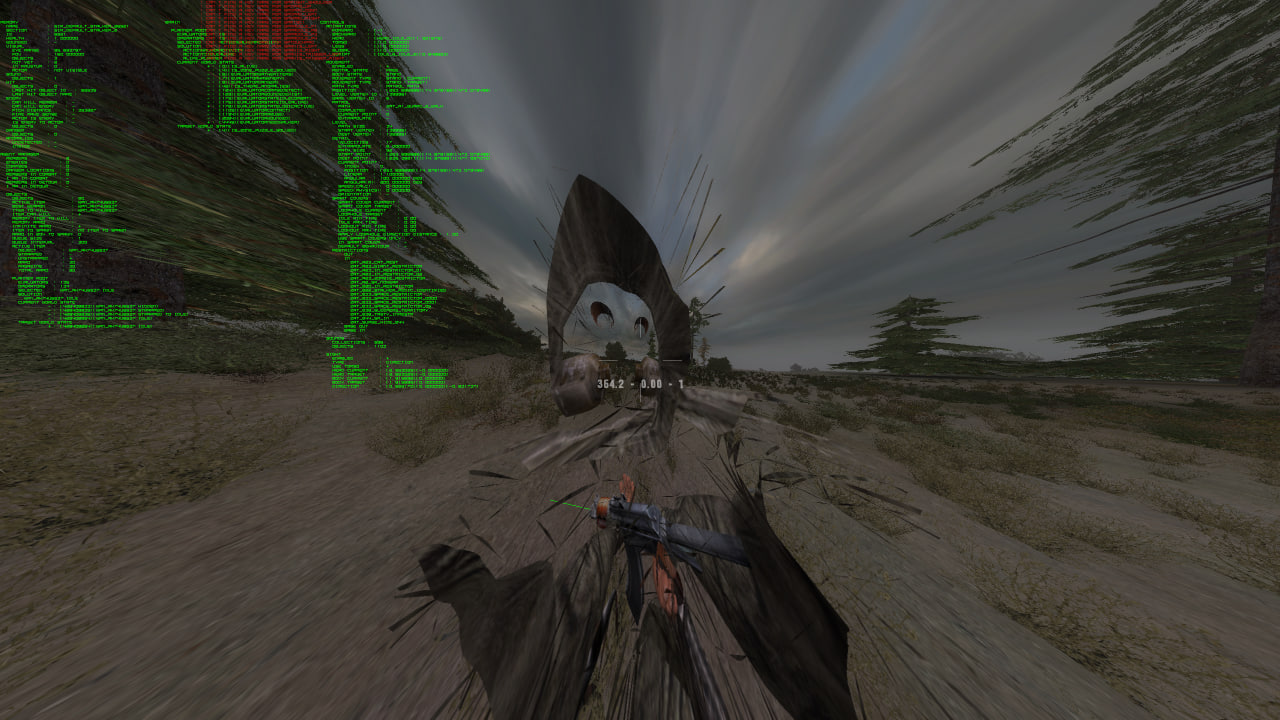
ai_dbg_monster on renders debug details for monster objects:
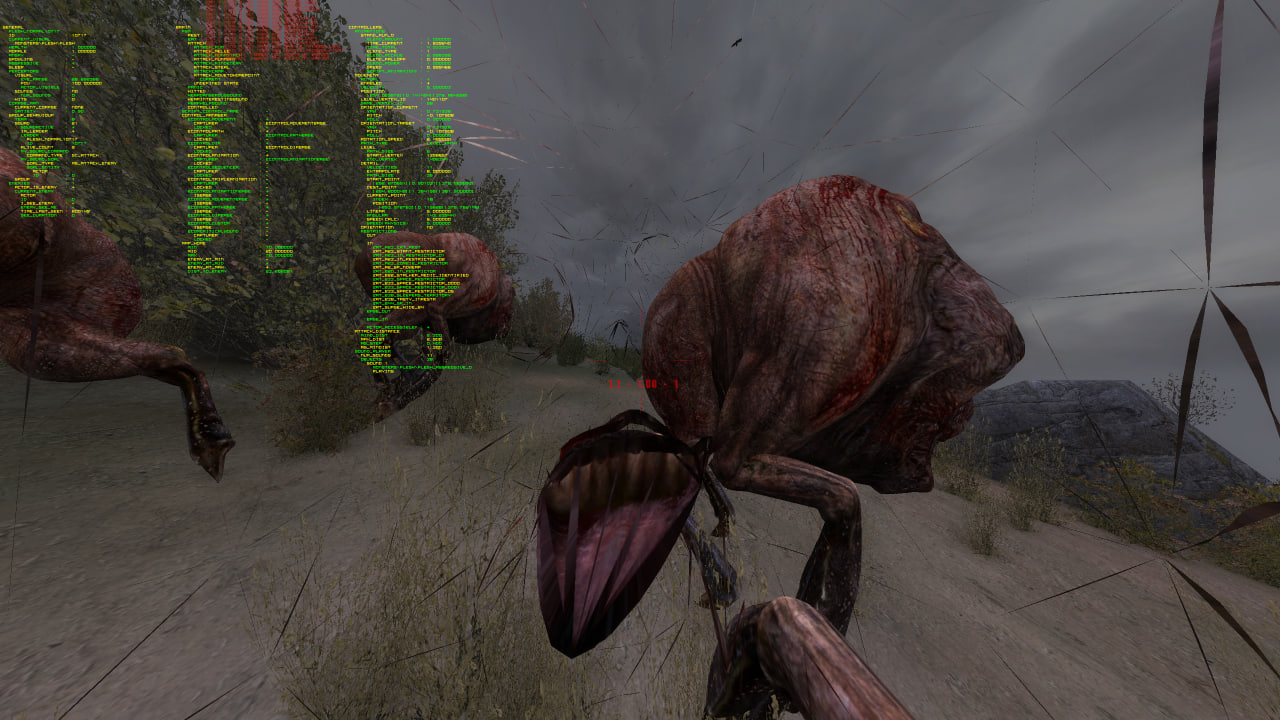
Use the matching off command to hide each overlay.
Planner and scheme logs
The XRF debug panel can print the selected object’s script state to the log. Open the main menu, press F11, switch to
the object section, then choose one of the log buttons.
The object section can print:
- the active scheme, active section, logic section, smart terrain, enemy, portable store, and scheme-specific state;
- the engine action planner and the XRF state planner action IDs;
- the state manager target state, current animation state, animstate, look target, combat flag, and ALife flag;
- inventory contents, best weapon, best item, and relation data.
Planner show(...) output is only available when the engine exposes it. If the log says to run in mixed or debug mode,
restart with a debug-capable engine build and repeat the dump.
Performance stats
Use engine stats when you need frame-level AI cost, not a script-level dump:
rs_stats on
ai_stats on
The AI stats overlay shows rows in this shape:
[name][min_time][avg_time][max_time][call_rate][call_count][total_time]
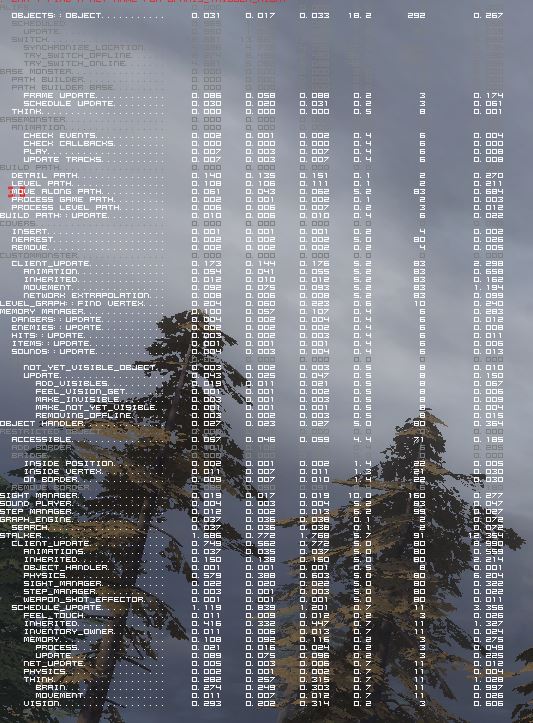
For Lua call profiling, use the XRF debug panel general section. It can start or stop the ProfilingManager, print
hooked call counts, print manually marked profiling portions, show Lua memory use, and force Lua garbage collection.
Run Lua profiling with -nojit when you need cleaner call stats. The profiler logs a warning when LuaJIT is enabled
because JIT compilation can change the measured call pattern.
Useful console commands
Common AI debug toggles are listed in the X-Ray engine command reference:
Engine debugging (C++)
Use engine debugging when the problem crosses from TypeScript/Lua into xray runtime behavior: scheduler timing, rendering, physics, UI initialization, luabind bindings, or console command implementation.
For script-only behavior, start with logs and the XRF debug panel first. They are faster and do not require rebuilding the engine.
Set up the engine project
OpenXRay has build guides for both supported development paths:
For local XRF development on Windows, the usual flow is:
- Build or select a mixed/debug-capable engine.
- Link XRF output and logs to the game folder with the XRF CLI link command.
- Start the engine from Visual Studio when you need C++ breakpoints.
- Start from the XRF CLI when you only need game logs and Lua output.
Debug Lua from Visual Studio
Lua debugging is possible through the Visual Studio Lua debugger extension, but it is limited by the engine and by the compiled Lua output.
- Install the LuaDkmDebugger Visual Studio extension.
- Use an engine configuration that loads Lua debug symbols.
- Run the game from Visual Studio.
- Set breakpoints in the generated Lua files, not in TypeScript source.
XRF TypeScript is compiled to Lua by TypeScriptToLua. Visual Studio will see the generated Lua code that the engine executes.
What to debug in C++
Use the engine source when you need to verify:
- console command behavior such as
rs_stats,rs_fps,ai_stats,set_weather, orrun_string; - luabind signatures exposed through
level,game,game_object, UI classes, planners, and packets; - UI XML initialization behavior in
CScriptXmlInitand CUI controls; - engine-only debug overlays, stats, scheduler, physics, and renderer behavior.
Limitations
- TypeScript breakpoints are not available in the engine. Debug generated Lua or C++ instead.
- LuaDkmDebugger support is old and does not reliably inspect every luabind class or userdata value.
- Some debug console commands are compiled only into mixed/debug engine builds.
- Optimized script builds can strip Lua logger calls when built with
--no-lua-logs.
Debug with logs
Logs are the quickest way to inspect XRF runtime behavior. By default, forge.ltx enables debug mode, regular Lua
logging, and the separate Lua log file.
Find the logs
The engine writes the main log into the game logs folder. XRF tooling can link that folder into the project as
target/logs_link.
Common files are:
openxray_<username>.logwhen a custom OpenXRay binary descriptor is present;xray_<username>.logfor the base engine name;xrf_lua.logwhen separate Lua logging is enabled;- module-specific files such as
xrf_profiling.logwhen a logger is configured with a file target.
The exact prefix depends on the logger configuration and the engine variant.
Check the logs
With a prebuilt engine:
- Select the engine build you want to run.
- Link the game folders with the XRF link command.
- Start the game.
- Inspect
target/logs_link.
With Visual Studio:
- Start the engine project from Visual Studio.
- Check the Visual Studio Output window.
- Check the same game log files if the message was written through the engine logger.
Print logs with the CLI
The XRF CLI can print the end of the active engine log:
npm run cli -- logs
npm run cli -- logs 100
The default count is 15 lines. Values are capped at 200 lines. The CLI looks for the linked logs folder and then
chooses openxray_<username>.log or xray_<username>.log depending on the detected engine.
Write Lua logs
Use LuaLogger from runtime code:
const logger: LuaLogger = new LuaLogger($filename);
logger.info("Spawned object: %s", object.name());
logger.table(state);
logger.pushSeparator();
logger.printStack();
LuaLogger formats messages with the current engine time, file prefix, level, and formatted text. It writes to the
engine log unless a file-only logger is configured. When separate_lua_log_enabled is true, it also writes to the
shared Lua log file.
Use a file logger when the stream is noisy or belongs to a specific subsystem:
const logger: LuaLogger = new LuaLogger($filename, {
mode: ELuaLoggerMode.DUAL,
file: "profiling",
});
DUAL writes both to the named file and to the normal engine log.
Flushing
Use the engine flush console command after generating important logs:
flush
The profiling manager calls flush after printing profiling reports so the latest stats are persisted before you leave
the session.
Build-time logging flag
For performance or release-like builds, script compilation can strip Lua logger calls:
npm run cli -- build -i scripts --no-lua-logs
Do not use that flag when you are investigating runtime behavior.
Debug UI forms
XRF UI forms are authored as TSX/XML sources and loaded at runtime through xray CUI classes. Debug UI problems by checking both sides: the generated form structure and the runtime code that initializes named nodes.
Source and runtime files
Most UI work touches one of these areas:
- form sources in
src/engine/forms; - reusable form components in
src/engine/forms/components; - runtime window classes in
src/engine/core/ui; - XML render/build helpers in
cli/utils/xml; - generated output under
target, which should be regenerated instead of edited by hand.
When a runtime class calls xml.InitStatic, xml.Init3tButton, xml.InitScrollView, or another CScriptXmlInit
method, the named XML node must exist in the form source.
Check the form path
Runtime code usually resolves a form by path:
const base: TPath = "menu\\debug\\DebugDialog.component";
this.xml = resolveXmlFile(base);
If a form does not appear, verify:
- the
basepath matches the TSX/XML source path; - the build generated the matching XML file;
- every node name used by the runtime class exists in the form;
- both 4:3 and 16:9 variants were updated when the form has paired variants.
Use engine UI debugging
OpenXRay includes UI inspection tools for layout and control rectangles. They are most useful for positioning issues, wrong sizes, and overlapping controls.
The show_wnd_rect_all console command is available in XRF command constants and can help identify active UI control
bounds in debug builds:
show_wnd_rect_all 1
show_wnd_rect_all 0
Some UI debug tools depend on the engine build. If the command has no effect, run with a mixed/debug-capable engine.
Common failure points
- A runtime
Init...call references a missing XML node. - A section exists in TSX but is not registered by the runtime dialog.
- A button is visible but not registered with
RegisterandAddCallback. - Text or controls fit in one aspect ratio but not in the paired 16:9 form.
- The generated XML in
targetis stale after changing the TSX source.
References
Circular references
Circular references usually show up in XRF as initialization problems: a manager asks for another manager while modules are still loading, or a debug dump walks a graph of tables that point back to each other.
Manager resolution
Use getManager(ManagerClass) for normal manager access. It initializes the manager on first use and stores it in the
runtime registry.
Use getManagerByName("ManagerName") only when importing the manager class would create a circular module dependency.
It returns an already initialized manager by name and cannot create one by itself.
const surgeManager: SurgeManager = getManagerByName("SurgeManager") as SurgeManager;
If the result can be missing during startup, handle null instead of assuming the manager exists.
Trace module loading
forge.ltx has a debug flag for logger creation:
[debug]
resolve_log_enabled = true
When enabled, each LuaLogger prints a Declared logger message when it is created. This is noisy, but useful when you
need to see which modules are loaded before a crash or circular dependency failure.
Turn it back off after the investigation:
[debug]
resolve_log_enabled = false
Dump circular data
The XRF JSON helper used by debug dumps is circular-reference aware. When it sees a table it has already visited, it writes:
"<circular_reference>"
When the dump exceeds the configured depth limit, it writes:
"<depth_limit>"
Use the debug panel general section to dump Lua state to _appdata_\\dumps\\lua_data.json, then search for these
markers to find strongly connected runtime state.
Practical checks
- Move type-only imports to
import typewhen the dependency is only needed by TypeScript. - Prefer event callbacks or weak manager lookup when two managers need to observe each other.
- Avoid top-level runtime work in modules that are imported by many systems.
- Keep debug dumps bounded; do not serialize raw engine userdata.
Generate externals documentation
extern.json records the Lua-visible externs declared in TypeScript.
Regenerate
From the engine repository:
npm run cli -- build --include externs
This writes:
src/engine/declarations/extern.json
target/gamedata/extern.json
Check
npm run cli -- verify externs
The check compares the tracked JSON with current declarations and does not write files.
For optional HTML or XML references, use Extern exports.
Run custom scripts
The engine exposes two development console commands for running Lua from the game console: run_script and
run_string. They are useful for short investigations on a throwaway save.
These commands are engine debug tools. Availability depends on the engine build.
Run a script file
Use run_script to run a .script file from the game scripts directory:
run_script my_debug_script
The engine rescans the scripts path before adding the script to the level script processor. Use this for repeatable debug snippets that are too large for a single console line.
Run one Lua expression
Use run_string for a single Lua command:
run_string level.set_weather("default_clear", true)
run_string db.actor:set_actor_position(vector():set(0, 0, 0))
The engine preserves argument casing for run_string, sends the string to the level script processor when one exists,
and otherwise loads the buffer directly as @console_command.
XRF helper examples
Many XRF declarations are available through registered Lua modules after scripts are loaded. For example, debug notes in spawn configs use command shapes like:
run_string xr_effects.clear_smart_terrain(nil,nil,{"sim_smart_1"})
run_string alife():object(56):set_squad_position(patrol("tst"):point(0))
Prefer existing effects and helpers over hand-mutating unrelated manager state.
Safety
- Test on a disposable save.
- Keep commands small enough to read in logs.
- Use logs or the debug panel to verify the effect after running the command.
- Restart the session if you mutate state that the current manager lifecycle would normally own.
Performance statistics
Use engine stats for frame/render timing and script stats for Lua-side call patterns. They answer different questions, so enable the smallest view that matches the problem.
Rendering and frame statistics
Use these console commands while the game is running:
rs_stats on
rs_fps on
rs_fps_graph on
rs_stats enables the engine statistics overlay. rs_fps shows the FPS counter. rs_fps_graph shows the FPS graph.
Use off to disable each toggle.
These commands are implemented by the engine, not by XRF scripts. Availability can depend on the engine build and renderer configuration.
AI statistics
For AI scheduler and planner timing:
ai_stats on
The AI stats overlay is useful when you need to see whether a cost is coming from engine AI updates rather than an XRF manager or scheme.
Lua profiling
The XRF ProfilingManager measures Lua call counts and manually marked profiling portions.
Open the XRF debug panel, switch to general, then use:
- start/stop profiling to attach or clear the Lua debug hook;
- log profiling stats to print hooked call counts;
- log portions to print manually captured
ProfilingPortionmeasurements; - refresh or collect memory to inspect Lua memory use.
For cleaner Lua hook stats, start the game with -nojit. LuaJIT can inline or alter execution in ways that make hook
counts less representative.
Manual profiling portions
Use ProfilingPortion when you need to measure a specific code block:
const portion: ProfilingPortion = ProfilingPortion.mark("my_operation");
// Code to measure.
portion.commit();
The debug panel prints count, total duration, average duration, min, and max for captured portions.
Debug weather
XRF weather is managed by WeatherManager. A level’s weathers field in game_maps_single.ltx names either a weather
cycle, played as it is, or dynamic, which plays the hourly weather graphs in
environment\\dynamic_weather_graphs.ltx.
Runtime weather flow
On actor network spawn, the manager:
- reads the current level’s
weathersfield, defaulting todynamic, and parses it as a condlist; - picks the weather section: the named cycle, or the
dynamic_<period>graph of the current good or bad period; - plays a
w_<state>cycle of that graph, or the named cycle, immediately; - resumes the weather FX the game was saved during, after its cycle is set, so the level returns to that cycle once the effect ends.
Once every game hour, it:
- switches between the good and bad periods when the current one has lasted its duration, playing the
dynamic_transitiongraph for that hour; - plays the
dynamic_pre_blowoutgraph and holds the period for the two hours before a surge and while one plays; - picks a new state from the graph and blends into its cycle.
A playing weather FX is never cut into: the engine records the new cycle and returns to it when the effect ends.
Use the debug panel general section to dump Lua state when you need to inspect the live WeatherManager fields. The
dump is written to _appdata_\\dumps\\lua_data.json.
Change weather from scripts
Script effects can set a weather cycle through xr_effects.set_weather, which calls level.set_weather:
on_info = %+some_info =set_weather(w_clear:true)%
The first argument is the weather cycle. The optional second argument controls whether the change is forced. On levels with dynamic weather, the manager plays its own cycle again on the next game hour.
From Lua/TypeScript runtime code, the underlying engine call is:
level.set_weather(weatherName, isForced);
For weather effects, the engine exposes:
level.set_weather_fx("fx_surge_day_3");
level.start_weather_fx_from_time("fx_surge_day_3", time);
Debug weather editor issues
OpenXRay includes a weather editor project and editor documentation. Use it for visual tuning of weather sections and effects, then confirm the resulting section names and graph entries in XRF configs.
If a weather change does not appear:
- verify the level
weathersfield resolves to the expected section or condlist branch; - verify the weather graph exists in
dynamic_weather_graphs.ltxand each of its states has aw_<state>cycle; - check the engine log for
! Invalid weather name, printed for a cycle that does not exist; - check whether a weather FX is currently playing;
- dump Lua state and inspect
weatherSection,weatherState,weatherPeriod, andsavedWeatherFx.
References
XRF debug panel
The XRF debug panel is an in-game CUI dialog for development-only actions. It is available when forge.ltx has
debug.enabled = true, which is the default project config.
Open the main menu and press F11. The panel hides the main menu while it is open. Press Esc or the cancel button to
return to the main menu.
General
The general section shows Lua version, LuaJIT state, command-line arguments, and Lua memory usage.
It can also:
- refresh memory usage;
- force Lua garbage collection;
- start or stop Lua profiling;
- print profiling hook stats;
- print manual profiling portion stats;
- toggle simulation debug map overlays;
- dump merged
system.inito_appdata_\\dumps\\system.ltx; - dump Lua manager state to
_appdata_\\dumps\\lua_data.json.
Lua data dumping emits DUMP_LUA_DATA, so managers that registered a debug dump callback add their own state to the
JSON payload.
Commands
The commands section exposes checkbox shortcuts for known console toggles.
Boolean commands are written as:
<command> on
<command> off
Numeric commands are written as:
<command> 1
<command> 0
The list includes AI debug toggles, HUD toggles, g_god, g_unlimitedammo, g_autopickup, and wpn_aim_toggle.
Object
The object section works with either the current target object or the nearest game object, depending on the section
checkbox.
It can log:
- scheme state and active section;
- action planner and state planner details;
- state manager details;
- inventory contents;
- relation data.
It can also set the actor relation to the object, kill the object, or set the object wounded. Use these actions on a throwaway save.
Items
The items section spawns inventory items for the actor. Categories are built from game config sections:
- ammo;
- artefacts;
- consumables;
- detectors;
- helmets;
- outfits;
- weapons.
Ammo spawns as a stack of 30; other item categories spawn one item.
Spawn
The spawn section spawns creatures and simulation groups.
stalkers_listspawns the selected stalker section near the actor.simulation_group_listspawns the selected squad section into the nearest smart terrain.
If there is no active game or no suitable smart terrain, the action is skipped and logged.
Teleport
The teleport section lists smart terrains. Selecting one moves the actor to that smart terrain.
If the target game vertex belongs to the current level, the panel sets the actor position directly. If it belongs to a
different level, it calls game.jump_to_level. Double-click teleport also closes the main menu after moving the actor.
Registry and Tasks
The registry section lists ALife objects from the simulator, can filter online objects, and can print a registry
summary with manager, scheme, object, smart terrain, event handler, and other collection counts.
The task section lists task config sections, can filter active tasks, and can give the selected task through
TaskManager.
Treasures
The treasures section shows total, given, and found treasure counts. It can:
- give all treasure coordinates;
- give random treasure coordinates;
- give one selected treasure coordinate;
- teleport to the selected treasure restrictor when it exists.
The section also shows debug details for the selected treasure, including given/checked state, refresh flags, remaining items, and treasure type.
Current shell sections
player, position, and sound are present as panel sections, but their current TypeScript runtime classes only parse
their form XML and do not bind interactive actions.
X-Ray engine
XRF runs on top of the X-Ray engine used by S.T.A.L.K.E.R. Call of Pripyat style games. The engine owns the executable, renderer, file system, console, configuration loading, Lua VM, luabind exports, server objects, client objects, ALife simulation, and the low-level update loop.
XRF replaces the game script layer. TypeScript sources are compiled to Lua scripts, then loaded by the engine through the same script entry points that vanilla game logic uses.
What the engine owns
The engine starts from the executable. During startup it initializes core services, resolves the file system layout, loads configuration files, creates the console, initializes the Lua script engine, and opens engine bindings for Lua.
At runtime it also owns:
- server-side ALife objects and the object factory;
- client-side game objects and their
object_binderinstances; - save and load packets;
- console command execution;
- render, sound, input, and UI infrastructure;
- frame updates and scheduled object processing.
The source references for these behaviors are the local xray-16 engine tree and the XRF X-Ray 16 SDK declarations.
What XRF adds
XRF provides the Lua scripts that the engine calls into:
_g.scriptpreloadsregister,bind, andstart, then registers global script externals.register.scriptregisters game classes, UI classes, server object classes, and callback functions.start.scriptinitializes managers, schemes, simulation helpers, extensions, and emits the XRFGAME_STARTEDevent.bind.scriptmaps engine object sections and script class names to XRF binder classes.
After that point, most game behavior goes through XRF managers, schemes, binders, and event callbacks.
Where to go next
- Use Command line arguments when changing engine startup behavior.
- Use Console commands for commands available after the console is initialized.
- Use Execution flow to understand the order from executable startup to active gameplay.
- Use Lifecycle when editing binders, managers, save/load code, or online/offline logic.
- Use Luabind when a TypeScript class needs to be visible to the Lua engine runtime.
Command line arguments
Command line arguments are read by the engine before scripts are loaded. Use them for engine startup choices such as filesystem layout, renderer, logs, game mode, Lua JIT, and initial level loading.
npm run cli -- start_game starts the configured executable with -dump_bindings. It also supports --new, --load,
--difficulty, and --no-intro for common test runs. To pass other engine arguments, run the executable directly,
configure a launcher shortcut, or extend the local start command.
For example:
npm run cli -- start_game --new --difficulty gd_master --no-intro
npm run cli -- start_game --load quicksave
Common flags
| Flag | Effect |
|---|---|
-fsltx <file> | Use a specific filesystem configuration file before the engine core is initialized. |
-ltx <file> | Use a specific console/user configuration file instead of the default user.ltx. |
-start <args> | Execute a start ... console command after engine initialization. |
-load <save> | Execute a load ... console command after engine initialization. |
-nointro | Skip intro playback. |
-nogameintro | Skip the in-game intro sequence. |
-nosplash | Disable the startup splash screen. |
-splashnotop | Show the splash screen without forcing it on top. |
-dedicated | Start in dedicated server mode. |
-i | Disable input capture used by the normal game window. |
-overlaypath <path> | Override the app data/logs root used by the engine locator. |
-nolog | Do not create the main log file. |
-unique_logs | Write logs with unique timestamped names. |
-force_flushlog | Flush log output aggressively. Useful when debugging crashes. |
-nojit | Disable LuaJIT JIT compilation. This also changes profiler behavior. |
-dump_bindings | Dump script binding information from the Lua script engine. |
Renderer flags such as -r1, -r2, -r2a, -r2.5, -r3, -r4, and -rgl are engine-build dependent. Verify the
selected executable before documenting a renderer as supported for a pack.
Game mode flags
OpenXRay-style builds can select a compatibility mode from the command line:
-copfor Call of Pripyat mode;-csfor Clear Sky mode;-shocor-socfor Shadow of Chernobyl mode;-unlock_game_modeto allow explicit game mode selection.
If no mode is selected, the engine can fall back to openxray.ltx compatibility settings.
Examples
Start with an explicit filesystem config and user config:
xrEngine.exe -fsltx fsgame.ltx -ltx user.ltx -nointro
Start a new local game through the engine console startup command:
xrEngine.exe -start "server(all/single/alife/new) client(localhost)"
Load a save after initialization:
xrEngine.exe -load quicksave
Quote values that contain spaces. Treat command line support as executable-specific: forks can add, remove, or rename flags.
Console commands
Console commands are available after the engine console is initialized. They can be typed in the in-game console, executed from config files, or triggered from scripts when the engine exposes command execution.
Most boolean commands use on/off. Some use 0/1, numeric ranges, enum values, or custom command strings.
Basic commands
| Command | Use |
|---|---|
help | Print available console command help. |
quit | Exit the game. |
start ... | Start a game session with server/client arguments. |
disconnect | Disconnect from the active session. |
save <name> | Save the current game. |
load <name> | Load a save. |
load_last_save | Load the most recent save. |
main_menu | Return to the main menu. |
cfg_save <file> | Save console settings to a config file. |
cfg_load <file> | Load console settings from a config file. |
flush | Flush engine state where supported by the command implementation. |
clear_log | Clear the current log output. |
Script commands
run_script <name> reloads script paths and executes a script file through the engine script processor.
run_string <lua> executes a Lua string. In the inspected engine, the command preserves the original casing of the
string payload instead of lowercasing it with the command name.
Use these commands for focused debugging. For repeatable development workflows, prefer tracked scripts and XRF externals instead of long console strings.
AI debug commands
The inspected OpenXRay-style engine registers these AI and ALife debugging commands:
ai_debugai_dbg_brainai_dbg_motionai_dbg_frustumai_dbg_funcsai_dbg_alifeai_dbg_goapai_dbg_goap_scriptai_dbg_goap_objectai_dbg_coverai_dbg_animai_dbg_visionai_dbg_monsterai_dbg_stalkerai_statsai_dbg_destroyai_dbg_serializeai_dbg_dialogsai_dbg_infoportionai_dbg_nodeai_dbg_sightai_dbg_inactive_timeai_draw_game_graphai_draw_game_graph_stalkersai_draw_visibility_raysai_animation_stats
Render, UI, sound, and gameplay commands
Useful command families include:
- render toggles:
rs_stats,rs_fps,rs_fps_graph,rs_vis_distance,rs_cam_pos,rs_wireframe; - video settings:
vid_mode,vid_window_mode,vid_restart,renderer; - sound settings:
snd_volume_eff,snd_volume_music,snd_restart,snd_device; - HUD settings:
hud_draw,hud_info,hud_weapon,hud_crosshair,hud_crosshair_dist,hud_fov; - gameplay settings:
g_game_difficulty,g_language,g_sleep_time,wpn_aim_toggle; - Lua debugging:
lua_debug,lua_dump_depth; - ALife tuning:
al_time_factor,al_switch_distance,al_process_time,al_objects_per_update,al_switch_factor.
Some commands are available only in debug builds or specific forks. Check the selected engine source before relying on a command in documentation or tooling.
XRF debug panel
XRF keeps a typed subset of console commands for the debug UI. If a command should be exposed from the panel, add it to the engine constants first and verify the selected engine accepts the same name and value type.
Execution flow
This page describes the normal flow from executable startup to active XRF gameplay. It is intentionally high-level: forks can move engine internals around, but XRF depends on the same script entry points.
1. Executable startup
The engine initializes core services, resolves filesystem paths, loads configuration files, initializes logging, creates the console, and applies startup command line arguments.
Important early choices include:
- filesystem config from
-fsltx; - console/user config from
-ltx; - compatibility mode from
-cop,-cs,-shoc, or-soc; - Lua JIT state from
-nojit; - post-init
startorloadcommands from-startand-load.
2. Lua script engine initialization
The script engine initializes Lua, opens luabind exports, opens the standard Lua libraries used by the selected build,
adds game script paths to package.path, and loads script modules.
In XRF builds, _g.script is the root script entry point. It preloads:
register;bind;start.
It also registers global externals for conditions, effects, dialogs, tasks, and callbacks.
3. Class and callback registration
The engine calls into register.script to register script-visible game classes and resolve class identifiers.
XRF registers:
- server object classes such as actors, stalkers, monsters, smart terrains, squads, items, weapons, anomalies, and physics objects;
- UI classes such as the main menu;
- engine callback functions exposed through global script paths.
The class registration step is what lets spawned engine objects construct the matching TypeScript-to-Lua classes.
4. XRF startup callback
The engine then calls start.callback(isNewGame).
XRF uses this callback to:
- refresh class identifiers;
- register the ALife simulator and ranks;
- unlock system ini overriding;
- initialize managers;
- register scheme implementations;
- register extensions;
- emit
GAME_STARTED.
Managers and schemes are available after this step.
5. Object creation and binding
The engine reads spawn data and creates server objects. When an object goes online on the client side, the engine asks
bind.script for the binder class.
XRF binds engine objects to classes such as:
ActorBinder;StalkerBinder;MonsterBinder;SmartTerrainBinder;RestrictorBinder;AnomalyZoneBinder;WeaponBinder;PhysicObjectBinder.
The binder receives lifecycle calls from the engine and becomes the bridge between low-level object state and XRF managers, schemes, and events.
6. Active gameplay loop
During gameplay, online binders receive updates, engine callbacks emit XRF events, managers react to those events, and save/load packets serialize state. Offline ALife objects continue to exist on the server side even when no client-side game object is active.
Known X-Ray engine forks
XRF targets the Call of Pripyat style X-Ray/OpenXRay API used by the local engine and type declarations. Forks are useful reference points, but they are not a compatibility guarantee. Verify bindings, console commands, save/load behavior, and script callbacks against the exact executable you ship.
Common references
| Fork or baseline | Notes |
|---|---|
| Original Call of Pripyat engine and gamedata | Canonical behavior reference for vanilla script and resource behavior. |
| OpenXRay / xray-16 | Open-source X-Ray continuation used as the main local engine reference for XRF. |
| Call of Chernobyl engine family | Useful second opinion for evolved CoP-era behavior, but not the canonical baseline. |
| Anomaly / X-Ray Monolith family | Heavily modified fork family. Expect changed exports, fixes, callbacks, and engine-side assumptions. |
| OGSR Engine | Shadow of Chernobyl oriented fork with different compatibility expectations. |
| Oxygen and other experimental forks | Treat as fork-specific until the script API is checked directly. |
Compatibility checklist
Before moving XRF scripts to a fork, check:
- luabind class names and exported functions;
object_bindermethod behavior;- game class identifiers and section-to-class mappings;
- console command names and accepted value types;
- command line flags used by your launcher;
- save/load packet order and marker expectations;
- availability of Lua libraries such as
jit,ffi,marshal, andlfs; - callback names and callback argument order;
- ALife online/offline switching behavior.
When a fork disagrees with vanilla resources and OpenXRay source, document the fork behavior as fork-specific instead of treating it as the default.
Lifecycle
The engine lifecycle is split between global startup, server-side ALife objects, client-side game objects, XRF binders, and XRF managers. Most script bugs come from mixing those scopes.
Global startup
Global startup happens once per game process and again at specific script reload points depending on the engine. In XRF, the important global scripts are:
_g.script, which preloads core entry points and registers externals;register.script, which registers classes and callback globals;start.script, which initializes managers, schemes, extensions, and emitsGAME_STARTED;bind.script, which returns binder classes for online objects.
Do not put per-save or per-object state in module globals unless it is intentionally reset during the relevant lifecycle step.
Binder lifecycle
Client-side game objects use engine object_binder lifecycle methods. XRF binders override the methods they need:
| Method | When it is used |
|---|---|
reinit() | Reinitializes binder state and callbacks. Actor reinit also resets portable store state and schedules ALife update stabilization. |
net_spawn(serverObject) | Called when the object goes online and receives its server object. Return false to reject spawn after super.net_spawn(...) fails. |
update(delta) | Called while the client object is online. Use it for object-local work, not broad global polling. |
net_destroy() | Called when the object goes offline or is destroyed. Remove callbacks and unregister object state here. |
save(packet) | Write client-side state to the save packet. Preserve marker and write order. |
load(reader) | Read client-side state from the save packet in the same order it was written. |
Actor, stalker, monster, restrictor, smart terrain, physic object, and item binders all follow this pattern.
Manager lifecycle
Managers extend AbstractManager. A manager can implement:
initialize()to register callbacks or allocate state;destroy()to unregister callbacks and mark state as disposed;update(delta)when it is driven by an update event;save(packet)andload(reader)when it owns serialized state.
Managers should subscribe through EventsManager rather than being called from unrelated binders. This keeps object
lifecycle code small and makes save/load ownership clearer.
Event lifecycle
EventsManager owns typed event subscriptions. Binders and game objects emit events such as:
ACTOR_GO_ONLINE,ACTOR_GO_OFFLINE,ACTOR_REINIT;ACTOR_UPDATE,ACTOR_UPDATE_100,ACTOR_UPDATE_500,ACTOR_UPDATE_1000,ACTOR_UPDATE_5000,ACTOR_UPDATE_10000;STALKER_DEATH,MONSTER_DEATH,HIT;GAME_SAVE,GAME_SAVED,GAME_LOAD,GAME_LOADED;BEFORE_LEVEL_CHANGEandGAME_STARTED.
Actor update drives the global timer manager tick and the throttled actor update events. Prefer those throttled events for recurring manager work that does not need every frame.
Save and load lifecycle
Save/load code must preserve packet order. XRF commonly wraps sections with save/load markers, calls the superclass method, then writes or reads owned state.
If a manager or binder adds state to a save packet, update the corresponding load code in the same change. Never insert a new read without matching old saves or version handling.
AI and logics
XRF AI logic is built on the engine GOAP planners, engine callbacks, XRF schemes, and the XRF stalker state manager. The engine still owns navigation, combat primitives, visibility, danger evaluation, animation execution, and the base planner runtime. XRF adds script-side actions, evaluators, scheme state, and event routing.
Use this page to understand the structure. Use the debugging AI page when you need runtime overlays, planner dumps, or log output.
Motivation planner
Each stalker has an engine motivation action planner. XRF modifies that planner when the stalker binder is reinitialized. The setup adds script evaluators and actions that coordinate engine behavior with XRF-controlled animation and logic state.
The motivation planner includes engine action ids for broad behaviors such as ALife, combat, anomaly, danger, gathering items, smart terrain tasks, and death. XRF adds custom action ids for script activities such as animpoint, walker, remark, sleeper, companion, smart cover, wounded, abuse, and state-to-idle transitions.
State planner
StalkerStateManager owns a separate Lua-side action planner for stalker state control. It manages the target state and
drives sub-planners for:
- weapon state;
- movement;
- look direction;
- mental state;
- body state;
- animstate;
- animation;
- smart cover;
- locked states.
The state planner goal is to reach its END state after the required weapon, movement, mental, body, direction,
animstate, animation, and smart cover evaluators are satisfied.
Evaluators
Evaluators answer yes/no questions for the planner. Examples include whether the stalker is already standing, walking, in danger mental state, using a target weapon state, playing an animation, locked by animation, or inside a smart cover.
Evaluator ids are stable planner contracts. Changing ids can break planner graphs and debug output, even if TypeScript still compiles.
Actions
Actions change world state. XRF actions can strap or unstrap weapons, set movement, turn the stalker, switch mental and body state, start or stop animations, and enter or leave smart cover.
Actions and evaluators used by engine planners must be luabind-visible classes. Keep @LuabindClass() on planner
classes that the engine action planner constructs or stores.
Schemes
Schemes are the script logic layer loaded from LTX logic sections. A scheme activates state for a specific object and section, subscribes handlers, and reacts to scheme events such as switching online/offline, death, hit, use, or extrapolation.
The stalker binder wires schemes into object lifecycle:
- creates
StalkerStateManagerduring reinit; - sets up the state planner and motivation planner;
- initializes object logic on spawn;
- updates the state manager while the object is online;
- emits scheme events when the object switches offline, dies, is hit, or is used.
Keep scheme state in the object registry and clean it through the scheme lifecycle. Avoid storing per-object scheme state only in module globals.
Luabind
Luabind is the bridge between C++ engine code and Lua scripts. The engine exports C++ classes, functions, enums, and helpers into Lua, then game scripts create Lua-side classes that inherit from those bindings.
XRF TypeScript compiles to that Lua layer. A class that must be constructed or called by the engine needs to follow the same luabind-visible shape after compilation.
@LuabindClass()
Use @LuabindClass() on TypeScript classes that must be visible as Lua classes. Common examples include:
- binders that extend
object_binder; - action and evaluator classes used by GOAP planners;
- UI classes that extend engine CUI classes;
- server object classes registered through the factory.
The decorator preserves the class metadata expected by the TypeScript-to-Lua and luabind runtime path.
Class names
Many registrations use the class __name field. XRF passes those names to engine registration code for game classes, UI
classes, and binder construction.
Changing a class name can therefore change runtime behavior even when TypeScript imports still compile. Treat class renames as compatibility changes.
Externals are separate from luabind
XRF also has an extern(...) helper. It writes values into _G or nested global tables so the engine and configs can
find script callbacks such as conditions, effects, task functions, dialog functions, and startup callbacks.
That is not the same as binding a C++ class. Use luabind classes when the engine constructs or calls class instances. Use externals when a named global function or table entry must exist in Lua.
class, property, and super
OpenXRay luabind exposes helper globals such as class, property, and super. They come from the luabind runtime,
not from XRF.
Modern XRF code usually does not call these helpers directly. TypeScript classes and @LuabindClass() generate the Lua
shape that the engine expects.
Verification
Use the XRF X-Ray 16 SDK to check TypeScript-visible API shape. For ambiguous behavior, check the engine binding code in
the selected xray-16 fork, because some binding setters and object methods have engine-specific semantics.
Lua extensions
The engine Lua environment is not plain standalone Lua. OpenXRay-style builds initialize LuaJIT, luabind, engine exports, standard libraries, and a few engine-specific libraries before game scripts run.
The inspected script engine opens the usual Lua libraries such as base, package, table, io, os, math,
string, bit, and ffi. Debug builds can also expose the Lua debug library. LuaJIT is opened unless the executable
starts with -nojit.
Runtime availability
XRF can have TypeScript declarations for a library even when a specific engine executable does not load that library. Always separate:
- compile-time declarations shipped in
xray16/typedefs; - runtime modules actually opened by the engine;
- modules shipped in the selected gamedata or Lua environment.
This matters for marshal and lfs: XRF has typings for them, but availability depends on the chosen engine/runtime
package.
Script path
The engine appends gamedata script paths to package.path, allowing scripts to be required from the game script
directory. Keep runtime require(...) names aligned with the emitted Lua script layout.
Practical checks
When adding a dependency on a Lua module:
- check the TypeScript declaration under
xray16/typedefs(source:xrf-xray16-sdk/typedefs); - check whether the target executable opens or ships the module;
- run the game with the same executable that will ship to users;
- keep fallback behavior for optional modules.
For engine-bound code, prefer X-Ray APIs and XRF helpers over standalone Lua assumptions. The engine can change module availability, package paths, and debug library access depending on build flags.
Custom Lua
OpenXRay-style builds use a custom LuaJIT runtime rather than a stock standalone Lua executable. The engine initializes Lua, opens luabind, registers engine exports, configures script paths, and then loads game scripts.
This matters for XRF code because TypeScriptToLua output runs inside the game script engine, not inside a generic Lua CLI. Available globals, module search paths, JIT behavior, and engine bindings come from the selected executable.
Libraries opened by the engine
The inspected script engine opens standard Lua libraries and LuaJIT-related libraries used by game scripts:
package,table,io,os,math, andstring;bitandffi;- LuaJIT support unless
-nojitis passed; debugin non-master/debug-capable builds;- engine-specific helpers such as
xrluafix; - Tracy Lua integration when compiled into the engine.
Do not assume every fork opens the same set. Check the selected executable if a script depends on a non-standard module.
Useful flags
-nojit disables LuaJIT JIT compilation. This can make some debugging sessions easier, but it also changes profiler
behavior.
-dump_bindings asks the script engine to dump binding information. Use it when comparing what the engine exported with
what the TypeScript declarations say exists.
Notes for XRF scripts
- Do not assume optional Lua modules such as LFS or marshal are loaded unless the runtime package opens or provides them.
- Use engine APIs for game objects, packets, configs, and path resolution. Standalone Lua behavior is a weak reference when engine bindings are involved.
Marshal
marshal is a Lua serialization library. XRF has TypeScript declarations for the functions used by the runtime:
marshal.encode(value)converts a Lua value to an encoded representation;marshal.decode(value)reads an encoded representation back;marshal.clone(value)creates a cloned value through marshal semantics.
The declarations reference the upstream Lua marshal project: https://github.com/richardhundt/lua-marshal.
Availability
The inspected engine script initialization does not open marshal as one of the default Lua libraries. Treat it as an
optional runtime dependency unless the selected executable or gamedata package explicitly provides it.
Guard code that depends on marshal, or keep usage in paths where the runtime package is known.
When to use it
Use marshal only when the runtime really needs Lua-level serialization or cloning. For game save data, prefer the engine save packet APIs and XRF save/load helpers so the data remains compatible with the engine lifecycle.
Good candidates are short-lived Lua tables in tooling, debug-only data capture, or controlled runtime features where the package is bundled with the executable. Avoid using it as an implicit dependency for core gameplay scripts.
Validation notes
- Check that
require("marshal")succeeds in the selected executable before using these declarations. - Keep encoded data versioned if it can persist outside the current process.
- Prefer explicit table copies when the shape is small and known;
marshal.cloneis useful only when marshal semantics are the intended behavior.
LFS
LFS is LuaFileSystem. It provides filesystem operations such as directory iteration, attribute inspection, directory creation, links, locks, and current-directory changes.
XRF has TypeScript declarations for common LFS functions:
lfs.attributes(path);lfs.dir(path);lfs.currentdir();lfs.chdir(path);lfs.mkdir(path);lfs.rmdir(path);lfs.link(oldPath, newPath);lfs.touch(path, atime, mtime);lfs.lock(file, mode, start, length);lfs.unlock(file, start, length);lfs.symlinkattributes(path);lfs.setmode(file, mode);lfs.lock_dir(path, seconds).
The upstream library documentation is available at https://lunarmodules.github.io/luafilesystem/.
Availability
The inspected engine script initialization does not open LFS as one of the default Lua libraries. Treat it as optional unless your selected runtime package ships it.
For game paths, prefer engine filesystem helpers and configured path aliases. Use LFS for plain filesystem work only when the runtime dependency is verified.
Practical use
Use LFS for tools or controlled runtime packages where filesystem access is part of the environment contract. Avoid it inside portable gameplay code unless the target executable is known to expose the module.
For game data lookup, prefer engine path aliases and file-system helpers because they follow mounted game paths and mod layout rules. LFS works on process-visible filesystem paths; it does not know about engine virtual paths by itself.
Verification checklist
- Check that
require("lfs")succeeds in the exact runtime package you ship. - Check path separators and working directory assumptions on the target platform.
- Keep save-game and game-state persistence on engine packet APIs instead of plain files unless the feature explicitly owns external files.
Online and offline
X-Ray keeps two related views of many objects:
- a server-side ALife object, which can exist while the object is offline;
- a client-side game object, which exists when the object is online and active on the current level.
Online/offline state is not the same as alive/dead. An offline object can still exist in simulation. An online object
has a live game_object, a binder, callbacks, and client-side updates.
Offline objects
Offline objects live in the ALife simulation. They are represented by server objects and can be queried through simulator APIs. Smart terrains, squads, NPCs, monsters, items, and level changers all have server-side behavior in different ways.
Use server objects for simulation state, spawn data, story ids, smart terrain membership, and logic that must survive outside the active client bubble.
Online objects
When an object switches online, the engine creates or activates a client-side game_object and attaches an
object_binder. XRF uses binders to register object state, set callbacks, emit events, and update active schemes.
Use online objects for:
- direct game object methods;
- visible object state;
- callbacks such as hit, death, use, inventory, or task updates;
- per-frame or throttled client-side updates.
Do not assume level.object_by_id(id) succeeds for an offline object. Use the simulator/server object path when the
object may be offline.
Switching
The engine decides when objects switch online or offline based on ALife rules, level state, distance, and object type.
Console variables such as al_switch_distance, al_objects_per_update, and related ALife settings affect this process.
XRF binders receive net_spawn(...) when an object goes online and net_destroy() when it goes offline or is
destroyed. Put registration and callback setup in the online path, and cleanup in the offline path.
Updates and scheduling
The engine drives updates for online binders. XRF turns those updates into higher-level events and timers so managers do not need to poll unrelated objects directly.
Binder updates
An online binder can receive update(delta) from the engine. Use it for object-local behavior:
- actor update orchestration;
- stalker and monster state managers;
- active restrictor, anomaly, smart terrain, and physic object logic;
- sound manager updates tied to a specific object id.
Call super.update(delta) when overriding an engine binder method unless nearby code shows a deliberate reason not to.
Actor update events
ActorBinder.update(delta) is the central XRF update pump. It emits:
ACTOR_FIRST_UPDATEonce after start or load;ACTOR_UPDATEevery actor update;ACTOR_UPDATE_100;ACTOR_UPDATE_500;ACTOR_UPDATE_1000;ACTOR_UPDATE_5000;ACTOR_UPDATE_10000.
It also ticks the XRF timer manager and refreshes actor-related simulation object availability.
Use the throttled actor events for recurring manager work. For example, weather, input, psy, debug, and UI-related systems can subscribe to the event cadence they actually need.
Timers
EventsManager extends the timer manager and supports delayed and interval callbacks. Timers tick from the actor update
path, so they require an active actor update loop.
Use timers for short delayed script work. Do not use them as durable save/load state unless the owning manager explicitly serializes enough data to restore the behavior.
ALife scheduling
Offline simulation is controlled by the engine and ALife settings. XRF can temporarily adjust object processing during startup; for example, actor reinit allows a broader ALife update window and then schedules a return to the stable configured value.
Keep online binder updates, manager event updates, and offline ALife scheduling separate. They run at different layers and have different save/load assumptions.
XRF changelog
This changelog records notable player-, modmaker-, and developer-facing changes in xrf-engine.
Latest check: xrf-engine 5875ddeb9a399ff371bc51151739e39888098a5a.
~1.0.0
August 2026
-
Database archives are packed by the XRF tools instead of xrCompress.
compressnow callsxrf-cli pack-archive, which reads the same configuration dialect and writes archives straight intotarget/db, so the SDK binary is no longer part of a build. A group that fits one volume is now named<target>.dbrather than<target>.db0. Archives holding mostly text pack somewhat larger, because the packer uses one LZO level where xrCompress used its slowest. -
Script declarations are discovered and documented automatically. Runtime callback, condition, effect, dialog, and task modules load from
gamedata/declarations; builds emit an extern JSON manifest, andverify externschecks it against the declaration sources. -
Lua modules load from loose files and packed archives. The bundled engine resolves
require()through X-Ray’s virtual filesystem, with loose files overriding archived copies. This supports dynamic declarations and extensions in both development and packaged builds. The same rollup adds an inventory-info-removed callback and fixes sound resume, static spatial updates, duplicated HUD release callbacks, and release-build logging. -
Strict payload validation moves to assembled gamedata.
verify ltxno longer accepts--strict; expensive payload checks run throughverify gamedata --strict, while regular LTX typing, include, and inheritance checks remain available. -
Random upgrades no longer affect trader inventory. The enhanced-items extension now upgrades only weapons held by non-trader human NPCs. It no longer upgrades world items, outfits, helmets, or trader stock.
-
The start command can flush engine logs immediately. Pass
--flushlogwhen launching a test session to retain the final log lines after a hard crash; it may incur a performance cost while active. -
Mounted weapons use the correct shell particles. Mounted PKM weapons now reference the bundled shell effect, so their ejected casings render correctly.
-
Surge weather uses a bundled sky texture. Surge phases no longer reference the unavailable
preblowout\\pre_blowout_0texture. -
Used particle effects ship with their textures. The resource payload removes unused particle definitions and adds the blood, fire, smoke, spark, explosion, and distortion textures required by the remaining effects.
-
The single-player package trims multiplayer data without removing required definitions. Multiplayer gameplay configs, unused UI assets, and server settings are omitted. Engine-required multiplayer screen and map-spot definitions remain because removing them caused crashes.
July 2026
-
NPCs keep their animation state while changing smart-terrain jobs. Reassigning an online NPC activates the new job directly instead of briefly clearing its active logic, preventing the ALife planner from resetting the NPC to idle between jobs.
-
Wounded NPCs settle their weapon before falling. The wounded action selects the idle item and prevents weapon reselection until it ends, avoiding an interrupt that can restart the wounded animation.
-
Danger hearing has explicit reaction ranges. NPCs respond to each danger type using squared-distance limits; enemy sounds are now considered within the configured 40-metre range instead of being disabled by a zero range.
-
Animpoint NPCs complete the requested turn before settling. Reaching an animpoint uses a latched facing check. Leaving the point or changing its cover invalidates the completed turn.
-
Post-combat idle yields to wounds and active danger. A wounded NPC is not captured by a post-combat animation, and a newly active danger state can take over instead of waiting for the post-combat delay.
-
Wounded NPCs do not enter danger from sounds. The hearing handler declines weapon sounds before assigning danger inertia to an NPC already in a wounded state.
-
Weapon-sound handling rejects irrelevant work early. The danger listener filters non-weapon sounds, non-creature sources, and out-of-range sounds before evaluating enemy relations.
-
The Zaton B52 bandit leader carries the required PDA. The quest character’s generated supplies now include
device_pda_port_bandit_leader. -
The CLI can start a targeted test session without navigating menus. It supports a new game or named save, an optional difficulty, and optional intro skipping; this is a developer workflow, not a change to normal in-game start behavior.
-
The CLI can build on-demand in-game quest checks.
checks list,build, andcleanmanage flow scripts that observe quest progress, verify reached states, and report through the console, engine log, and a dedicated checks log. -
Graphics presets load their shared settings with engine console syntax. The renderer presets use
cfg_loadfor the common AtmosFear settings instead of treating an LTX#includedirective as a console command. -
Quest helpers resolve the requested target and anomaly zone.
destroy_objectkeeps all story-target parameters, and the Zaton B29 artefact check searches the requested anomaly instead of the global artefact registry. -
Psy post-process effects keep unique IDs. Removing one active psy effect no longer lets the next effect reuse an ID that belongs to another active post-process.
-
Simulation assignment state is cleaned up safely. Temporary squad-to-terrain assignments are cleared after use. Invalid or missing data follows fail-safe handling instead of leaving stale simulation state.
-
Missing music themes fail safely. Music initialization validates unavailable theme data instead of continuing with incomplete state.
-
Travel dialogs reject NPCs without a valid squad. Conversation predicates return unavailable for a missing squad instead of dereferencing it while checking routes, prices, or companion movement.
-
Squad-travel prices follow the simulated route. Travel charges the server-graph distance between the squad and destination terrain, rather than the NPC’s current world-position distance.
-
NPC sound state is independent. XRF keeps playable sound state per NPC instead of sharing a theme instance among all users. Concurrent dialogue and ambient playback no longer overwrite one another.
-
Trade resupply state is initialized and refreshed consistently. Traders retain the selected supply condition and refresh on the configured period instead of relying on incomplete descriptor state.
-
Mod-only packages can intentionally omit engine binaries.
pack mod --skip-engineno longer validates or requires a configured engine when it will not copy one, keeping a script/resource-only package independent of local engine selection. -
Camp performers return to idle after finishing. NPCs no longer remain stuck in guitar or harmonica animations after the corresponding camp story ends.
-
Localized interface text retains its accents. French, Italian, Polish, and Spanish text no longer contains broken characters; the French, Italian, and Spanish options screens also label the world- and HUD-FOV controls.
-
Boars and flesh recognise each other as friendly. Their relationship now matches vanilla’s monster-relation configuration rather than treating the species as neutral.
-
Malformed quest condition lists are repaired. XRF fixes broken vanilla condition-list data in the Zaton B7 and B20, Jupiter B8, and Pripyat underpass B400 quest logic so the conditions parse and evaluate as intended.
-
LTX validation covers game-script runtime schemes. Common physical, restrictor, monster, stalker, weather, sound, task, and model sections declare strict
$schemetypes so malformed fields and condition lists can be caught before runtime. -
Literal NPC-name checks. NPC-name conditions now compare requested text literally while retaining the fast indexed loop. This prevents Lua pattern characters in a requested name from changing the match.
-
Dirty smart-terrain work has a global budget. Reselection work is queued, deduplicated, and limited per frame and per second instead of letting every invalidated terrain run at once.
-
The Jupiter guide transition uses the intended fade and handoff. First arrival as a visitor starts the missing black post-process, stops it after the welcome delay, and lets the guide enter its first-visit state when the journey condition applies.
-
Actor controls use persistent, ordered locks. Overlapping systems such as cutscenes, surge survival, and anabiotic sleep keep their input/UI lock until release, so one cannot restore controls held by another.
-
Tracy profiling tools and engine variants are bundled. XRF includes capture, viewer, export, and trace-import utilities together with
gold-tracyandrelease-tracyengines. The older Lua-hook profiler was removed. -
The LR300 sights align correctly. Adjusted HUD offsets remove the rifle’s misaligned aim view in both standard and 16:9 layouts.
-
Smart-terrain maintenance adapts to distance. Job maintenance is throttled by actor distance, while arrivals, departures, and state changes still mark the terrain for selection. The introducing change reports about 30% less per-frame job-processing work; it is not a general FPS benchmark.
-
Weather updates run on a 2.5-second actor cadence. The weather manager uses the actor binder’s throttled event instead of running on every actor update.
-
Unvisited restrictors check the actor at an interval. Map-discovery restrictors accumulate elapsed time and test the actor position only at the configured interval instead of every update.
-
Physical-object callbacks follow the online lifecycle. Hit, death, and use callbacks are installed once when an object comes online and cleared when it goes offline instead of being reassigned on every render update.
-
Scripted physical buttons no longer fail while logging their use. Logger format arguments now match their placeholders in physical-object and treasure paths.
-
Resolved condition and effect functions are cached. Parsed condition-list entries retain their resolved
xr_conditionsorxr_effectsfunction reference after the first lookup. -
Squad target outrank checks are staggered. Simulation no longer performs every squad’s full target-outrank check at once; it uses staggered rechecks and caches terrain-assignment counts.
-
Squads reuse unchanged ALife tasks. A squad retains its simulation task while its graph vertex is unchanged, avoiding repeated task allocation.
-
Game-graph lookups and distances have bounded caches. Repeated level-name, vertex-level, and graph-distance queries reuse session-stable values; the distance cache has a fixed size.
-
Smart-terrain job selection is incremental. Clean updates retain valid jobs and probe a bounded number of higher-priority candidates instead of reselecting every job.
-
NPC sound themes are registered on demand. Sound setup defers theme registration until a sound is actually needed instead of preparing every possible theme for every spawned NPC.
-
The save dialog tests real file existence. Existing-save detection uses the engine file object returned by
FS.exist, so the overwrite warning follows the binding’s actual result type. -
X-Ray 16 SDK integration is upgraded to v2. The earlier
xray16package adoption expands to shared Lua helpers, mocks, and TypeScript aliases, and the remaining local copies are removed. -
Texture quality exposes the full engine range. The advanced-video slider always offers LOD values 0 through 4 instead of raising its minimum from an address-space probe.
-
Scheme condition types are memoized. Scheme switching records the parsed condition type after the first evaluation instead of repeating Lua pattern matching on every update.
-
Task updates are spread across time. Task objects randomize the next update interval, avoiding synchronized re-evaluation bursts while keeping periodic checks.
-
Treasure statistics see condition-list emptying. A treasure cleared by an
emptycondition list emits the sameTREASURE_FOUNDevent as other collection paths, so event consumers record it. -
Deimos cleanup removes the matching effectors. The reset path now removes the camera and secondary post-process effectors by their correct IDs.
-
Cutscenes disable and restore the game UI. Cutscene setup and cleanup pass the UI-lock state expected by the actor-input manager, including restoration of the remembered weapon slot.
-
Psy antennas play both channels. The psy-antenna loop uses both the left and right sound objects, restoring the intended stereo effect.
-
Surges do not replay task-side effects when the hide task is disabled. The surge manager records the task stage even when the configured section is
empty, preventing duplicate alarms, sounds, and weather effects. -
Task objects obey their update window. A task with a known state skips functor evaluation until the next scheduled update instead of using the inverted time check; title and description changes are then applied together.
-
NPC torches turn off when their light is no longer needed. Stalker torch state is applied for both outcomes, so daytime NPCs no longer keep their lamps on after a night-time or danger state.
-
Jupiter guide routes use the correct NPCs. Travel from Jupiter now resolves the Zaton guide and Pripyat assistant by their actual story IDs instead of selecting the wrong character.
-
Disabled anomaly zones still update field switching. Turning a zone off suppresses artefact respawn but no longer prevents its configured anomaly fields from cycling.
-
NPCs can use their configured cover chatter while approaching cover. A
sound_idleconfigured for a cover scheme now plays both while the NPC moves to cover and after it has arrived. -
Close-combat state updates in one evaluation. When enemy memory is already stale, the camper evaluator can enter and clear close-combat state in the same evaluation instead of exposing an incorrect extra planner update.
-
Patrols accept their full seven-NPC limit. The patrol manager now permits seven registered NPCs and rejects only an eighth participant.
-
Exclusive smart-terrain jobs reserve a fallback slot. When an exclusive job’s
suitablecondition is false, the terrain retains an unconditional low-priority slot instead of leaving the NPC without a selectable job. -
NPCs can hold smart cover during combat. The missing combat action for
use_in_combatis registered again, so the combat planner has an action to run without forcing the NPC out of its scripted cover. -
Helicopters follow the intended patrol movement math. The rewrite now uses vanilla’s square-root velocity formula, ignores repeated waypoint callbacks, and keeps a dying helicopter registered until its normal object teardown.
-
Night predators wait until late night to hunt vegetarian monsters. The
monster_predatory_nightsimulation role uses a 21:00-to-day-start window instead of the broader 19:00 night window. -
Zombied NPCs fire at their visible enemy. The standing fire state now passes the selected enemy as its target instead of losing that target while starting the firing animation.
-
Critically wounded NPCs can still choose an enemy. Critical wounds take precedence over a combat-ignore override, allowing the NPC to fight back.
-
Night vision is toggled from its actual state. XRF checks the device’s current state before changing it.
May 2026
- Bundled screen-space shader add-ons were removed. The interactive-grass and shadow-cascade extensions, color grading presets, shader selectors, and their options-page controls are no longer part of the engine package.
May 2025
-
Script builds can inject Tracy zones.
build --inject-tracy-zonesinstruments generated Lua for engine-level profiling with a compatible Tracy-enabled engine. -
The CLI can verify assembled gamedata.
verify gamedatacheckstarget/gamedatathrough the bundled XRF tools, with verbose and strict modes for deeper asset validation.
March 2025
- Generated NPC loadouts can use multiple sections and probabilistic attachments. Modders can generate separate loadout sections and configure scope, silencer, and launcher attachment probabilities.
January 2025
- XRF adopts an expanded particle library with a round-trip editing workflow. The CLI can unpack
particles.xrinto editable LTX files, repack those files, and verify both representations.
December 2024
-
Dead creatures ignore late sound callbacks. Stalker and monster binders decline hearing events after death instead of forwarding them into danger and scripted sound logic.
-
Weapon inventory icons match their items. The Protecta and Winchester 1300 use corrected icon-grid positions in inventory and trade interfaces.
-
Teleport effects play their intended tinnitus sound. The actor-teleport helper uses the engine’s sound-path separator so its 2D sound resolves.
-
The debug panel can dump live Lua state. Managers contribute bounded diagnostic data to
_appdata_\\dumps\\lua_data.json, and the existing merged-system.inidump uses the corrected file-writing path. -
The runtime exposes extended engine callbacks. OpenXRay/CoC hooks cover save/load completion, level changes, server-object removal, input, inventory focus and trade filtering, AI visibility, and weapon selection.
August 2024
- Translation workflows use the native XRF tools. Translation builds moved to the bundled JSON/XML converter in July; initialization and validation followed in August, replacing their separate Node implementations.
May 2024
-
Advanced video options expose renderer-specific controls. The menu includes shadow-map quality and tessellation where supported, plus the always-active window setting.
-
AF3 weather cycles replace vanilla weather selection. XRF selects
af3_*weather sections from a dynamic AtmosFear graph, including moon-phase variants for clear and partly cloudy periods. It ships the matching weather, ambient-channel, and weather-effect configuration. -
Original new-game spawn position. XRF can set the vanilla start vertex and position only while creating a new game, leaving loaded saves untouched.
-
Equipment icons have a round-trip editing workflow. The resource sprite is split into per-item source images, and the CLI can unpack or rebuild the combined equipment texture and its descriptors.
-
Jupiter scanner spots show the right artefact information. After the scientist scanner reward, map hints update the existing spot with the current artefacts or an empty notice, including the corrected JUP B211 target and hint.
-
Map-display maintenance uses a shared five-second actor event. Terrain and sleep markers use the throttled
ACTOR_UPDATE_5000event instead of a per-actor-update callback and timer.
March 2024
-
Bundled native XRF tools are available to the project CLI. Their first integration provides reproducible LTX formatting and verification, including a non-writing formatter check mode for local use and CI. Later workflows use the same tools for translations, icons, particles, assembled gamedata, and extern manifests.
-
The CLI can unpack ALife spawn data.
spawn unpackconverts the configuredall.spawninto an inspectable output tree with path, destination, force, and verbose controls. -
LTX verification understands typed project schemas.
verify ltxchecks includes, inheritance, section types, required fields, and the initial$schemedeclarations. Runtime game-script coverage expands in July 2026.
February 2024
- Engine switching tolerates broken links. The CLI can replace a corrupted engine symlink instead of failing while trying to inspect its target.
January 2024
-
Gameplay XML can be authored as typed TSX. The config builder renders gameplay TSX into XML, allowing character profiles, dialogs, and related generated data to share components and helpers.
-
NPC character descriptions and loadouts use typed generators. Reusable faction, profile, weapon, food, drug, and item presets replace hand-maintained XML spawn lists while retaining counts, condition, probability, and attachment flags.
-
Optional screen-space shader presets were added. Players could select new or vanilla shader packages, choose color grading, and enable interactive grass and shadow cascades. These bundled add-ons were removed in May 2026.
-
Disabled extensions no longer crash save loading. Extension restoration checks for an unregister hook before calling it, so a disabled module can load safely even when it does not define one.
-
Achievement reward caches replenish.
Achievement rewardsextension records the Detective and Mutant Hunter awards in save data. Every 12 in-game hours after an award, it replenishes the configured medical supplies or armour-piercing ammunition in the Zaton or Jupiter reward box and posts a notification. Players can turn it off from the Extensions menu. -
Saving does not create an inactive psy controller. Save/load code serializes the psy-antenna manager only when it already exists, avoiding state changes caused solely by saving the game.
-
Signal lights restore their flight state after loading. Scripted flare force, particles, and timing resume from saved state instead of being left partially initialized.
-
Generated character loadouts retain their first item. The character-description builder emits a spawn section that preserves the first configured supply item.
December 2023
-
XRF removes its authored multiplayer menu. Multiplayer login, server, profile, and demo classes and forms are deleted, leaving the project-owned main menu focused on single-player. Engine-required multiplayer-named UI definitions remain a separate packaging concern.
-
Creatures restore a consistent online position. Stalkers and monsters use an explicit spawn vertex, remembered offline vertex, or assigned smart-terrain job position when synchronizing after
net_spawn.
October 2023
-
Randomized upgrades. The enhanced-items extension can add random upgrades when equipment first comes online.
-
Progressive smart-terrain discovery. XRF initially hides smart-terrain map spots and blocks same-level travel to a terrain until the actor has visited it.
-
Extensions can be enabled and disabled from the menu. Modules that allow toggling expose the control in the Extensions dialog, and disabled modules are skipped during registration.
-
An optional start-position extension is introduced. Its first version applies an alternative position only to a new game started on Zaton. It was later reworked into the Original start position extension.
-
Post-combat idle has a shorter default delay. NPCs wait 5 to 10 seconds after combat instead of vanilla’s 10 to 15 seconds. An explicit
post_combat_timevalue still overrides the default. -
Vendor-logo videos are skipped by default. XRF disables the GSC, ATI, and AMD sequence; the intro renders an empty image item instead.
September 2023
-
Translation tooling expands to eight locales. English, French, German, Italian, Polish, Russian, Spanish, and Ukrainian sources can be initialized, merged with imported JSON, and checked for missing or invalid strings.
-
The development panel adds registry filters, profiling, and quest controls. Developers can filter live objects, time selected runtime portions, and inspect or manipulate task state.
-
Verbose runtime systems can write dedicated logs. Selected managers can write to their own file, either alone or alongside the main engine log.
-
World-object lifecycle events are available to runtime modules. Actors, creatures, physical objects, zones, smart terrains, covers, helicopters, and inventory classes emit online/offline registration events.
-
The browser UI preview command is removed. Form debugging moves to the bundled engine’s ImGui and in-game development tools.
-
Advanced video options expose grass and window controls. Players can change grass detail height and radius and select an engine window mode instead of using the old fullscreen checkbox.
-
NPC loading preserves the remembered level vertex. When optional script save data omits a vertex, the binder keeps the stored offline position instead of replacing it with an empty value.
-
Psy antennas initialize sound with valid paths and intensity math. The manager starts its sound objects, resolves the tinnitus assets with engine separators, and uses cubic power rather than a bitwise XOR expression.
-
Treasure icons show rarity. Treasure map marks can distinguish common, rare, epic, and unique stashes instead of using only the generic treasure icon.
-
Off-level smart terrains maintain their jobs. Job creation, update, and selection are no longer skipped merely because the actor is on another level.
-
Zombied danger actions require a living NPC. The planner uses the alive property instead of the unrelated ALife property when deciding whether a zombied stalker can move toward danger.
-
The Jupiter B4 conversation uses a bound terrain check. Its predicate calls the local smart-terrain helper instead of an unavailable external, preventing the dialogue path from failing.
-
Sleeping reliably opens its time-selection dialog. The sleep manager creates the dialog when needed, fixing the path where the sleep UI was absent.
-
Field-of-view controls are available in the options UI. XRF adds world-FOV (55 to 115) and HUD-FOV (0.40 to 1.00) sliders to advanced video options.
-
Game packages seed explicit FOV values.
pack gamecopies XRF’s rootuser.ltx, setting initial world FOV to 80 and HUD FOV to 0.7. Players can change these starter values in the XRF options UI.
August 2023
-
XRF introduces a scripted dynamic-weather manager. It selects weather-graph states, changes good and bad periods, coordinates surges and time changes, and saves and restores its state.
-
Engine declarations and build plugins move into the versioned
xray16package. The shared package replaces the earlier declaration submodule and becomes the base for the broader X-Ray 16 SDK integration. -
Advanced video options have separate frame caps. Gameplay and menu rendering use independent sliders for
rs_fps_limitandrs_fps_limit_in_menu. -
The bundled OpenXRay engine adds broader input and UI support. The update includes keyboard and gamepad navigation for PDA, dialog, task-list, and message-box interfaces, plus renderer, audio, animation, grenade, and shutdown fixes.
-
The bundled engine includes an ImGui UI debugger and more script hooks. Developers can inspect UI state with F10 and use additional Lua-visible UI callbacks added by the same OpenXRay rollup.
-
NPC assistance can retarget while active. When a corpse-search or wounded-help evaluator selects another target, XRF reissues movement instead of keeping the original corpse or wounded NPC.
-
Corpse-loot checks stop after the first valuable. Before selecting a corpse to loot, XRF stops inventory iteration when it finds the first valuable item. Vanilla’s evaluator scans the full inventory after setting its shared flag.
July 2023
-
XRF supports modular gameplay extensions. It discovers and registers modules from the extensions directory, persists their load order, passes each module its descriptor, and lets extensions load relative LTX files or override the runtime
system.ini. The main menu initially managed ordering; enable/disable controls followed in October. -
XRF save data has a separate sidecar. Runtime-specific dynamic data is stored beside each
.scopsave, and runtime systems can react before and after save or load operations.
June 2023
-
Optional resource repositories can be cloned from the CLI. The command lists configured repositories and can clone a selected resource or locale payload with safe, force, and verbose modes.
-
Development links can be rebuilt in one command.
relinkremoves and recreates the configured game, gamedata, and log junctions, with an explicit force option when an existing target must be replaced. -
Development commands locate Call of Pripyat through Steam. XRF resolves Steam app 41700 automatically and uses the configured game path as a fallback.
-
The CLI can format LTX files. The first formatter normalized line endings and surrounding whitespace.
-
Existing translation XML can be imported. The translation workflow converts files or directories back into XRF JSON, detects or accepts the source encoding, and preserves multiline values.
-
The development panel gains world-control tools. It can spawn squads and monsters, change actor relations, dump the merged
system.ini, and teleport among levels, patrols, and positions. -
Runtime events include game start and game-time timers. Modules can subscribe to game start and register cancellable one-shot timeouts or repeating intervals driven by active game time.
-
Static resource builds skip unchanged files. The builder compares source and target metadata before copying. It does not remove stale target files discovered by the comparison.
-
ALife catches up briefly after actor reinitialization. XRF permits all ALife objects to update for the first three seconds after actor reinitialization, then restores the configured limit of 20 objects per update. This initializes the world promptly while retaining the normal update budget.
-
Nearby weapon fire can put NPCs on alert. XRF passes heard sounds to the stalker danger controller. Eligible NPCs enter danger and move toward a nearby hostile shooter, or assist an ally engaging a mutual enemy. Vanilla’s hearing callback only evaluates configured
on_soundtransitions. -
Uncompressed game packages can copy the complete built tree. The pack workflow defaults to building and compressing, with explicit opt-out flags for loose-development packages.
April 2023
-
The CLI uses one structured command surface. Build, engine, link, log, open, parse, start, and verification tools share subcommands, help text, and option parsing instead of being invoked as unrelated scripts.
-
The CLI can create compressed packages and complete game builds. The first package workflow can build gamedata, compress database archives, and copy the configured engine and root payload into a distributable game.
-
Packaging distinguishes mods from complete games.
pack modproduces a mod-only layout, whilepack gameincludes the configured standalone game payload. Complete game packages use the bundledgoldengine by default unless another variant is selected. -
The development dialog gains modular inspection tools. Its sections inspect planner, inventory, registry, relation, scheme, weather, and ALife state and can spawn test items.
-
Runtime state uses a central save lifecycle. Managers serialize through the save manager instead of embedding save/load orchestration in the actor binder.
-
Surge shelter searches are level-scoped. The surge manager initializes the current level’s cover list and compares squared distances instead of scanning every configured shelter for each lookup.
-
Gameplay options expose language and OpenXRay pickup controls. Players can change language and toggle simplified pickup, multi-item pickup, and automatic magazine unloading after pickup.
-
The widescreen minimap has a corrected layout. XRF supplies separate 16:9 frame and background dimensions instead of reusing the standard-aspect form.
-
Optimized packages can remove Lua logging.
pack --optimizebuilds scripts with Lua logger calls stripped from the generated output. -
Game packages can ship compressed databases with only required loose runtime files. When compression is selected, the packer copies database archives and an explicit runtime
gamedataallowlist. -
Build filters can target generated assets.
build --filterfirst targeted generated forms and configs; June expanded it to static UI, configs, and resources.
March 2023
-
Runtime and CLI code can be tested outside the game. The Jest harness supplies Lua and X-Ray stand-ins, while Fengari preserves important native Lua behavior for engine-facing TypeScript tests.
-
The project is renamed from XRTS to XRF. Commands, documentation, artifact metadata, and repository references adopt the X-Ray Forge name.
-
Automated workflows build and validate XRF artifacts. CI runs project checks and can publish assembled gamedata archives with source-revision metadata.
-
LTX configuration can be generated from typed TypeScript. The builder supports sections, imports, root fields, and engine binding expressions, allowing generated configs to share constants and helpers.
-
Translations are built from a shared multi-locale source. String tables are maintained in JSON and rendered to locale-specific engine XML with the required Windows-1251 encoding.
-
Scheme transitions use direct condition dispatch. Active logic resolves each transition type and calls its mapped handler instead of traversing vanilla’s long sequence of Lua-pattern branches.
February 2023
-
The script runtime is authored in TypeScript. XRF completed the migration of the vanilla Lua layer to TypeScript compiled through TypeScriptToLua, enabling source typechecking while still emitting Lua for X-Ray.
-
Decorated TypeScript classes can implement engine-facing luabind classes. The compiler bridge emits the constructors, inheritance, methods, and properties expected by X-Ray.
-
Large binary and resource payloads are versioned independently. Repository setup pins
cli/binandsrc/resourcesas submodules while the authored engine source remains in the main repository. -
Builds can layer separately versioned resources. Configured base, override, and locale roots are merged into the assembled gamedata. Locale selection and the option to omit additional override roots followed in April.
January 2023
-
The CLI can verify a local XRF development setup.
verify projectchecks the project configuration, game executable, selected engine, gamedata and log links, and configured resource roots. -
The CLI can serialize a directory tree as JSON. The
parsecommand provides a machine-readable inventory for resource and generated-data maintenance. -
Runtime systems communicate through typed game events. Managers and extensions can subscribe, unsubscribe, and emit lifecycle and gameplay events without direct coupling.
December 2022
-
The XRF project CLI assembles authored sources into runnable gamedata. Its first build pipeline compiles scripts and generates or copies configs, translations, UI forms, and resources into
target/gamedata. -
Builds include output metadata. XRF records build flags and timing, host information, file counts, sizes, and the produced file list beside the assembled gamedata. Source-revision metadata followed in March 2023.
-
The CLI manages a local Call of Pripyat development install. Developers can link gamedata and logs, start the game, inspect logs, open configured folders, and list, select, inspect, or restore bundled engines. The initial engine set included
release,gold, and latermixed. -
The main menu includes a development dialog. F11 opens a debug panel with runtime-inspection and developer-control sections.
-
UI XML can be generated from reusable TSX forms. Project-owned layouts are expressed as typed JSX components and rendered to engine XML during the build.
Credits
XRF builds on work from the S.T.A.L.K.E.R. and OpenXRay modding ecosystem.
This community project is not affiliated with GSC Game World.